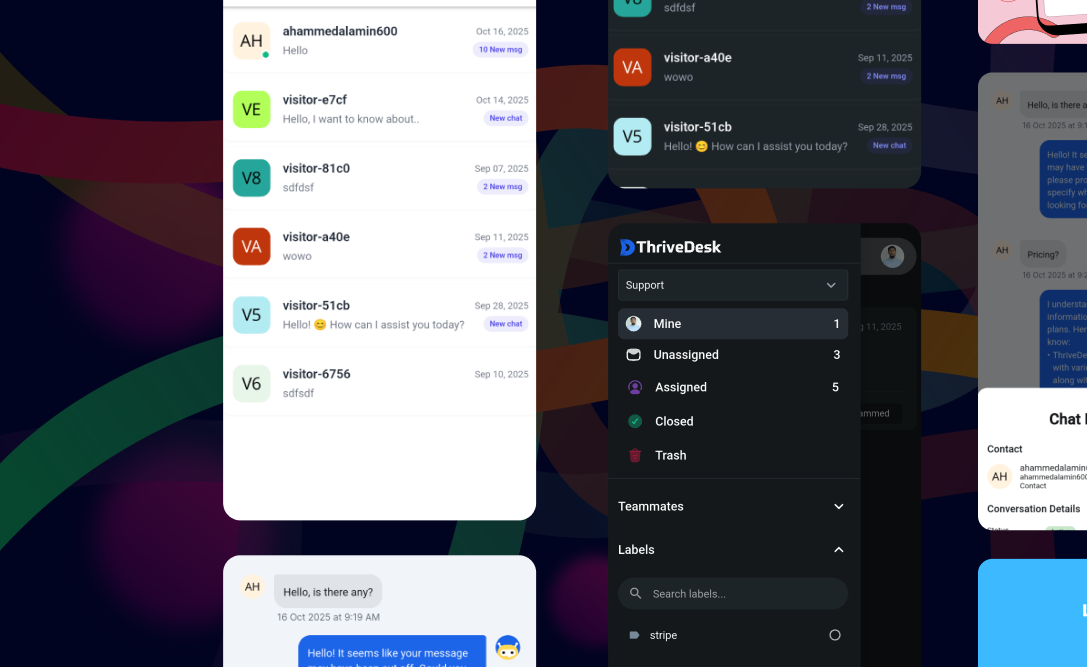
Changelog

Toutes les dernières mises à jour, améliorations et corrections pour ThriveDesk

Snooze Conversations — Clear Your Inbox, Miss Nothing

Not every ticket needs your attention right now. Snooze it, and it comes back exactly when it should.

Some conversations aren’t urgent today but will matter later. Chasing a customer response? Waiting on an internal update? Instead of leaving tickets cluttering your inbox — or worse, forgetting them entirely — you can now snooze them and have them reappear at the right time.

✨ Snooze From Anywhere

You don’t need to open a conversation to snooze it. ThriveDesk gives you three ways to trigger it:

image 2 - ThriveDesk
  • Conversation header — click the clock icon in the top-right corner of any open conversation
  • Reply editor — snooze while composing a reply, right from the bottom toolbar
  • Conversation list — right-click any conversation or use the options menu directly from your inbox

Natural Language Time Input
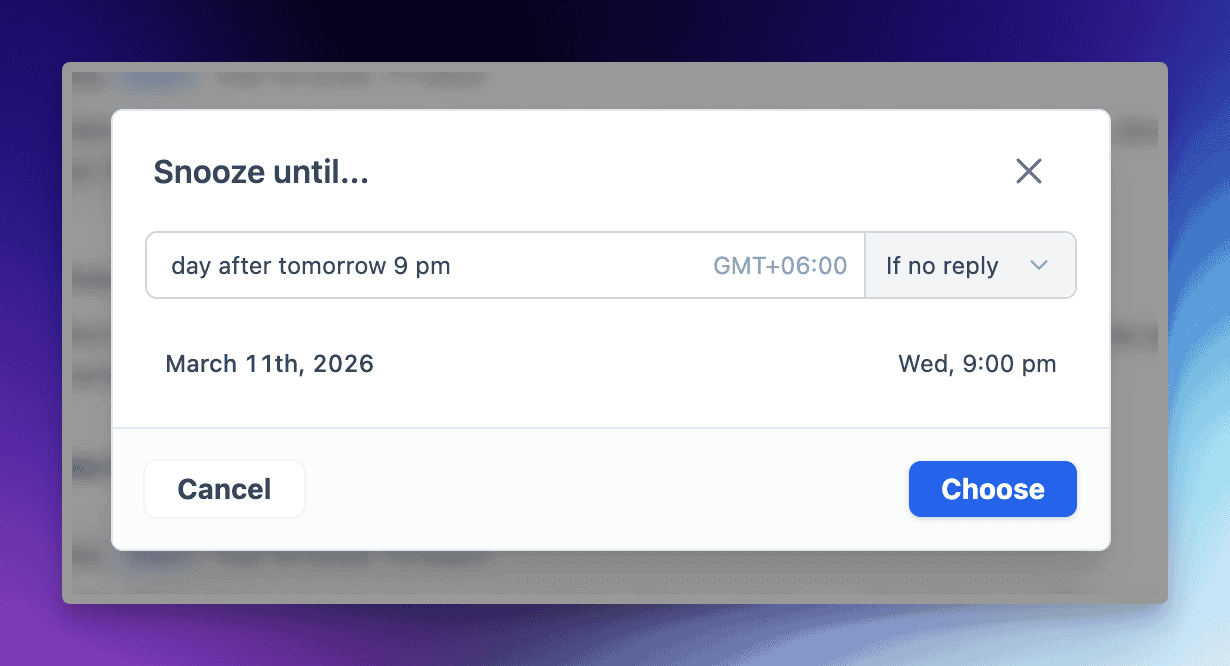
image - ThriveDesk

When you hit snooze, a Snooze until… modal appears. Type when you want it back in plain English:

  • tomorrow at 3pm
  • next wednesday
  • in 2 hours
  • friday 10am

Or use a precise format like 03/05/2026 08:00 AM if you need exact control. Either way, ThriveDesk confirms the exact date and time before you confirm.

Two Snooze Conditions

Choose how the snooze behaves if the customer replies early:

  • If no reply — the snooze clears automatically if the customer responds before the scheduled time. Default behavior, and the smart choice for follow-ups.
  • Regardless — the ticket stays snoozed until your chosen time, no matter what. Useful when you need to resurface it on your schedule.

Managing Snoozed Conversations

All snoozed conversations move to the Later folder in your sidebar — out of your active inbox, but never out of reach.
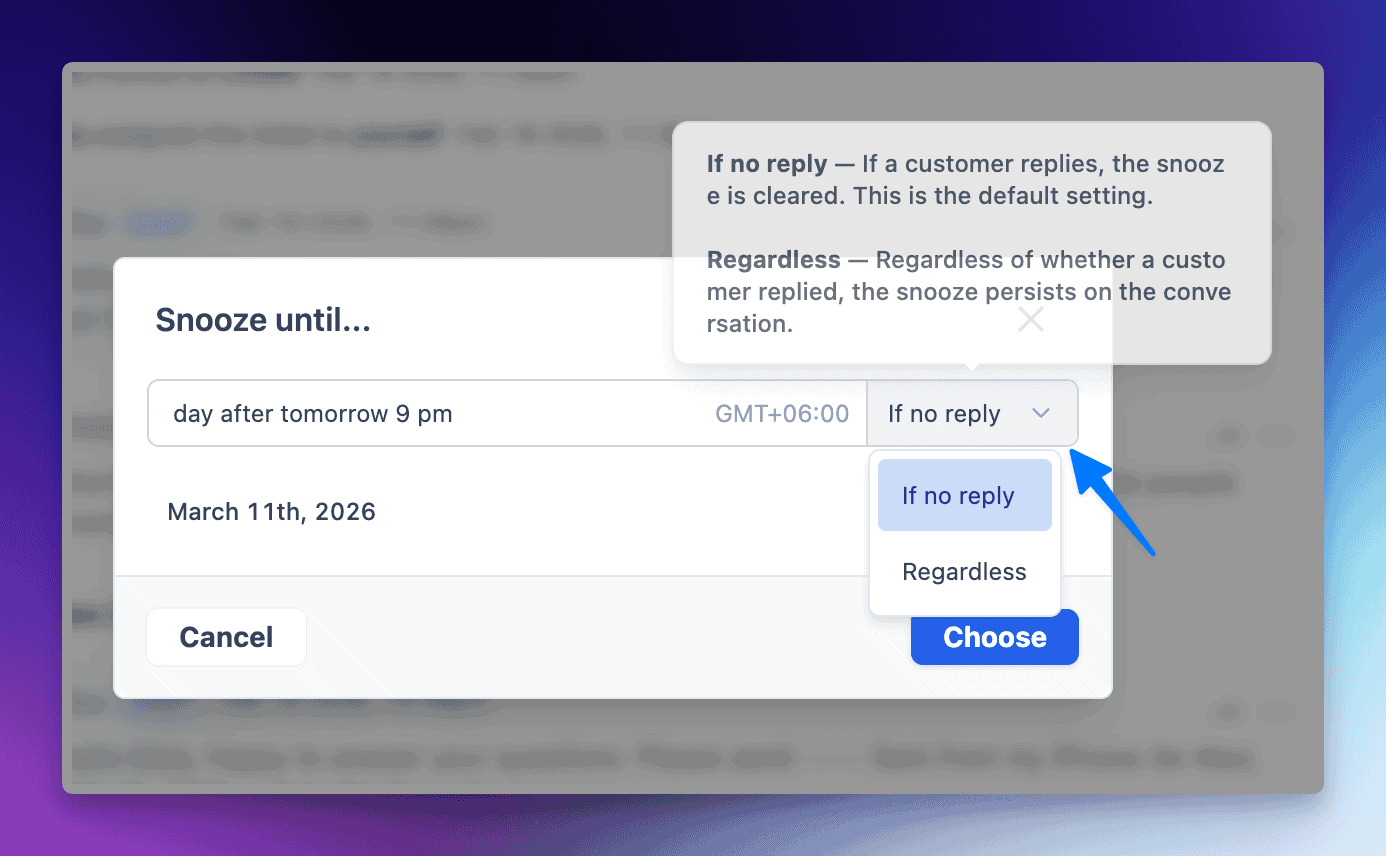
image 1 - ThriveDesk
  • A yellow clock icon appears over the contact’s avatar in the conversation list so you always know what’s snoozed at a glance
  • Hover over the clock icon in any conversation header to see the exact reappearance time
  • Need to reschedule? Click the clock icon again, pick a new time, and hit Update Snooze
  • Need it back immediately? Open the conversation, click the clock icon, and hit the red Unsnooze button

Timezone Setup

Snooze times respect your agent timezone — so a 9am snooze lands at your 9am, not the server’s. Set your timezone by clicking your avatar in the bottom-left corner, then selecting your timezone from the dropdown. You can also jump there directly from the Snooze modal via the update timezone link.
Read the full documentation →

Undo Send — Take Back a Reply Before It’s Too Late

Sent too soon? Now you have a second chance.

We’ve all been there — you hit Send and immediately spot a typo, realize you forgot an attachment, or just change your mind. Starting today, you have a short window to pull it back.

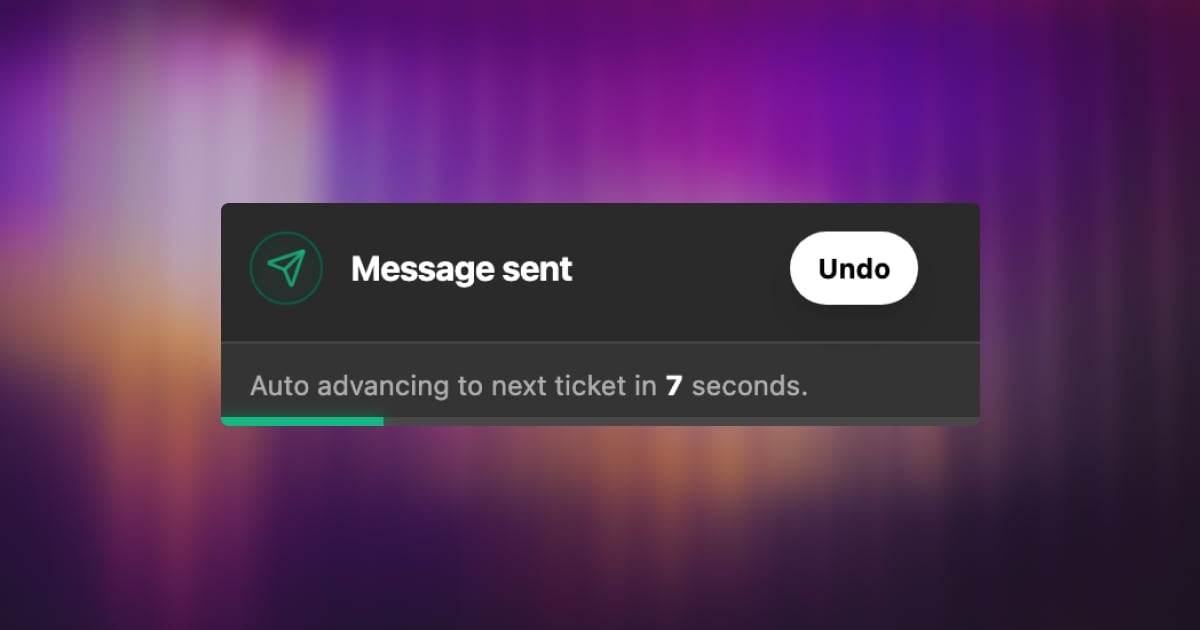
Undo Send delays your outgoing emails by a few seconds, giving you just enough time to cancel before the message leaves your inbox.

Comment ça marche

Once enabled, every reply you send will be held briefly before going out. A countdown appears — and if you need to cancel, one click pulls it back instantly. No awkward follow-up emails, no “please ignore my last message.”

Configurable Cancellation Window

You choose how long the delay lasts. Head to Settings → Personal → Preferences → Undo Sending and pick what works for you:

  • 5 seconds
  • 10 seconds
  • 15 seconds
  • 20 seconds
  • 30 seconds

A longer window means more breathing room. A shorter one keeps things snappy. Totally up to you.

Small feature, big relief. Sometimes the most valuable thing a tool can do is let you fix a mistake before it becomes one.

Custom Fields Now Work with the Assistant

Collect better context before the conversation even begins.

Last month, we launched Custom Fields for Tickets — giving your team the power to capture structured data right inside every conversation.

Today, we’re taking that one step further.

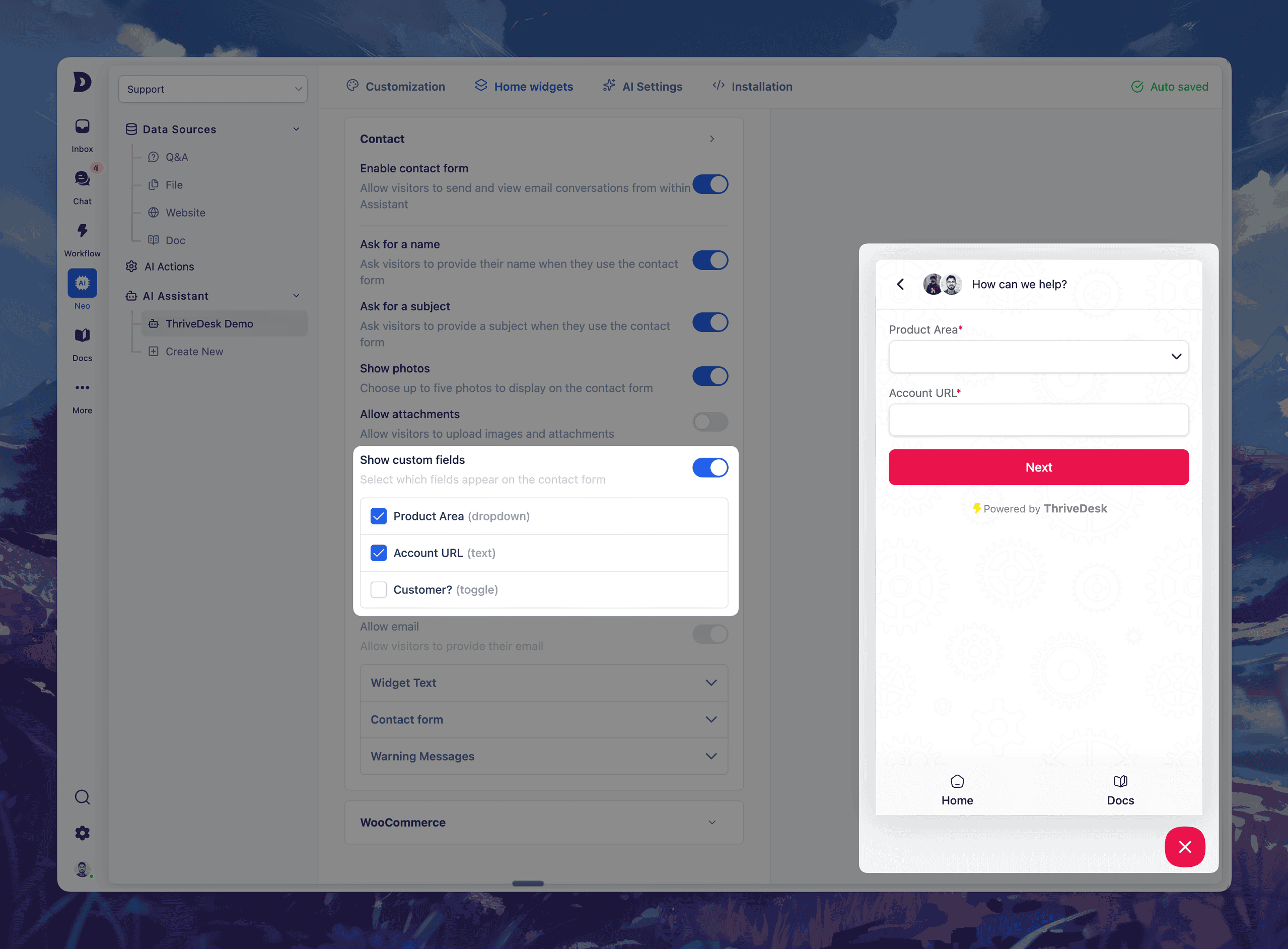
Vous pouvez maintenant add custom fields to your Assistant’s contact form – giving you richer insights before a ticket is even created.

✨ What’s New

  • Select up to 5 custom fields to include in your Assistant’s contact form
  • Field types supported: dropdown, text input, and toggle
  • Your visitors will fill these out before submitting a message
  • All responses appear directly in the ticket sidebar

This means less back-and-forth, better routing, and faster resolutions.

💡 Use it to:

  • Ask for order numbers, product areas, account URLs, or custom tags
  • Auto-assign tickets based on dropdown selections
  • Collect key info before your team even replies

Setup is easy — just head to Neo → Open Assistant → Home Widgets → Contact Form → Custom Fields, toggle on what you need, and go live.

Improvements & Bug Fixes

Cœur de métier
  • Refactor: core architecture refactor & modernization
  • Fix: Inbox View Clutter
  • Fix: Drafts folder shows sent emails
  • Fix: change contact not working issue
  • Fix: active link issue
  • Fix: search state issue
  • Fix: assistant not found error
  • Fix: NEO infinite api calling
  • Fix: EDD data display issue
  • Fix: Draft issue fixed
  • Fix: Assistant duplication issue resolved
  • Fix: Orphan assistant navigation handled
  • Fix: ai settings not saving issue in assistant
  • Fix: verify email modal visibility issue
Base de connaissances
  • Fix: Featured category selection issue by comma-separated slugs
  • Fix: Vimeo Link Insertion Issue in Edito
  • Fix: TOC links scrolling behind sticky header in documentation layout
  • Feat: KnowledgeBase API
  • Feat: Article autosaving & versioning
Application mobile
  • NEW: Swipe Actions on Tickets
  • NEW: @Mentions in Notes
  • Feat: new dashboard page for better insights.
  • Improvement: added more context and info to the live chat feature (i) button.

Introducing Custom Fields for Tickets – Tailor Your Support, Your Way

We’re kicking off 2026 with our first major release of the year: Custom Fields for Tickets. This powerful new feature lets you customize your ticketing system to fit your unique workflows with absolutely no code.

Whether you need to track a customer’s subscription tier, a product version, an internal status, or anything in between, you can now capture that information right inside each ticket.

The result? Context-rich, structured support that adapts to your team’s needs and boosts efficiency from day one.

Why Custom Fields? Empowering Context-Rich Support

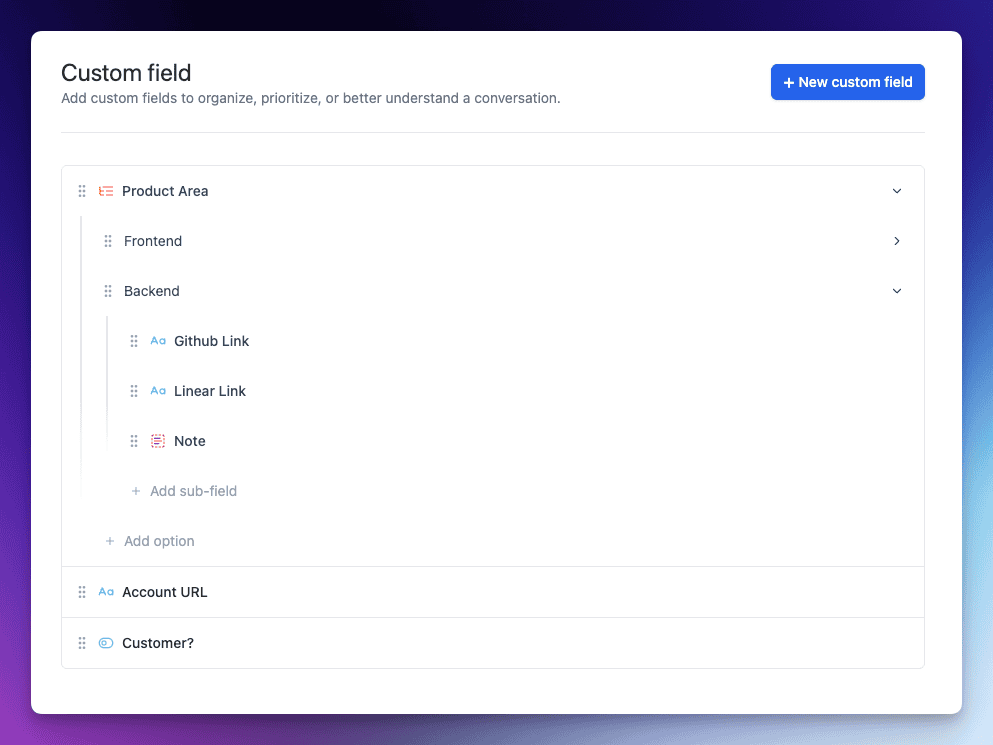
custom fields ticket ui - ThriveDesk

Every support team has its own workflow and data needs. Custom Fields allow you to collect and organize additional data on tickets beyond the standard fields. Imagine being able to log the product version, customer tier, issue category, or any other key detail relevant to a conversation – all within the ticket view. With these fields, you can:

  • Extend the data you collect on each ticket, ensuring all relevant info is captured.
  • Maintain consistent, structured data using predefined options (no more messy free-form notes).
  • Improve reporting and automation by filtering and running reports on custom field values. Identify trends or trigger workflows based on field data with ease.
  • Never miss critical info – mark important fields as required, so agents must fill them before sending a reply. No key detail falls through the cracks.

In short, Custom Fields turn your tickets into a treasure trove of structured context. Your team gains a 360° view of each issue at a glance, and your managers gain clean data to analyze and optimize support operations.

New Field Types – No Code Needed

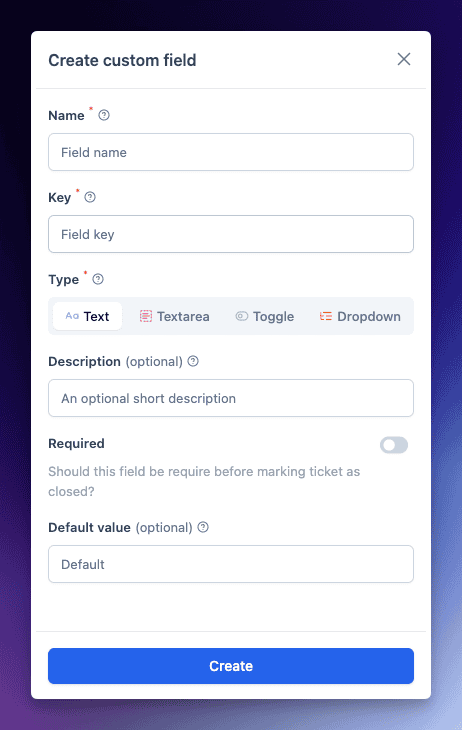
We’ve made Custom Fields flexible enough to capture various types of information without any coding or technical setup. You can choose from four field types when creating a custom field:

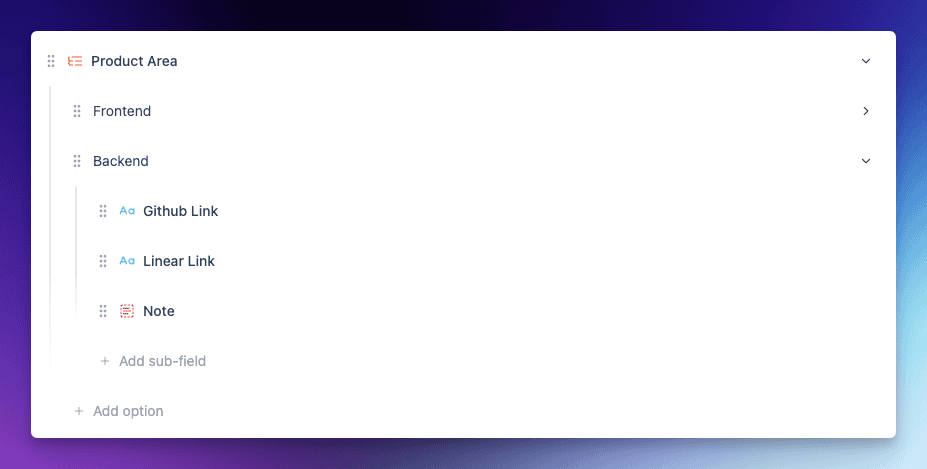
  • Dropdown: A predefined list of options to select from (perfect for things like issue category or product area). Define your own options – no coding, just point-and-click.
  • Single‑line Text: A one-line free text field for short inputs (e.g. an order ID or a short note).
  • Multi‑line Text: A larger text box for longer inputs (great for descriptions, internal notes or troubleshooting steps).
  • Toggle: A simple on/off switch for yes/no or true/false values (ideal for boolean data like “Paid Customer?” or “Urgent Issue”).
custom fields types - ThriveDesk

All it takes is a few clicks in the Inbox Settings to add a new field – no scripts, no forms to code. In fact, creating a custom field is as easy as naming it, choosing the field type, and (if it’s a Dropdown) adding your options.

Once created, custom fields live right where you need them: inside the ticket interface. You can even set default values or mark fields as required with a toggle.

If a field is marked required, agents will be gently reminded to fill it in before sending a reply, ensuring important data is always collected. It’s all about making structured data collection seamless and part of the natural workflow.

Seamless In-Ticket Experience

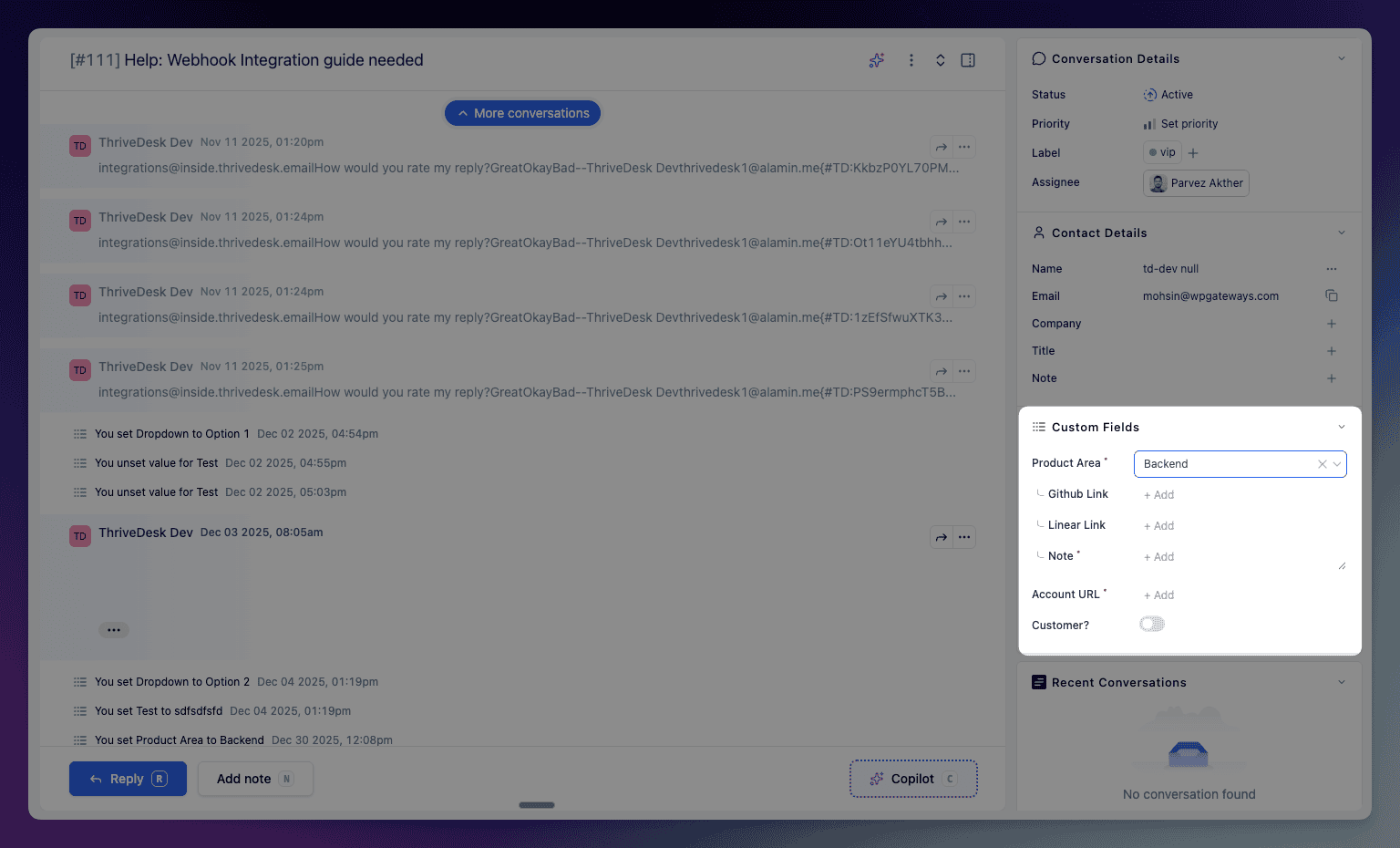
custom fields conditional field - ThriveDesk

Custom Fields are seamlessly integrated into each ticket’s sidebar, giving agents immediate access to context. In this example, selecting a “Product Area” reveals relevant sub-fields like GitHub link, Linear link, and notes – keeping everything clean and relevant to the issue at hand.

The interface is clean and agent-friendly. Thanks to conditional logic, you can configure fields to show or hide based on another field’s value, so agents only see what’s relevant to the ticket they’re handling.

Learn More & Get Started

Ready to supercharge your support workflow with Custom Fields? We’ve got you covered. Jump into our Centre d'aide for a step-by-step guide on setting up and using Custom Fields, complete with screenshots and tips. Check out the full documentation here: Custom Fields Documentation.

We can’t wait to see how you’ll tailor ThriveDesk to your needs with this new feature. Custom Fields for Tickets open up a world of possibilities – from more personalized support to smarter automation and reporting. As always, we built this feature hand-in-hand with feedback from teams like yours, and we’re excited to see the impact it will have on your day-to-day operations.

Introducing iOS App v2.0

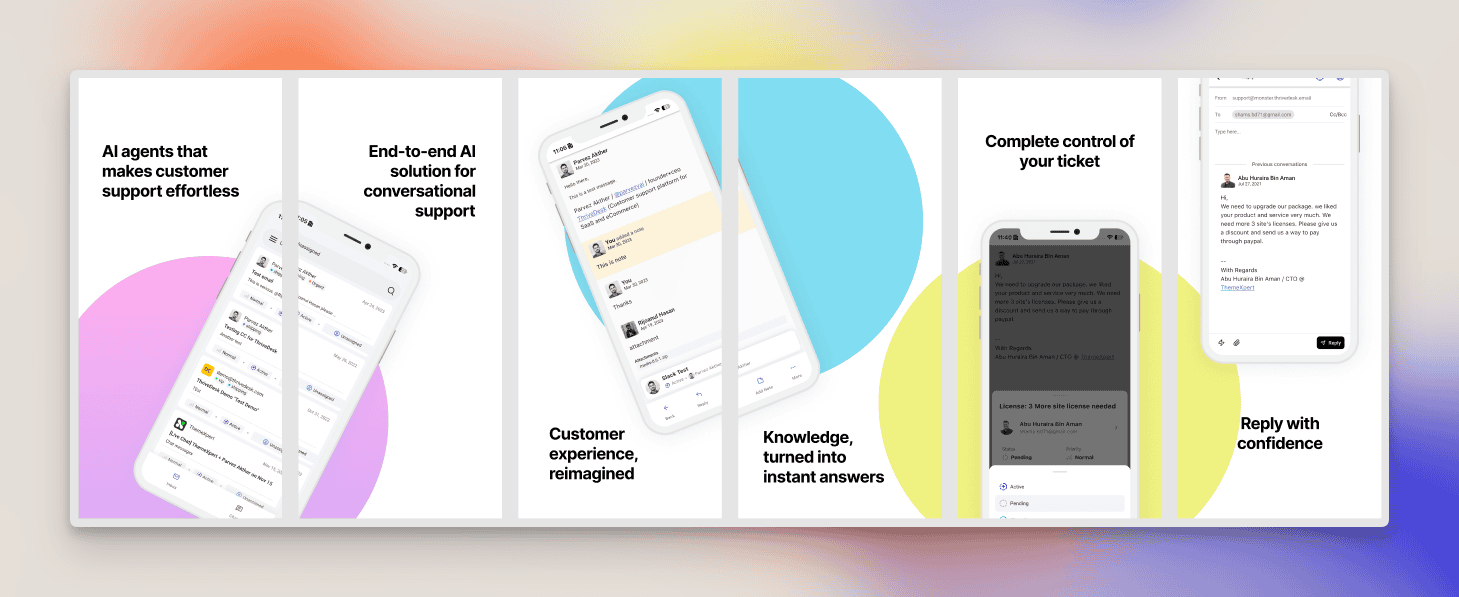
A completely redesigned mobile experience built for speed, clarity, and maximum productivity.

We rebuilt the ThriveDesk iOS app from the ground up with a brand-new interface, improved navigation, and smarter tools that help agents get more done with less effort.

This is our biggest and most refined iOS update yet.

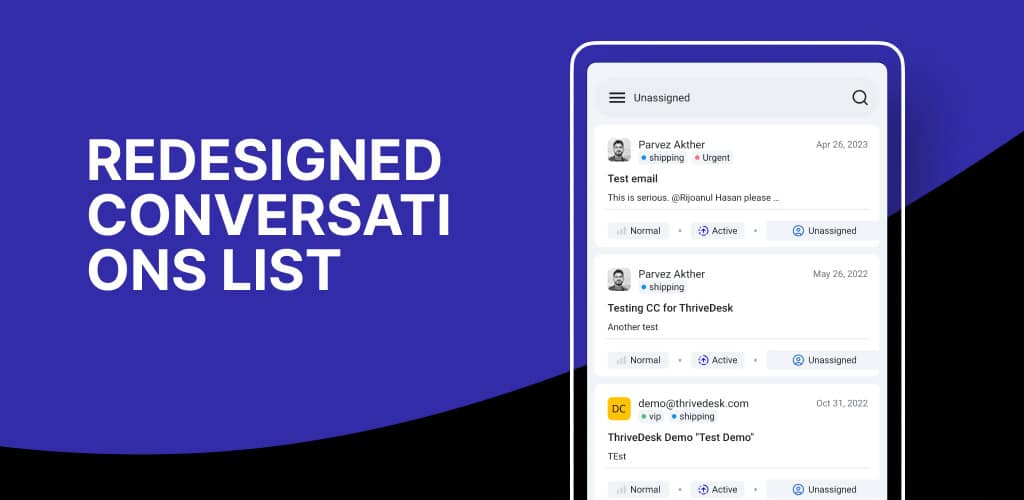
Redesigned Conversations List

ios conversation list - ThriveDesk

The conversations list has been fully redesigned with improved spacing, sharper typography, and cleaner message previews.

You can now scan conversation states, participant details, and unread messages much faster.

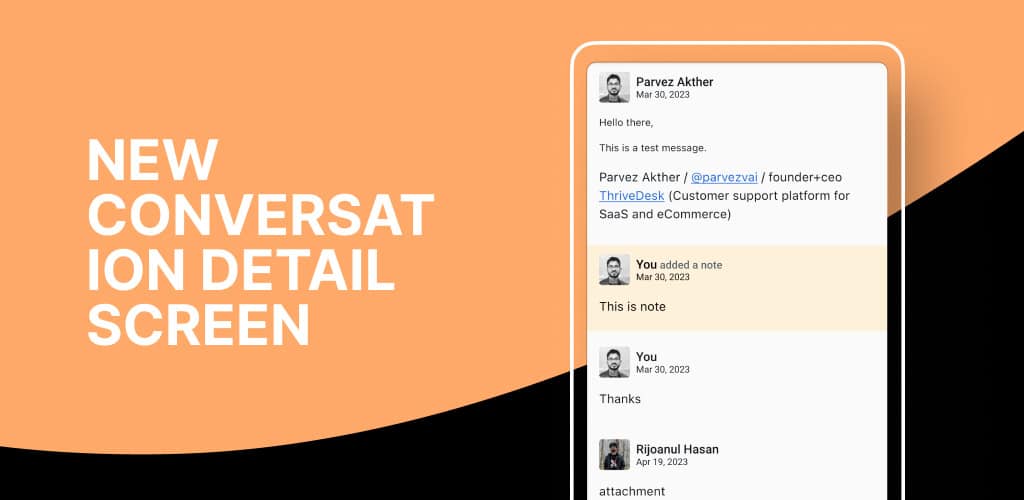
New Conversation Detail Screen

ios conversation details - ThriveDesk

We rethought the conversation detail screen from zero to give agents a more intuitive and productive workflow.

Information is now grouped logically, action buttons are easier to access, and message histories are displayed more clearly.

Whether you’re replying, assigning, or reviewing context, everything feels smoother and more streamlined.

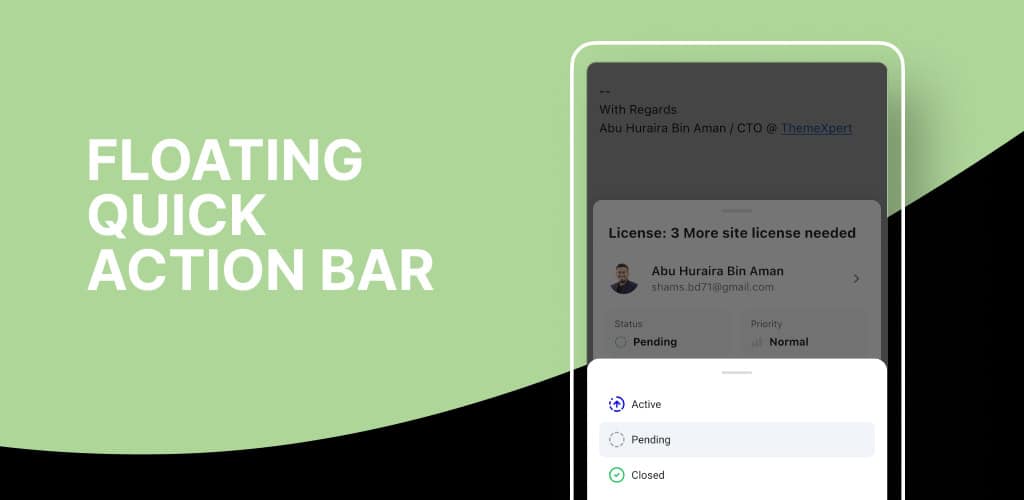
Floating Quick Action Bar

ios quick action - ThriveDesk

The new floating action bar follows you as you navigate inside a conversation.

Assigning teammates, updating statuses, adding tags, or replying can now be done in one tap.

This eliminates unnecessary scrolling and menu diving, helping you move through conversations much more efficiently.

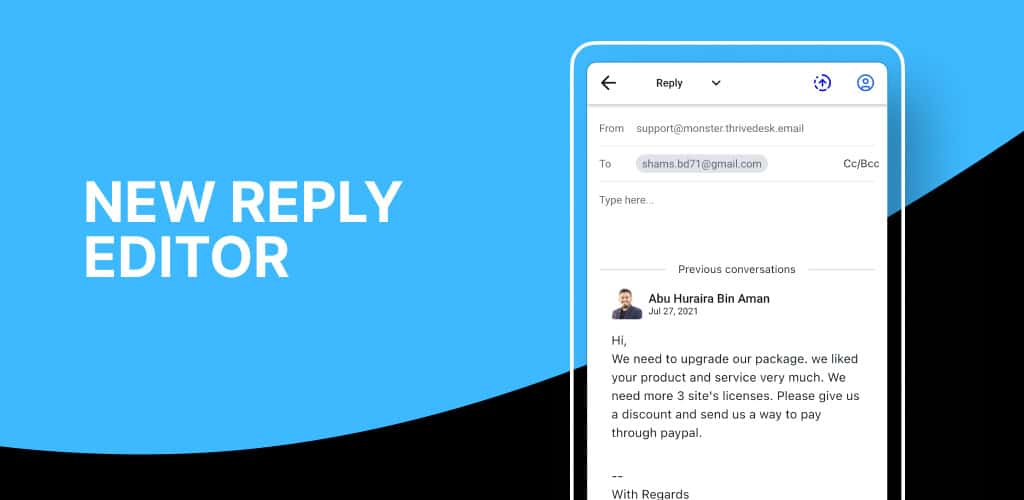
New Reply Editor

ios reply editor - ThriveDesk

Replying is now faster and more informed with the redesigned editor. You can type while simultaneously viewing the full conversation history, preventing context loss and mistakes.

Formatting is sharper, input handling is smoother, and saved replies work seamlessly for quick responses.

Easier Navigation

The entire navigation system has been improved to feel more predictable and effortless. Switching between inboxes, opening conversations, moving back and forth, and accessing settings now feels much more natural.

Whats next?

We’re improving the live chat flow to make it feel more natural on mobile. In the next release, expect a better live chat experience along with full custom fields integration.

Introducing Split Conversations: Create Focused Threads With One Click

Keep threads clean, focused, and easier to manage.

We just shipped a powerful new tool that helps your team stay organized when conversations drift into multiple topics.

Support emails often expand into multiple questions, follow-ups, or unrelated issues. Instead of forcing everything into one long thread, you can now split messages into a brand-new conversation with a clear subject and focused context.

This gives agents better clarity, improves response accuracy, and keeps your inbox tidy.

Comment ça marche

You can split any part of a conversation with just two clicks:

  1. Open the message options menu.
  2. Sélectionner Split conversation to create a new conversation.

Read more on our split conversation documentation.


WordPress Plugin (Version 2.1.5)

  • Fixed PHP date warnings.
  • Fixed search result “object object” output error.
  • Corrected broken documentation links.

Android App Update

Introducing the “All” Folder: View every conversation across inboxes instantly — perfect for agents who want full visibility in mobile workflows.

New delivery status badges: Messages now clearly show Failed ou Bounced states for quick troubleshooting.

Improved Stability: Fixed issue where some conversation pages appeared blank.


Improvements & Bug Fixes
  • Neo’s static UI text can now be translated, allowing you to localize your support experience.
  • Page titles now update instantly when the subject changes.
  • Conversation navigator updates correctly when the assignee changes.
  • Fixed undefined filter issue on the conversations page.
  • Fixed undefined runtime errors.
  • Corrected assignee button width to prevent layout breaking.
  • Added missing status thread event for more accurate updates.

Corriger les mauvais sujets

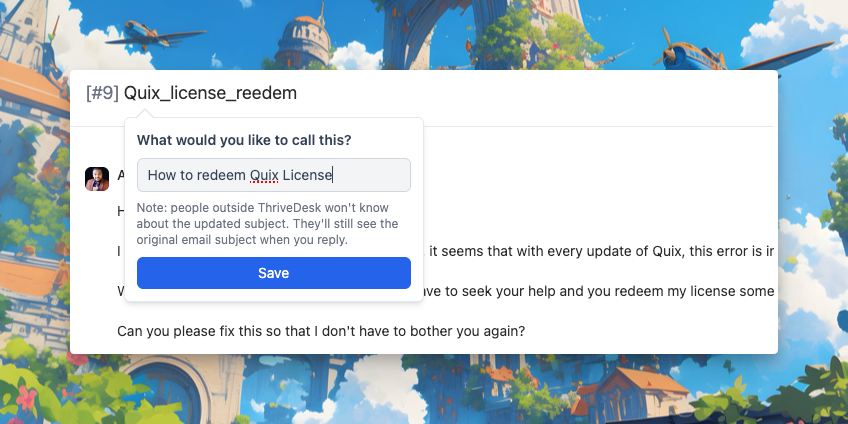
Vous pouvez maintenant mettre à jour le Objet de l'e-mail directement dans la vue du fil de discussion — pas besoin de quitter la conversation ni de fouiller dans les paramètres.

Cette petite mais puissante amélioration vous aide à garder les objets de vos e-mails clairs et pertinents, surtout lorsqu'une conversation évolue ou change de direction.

Renommer un sujet – cela modifie-t-il la conversation pour le client ?

Non, le titre original reste visible pour le client. Renommer une discussion est donc avant tout avantageux pour vous et votre équipe : cela facilite le suivi et vous permet de garder votre sang-froid.

Fusion des conversations en masse, boîte de réception unifiée et mise à jour de l'API Assistant

Cette mise à jour vise à améliorer l'efficacité et la fiabilité des flux de travail entre les boîtes de réception, LiveChat et le portail WordPress. Principale nouveauté ? Vous pouvez désormais fusionner plusieurs conversations en un seul clic.

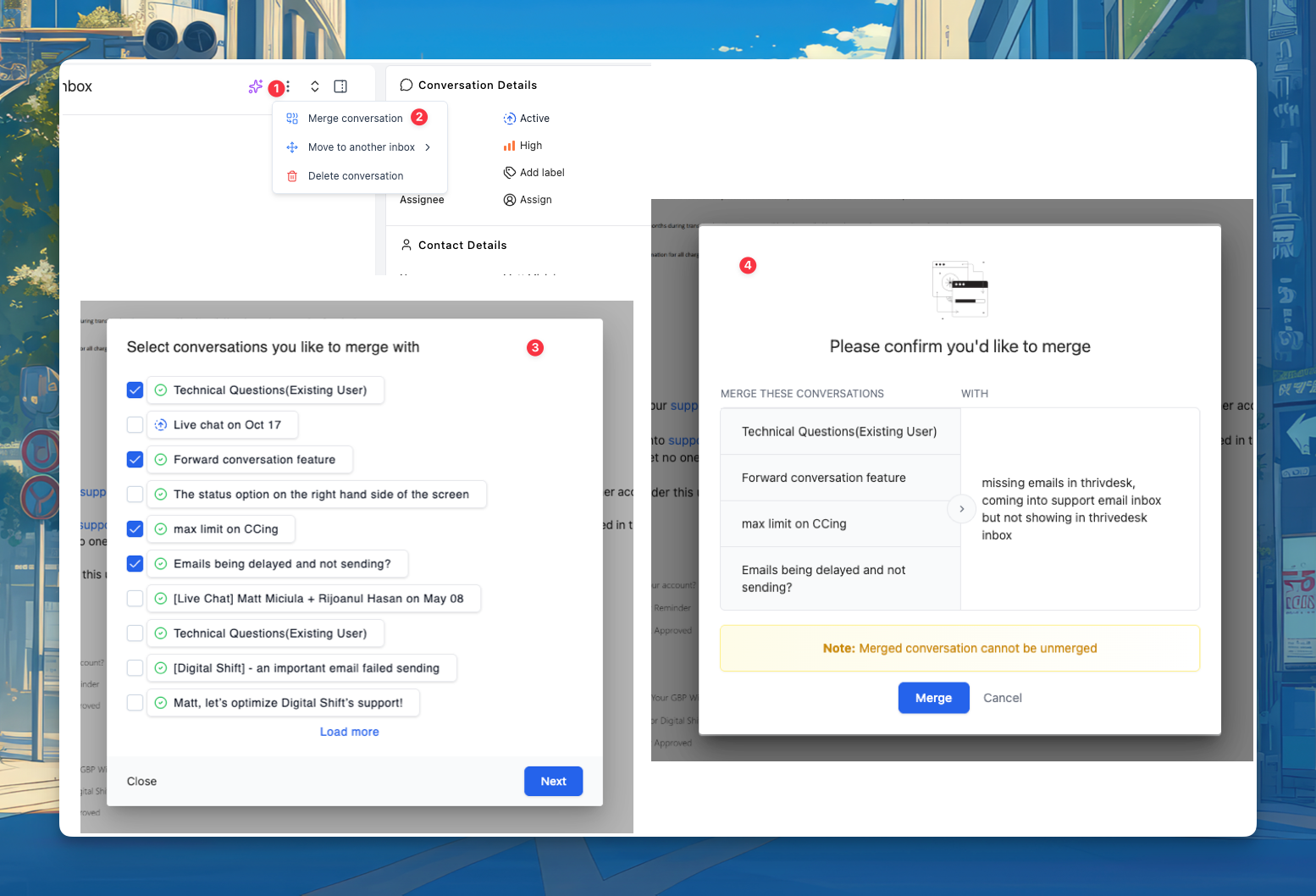
Fusionnez plusieurs conversations simultanément.

Vous pouvez désormais fusionner plusieurs conversations en une seule action. Cette fonctionnalité aide les équipes de support à éliminer les doublons de tickets, à réduire l'encombrement et à maintenir une communication organisée.

Améliorations de la boîte de réception

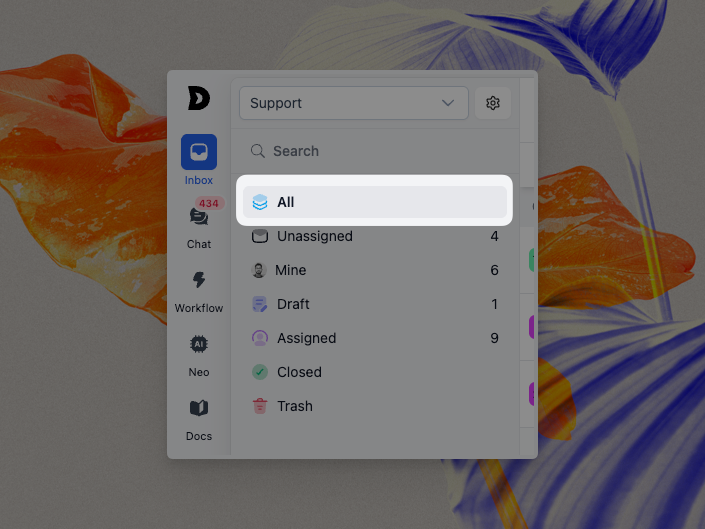
all filter - ThriveDesk

Les Tous Le menu latéral de la boîte de réception vous permet désormais de consulter tous les tickets au même endroit, avec tous les filtres et catégories. Vous pouvez ainsi suivre plus facilement l'activité de votre espace de travail.

Mise à jour de l'API Assistant

Nous avons ajouté un nouveau Assistant('prêt', rappel) Une API permet aux développeurs de déclencher des actions spécifiques une fois l'Assistant entièrement chargé. Pour en savoir plus, consultez notre guide du développeur.

Improvements
  • Résolution des problèmes de blocage causés par l'absence d'identifiants d'agent.
  • Nous avons vérifié que l'organisation active se mettait correctement à jour après l'acceptation d'une invitation à un espace de travail ou après la redirection via un lien d'invitation.
  • Ajout de l'option “ Toutes les conversations ” pour un meilleur filtrage.
  • Amélioration des traductions des sous-titres de LiveChat.
  • Le bouton « Rejeter » a été supprimé de la fenêtre modale de suppression du brouillon.
Corrections de bugs
  • Correction d'un problème où les noms des contacts n'étaient pas correctement ajoutés dans la méthode d'identification.
  • Résolution d'un problème où les brouillons et les notes internes étaient visibles dans la vue des tickets clients du portail WordPress.
  • Correction d'un bug où les horodatages des conversations clôturées ne s'affichaient pas correctement lors de la création de nouveaux tickets.
  • Correction du nombre de conversations dans les listes et suppression des éléments supprimés ou fermés.
  • Correction des problèmes d'exploration pour les sites web comportant plus de 100 URL.
  • Correction d'un problème d'index z avec les notifications WebSocket.
  • La recherche par étiquette corrigée ne fonctionnait pas en mode automatisé.
  • Correction d'un problème de “ boîte de réception non définie ” affectant la visibilité.

Grosse mise à jour Android : le chat en direct est là !

Effortless customer support platform featuring integrated live chat, ticket management, and team collaboration tools for seamless business communication.

Le chat en direct est désormais disponible sur Android — et ça change tout.
Il ne s'agit pas simplement d'une nouvelle fonctionnalité ; c'est une refonte complète de l'expérience de chat en direct sur mobile — plus rapide, plus fluide et plus performante que jamais.

💬 Chat en direct — Réinventé

Le module de chat en direct a été entièrement reconstruit Pour plus de rapidité et de stabilité. Désormais, vous pouvez discuter en temps réel avec vos clients, gérer les conversations et répondre facilement, le tout depuis votre appareil Android.

⚡ Principales fonctionnalités et améliorations

Vous trouverez également une toute nouvelle barre d'outils personnalisable, conçue pour un accès rapide aux actions clés, rendant la gestion des conversations plus rapide et plus agréable.

  • Assistance pour les pièces jointes : Envoyez et visualisez les pièces jointes directement depuis la conversation.
  • Instant Replies: Répondez rapidement grâce aux réponses préenregistrées qui remplacent automatiquement les espaces réservés.
  • Éditeur de texte enrichi : Mettez en forme vos messages avec du gras, de l'italique, des liens et plus encore pour un rendu soigné.
  • Événements liés aux chatbots : Bénéficiez d'interactions avec votre chatbot plus fluides et plus intelligentes grâce à une gestion robuste des événements.
  • Interface utilisateur personnalisée de la barre d'outils : La nouvelle barre d'outils de l'éditeur a été repensée pour une expérience plus épurée et plus intuitive.

🧭 Améliorations de l'interface utilisateur et des thèmes

Nous avons entièrement repensé l'interface pour une expérience utilisateur plus fluide. L'en-tête de navigation utilise des icônes claires, les couleurs du mode sombre sont parfaitement équilibrées pour une lisibilité optimale, et l'écran des réponses enregistrées offre désormais une apparence et un confort d'utilisation uniformes sur tous les appareils.

  • Navigation simplifiée : Les icônes correctes apparaissent désormais dans l'en-tête du chat pour une meilleure orientation.
  • Correctifs du mode nuit : Le texte et les couleurs s'adaptent désormais correctement au mode sombre, garantissant une lisibilité optimale en toutes circonstances.
  • Interface utilisateur cohérente pour les réponses enregistrées : Icônes et espacement standardisés pour une apparence uniforme sur tous les appareils.

🪄 Stabilité et corrections

Les performances et la fiabilité de l'application ont été améliorées. Les réponses aux contacts s'affichent désormais instantanément, les images se chargent correctement et les listes de discussions présentent l'intégralité des messages. Les notifications sont plus intelligentes, les problèmes d'alignement sont résolus et les données se mettent à jour automatiquement lors du changement de boîte de réception ou d'organisation.

  • Réponses aux demandes de contact en temps réel : Consultez instantanément les réponses des clients dans les conversations mobiles.
  • Contexte du message clair : Les réponses de l'agent et du client sont visuellement différenciées, avec attribution de l'agent.
  • Pagination et défilement : Correction d'un problème où le dernier message n'était pas visible dans la liste des discussions.
  • Chargement de l'image : Correction d'un bug qui provoquait le chargement infini des images longues.
  • Navigateur de page : Correction des incohérences de style lors du passage d'une vue à l'autre.
  • Notifications des acteurs : L'application mobile ignore désormais correctement les notifications des agents d'acteurs.
  • Alignement des options : Alignements des options générales ajustés pour une interface utilisateur plus épurée.
  • Actualisation des données : Les réponses enregistrées se récupèrent désormais correctement lors du changement d'organisation ou de boîte de réception.

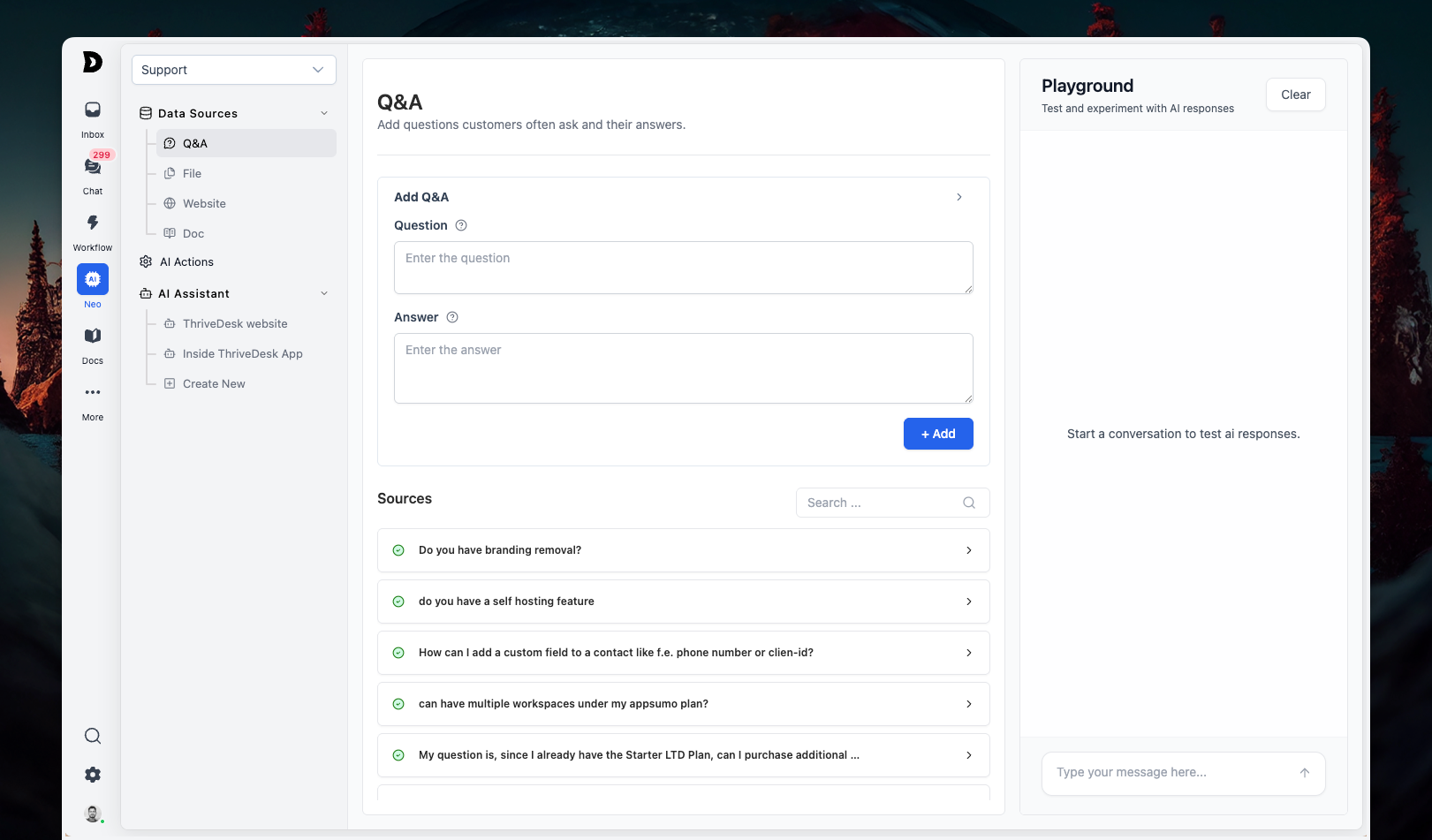
Découvrez la toute nouvelle expérience ThriveDesk AI

Q&A support interface screenshot.

Nous sommes ravis de vous présenter l'une de nos plus importantes mises à jour en matière d'IA à ce jour. Cette version apporte… interface IA unifiée, intégration instantanée, et le tout nouveau Terrain de jeu de l'IA, ce qui permet de former, de tester et de personnaliser votre chatbot plus rapidement et plus facilement que jamais.

Plus besoin de jongler entre plusieurs pages ni d'attendre des mises à jour : tout est plus rapide, plus simple et plus flexible.

Interface IA unifiée

Tous les paramètres d'IA sont désormais organisés dans un interface unique, ce qui facilite la configuration et la gestion de votre chatbot sans avoir à changer de page.

Intégration instantanée

Upload files to train AI chatbot on ThriveDesk platform, including connect links and content for improved automation and customer service.

Les données d'entraînement sont désormais intégrées instantanément. Importez un document, modifiez une source de connaissances ou ajoutez une page web : votre chatbot l'apprend immédiatement, sans délai.

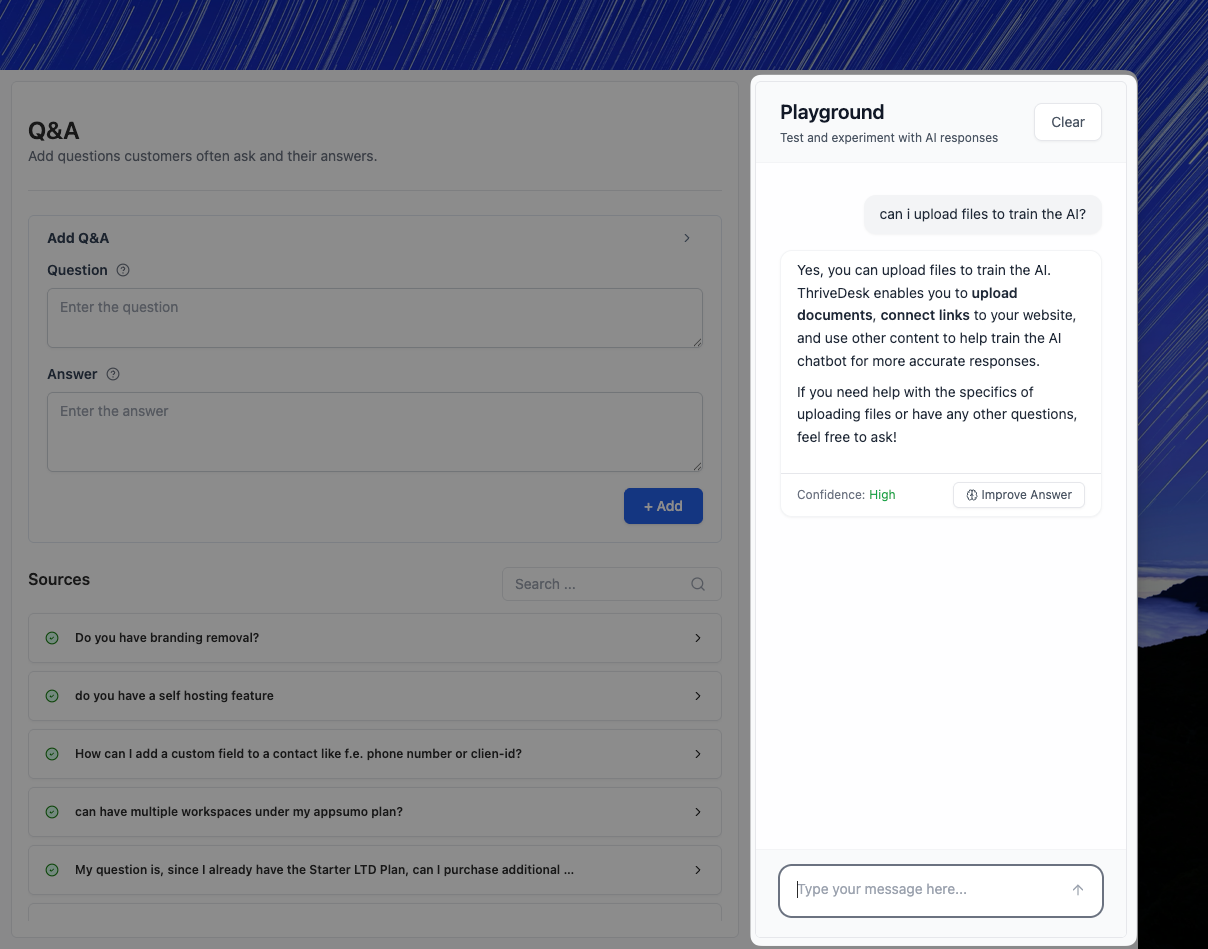
Terrain de jeu de l'IA

Uploading AI chatbot training files through ThriveDesk platform for enhanced customer support and automation.

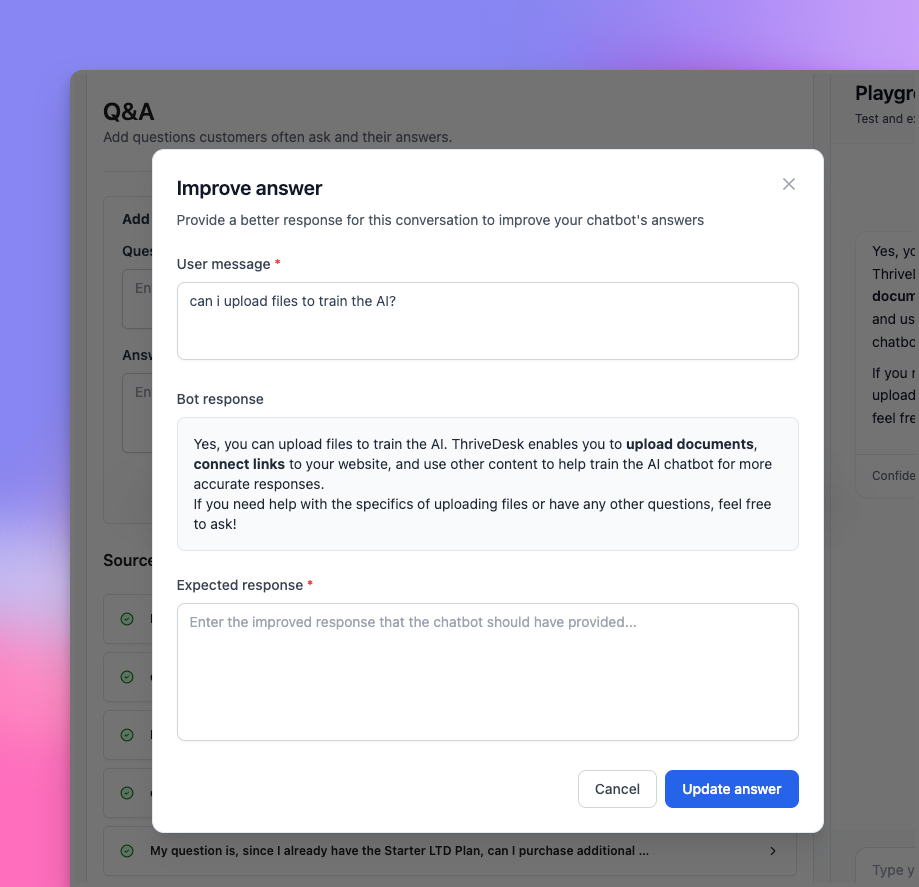
Testez instantanément les réponses de Neo avant de les déployer sur votre site. La réponse ne vous convient pas ? Cliquez sur “"Améliorer"” et le perfectionner immédiatement. Sans attente, sans conjectures.

Discutez avec vos fichiers

Télécharger documents, PDF, HTML ou feuilles de calcul Vous pouvez désormais commencer à discuter avec eux instantanément. Neo peut lire vos fichiers et y répondre directement.

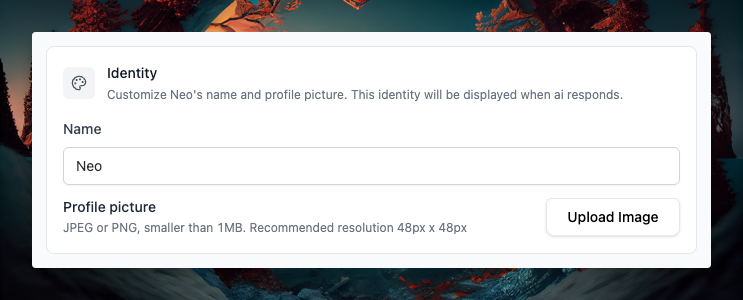
Identité IA

Modern dashboard interface showcasing ThriveDesk customer support platform with profile customization, emphasizing user-friendly design and seamless onboarding.

Donnez une identité à votre chatbot —changer son nom et son icône pour mieux correspondre à votre marque.

Gestion plus intelligente des connaissances

  • Les documents récemment ajoutés sont indexé automatiquement pour une disponibilité plus rapide.
  • Vous pouvez maintenant désactiver des documents ou des pages Web individuels auprès de sources de formation, au besoin.
  • Créer un assistant de chat IA est désormais un jeu d'enfant.configurez-le à partir de la même page sans aller ailleurs.
Corrections de bugs
  • Correction d'un problème d'espacement dans la signature de la boîte de réception.
  • Correction d'un problème qui permettait d'envoyer des messages vides dans le chat en direct.