

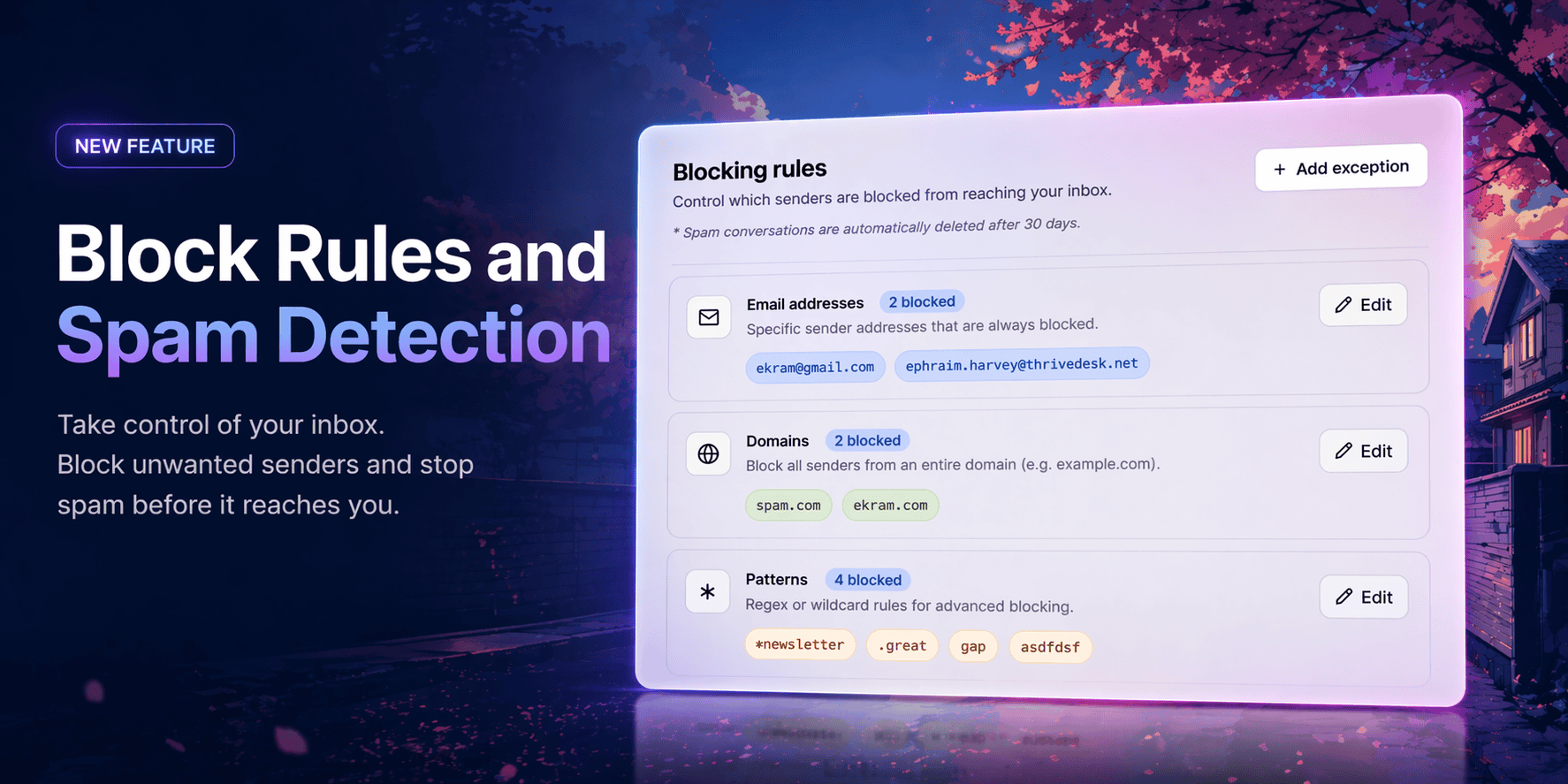
Your inbox should only have conversations worth having, keep the noise out.
Spam and unwanted senders waste your team’s time. Now you have full control over what reaches your inbox — and what never gets in.
Blocking Rules
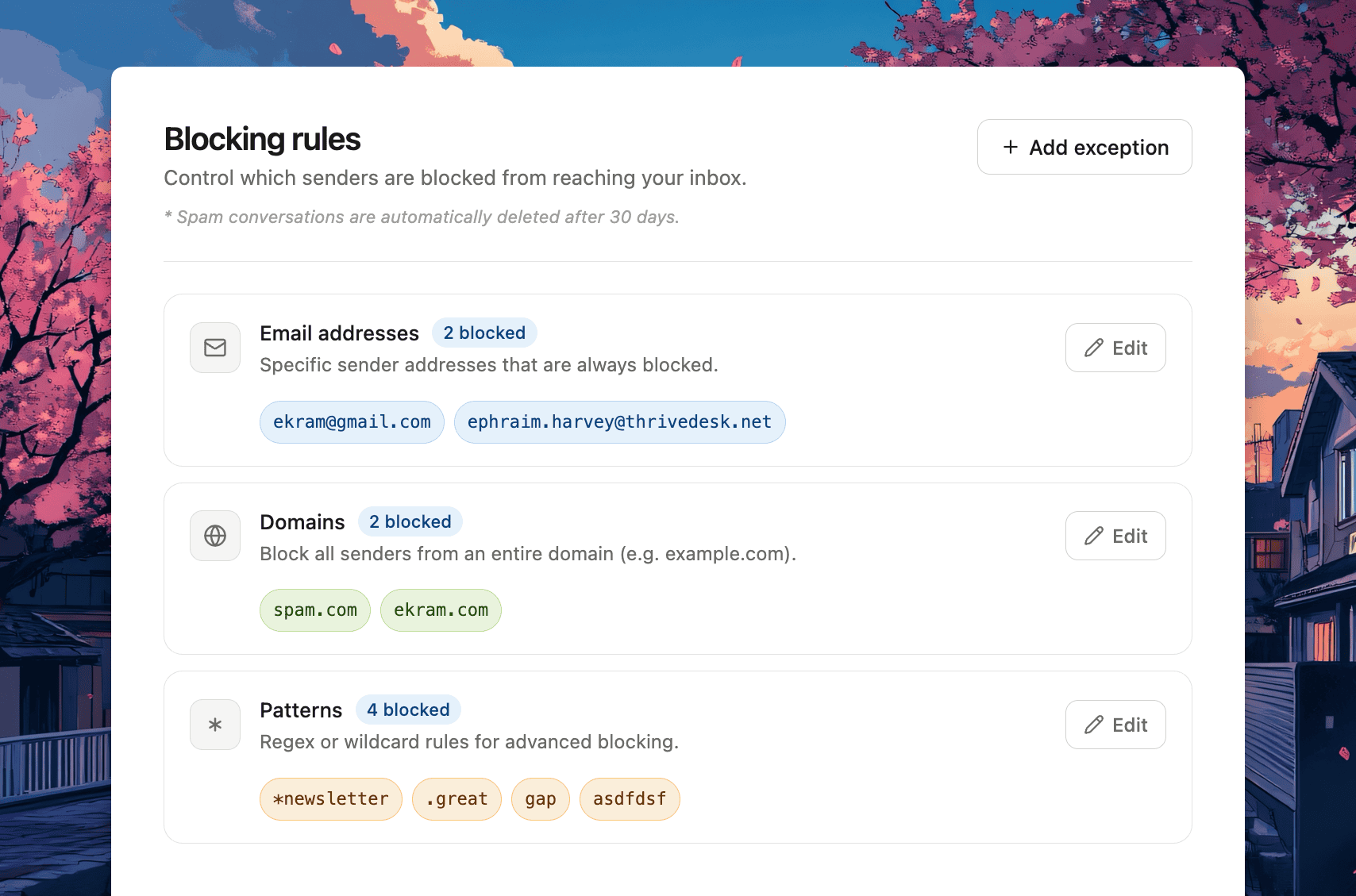
Head to Settings → Blocking Rules to set up your blocklist. Three ways to block:
Email Addresses — Block specific senders by email. Any future messages from that address go straight to spam, never touching your active inbox.
Domains — Block an entire domain at once. Add spam.com and every address from that domain is blocked automatically. No need to add them one by one.
Patterns — For advanced control, use regex or wildcard rules. Block anything matching *newsletter, a specific TLD like .xyz, or any custom pattern your team needs.
Spam conversations are automatically deleted after 30 days.
Exceptions
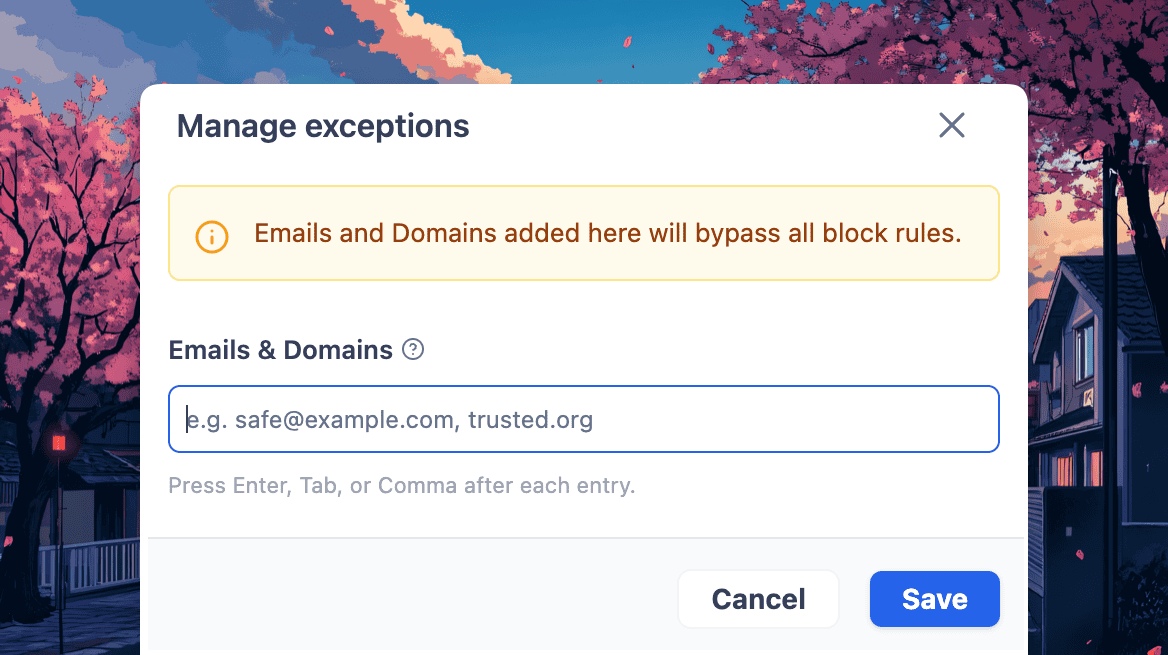
Blocked a domain but need to let a specific sender through? Use Add Exception to whitelist individual emails or entire domains. Anything added here bypasses all blocking rules — no exceptions to the exceptions.
Mark as Spam From Any Ticket
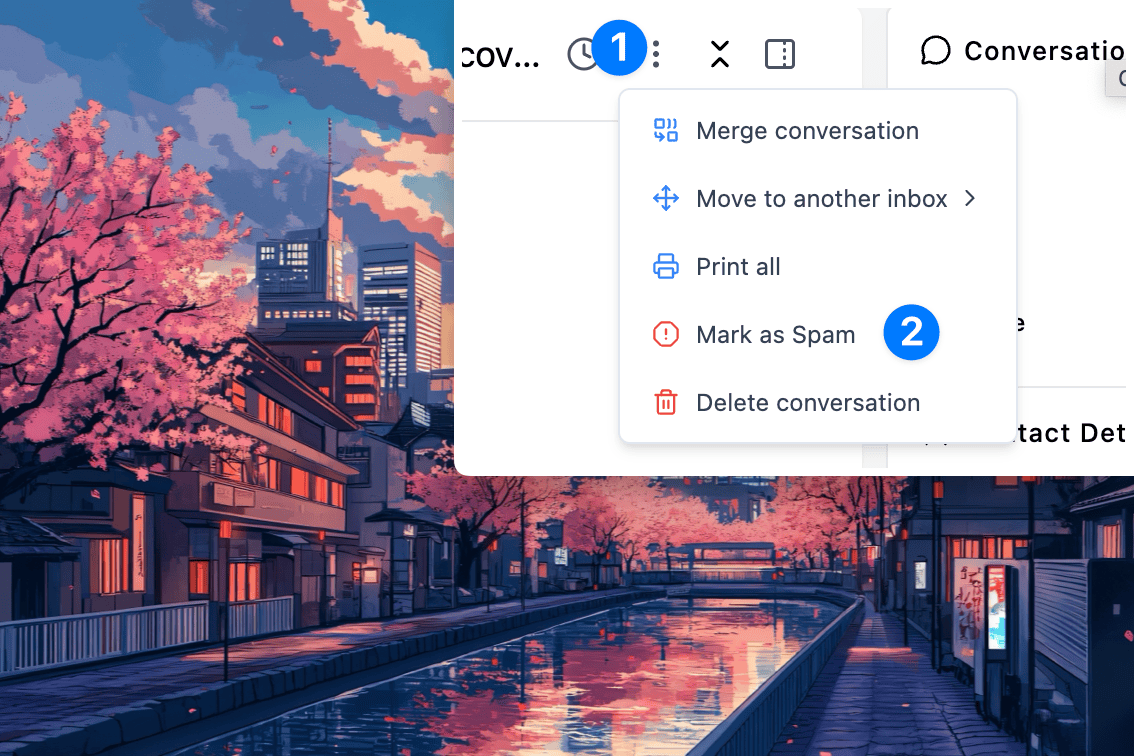
You don’t need to visit settings to block someone. Open any conversation, click the options menu, and select Mark as Spam. ThriveDesk will confirm the action and automatically add that email address to your blocklist. Future messages from that sender go straight to spam.
Unspam is Just as Easy
Made a mistake? Open the spam conversation, click Mark as Not Spam, and ThriveDesk will offer to move it back to your inbox and remove the contact from your blocklist — in one step.