

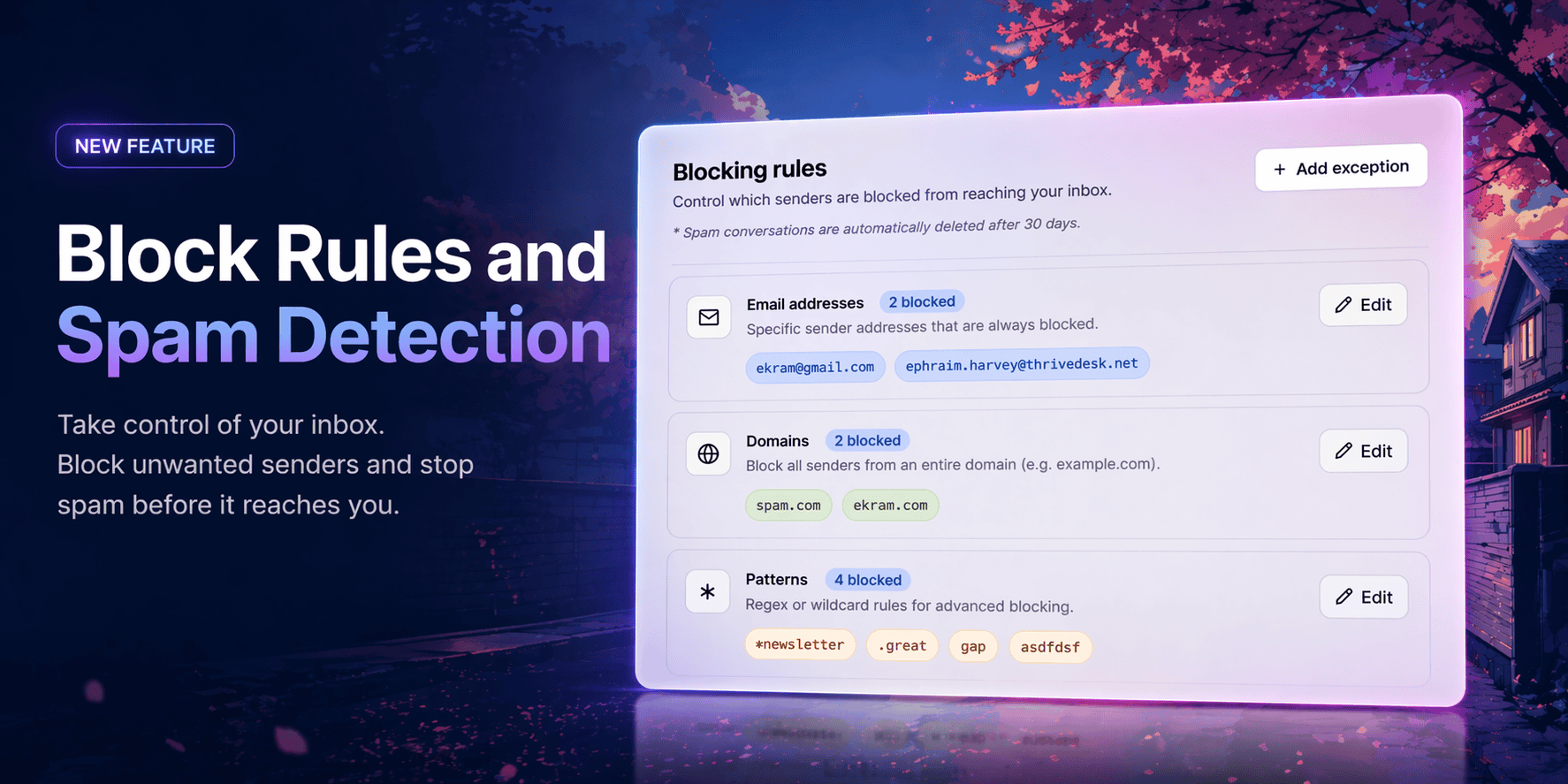
Tu bandeja de entrada solo debería contener conversaciones que valgan la pena; mantén el ruido fuera..
El spam y los remitentes no deseados hacen perder el tiempo a tu equipo. Ahora tienes control total sobre lo que llega a tu bandeja de entrada y lo que nunca llega.
Reglas de bloqueo
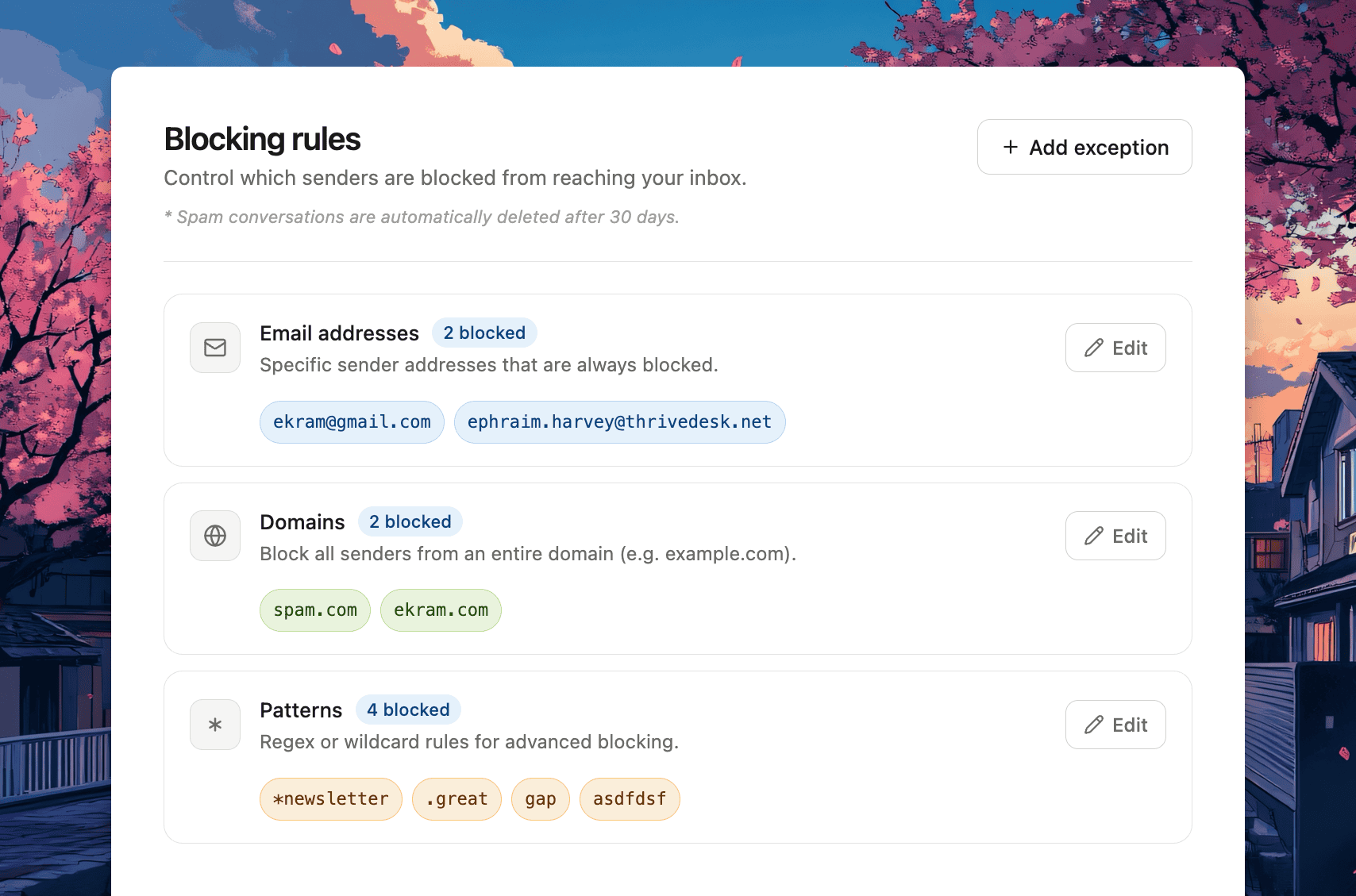
Dirígete a Configuración → Reglas de bloqueo Para configurar tu lista de bloqueo. Tres formas de bloquear:
Direcciones de correo electrónico — Bloquea a remitentes específicos por correo electrónico. Cualquier mensaje futuro de esa dirección irá directamente a la carpeta de spam, sin llegar nunca a tu bandeja de entrada.
Dominios — Bloquea un dominio completo a la vez. Añadir spam.com y todas las direcciones de ese dominio se bloquean automáticamente. No es necesario agregarlas una por una.
Patrones — Para un control avanzado, utilice reglas de expresiones regulares o comodines. Bloquee todo lo que coincida *hoja informativa, un TLD específico como .xyz, o cualquier patrón personalizado que su equipo necesite.
Las conversaciones de spam se eliminan automáticamente después de 30 días.
Excepciones
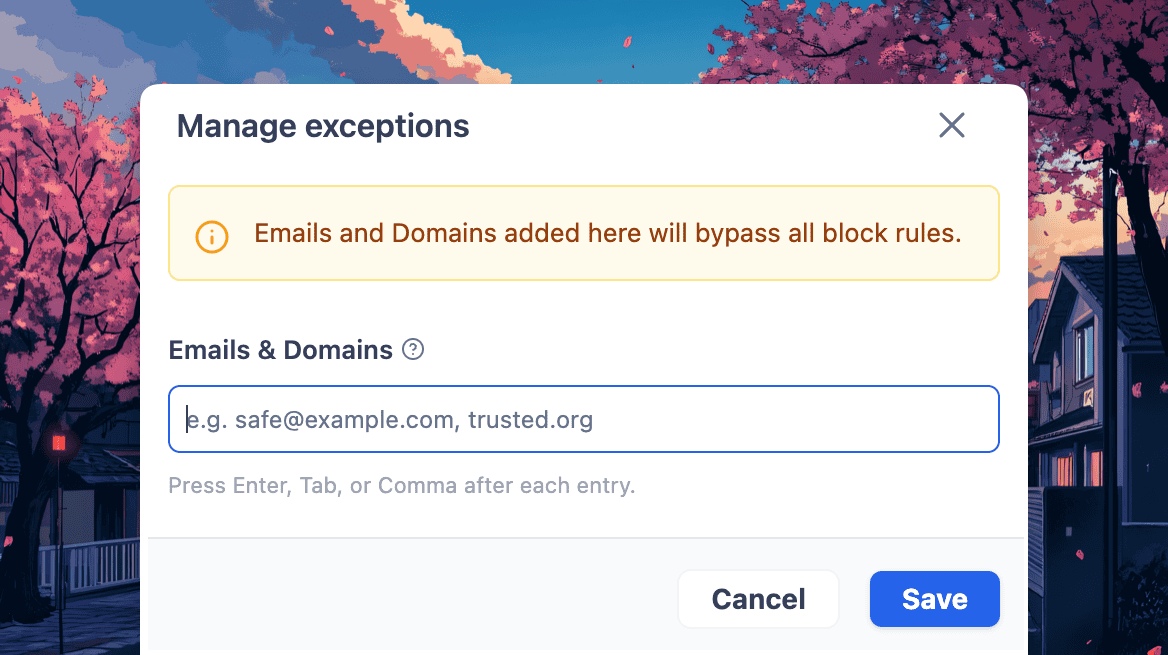
¿Bloqueaste un dominio pero necesitas permitir el paso a un remitente específico? Usa Agregar excepción Para incluir en la lista blanca correos electrónicos individuales o dominios completos. Todo lo que se añada aquí elude todas las reglas de bloqueo, sin excepciones a las excepciones.
Marcar como spam desde cualquier ticket
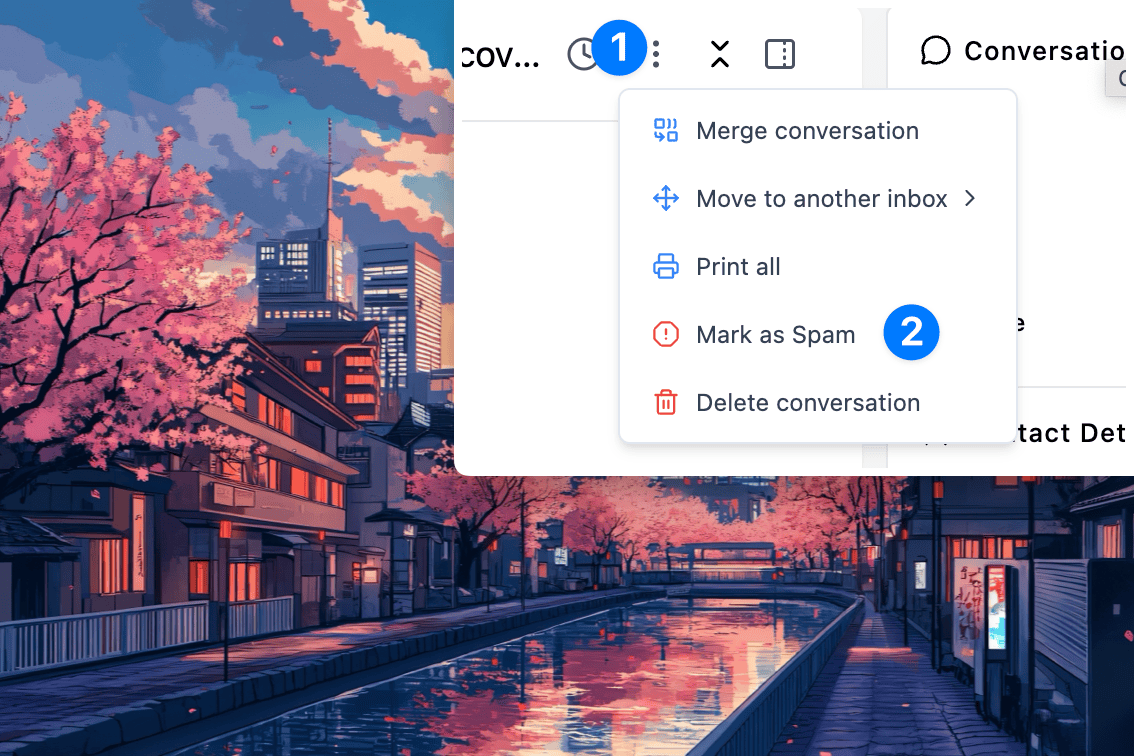
No necesitas ir a la configuración para bloquear a alguien. Abre cualquier conversación, haz clic en el menú de opciones y selecciona Marcar como spam. ThriveDesk confirmará la acción y añadirá automáticamente esa dirección de correo electrónico a tu lista de bloqueo. Los mensajes futuros de ese remitente irán directamente a la carpeta de spam.
Eliminar el spam es igual de fácil.
¿Cometiste un error? Abre la conversación de spam, haz clic aquí. Marcar como no spam, y ThriveDesk te ofrecerá devolverlo a tu bandeja de entrada y eliminar el contacto de tu lista de bloqueados, todo en un solo paso.