
The best AI chatbots for customer service in 2026 start with ThriveDesk for most small and midsize teams. Its AI agent answers from your own content, hands hard cases to a person, and costs a flat plan price with no fee per resolution. Zendesk fits large teams better, and HubSpot fits teams that run sales on a CRM.
Most AI chatbots charge for each conversation the AI closes. That fee looks small in a quiet month and large in your busiest one. Ask what the AI costs, and ask who stands behind it.
Ranked: 1) ThriveDesk, one flat bill; 2) Intercom Fin, high volume on an existing help desk; 3) Zendesk, large teams; 4) Freshdesk, Freshworks users; 5) HubSpot, CRM-led teams; 6) Tidio, a free start; 7) Crisp, one workspace price; 8) Botpress, teams with a developer; 9) Chatbase, a chatbot trained on your content. We checked every price on the vendor’s pricing page on 17 November 2026.
What counts as a customer service chatbot
Older customer service bots ran on decision trees. The customer clicked a button, the bot followed a branch, and anything off the script went to a contact form. Many tools still sell these as “flows.”
An AI chatbot, now often called an AI agent, reads the question in plain language and writes an answer from your content. It can also take actions, such as look up an order or route a conversation.
A chatbot is not the same as a general assistant like ChatGPT. A support chatbot knows your policies, sits inside your inbox, and passes the conversation to your team. Every tool on this list does that. They differ in how much they can do, how they charge, and who builds them.
How we picked these chatbots
We looked at each tool the way a team of two to ten people in support would:
- Answer quality: does the AI answer from your own help center, site and files?
- Handoff: when the AI cannot help, does a person join the same chat with the history attached?
- Price at volume: what does the AI cost at 500 resolved conversations a month, not at 50?
- Setup: can one person set it up in an afternoon without a developer?
- Track record: how long has the vendor run this product, and does it have a real support team?
A tool did not need to win every row. Tidio has a free plan and still earns a place for that reason.
AI chatbot pricing for small teams, compared
Vendors price AI in different units: outcomes, resolutions, sessions, credits or conversations. The table puts the starting price and the AI unit side by side.
| Tool | Best for | Starting price | AI pricing | Free plan or trial |
|---|---|---|---|---|
| ThriveDesk | One flat bill with AI included | $29/mo flat ($19 yearly) | Included, no per-resolution fee | 7-day trial, no free plan |
| Intercom Fin | High volume on an existing help desk | $19/seat/mo yearly, $29 monthly | $0.99 per outcome | 14-day trial |
| Zendesk | Large or multi-team support | $19/agent/mo yearly, $25 monthly | 5 per agent included, then $1.50 to $2.00 each | 14-day trial |
| Freshdesk | Teams already on Freshworks | $19/agent/mo on annual billing | 500 sessions once, then $49 per 100 | Not stated on the page |
| HubSpot | CRM-led teams | Free; paid seats from $7 to $20 | Credits at $0.01 each, 500 included on Starter | Free plan |
| Tidio | A free start | Free; paid from $24.17/mo | Lyro from $32.50/mo for 50 conversations | Free plan |
| Crisp | One flat workspace price | $45/workspace/mo | $5 of AI credits included on Mini | Free plan, no AI credits |
| Botpress | Teams with a developer | Free; Plus $150/mo | 250 conversations included, then $65 per 100 | Free plan |
| Chatbase | A chatbot trained on your content | $150/mo ($120 yearly) | 4,000 message credits, then $40 per 1,000 | 7-day trial |
Pricing verified on 17 November 2026 on each vendor’s public pricing page. Prices are in USD. Where a page does not say whether a price is monthly or annual, we say so in the entry. Vendors change plans often, so confirm the quote for your own volume before you buy.
The 9 best AI chatbots for customer service in 2026
1. ThriveDesk: best for one flat bill with AI included
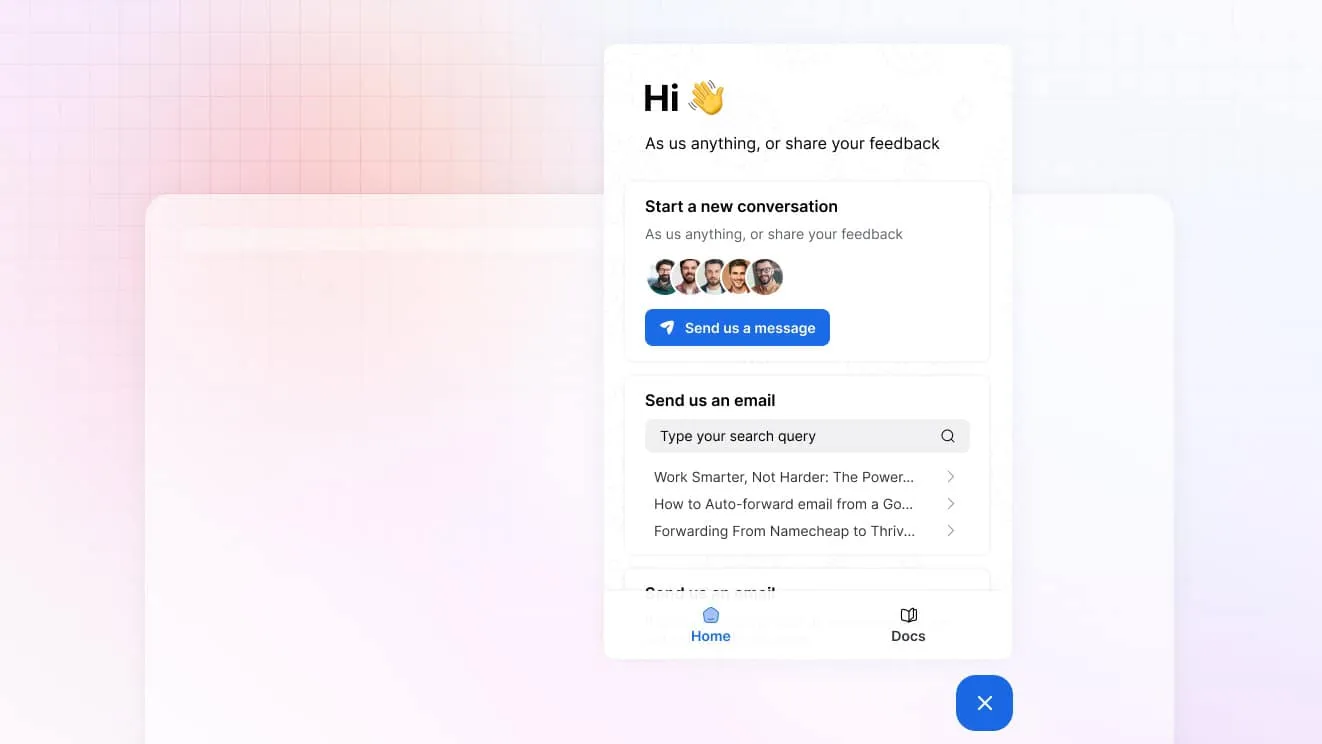
ThriveDesk is AI customer service software: an agentic omnichannel help desk, an intelligent chatbot, a help center and reporting, plus Neo, the AI agent that answers customers around the clock. The team has built it since 2021, so it has been in production for more than five years.
Neo answers in the chat widget, 24/7, in 50+ languages, from your help center, site pages and files. It resolves up to 65% of conversations without a person. With AI tools, Neo can look up orders in Shopify or WooCommerce, refund and cancel WooCommerce orders inside a refund window you set, start Shopify returns and exchanges, and look up Stripe subscriptions and invoices. You train Neo on your own content and decide what it may do.
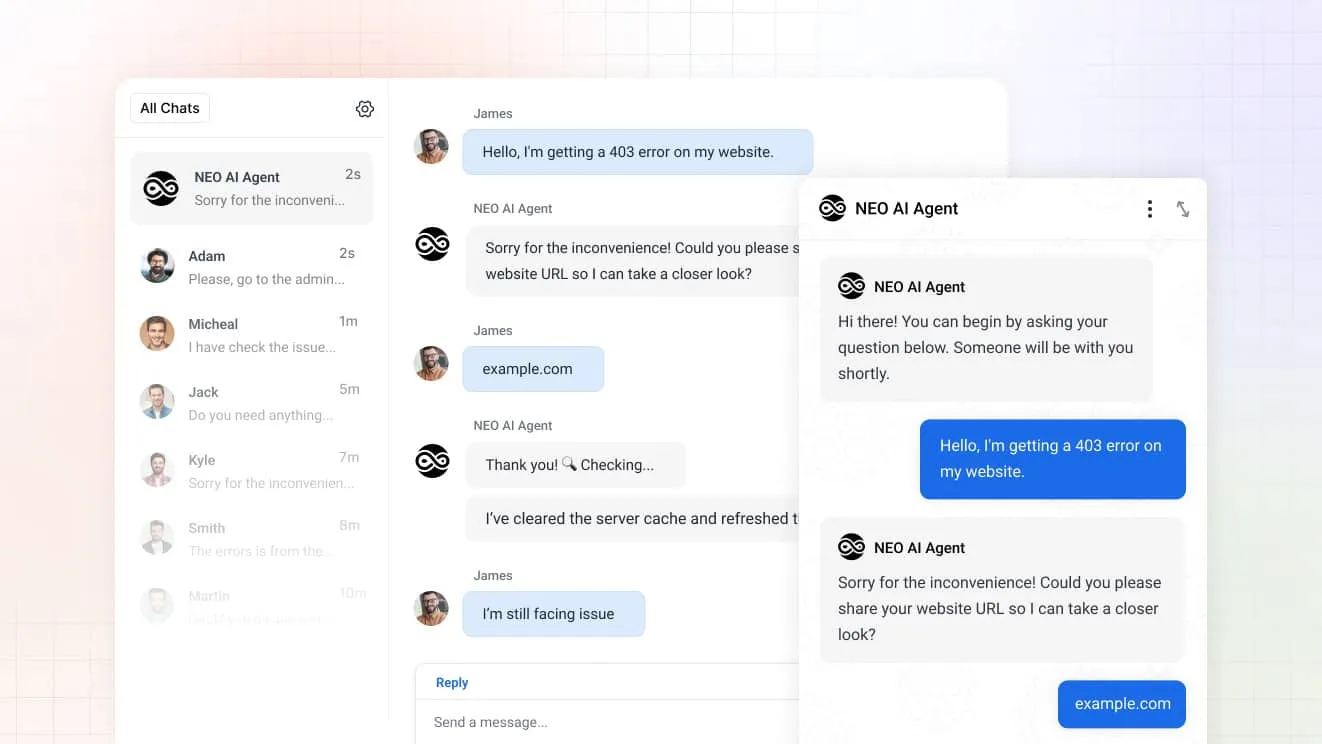
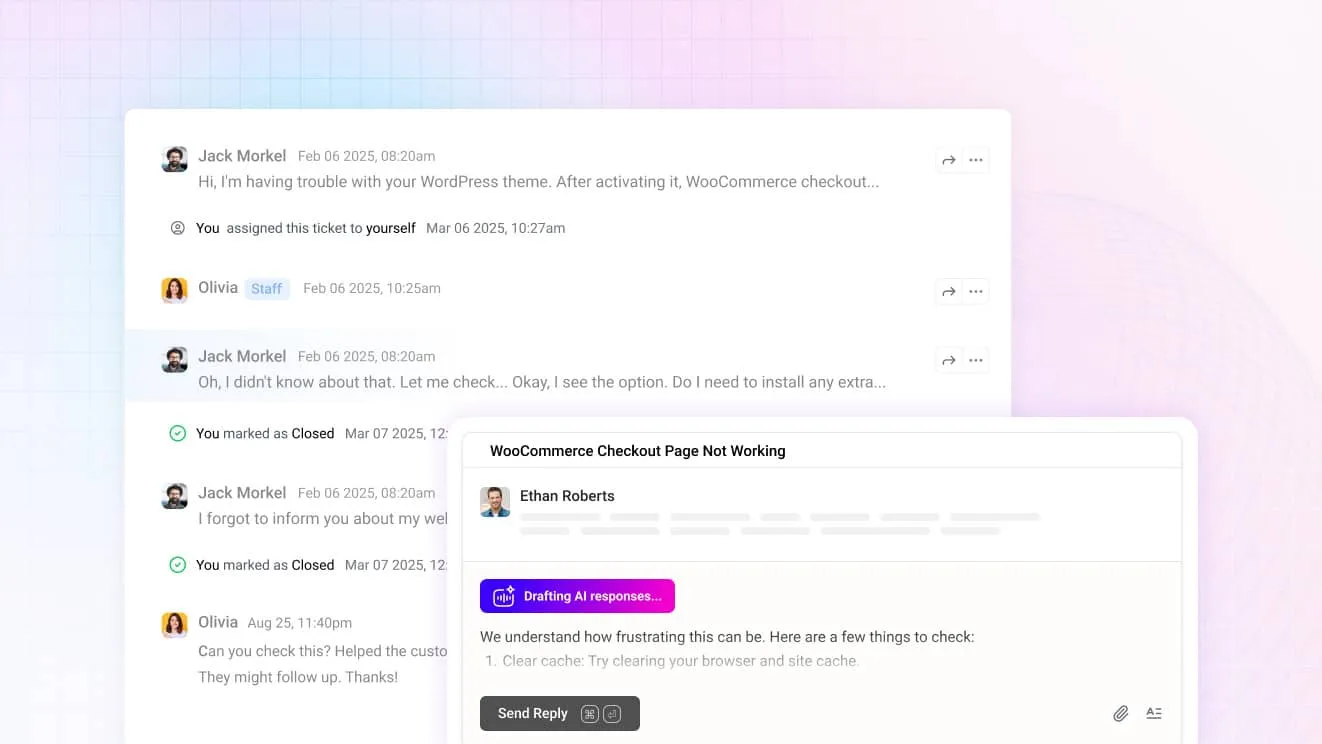
When Neo cannot help, it hands the conversation to your team. The chat lands in the shared inbox with the history and order details beside it. Copilot drafts replies for your team.
Neo is in every plan. Basic is $29 a month for 2 teammates, Standard $69 for 5, and Unlimited $129 for unlimited teammates. On annual billing the plans are $19, $49 and $99 a month. A busy December does not change the invoice. ThriveDesk also moves your data from Intercom, Help Scout or Zendesk for free on an annual plan.
Best for: small and midsize teams that want the chatbot, live chat, a shared inbox and a help center in one tool at a fixed price.
Limitations: there is no free plan, only a 7-day trial with no credit card. Channels today are email and the chat widget, so WhatsApp, Messenger and phone support are not available yet.
See how ThriveDesk compares with other help desks for the head-to-head pages.
2. Intercom Fin: best for high volume on an existing help desk
Fin is the AI agent from Intercom. It works inside the Intercom help desk, or on top of Zendesk, Salesforce and other help desks. Intercom bills it by outcome: $0.99 when a customer confirms the issue is solved, stops asking after Fin replies, or Fin completes a workflow.
Essential seats cost $19 a month billed annually or $29 billed monthly. Advanced is $85 and Expert is $132. Fin on another help desk has a minimum monthly commitment, shown as 50 outcomes when we checked. The trial lasts 14 days with no credit card.
Best for: teams with high chat volume and a budget that grows with it.
Limitations: the bill has two parts, seats and outcomes, so it grows with team size and with volume. See ThriveDesk vs Intercom.
3. Zendesk: best for large or multi-team support
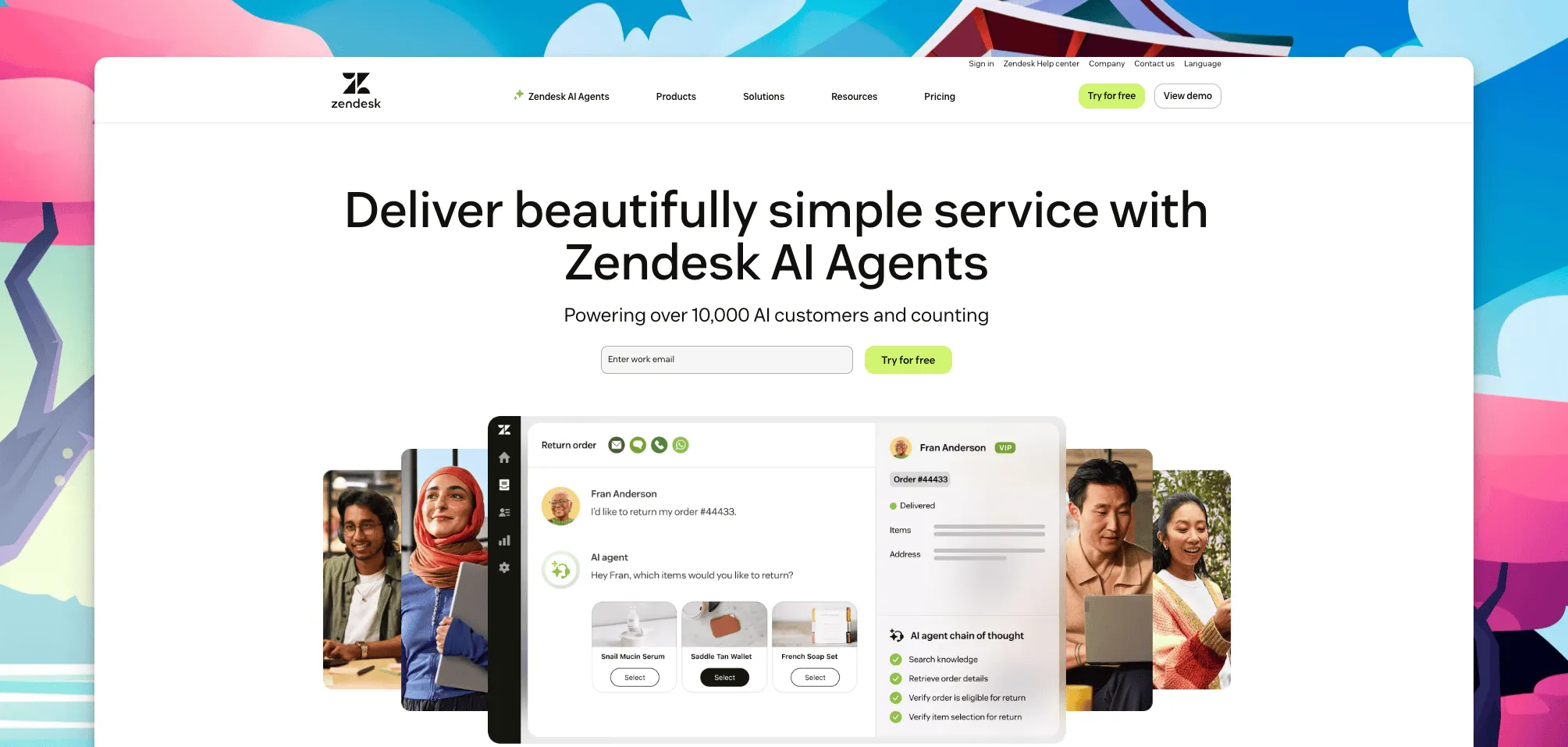
Zendesk includes AI agents in its plans and gives each agent a set number of automated resolutions per month. Support Team and Suite Team include 5 per agent, and Suite Professional includes 10. Extra resolutions cost $1.50 each when you commit in advance, or $2.00 pay-as-you-go.
Support Team costs $19 per agent a month on annual billing ($25 monthly). Suite Team costs $55 ($69 monthly), and Suite Professional $115 ($149 monthly). Copilot, the assistant for agents, is $50 per agent a month on annual billing, and you can add it from Professional up. The trial lasts 14 days.
Best for: large support teams with several brands, regions or routing rules, and an admin to run them.
Limitations: it has the highest per-resolution rate on this list. A small team pays for depth it may not use. See ThriveDesk vs Zendesk.
4. Freshdesk: best for teams already on Freshworks
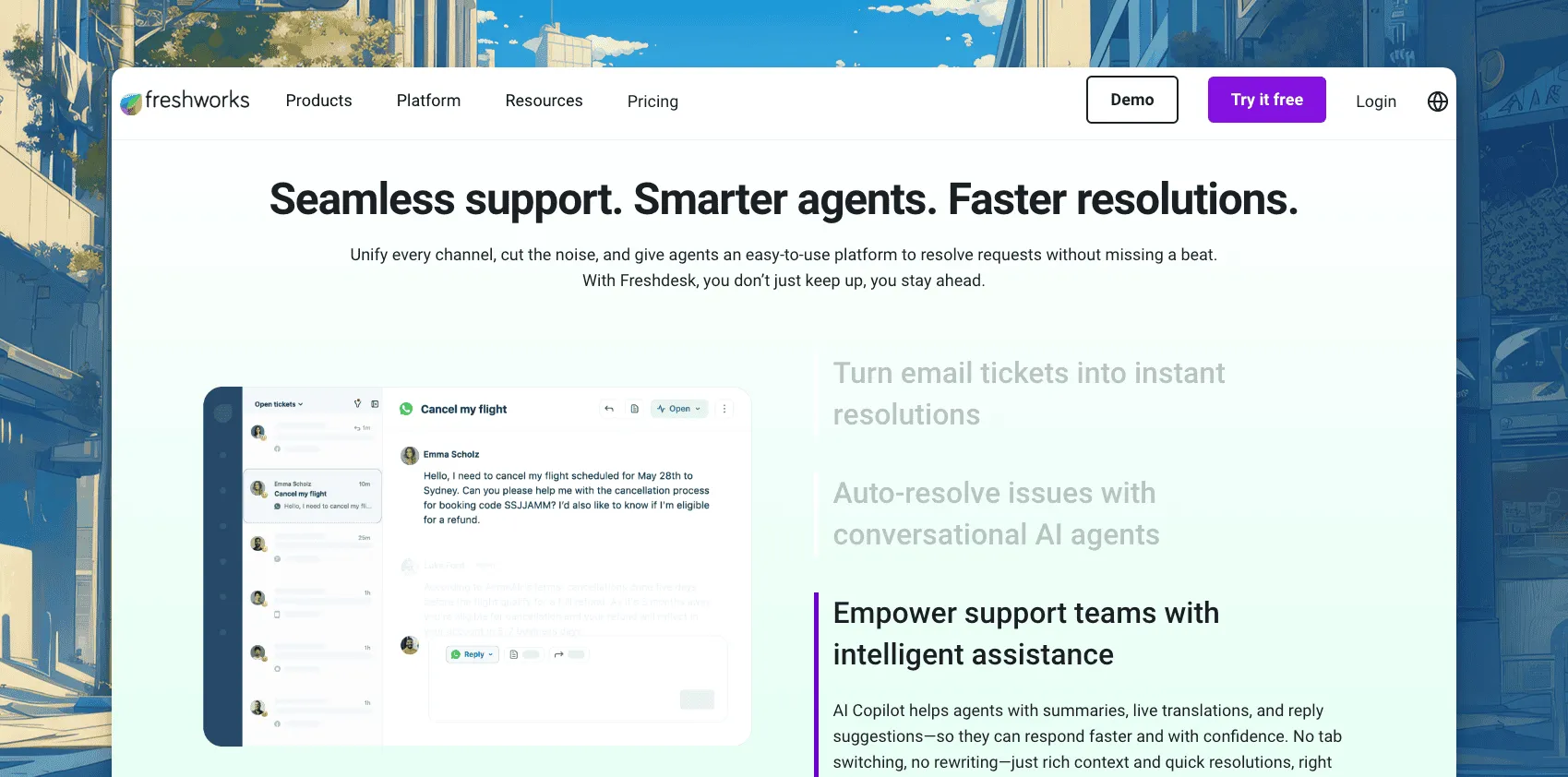
Freshdesk is the help desk from Freshworks, and Freddy is its AI. Freddy AI Agent answers customers in chat. Freddy Copilot is the assistant for agents.
The pricing page lists Growth at $19, Pro at $55 and Enterprise at $89 per agent a month on annual billing. It does not show monthly prices. Each paid plan includes the first 500 Freddy AI Agent sessions once per account. After that, sessions cost $49 per 100. Freddy Copilot is $29 per agent a month on Pro and Enterprise.
Best for: teams that already use Freshworks products and want one vendor.
Limitations: a session is not the same as a resolved conversation, so the bill is harder to predict. See ThriveDesk vs Freshdesk.
5. HubSpot: best for CRM-led teams
HubSpot Service Hub puts a help desk next to the HubSpot CRM. Customer Agent is its AI agent, and it runs on the same platform as the CRM.
Service Hub is free for up to 2 users. The pricing page lists Starter seats from $7 a month in one place and $20 in another, so check the figure on your own quote. Professional is from $90 to $100 per seat, plus a one-time $1,500 onboarding fee. Customer Agent uses HubSpot credits at $0.01 each. Starter includes 500 credits a month and Professional 3,000. The page does not state a cost per resolution.
Best for: teams that already run their CRM in HubSpot.
Limitations: the AI cost per resolution is not public on the pricing page, and Professional adds a large onboarding fee.
6. Tidio: best for a free start
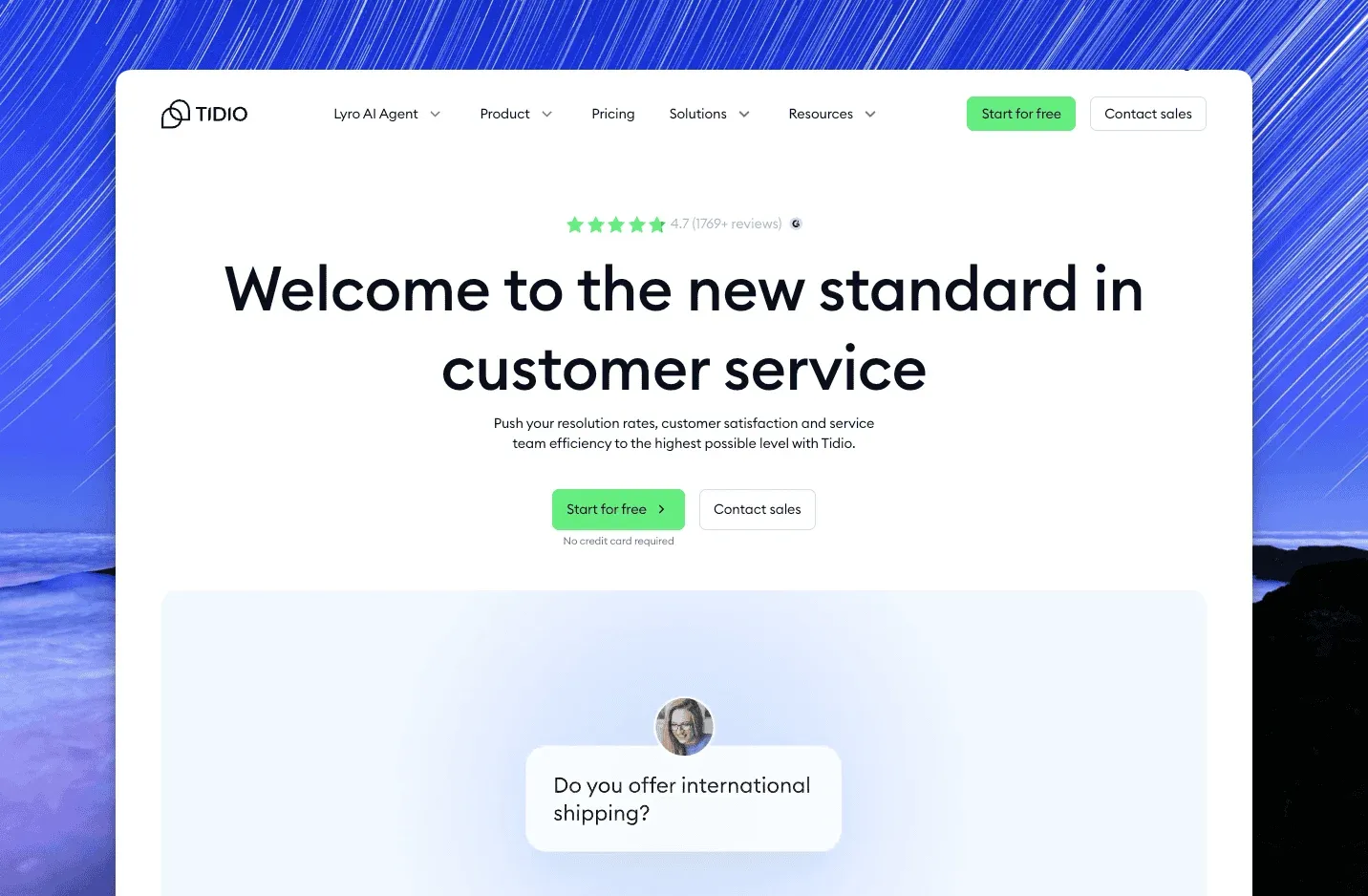
Tidio combines live chat, a ticket inbox and Lyro, its AI agent. The free plan covers 50 billable conversations a month for up to 10 seats, and every account gets 50 Lyro conversations free once. Starter is $24.17 a month for 100 conversations. Growth starts at $49.17.
Lyro has its own meter. It starts at $32.50 a month for 50 Lyro conversations. The page does not say whether the displayed prices assume monthly or annual billing. Each add-on has a 7-day trial.
Best for: a small team that wants to test AI chat before it pays for a full help desk.
Limitations: the pricing page does not show Lyro rates above the entry tier, so a team with real volume needs a quote.
7. Crisp: best for a small team that wants one flat workspace price
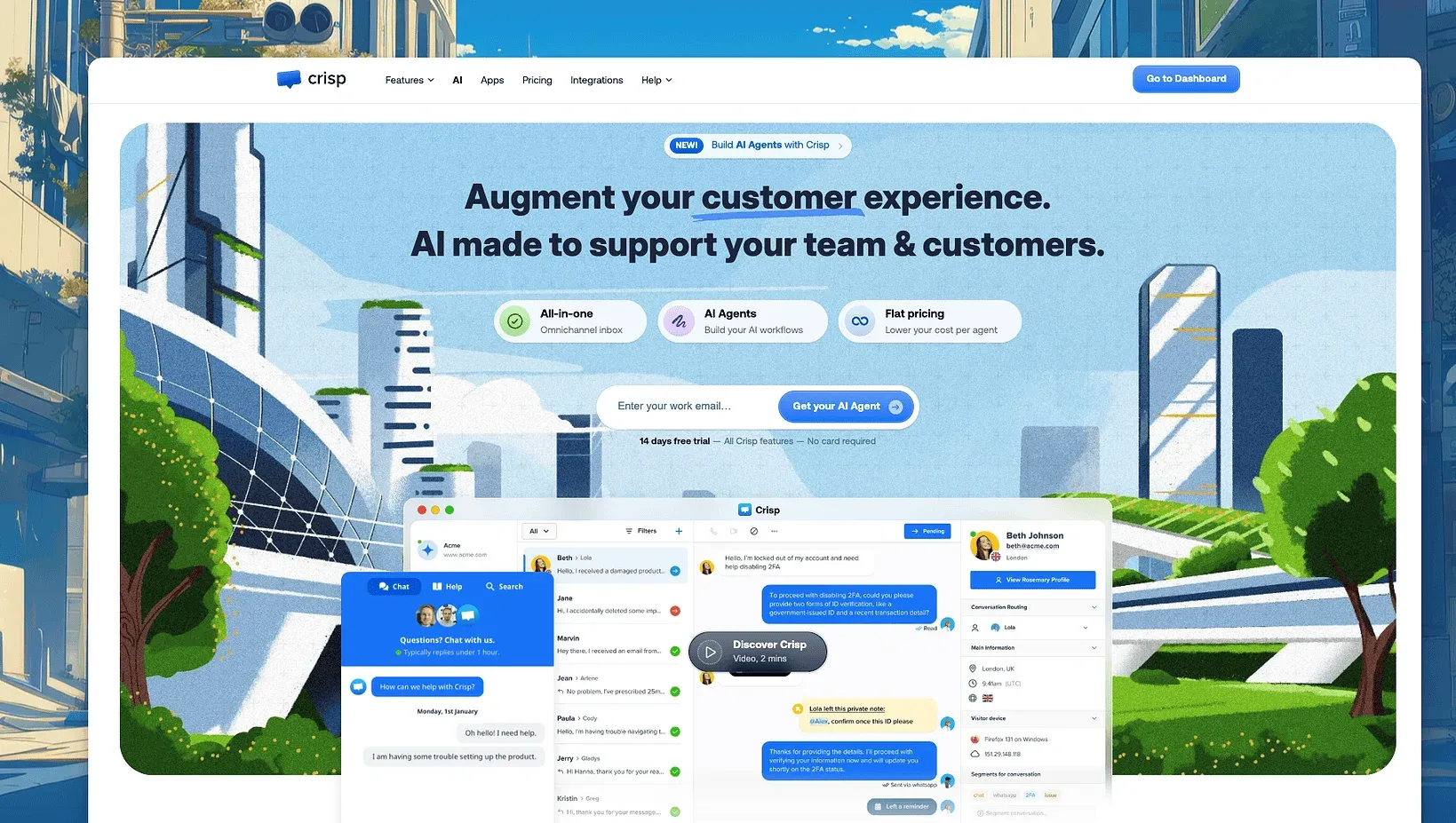
Crisp prices by workspace, not by seat, and it includes some AI credit in each paid plan. Its AI agent is called Hugo. Mini costs $45 a month and includes $5 of AI credit, about 90 automated conversations. Essentials costs $95 with $25 of credit, about 450 conversations. Plus costs $295 with $75 of credit, about 1,350. The Free plan has no AI credits.
The page lists extra agent seats at $10 a month. It does not list a price for extra AI credits.
Best for: a small team that wants a predictable workspace price and a simple shared inbox with chat.
Limitations: when the included AI credit runs out, the pricing page does not say what more costs.
8. Botpress: best for teams with a developer
Botpress is a platform for building AI agents. You design the conversation flow, connect your own tools and choose how the agent behaves. That gives a developer much more control than a ready-made widget.
The Free plan includes 100 conversations. Plus costs $150 a month and includes 250 conversations, with extra packs of 100 at $65. Team costs $750 a month and includes 1,500 conversations, with packs of 100 at $50. The page shows prices for annual billing.
Best for: a team with a developer who wants a custom agent.
Limitations: it is a builder, not a help desk. Hard cases need a separate inbox and handoff that you set up yourself.
9. Chatbase: best for a chatbot trained on your own content
Chatbase builds an AI agent from your website, documents and help content. You embed it on your site. It suits a team that wants a branded chatbot with control over tone and instructions.
Basic costs $150 a month ($120 on annual billing) for 4,000 message credits. Business costs $500 a month ($400 yearly) for 15,000. Extra credits cost $40 per 1,000 through auto-recharge. The pricing page lists no free plan, only a 7-day trial.
Best for: a team with a technical owner who wants a chatbot without a full help desk.
Limitations: credits count messages, not resolutions, so a long conversation uses several. It has no help desk of its own, so unanswered conversations need a separate inbox.
What a small team pays at 500 AI resolutions a month
Here is what the AI part alone costs a team of 2 agents when the AI closes 500 conversations a month without a person.
| Item | Monthly AI cost |
|---|---|
| ThriveDesk | Included |
| Botpress | $195 |
| Freshdesk | $245 |
| Intercom Fin | $495 |
| Zendesk (committed) | $735 |
| Zendesk (pay-as-you-go) | $980 |
Prices checked on each vendor's pricing page on 17 November 2026. Seat and plan prices are not included. Freshdesk bills sessions, not resolutions. Botpress is the cost above the 250 conversations included on Plus, in three packs of 100. Zendesk is counted after the 10 included on Suite Team.
HubSpot, Tidio, Crisp and Chatbase do not publish a cost per resolution, so we cannot price them at this volume. Crisp’s Essentials plan covers about 450 conversations. To compare the seat side as well, run your team size through the help desk cost calculator.
How to choose an AI chatbot now that AI agents run support
AI agents now do much of the work that a support team did by hand. They answer repeat questions, route conversations, look up orders and take simple actions. Klarna said its AI assistant handled two-thirds of its customer service chats in its first month. Gartner predicts that agentic AI will resolve 80% of common customer service issues without a person by 2029. In a Gartner survey, 91% of service leaders reported pressure from executives to adopt AI.
Customers are less sure. Gartner found that 64% of customers would prefer that companies did not use AI in customer service. Their top concern is that it will get harder to reach a person.
80%
of common customer service issues that agentic AI is predicted to resolve without a person by 2029
Gartner prediction, March 2025
91%
of service and support leaders who report pressure from executives to implement AI
Gartner survey of 321 leaders, October 2025
64%
of customers who would prefer that companies did not use AI for customer service
Gartner survey of 5,728 customers, December 2023
2/3
of Klarna's customer service chats handled by its AI assistant in the first month
Klarna press release, February 2024
Your people spend less time on copy-and-paste replies and more time on cases that need judgment. A weak pick puts that gain at risk, and a customer who cannot reach a person will leave.
Check these points before you buy:
- Inside the help desk or standalone: an AI agent inside your help desk shares one inbox, one history and one report. A standalone bot needs a handoff you build and maintain.
- A person can step in: the AI must pass the chat to a human with the full history, so the customer never repeats themselves.
- Trained on your content: it should answer from your help center, site and files, not from guesses.
- How the AI is priced: per resolution, per session, per credit or flat. Multiply by your busiest month.
- Proven under load: ask for uptime history and what happens when volume doubles.
- Security and data: ask where data lives, who can see it and how you export it.
- A real support team: you will need help one day. Check who answers.
Many new chatbot apps have appeared lately. Some are vibe-coded: put together fast with AI code generators and shipped with little testing. Such vendors often have no track record and no uptime history. Their security can be thin. The product may disappear, and you may not be able to export your data. It can break under load and give wrong answers with no guardrails. Look for a company history and a status page, and check who answers support.
Cheap software like this can cost more in the end. A wrong answer goes to a customer in your name. An outage in peak season costs you sales. A data leak harms the customers who trust you. When you must leave, migration takes time you do not have.
ThriveDesk is not vibe-coded. The team has built it since 2021. It has an established customer base and a good reputation, it handles large support loads, and a real support team stands behind it. Neo, Copilot, AI tools, training on your content and escalation to people all run inside one shared inbox. For more on this shift, read our guide to AI in customer support.
How to choose the right chatbot for your team
Start with your team size and your tools, then test the shortlist on real questions:
- Lean team, no developer: ThriveDesk keeps the AI, chat and inbox in one flat plan.
- Already on a CRM: HubSpot Service Hub keeps the customer record next to the chat.
- Large team with many brands or regions: Zendesk, if you have an admin to run it.
- High volume on a help desk you keep: Intercom Fin works on top of other help desks.
- Developer on staff: Botpress or Chatbase give the most control.
- Just testing: start with the Tidio free plan, and move when you need a shared inbox.
Then run each trial on 20 of your own past conversations: five simple questions, five policy questions, five that need account data and five that need a person. Count how many the AI closes correctly. Check how the handoff feels from the customer’s side. If you run a store, read our list of the best AI chatbots for ecommerce. Read how AI chatbots and live chat differ if you are still deciding whether you need both. For chat-first tools, see the best live chat software for small business.
How to set up an AI chatbot for customer service in ThriveDesk
The steps below use ThriveDesk, and the labels are the ones in the app. Each step ends with a check, so you know it worked before you go on.
1. Sign up and create your inbox
- Start the free trial on the ThriveDesk site. The trial lasts 7 days. You do not need a credit card, and there is no free plan.
- Answer the onboarding questions. Enter your Company name and your Domain. Then answer the questions about your industry, company size and platform.
- Email sent to the address on your ThriveDesk domain reaches your inbox. To send email from your own domain, add and verify it later.
- For a second brand, go to Settings > Inboxes and select New inbox. Basic has 1 inbox, Standard 2 and Unlimited 5.
Check: your inbox opens and shows your company name.
2. Create the chat assistant and customize it
- Go to Settings > Assistants and select New Assistant.
- Enter an Assistant name. Under Select inbox, choose the inbox that will receive the chats. Create the assistant.
- The assistant page has four tabs: Customization, Home widgets, NEO and Installation. Open Customization.
- Under Set your brand, upload a Logo (JPEG or PNG, smaller than 1MB, 800px by 800px is best). Pick your Brand color.
- Under Launcher settings, set Launcher to Icon only, Icon & Text or Text only. Select an icon, or upload a Custom Icon (JPEG or PNG, maximum 300kb). Set the Horizontal Position to Left or Right.
- Under Welcome message, write the Greeting and the Team intro. The team intro can have 160 characters.
- Under Modules, name the Home button and the Docs button.
The page saves your changes by itself. It shows Auto saving, then Auto saved. The Disable ThriveDesk branding option is in the same tab where your plan allows it.
Check: the preview shows your logo, color and welcome message.
3. Install the widget on your site
The assistant does nothing on your site until you install it.
- Open the Installation tab.
- Under Web snippet, select Copy. Paste the snippet into your site’s HTML, just above the closing
</body>tag. - Or use the Installation guide. It has guides for Google Tag Manager, Shopify, WordPress, Joomla, Squarespace, Wix, Webflow and Weebly.
- On Shopify, follow the Shopify guide. WooCommerce runs on WordPress, so follow the WordPress guide.
- For a custom web or mobile app, use the developer tools link in the same tab.
Check: open your site in a new window. The chat launcher appears.
4. Train Neo on your content
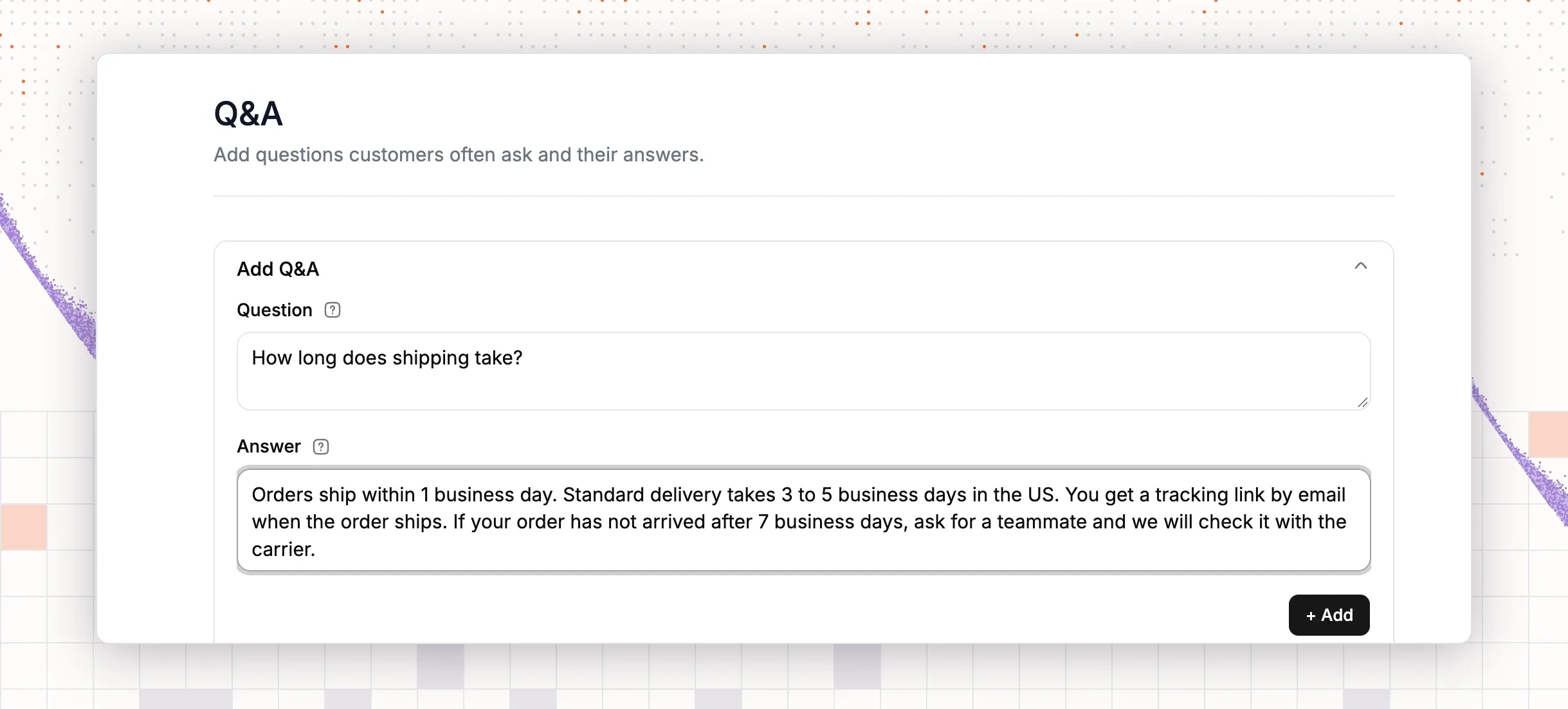
Open Neo and look at the left menu. The Train group has four sources: Q&A, File, Website and Doc. Add what you have. Neo answers from these sources.
- Q&A: select Add Q&A. Enter the question (5 characters or more) and the answer (10 characters or more). Select + Add. You can edit, delete or turn off each item.
- File: select Upload Files, then Click to select files. The supported types are .pdf, .doc, .docx, .xls, .xlsx and .txt. You can upload 10 files at a time, up to 50MB.
- Website: select Add website and enter the URL. Use Filters to show All, Selected or Not selected pages. Use Exclude paths to skip folders, for example
/blog,/private,/admin. Select Fetch Webpages, choose the pages, and select Start Syncing. - Doc: this source links your ThriveDesk help center, so Neo can share the same articles your customers read. Select Create doc if you have no doc site yet.
A website shows syncing, sync completed, sync partially completed or sync failed. Use Resync to read the site again after you change it. The Overview page shows how many pages are indexed, pending or failed for each source.
Check: every source shows as indexed, with no failed items.
5. Set the tone and the rules
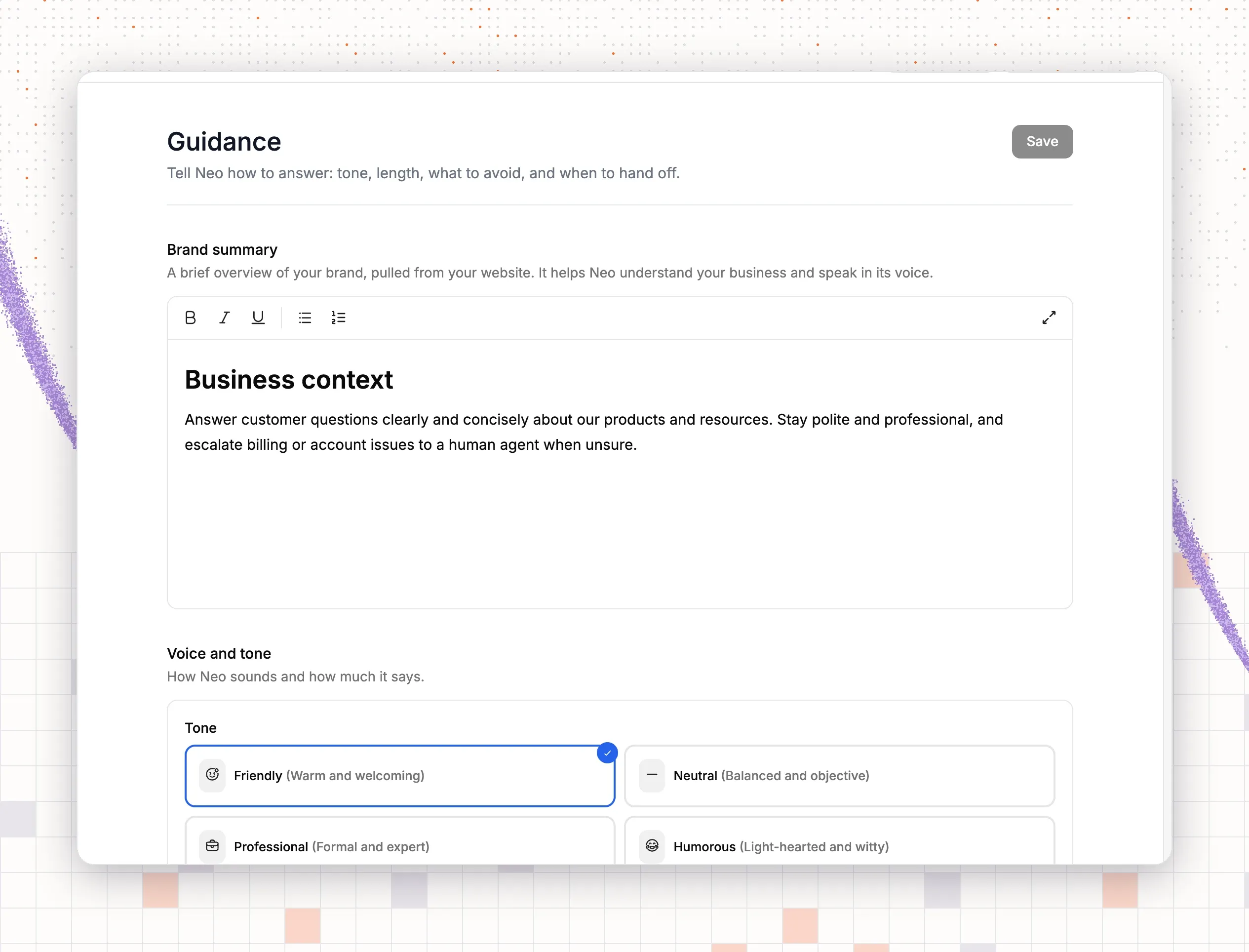
- Open Guidance in the Train group.
- Read the Brand summary. It comes from your website. It helps Neo speak in your voice.
- Under Voice and tone, set Tone to Friendly, Neutral, Professional, Humorous or Custom. Set Answer length to Concise, Standard or Thorough.
- In the custom instructions box, write what Neo must avoid. Name the topics, for example legal advice, price quotes or medical questions. Name when a person must take over.
- Select Save.
Now name Neo. Open your assistant, go to the NEO tab, and set the Name and the Profile picture (JPEG or PNG, smaller than 1MB, 48px by 48px is best). That tab also has Tone, Answer Length and Custom Instructions.
Check: ask a question that your rules forbid. Neo should decline it.
6. Turn on actions
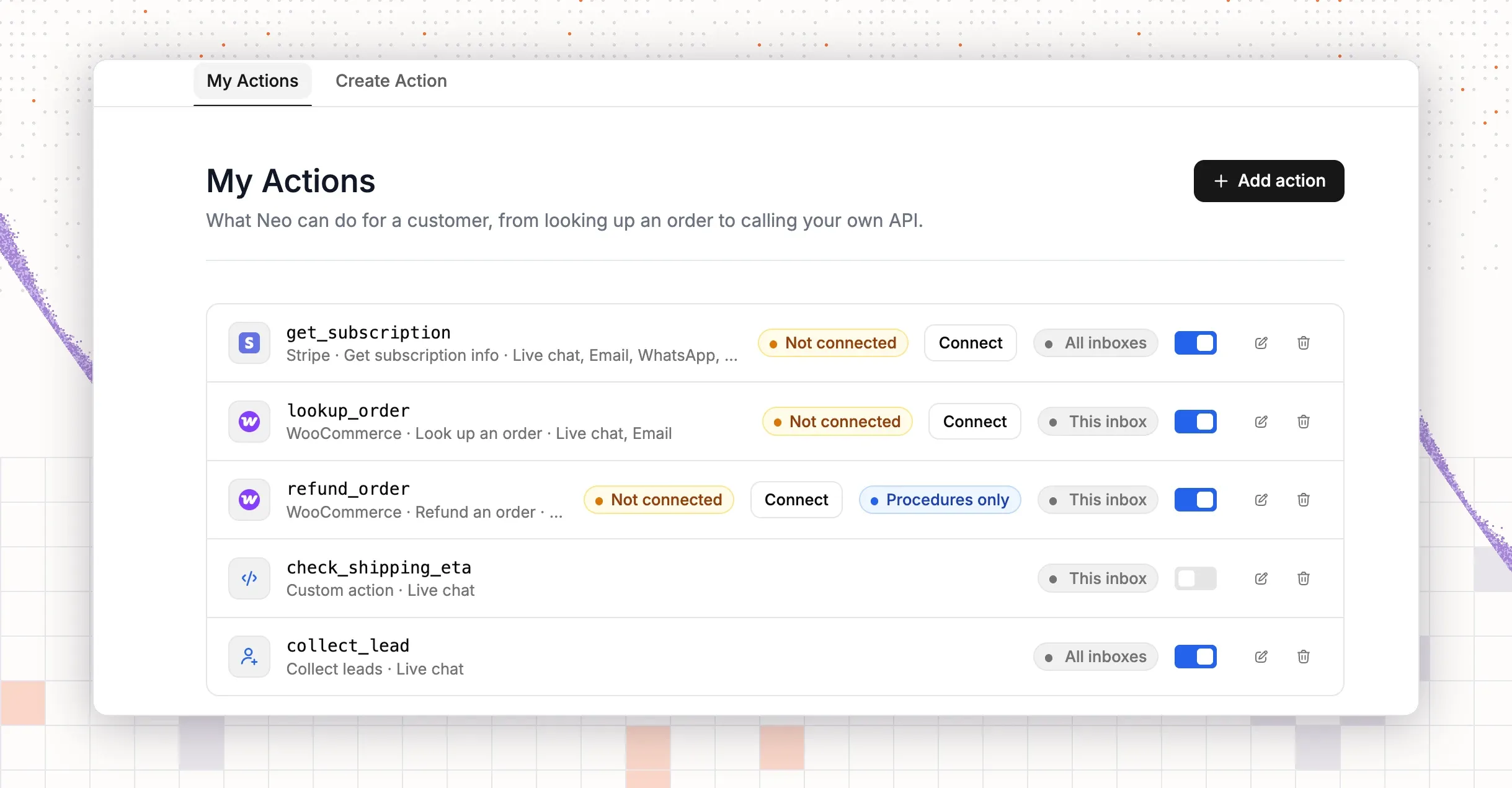
Actions let Neo do work, not only answer. Go to Actions in the Train group and select Add action.
- Choose an action type: Shopify, WooCommerce, Stripe, Paddle, Easy Digital Downloads, SureCart, FluentCRM or Slack. Two other types exist: Custom action calls your own API, and MCP server uses your server’s tools.
- If the row says Not connected, select Connect and connect the app first.
- Pick a template. For orders, use Look up an order. WooCommerce, Easy Digital Downloads and SureCart also have a refund template. Set the Refund window (days) and the Refund type, Full refund only or Full or partial refund. Orders older than the window go to your team.
- In the setup box, enter an Action name and fill in When to use. Neo matches a customer request against this text. For example: “The customer asks where an order is.”
- Select Only use in Procedures if Neo may call the action only inside a procedure. Then save.
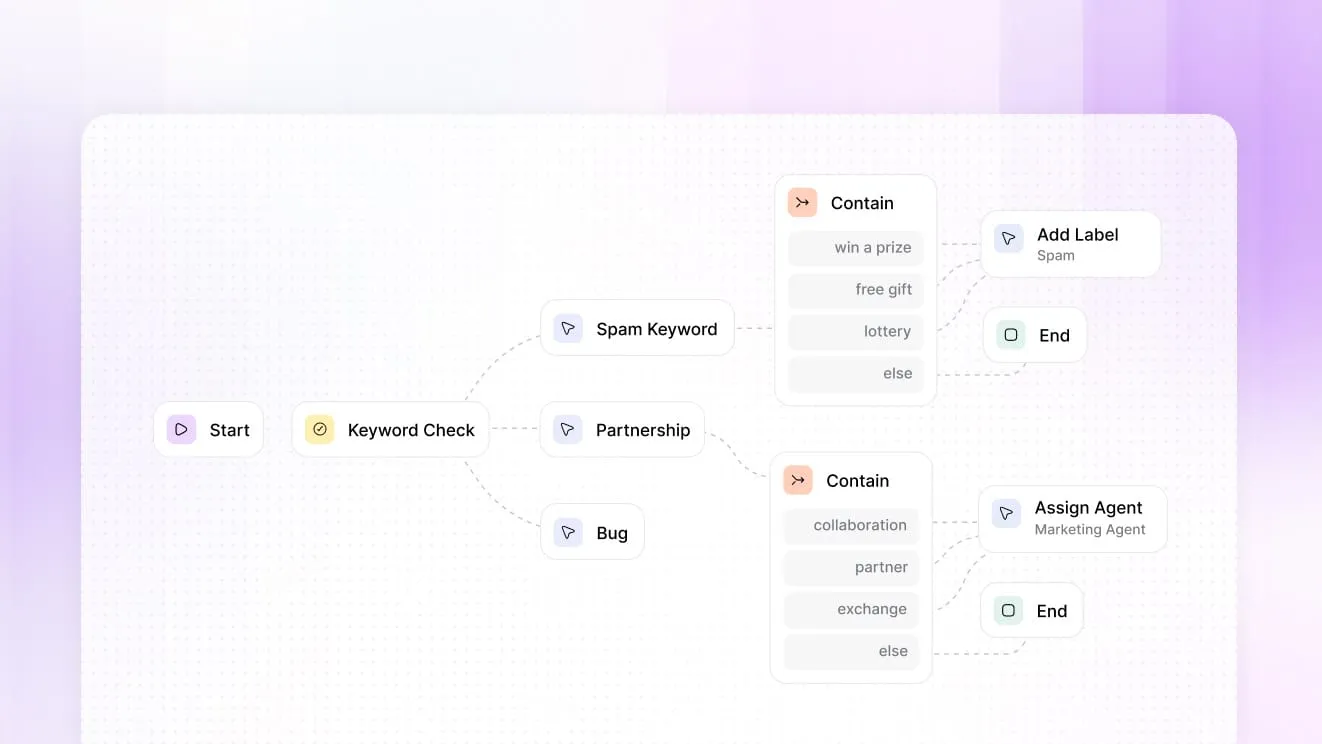
You can also write Procedures: step-by-step instructions that Neo follows for one kind of request, using your actions.
Check: in the preview from step 8, ask about a real test order. Neo must return its status.
7. Set the handoff to your team
- Open Handoff & Escalation in the Train group.
- Write the Handoff message. Neo sends it to the customer when a rule fires.
- Turn on When no one is online, ask for an email and open a ticket. Customers then leave an email address when your team is away.
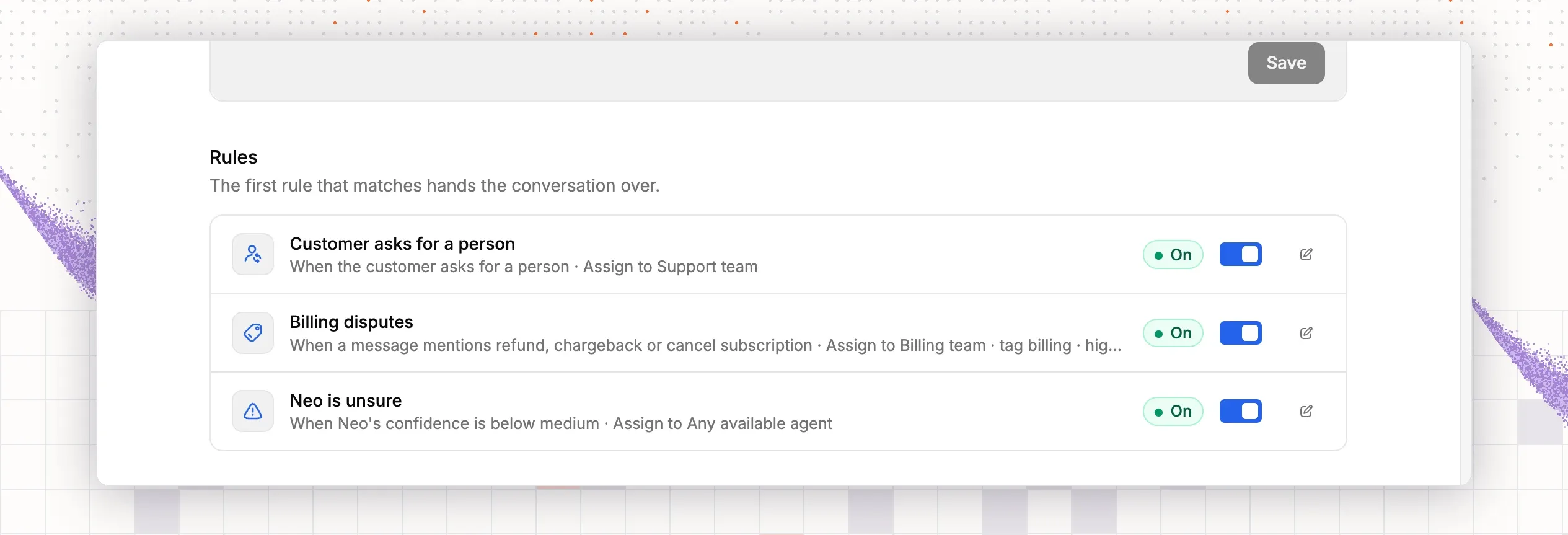
- Select Add rule. Enter a Name. Choose a Trigger: The customer asks for a person, A message mentions keywords, Neo’s confidence is low, The customer keeps asking or The customer sounds upset.
- For keywords, enter them separated by commas, for example
refund, chargeback, cancel subscription. For confidence, choose Below medium or Below low. For repeated questions, set the number of replies before the handoff. - Under Then, choose who to Assign to. You can also Add tag and set a Priority from Low to Urgent. Keep the rule Enabled.
The first rule that matches hands the conversation over, so keep each rule specific.
Check: send a test message that fires a rule. The conversation reaches your team.
8. Test Neo, then go live
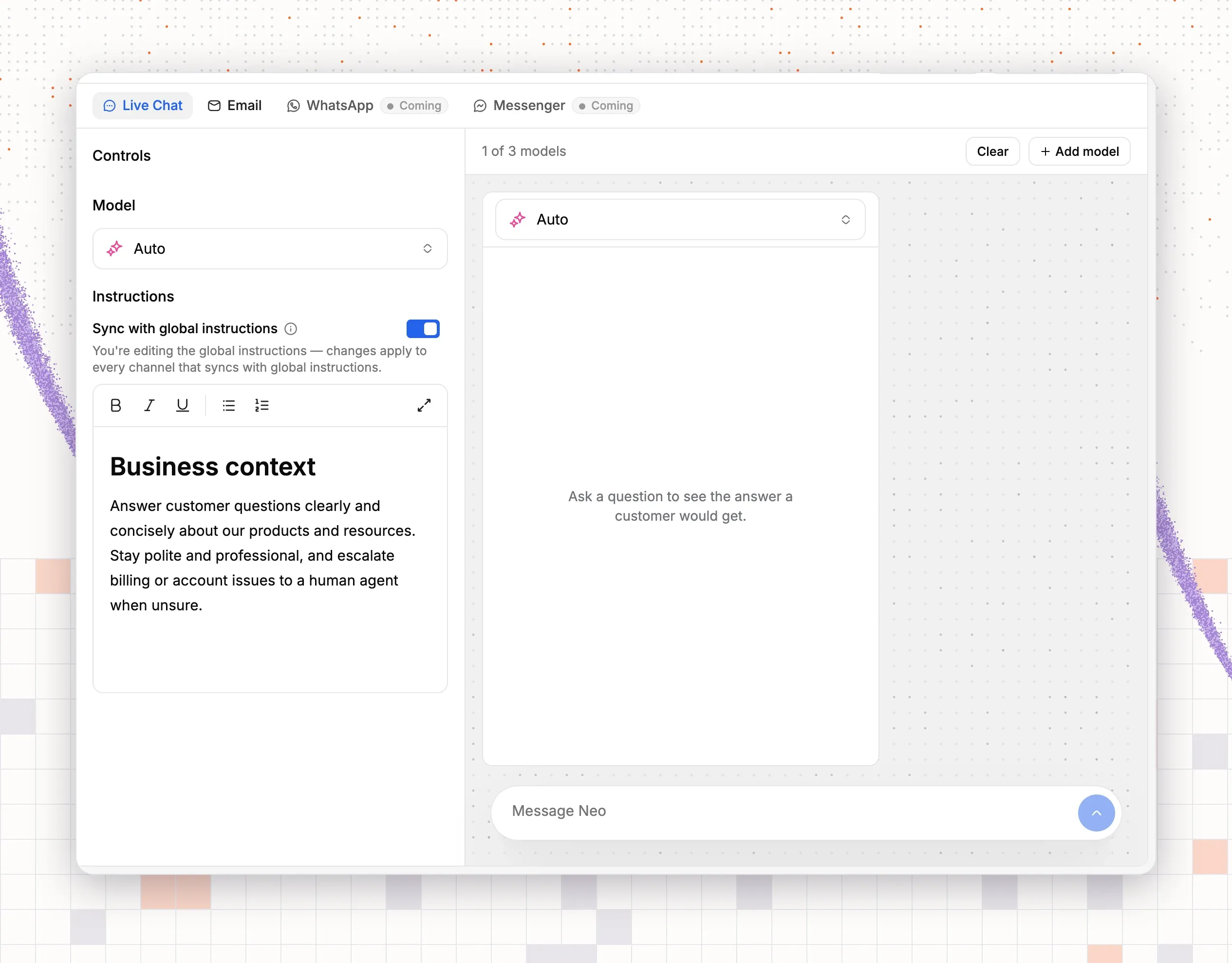
- Open Preview & Simulations and select the Live chat tab. An Email tab tests email replies the same way.
- Type a customer question in the Message Neo box. The answer shows a Confidence level.
- To compare models, select Add model. You can compare up to 3 side by side. Use Clear to start again.
- Test 20 real questions from your past conversations: simple ones, policy ones, order ones and ones that need a person.
- Fix every wrong answer with Improve Answer, or add a Q&A item.
- To go live, open your assistant, select the NEO tab and turn on Enable NEO. Neo’s name and picture then show on its replies.
Check: a new chat on your site gets a Neo reply.
9. Review Neo’s conversations and fix the gaps
- Open Activity in Neo. It shows Neo’s replies, drafts, tags and priorities, and what each cost. It is read from AI usage records, so you need billing access.
- Open Chat in the main navigation and select a conversation. Under each Neo reply, select Improve Answer.
- The Improve answer box shows the User message and NEO’s reply. Write the Expected response (10 characters or more), then select Update.
- Return to Overview each week. If a source shows failed or pending pages, fix it. Add a Q&A item for each question that Neo keeps missing.
Check: ask the same question again. The answer is now correct.
10. Use Copilot for your human team
Neo also helps your team inside a conversation.
- Open any conversation and open AI Copilot from the reply editor.
- Ask a question about the conversation, or select a suggestion. The panel shows Relevant sources for its answer.
- Select Add to composer to put a reply in the editor. Edit it, then send it.
- For email, open Email in the Deploy group. Auto reply writes a reply from your sources. Draft Mode writes it without sending it, so your team reviews each one. Choose Generate responses for All incoming message or First incoming message. Auto tags and Auto priority are separate switches.
Check: a new email arrives with a draft reply waiting for your team.
Why teams choose ThriveDesk for customer service chatbots
- One flat price with the AI included: Neo is in every plan, so a busy month does not raise the bill. At 500 AI-closed conversations a month, that saves $195 to $980 against the per-resolution tools above.
- Answers from your own content: train Neo on your help center, site pages and files, and set what it may do with AI tools.
- A clean handoff: escalation puts the conversation in the shared inbox with history attached, and Copilot drafts replies for your agents.
- More than five years in production: the team has built ThriveDesk since 2021. It is not vibe-coded, it handles large support loads, and a real support team stands behind it.
Basic is $29 a month for 2 teammates, Standard $69 for 5, and Unlimited $129 for unlimited teammates. On annual billing the plans cost $19, $49 and $99. The trial lasts 7 days with no credit card, and there is no free plan. The same plan adds a help center and live chat. See pricing for the full plan list.
Disclosure: ThriveDesk publishes this list and ranks its own product first, so read it as a vendor’s comparison, not an independent review. We checked every competitor price on the vendor’s public pricing page on 17 November 2026, and we included real limitations for ThriveDesk too. If you find an outdated detail, tell us and we will correct it.