

An AI knowledge base is a collection of help content that an AI agent reads and uses to answer questions in natural language. Gartner found that only 14% of customer support issues are fully resolved in self-service, so a pile of articles is not enough. Software teams field login, billing and how-to questions. Stores field order, return and sizing questions. Both already have the content in a help center and in old replies. In ThriveDesk the AI agent is called Neo, and the screenshots below show it. This guide explains how an AI knowledge base works, what to put in it, how to choose software and how to set one up.
What is an AI knowledge base?
An AI knowledge base is a library of help content plus an AI agent that reads it. The content can be articles, website pages, files, saved answers and past replies, and the agent searches it when a question arrives, then writes a reply in plain words.
A normal help center waits for the customer to search, pick an article and read it. An AI knowledge base does that work for the customer, so it finds the answer and says it in a chat or an email.
Two made-up AI knowledge base examples show the pattern. A software customer asks, “How do I move my billing to annual?” The agent finds your billing page and explains the steps. A shopper asks, “Can I return a worn jacket?” The agent finds your returns policy, sees that worn items are not accepted, and says so in two sentences.
The content has two readers: customers read it in a help center, and the AI agent reads the same text before it answers. If you want the plain version first, read the beginner roadmap to a knowledge base.
How it works

Four parts do the work, and each one gives you a question to ask a vendor.
Your content goes in
You add sources. These can be help center articles, pages from your site, uploaded files and question-and-answer pairs. A software team adds docs, release notes and API pages. A store adds policy and product pages. Some tools also learn from past replies. More sources mean more coverage, but only if the sources are correct. Ask which sources the tool can read.
The system indexes it
The tool splits your text into small chunks. It stores them so it can search by meaning, not only by exact words. This is called semantic search. A customer who types “send it back” matches a page titled “Returns and refunds”. Another who types “change my plan” matches “Upgrade or downgrade”. Ask how often the index updates after you edit a page.
A question comes in
The tool finds the best chunks for the question. A language model then writes an answer from those chunks only. A good setup keeps the answer inside your content. It can also show the source. A billing question pulls from a billing page, and a parcel question pulls from a shipping page. Ask whether the agent shows where an answer came from.
A person takes over when it cannot answer
Sometimes the content has no answer, or the customer wants a person. The AI agent shouldn’t guess. It should stop and pass the chat to your team with the earlier messages. Ask what the handoff looks like, and whether the agent tells you which questions it could not answer.
AI knowledge base vs traditional knowledge base
Both hold help content. The difference is who reads it and how the answer reaches the customer. Many teams keep both, because customers still browse a help center.
| Dimension | Traditional knowledge base | AI knowledge base |
|---|---|---|
| Who reads it | The customer | The AI agent, and the customer |
| How people find answers | Keyword search and browsing | A question in plain words |
| Who writes the answer | You, in advance | The AI, from your content |
| Upkeep | Articles go stale | Same, and the AI repeats stale facts fast |
| No answer exists | Zero search results | A guess or a handoff, depending on setup |
| How you measure it | Page views and searches | Resolved chats and handoffs |
The row on upkeep matters most. Say you change a refund term or a plan price and forget one article. An old article misleads one reader at a time. An AI agent can repeat the same old fact in every chat that day.
Why it matters now
Self-service has a content problem. In a Gartner survey of 5,728 customers, most had used self-service. Few issues were fully resolved there, even the very simple ones.
| Item | Share |
|---|---|
| Customers who used self-service at some point | 73% (Share of customers) |
| Very simple issues fully resolved in self-service | 36% (Share of issues customers called very simple) |
| All issues fully resolved in self-service | 14% (Share of all issues) |
Source: Gartner survey of 5,728 customers, December 2023 (published August 2024). Each bar uses its own base, so do not read the bars as one funnel.
The same survey gives the reasons. The most common one was missing or irrelevant content. An AI agent does not fix that on its own. It makes good content work harder, and it shows you the gaps.
43%
of failed self-service attempts ended because the customer could not find relevant content
Gartner, survey of 5,728 customers, 2024
45%
of customers who started in self-service said the company did not understand what they were trying to do
Gartner, survey of 5,728 customers, 2024
30%
of service cases handled by AI today, per service teams (they expect 50% by 2027)
Salesforce State of Service report, 6,500 service professionals, 2025
80%
of common customer service issues resolved by agentic AI without a person by 2029, a prediction
Gartner, 2025
The last two tiles are an estimate and a prediction, not measured results. Volume makes content gaps costly. Software teams see spikes on release days and outages. Stores see them on sales weekends and holidays. Read more in our guide to customer self-service.
What content to add

Start with the questions customers ask every week. The examples below are generic and made up. Swap in your own rules.
Policies and terms
A software team writes refund, cancellation, data and plan terms. A store writes returns, refund, shipping and warranty rules. Write the deadline, the condition and the next step. For example: “Unworn items can be returned within 30 days. Start a return from your order page.” The AI agent quotes this text, so keep every sentence exact.
Account, order and billing facts
For software, cover login and password help, single sign-on, invoices and plan changes. For a store, list carriers, delivery times by region, tracking steps and payment help. Say what happens when a parcel is late or a payment fails, and when to contact you.
Product and how-to knowledge
A software team adds setup guides, feature limits, release notes, API docs and known bugs. A store adds sizing charts, materials, compatibility and care. A customer who asks “How do I invite a teammate?” or “Does this fit a 15-inch laptop?” needs one fact. Put the fact where the agent can find it.
Answers from past tickets
Open your inbox and list the 20 questions that repeat. Write one clean answer for each. This is the highest-value content you can add. Your team already knows what customers ask, whether the topic is a failed login or a late delivery.
Internal-only notes
Some content is for your team, such as refund limits or escalation steps. Keep it out of the public help center, and do not add it as a source for the customer-facing agent.
Fix these problems before you connect anything:
- Keep one answer per page, with a plain heading.
- Put a date on every policy and release note.
- Delete duplicates, old sale terms and retired features.
For the writing itself, see how to write knowledge base articles and the knowledge base best practices.
What to look for in AI knowledge base software
Use these seven questions on any knowledge base for an AI agent. They also help you compare tools in the best software for a knowledge base roundup.
- Does it answer from your content only, and show the source?
- Which sources can it read: help center, website pages, files, Q&A pairs?
- Can you set tone and rules, such as what the agent may promise?
- Does it hand the chat to a person with the full conversation?
- Does it flag the questions it could not answer, so you can fix content gaps?
- Does it connect to your stack? A store needs Shopify or WooCommerce for order data. A software team needs the customer context and the billing or product tools around the inbox.
- Is pricing flat or per resolution, and what happens to the bill in a volume spike?
You will also find free tools and open-source projects when you search for “ai knowledge base free” or “ai knowledge base open-source”. They can work for a developer who enjoys the setup. You host it, tune the search and check the answers. Most lean support teams don’t want that job. For a wider view of chat tools, read the best AI chatbots for customer service.
What to check before you trust an AI agent with support
AI agents now take a growing share of first-line work, as Salesforce’s 30% figure above shows. That raises the cost of one wrong answer. If the agent handles 40% of chats, one wrong refund rule gets repeated in 40% of the day’s chats.
Check these signs before you pay:
- No track record, and no customers you can verify.
- No public uptime history, or thin security information.
- No clear plan to export your data.
- A handoff that drops the chat history.
ThriveDesk has run since 2021. A product team builds and maintains it, and its AI agent is part of the help desk. For the wider picture, read the guide to AI in customer support and conversational customer service.
How to set up an AI knowledge base, step by step
This tutorial uses ThriveDesk and has eight steps. The labels match the app. You need an account with access to settings. Steps 3, 4, 5 and 8 build the knowledge base itself. A Help Center starts on the Standard plan.
Step 1: pick the inbox for AI chats
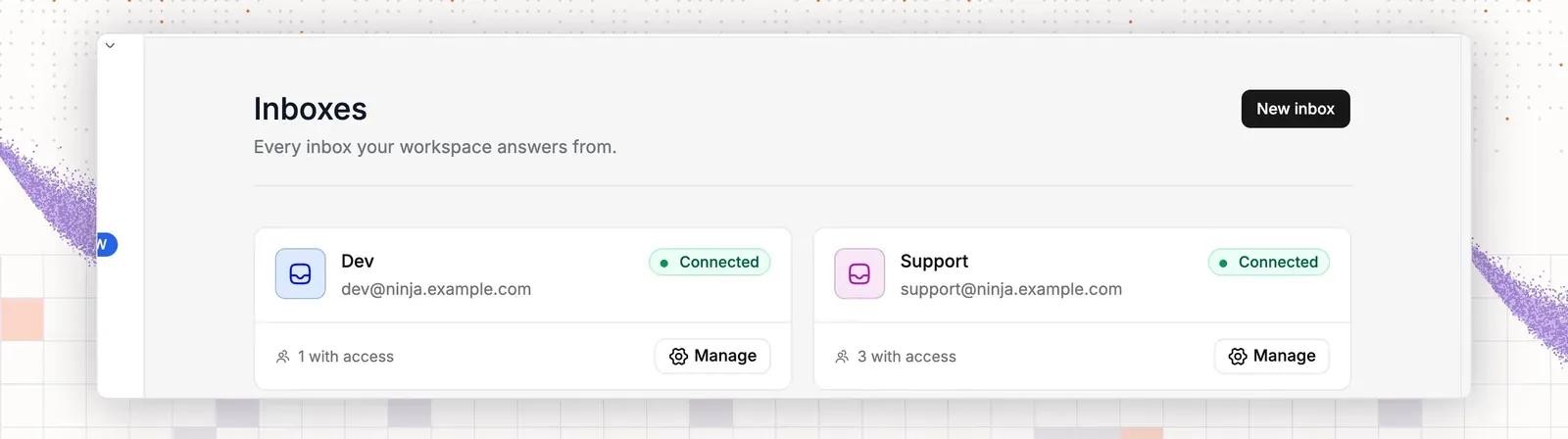
Chats and tickets land in an inbox, so choose one first. Skip this step if you already have an inbox for your product or store.
- Open Settings, then Inboxes.
- Select New inbox.
- Type an Inbox name, such as “Support” or “Store support”.
- Save the inbox.
Step 2: create the chat assistant
The widget is called a chat assistant in the app.
- Open the AI section, then Deploy, then Chat widget.
- Select New chat widget.
- Type an Assistant name, such as your product or store name.
- In Select Inbox, pick the inbox from Step 1.
- Open the Installation tab.
- Copy the Web snippet and paste it into the header of your site, or into your Shopify or WooCommerce theme file.
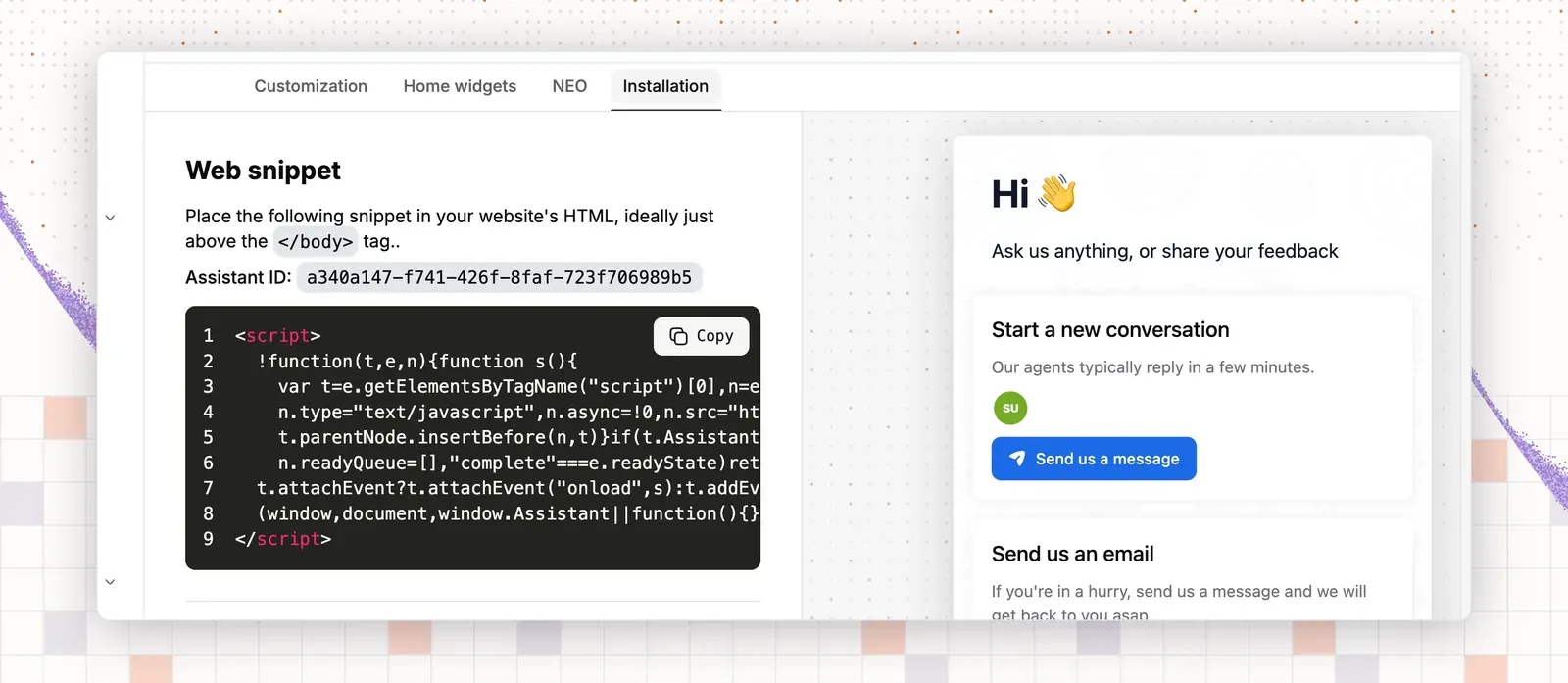
The live chat guide shows the install steps.
Step 3: write help articles with AI in the Help Center
- Open Settings, then Help Center, then All Help Center.
- Select New help center, type a name and a domain, then select Create help center. Skip this if you already have one.
- Select Open help center on the card. The Help Center admin opens in a new tab with Articles, Categories, Reports and Media Library in the left bar.
- Open Articles and create an article. You can also press Cmd+K and choose Create New Article.
- Type a title and a rough first paragraph.
- On a new line, type
/and choose Ask AI under the AI heading. Tell it what to write, and it drafts the text from the context above it. - To rewrite text, select it and use the AI button in the toolbar.
- Read the draft and fix every fact. Then select the arrow next to Save as Draft, choose Publish Changes and select the button.
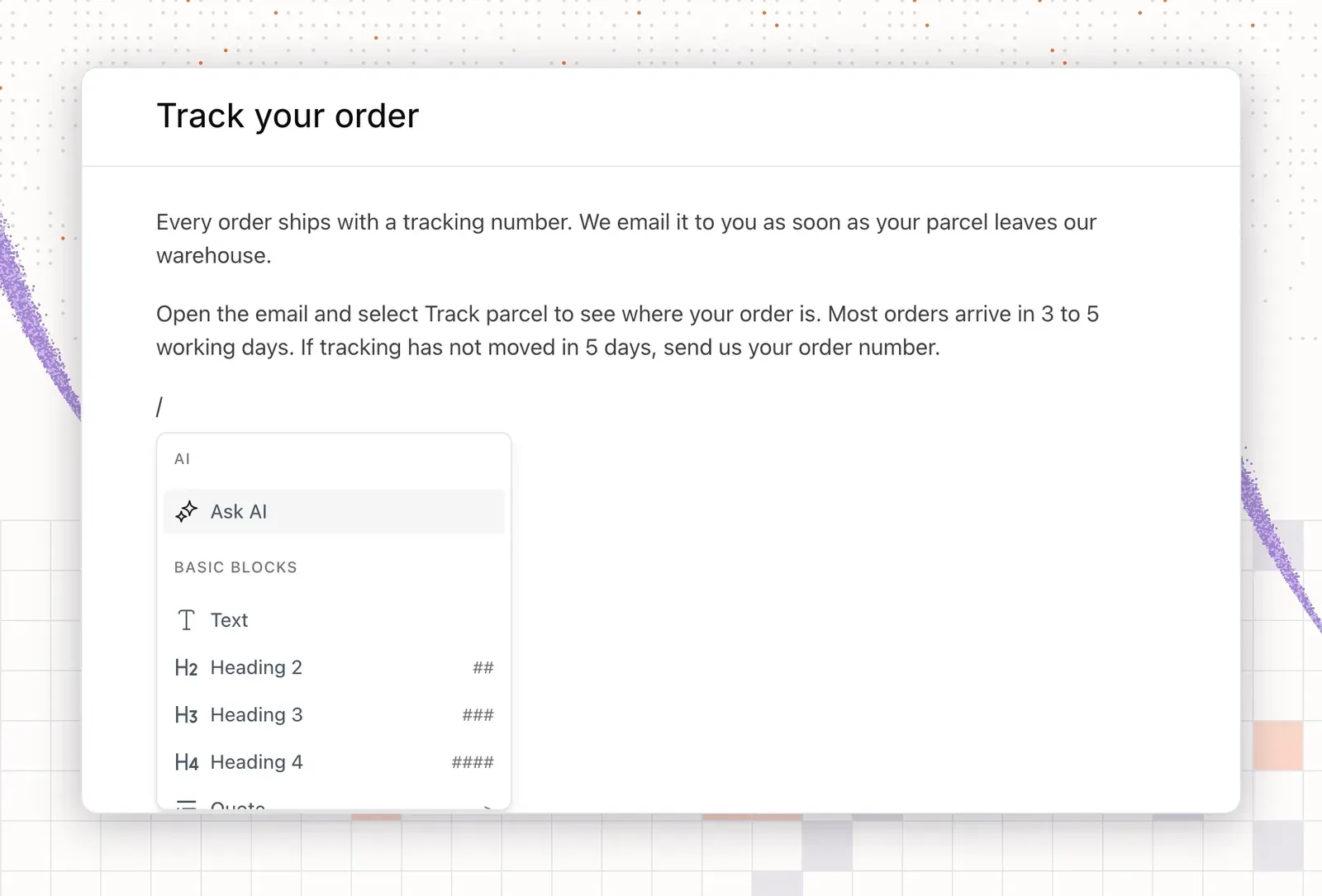
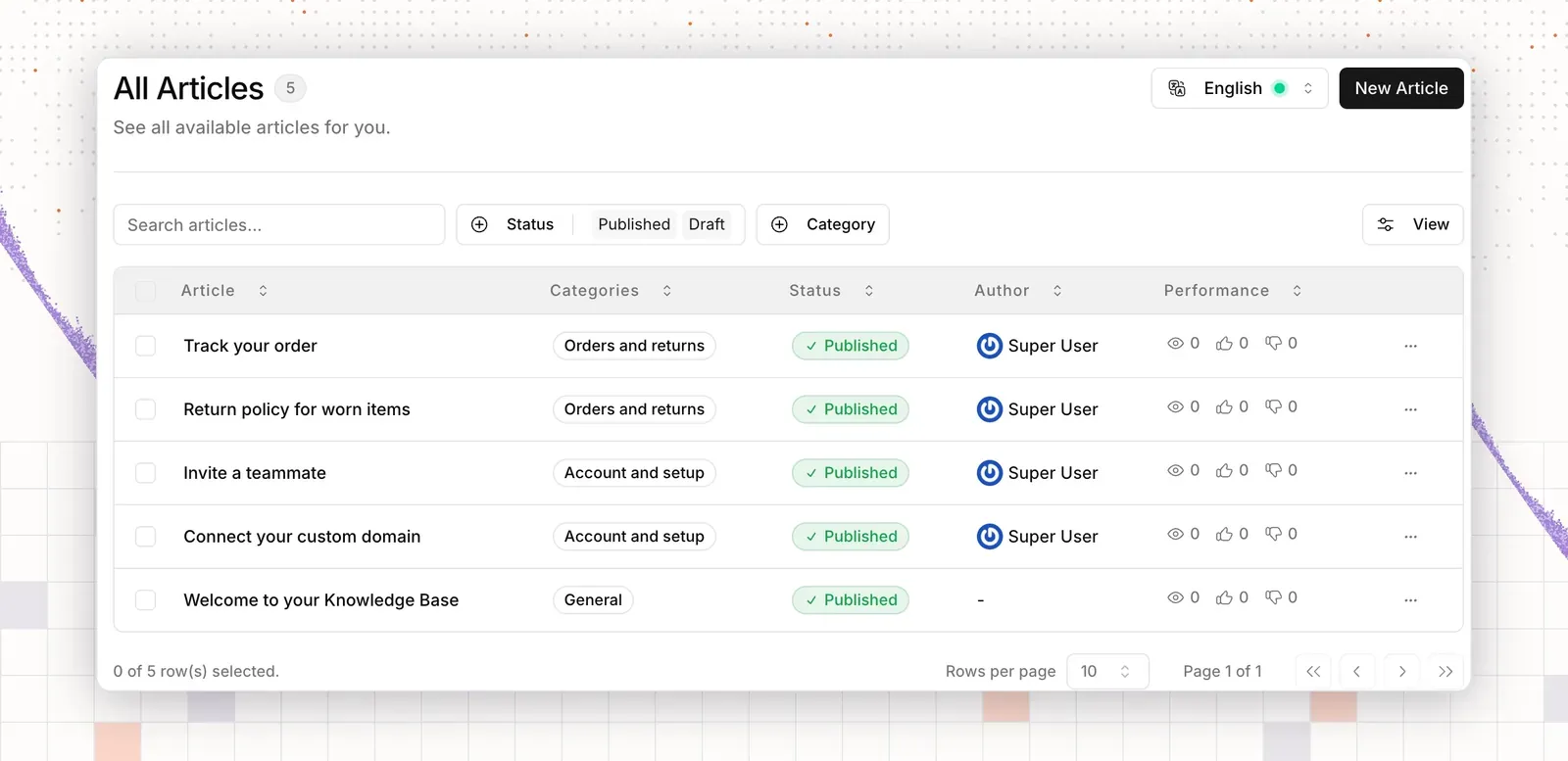
A software team might draft “Connect your custom domain”. A store might draft “Return worn boots”. Always check what the AI wrote against your real policy. Group articles in categories, such as “Account and setup” for a software team and “Orders and returns” for a store.
Step 4: turn a resolved ticket into an article
Your best article topics are already in your inbox. When your team has answered a question well, ThriveDesk can turn that ticket conversation into a draft help article with AI. A resolved “How do I connect my domain?” ticket becomes a setup article. A “Can I return worn boots?” ticket becomes a returns article. Then open the draft in the Help Center editor, remove customer names and details, check the facts and publish.
Step 5: add sources
Sources belong to one inbox, so select the inbox from Step 1 first.
- Open AI, then Train.
- Open Doc. Each help center shows as a row. Switch on the articles you want the agent to use. New articles are indexed on their own, and you can switch off any single article.
- Open Q&A and add a question and its answer. Add one pair for each of your 20 repeat questions.
- Open Website. Paste a page address, such as your shipping, returns or docs page, in the Enter the URL field, then select Fetch Webpages.
- Open File to add a file, such as a terms document or a size chart.
- Select Save and wait until each source shows that training has finished.
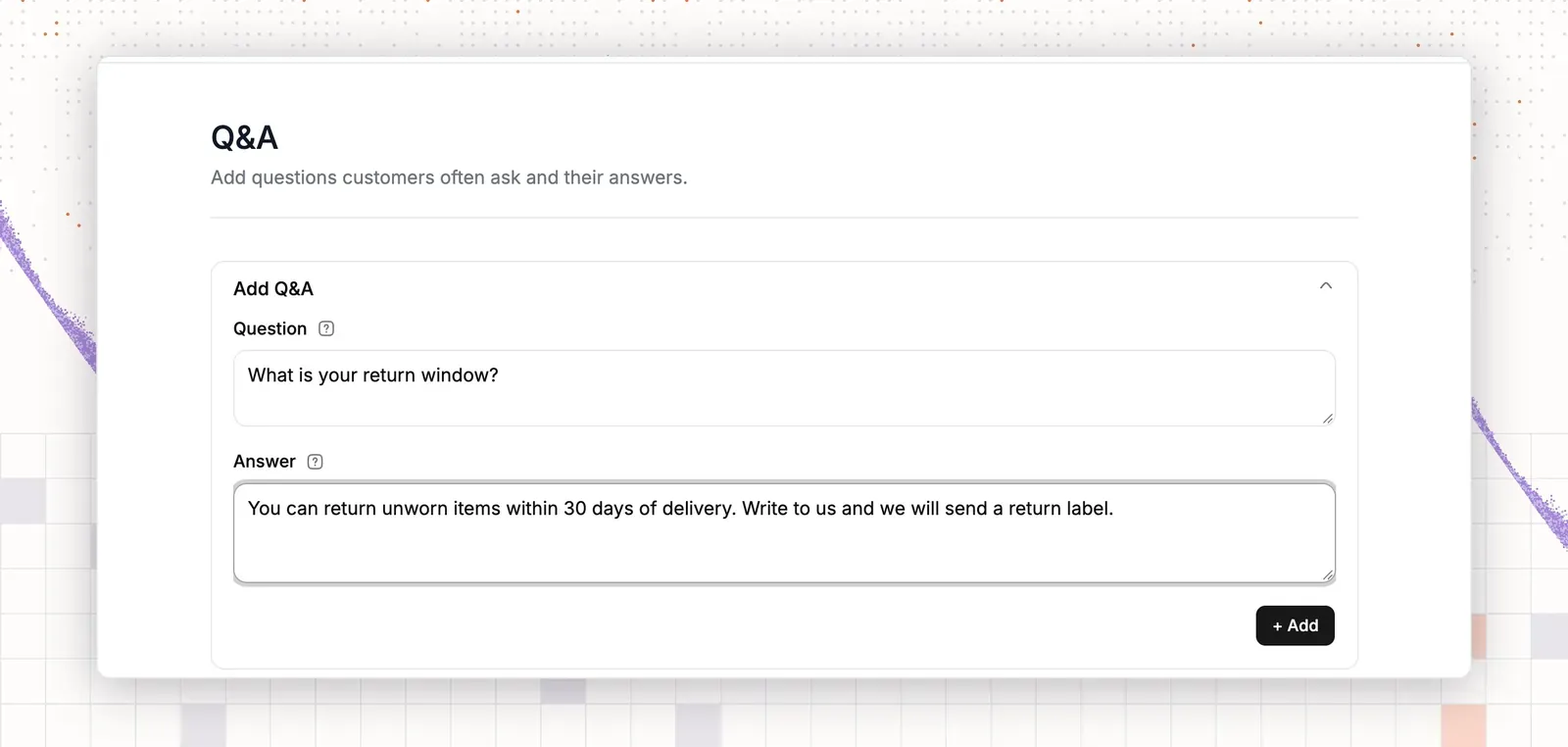
Write each Q&A answer as you would say it to a customer. Keep it short and exact. Two samples for a software team are “How do I reset my password?” and “Can I change my plan mid-cycle?”. Two for a store are “Where is my order?” and “What is your return window?”.
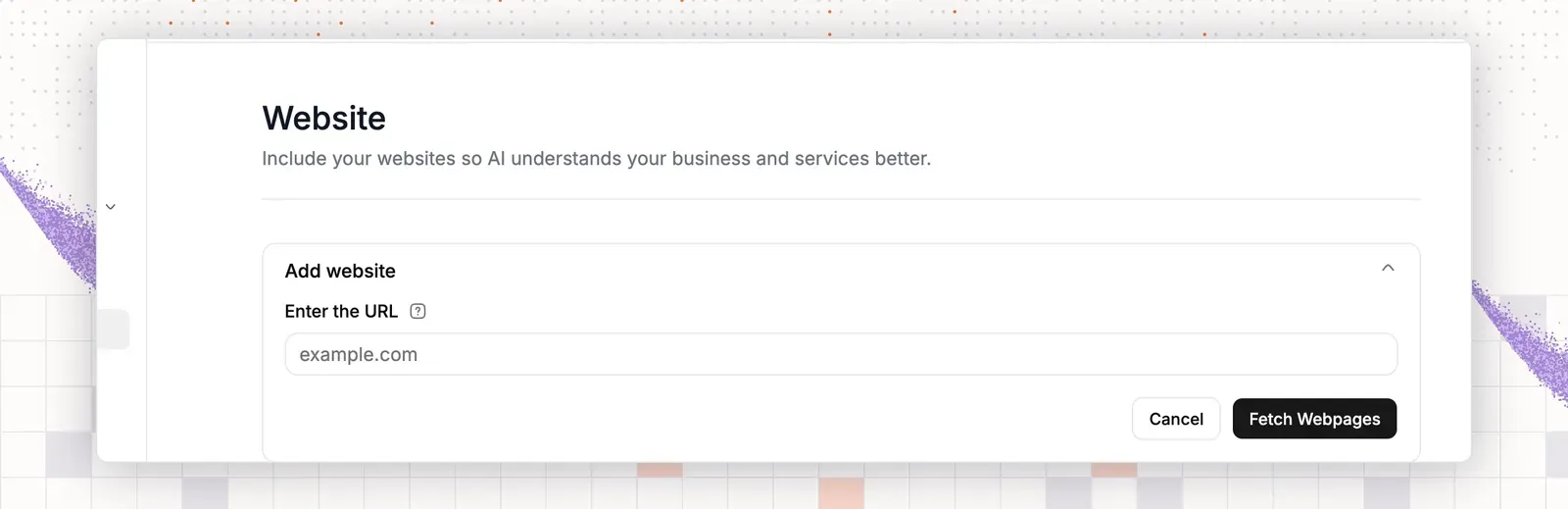
See AI training for the full list of sources.
Step 6: set guidance and the handoff
Guidance tells the AI agent how to answer: tone, answer length, what to avoid and what it may promise.
- Open AI, then Guidance.
- Type one rule per line in the guidance field.
- Select Save.
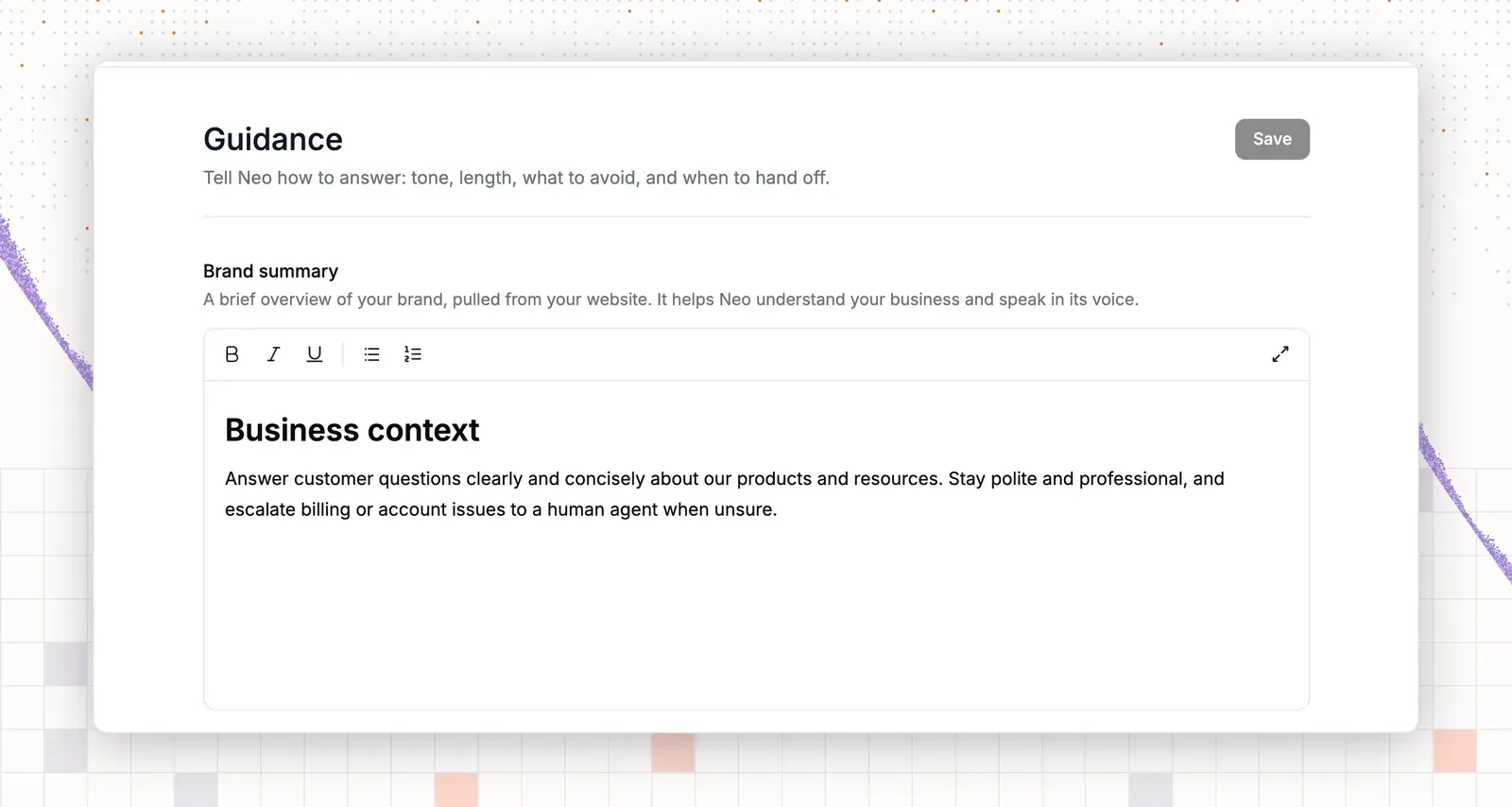
A software team might write: “Never promise a release date. Say the team reads every feature request.” A store might write: “Quote the return window. Never promise a refund. Send exceptions to a teammate.” See AI guidance for more examples.
Then set the handoff.
- Open AI, then Train, then Handoff & Escalation.
- Type the Handoff message. The AI agent sends it when it steps aside.
- Switch on When no one is online, ask for an email and open a ticket.
- Select Add rule.
- Pick a Trigger. It can be a customer who asks for a person, a keyword such as “refund” or “bug”, or low confidence in the answer.
- Pick a teammate in Assign to.
- Add a tag or a Priority if you want one.
- Select Save.
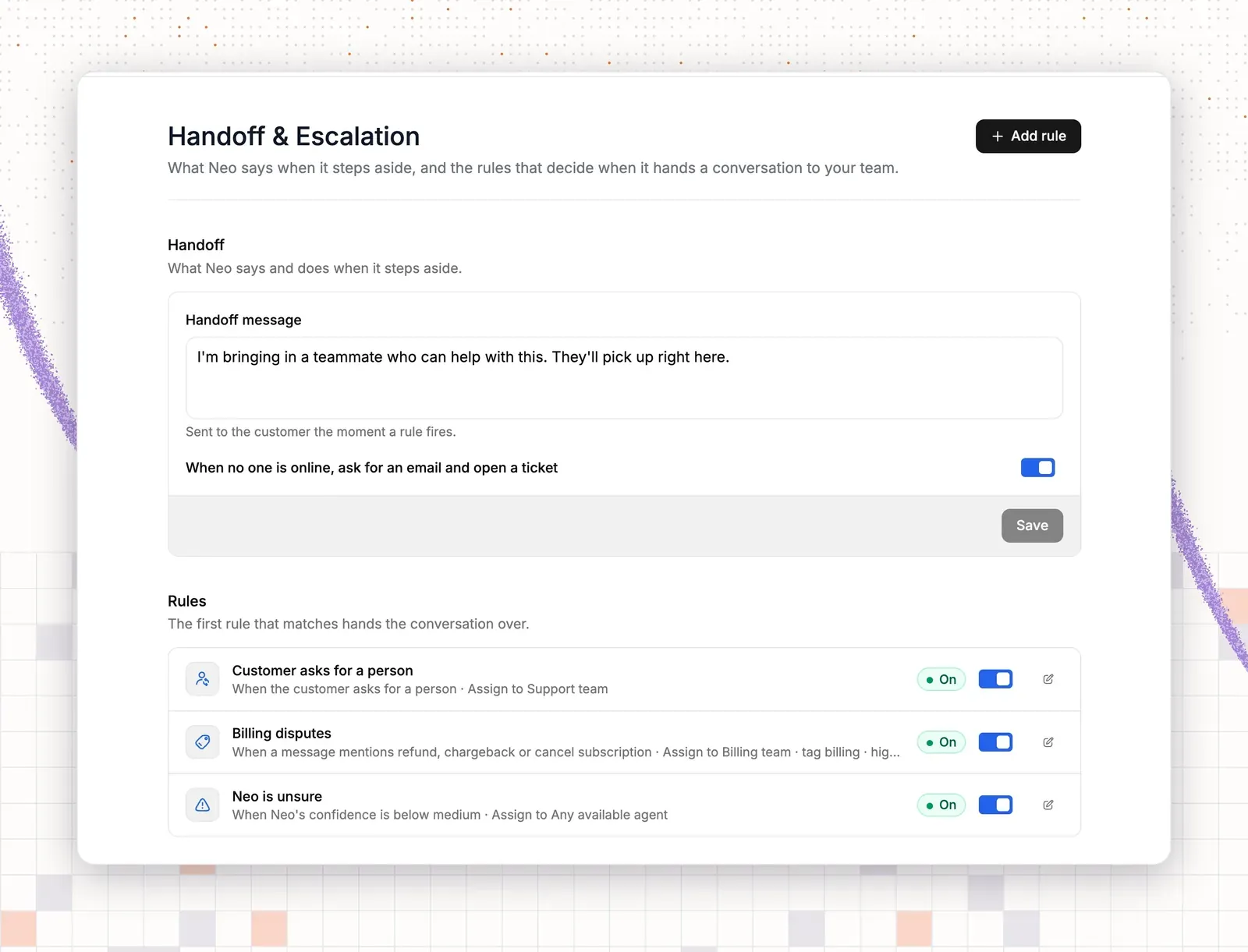
Read more about AI escalation.
Step 7: switch on the agent and test
- Open AI, then Deploy, then Chat widget.
- Open your widget and switch on the AI agent.
- Open Preview & Simulations.
- Run three sample questions: one account or billing question, one order or return question, and one that is not in your sources.
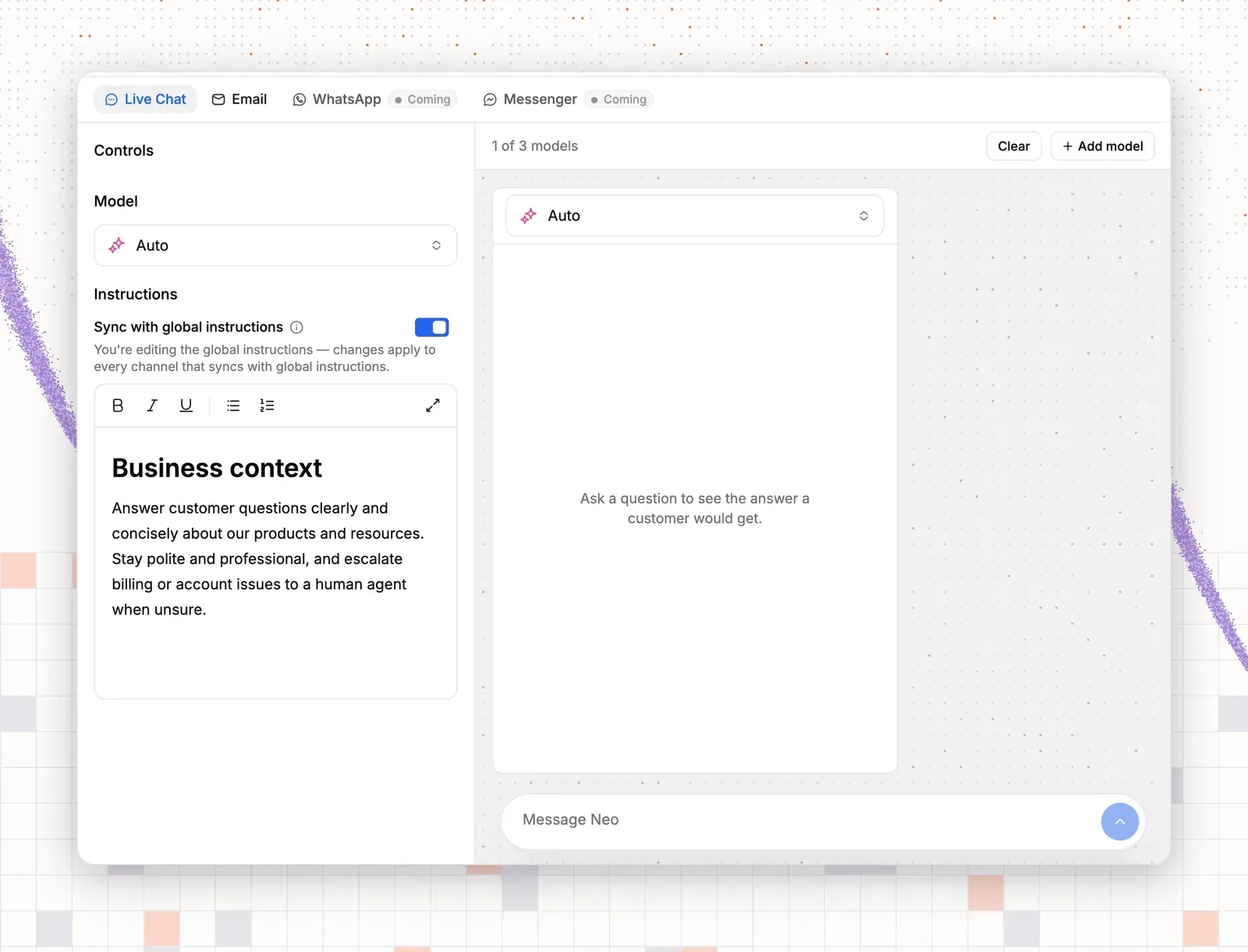
The third question matters most. The agent should say it does not know and offer a person, not guess.
Then open your site and send a chat as a customer. Ask for a person. Open your inbox in ThriveDesk and check that the conversation reaches your team with the earlier messages attached. If an answer is wrong, fix the source and test again.
If your store is on Shopify or WooCommerce, set up the Shopify or WooCommerce connection so the agent can look up an order for a customer.
Step 8: check AI search and the Help Center report
- Open your public Help Center and look at the search box. It reads Search or Ask AI….
- Type a full question, such as “Can I return worn items?” or “How do I connect my domain?”. The AI answers in a chat. Use Ask follow up question… to go deeper.
- In the Help Center admin, open Reports. The page is called Search Insights.
- Open the Searches tab. The table shows Terms, Total Searches, First Search Date and Last Search Date.
- Open the AI Conversations tab to read what customers asked the AI.
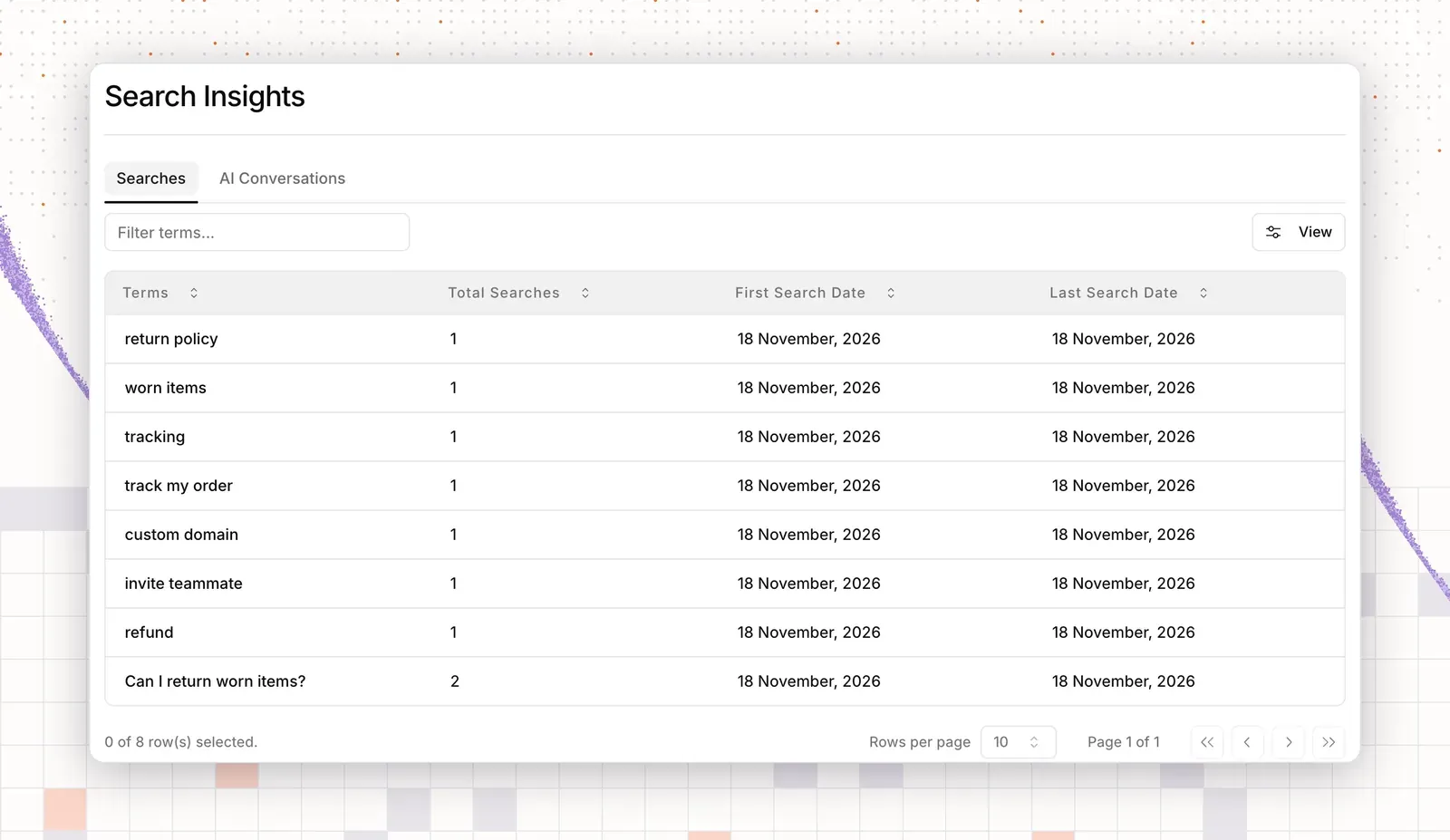
Terms with many searches and no good article are your next articles to write.
How to keep the content accurate

An AI knowledge base is never finished. Content goes stale when your policies, plans or product change. Use a short weekly routine:
- Open the list of questions the AI could not answer. Write content for the top five.
- Fix wrong answers at the source. Do not patch them in chat.
- Update the knowledge base on the same day a policy, plan, price or release changes.
- Remove old content, such as ended sales, old promo terms and retired features.
Track four numbers: resolution rate, handoff rate, questions with no answer and customer rating after AI chats. Do not track page views alone, because the AI agent answers without a page visit. Set your own baseline in the first month. No standard benchmark fits every team.
How ThriveDesk handles AI answers from your help content
ThriveDesk’s Help Center is its AI knowledge base. Its AI agent is called Neo. Neo reads the Help Center and works inside the help desk, so a handoff carries the full chat. The Help Center adds four AI features.
Steps 3, 4, 7 and 8 above cover the four AI features of the Help Center: writing and editing articles, turning a ticket into a draft, a search box that answers full questions, and a Reports page for search terms. Neo reads the same articles as a source, so each article you publish improves both.
How the pieces fit
The Help Center is one part of what Neo knows. Together, these sources give the AI agent a complete knowledge base:
- Help Center articles (AI, Train, Doc): your full, public answers.
- Q&A pairs (AI, Train, Q&A): short, exact answers to repeat questions.
- Website pages (AI, Train, Website): product, plan, shipping and pricing pages.
- Previous tickets: the answers your team already gave. Turn resolved tickets into help articles with AI (Step 4), and what your team solved once becomes an answer the agent can give every time.
- Files (AI, Train, File): documents such as terms or a size chart.
More sources give Neo more to quote, so it gives better answers.
The Help Center, Neo, live chat and email share one inbox. A customer can read an article, ask Neo a question and then ask for a person in the same thread. Your team sees the whole history. A software team gets account, billing and how-to questions. A store gets order, return and sizing questions, and Neo can use order data from Shopify or WooCommerce.
Plans are flat. Basic is $29 a month for 2 teammates, or $19 on annual billing. Standard is $69 for 5 teammates, or $49 on annual billing. The built-in help center starts on Standard. Unlimited is $129 for any team size, or $99 on annual billing. An extra knowledge base is a $20 add-on. There is a 7-day free trial with no credit card, and no free plan. See pricing for details.