
A multivendor marketplace allows many independent sellers to list and sell products on the same eCommerce platform. This model has become a popular platform for both sellers and buyers due to many reasons.
Around 50% of buyers today love to make their first product search on marketplaces instead of search engines (Jungle Scout).
As a result, marketplaces usually get more traffic than single eCommerce stores. So, both sellers and marketplace owners can easily reach countless users with their products if the platform is properly built.
According to Edge by Ascential, by 2028, marketplace sales are expected take over 59% of global eCommerce.
Many business owners now prefer building their own marketplaces. Because it supports more sellers, offer wider product variety, and makes it easier to grow with a commission-based earning model.
In this post, we’ll cover a detailed guide on how to create a multivendor marketplace with Dokan.
Hope you’ll enjoy it a lot. Get started!
Prerequisites to Create a Multivendor Marketplace
There are several elements you must have ready to build a marketplace. These items make sure your website runs smoothly, loads fast, and supports sellers and customers without trouble.
They also make your marketplace secure, functional, and ready for growth. They are:

a. Domain and Hosting
A domain is the web address of your marketplace. Choose a name that is short, clear, and easy to remember.
After that, select a hosting provider. Hosting is the platform where all your marketplace data will be stored. This is what makes your marketplace website live.
Hosting affects how fast your site loads and how well it handles traffic. For a marketplace, hosting must support many product pages, vendor dashboards, and customer activities.
Managed WordPress hosting or cloud hosting can give better speed, security, and uptime.
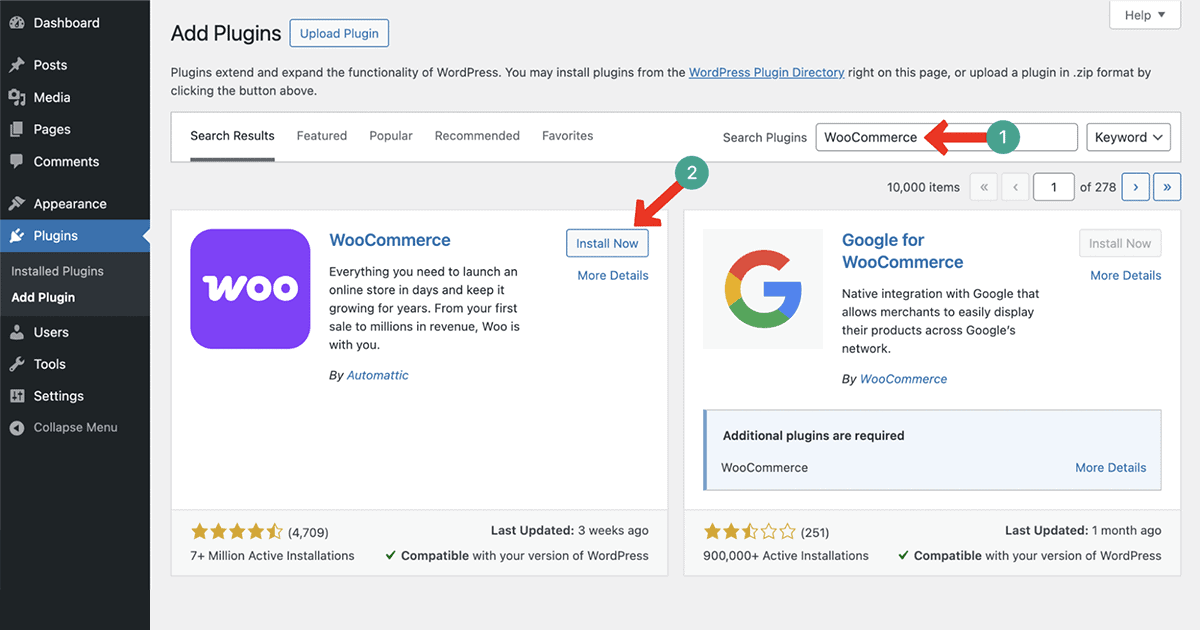
b. WooCommerce
WooCommerce is the main plugin that turns a WordPress website into an online store. It handles product listings, orders, payments, and inventory.
Dokan works on top of WooCommerce. So, you must install and set up WooCommerce first.
It is also modular. You can add necessary extensions later as required when your marketplace grows. WooCommerce is free, flexible, and well-supported by developers and hosting companies.
c. Dokan
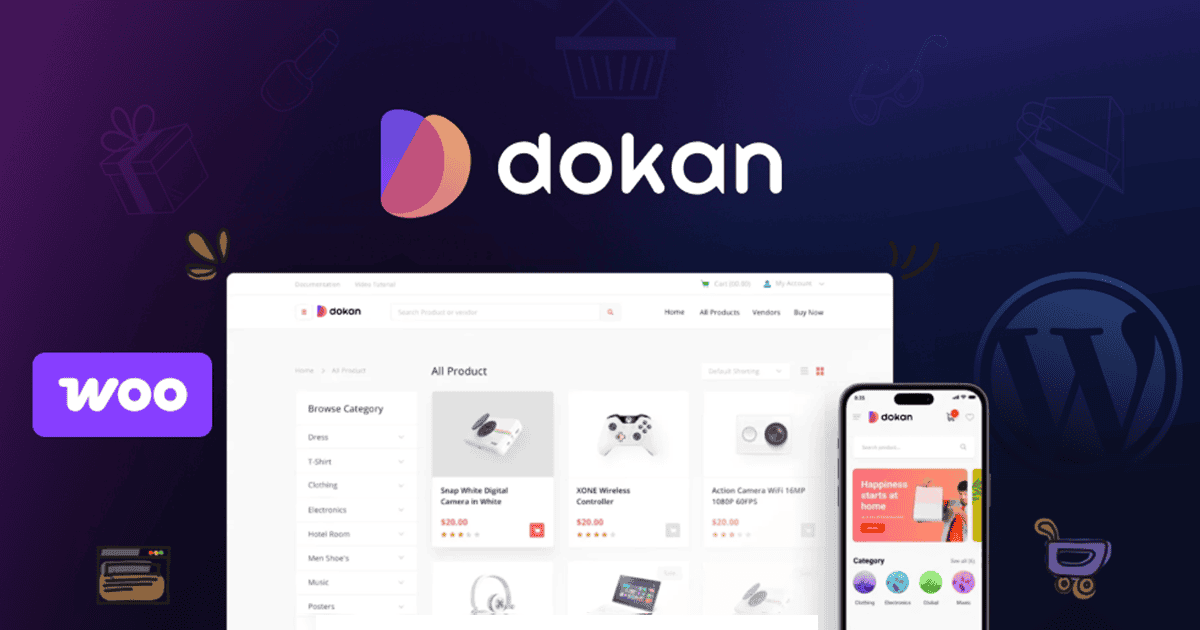
Dokan is the core plugin that converts a single WooCommerce store into a multivendor marketplace. Actually, it adds multivendor features to WooCommerce.
It gives vendors (sellers) their own store pages, product forms, dashboards, commission settings, withdrawals, and more.
It handles vendor onboarding, order tracking, shipping, and earnings. It also supports both physical and digital products.
With Dokan, you can run the whole marketplace from the admin dashboard without coding.
d. Other Suitable Plugins
A marketplace needs more than just product listings. You may need plugins for caching, SEO, security, customer support, payment gateways, and email notifications.
Some marketplaces also need multilingual plugins, currency switchers, booking features, or subscription tools.
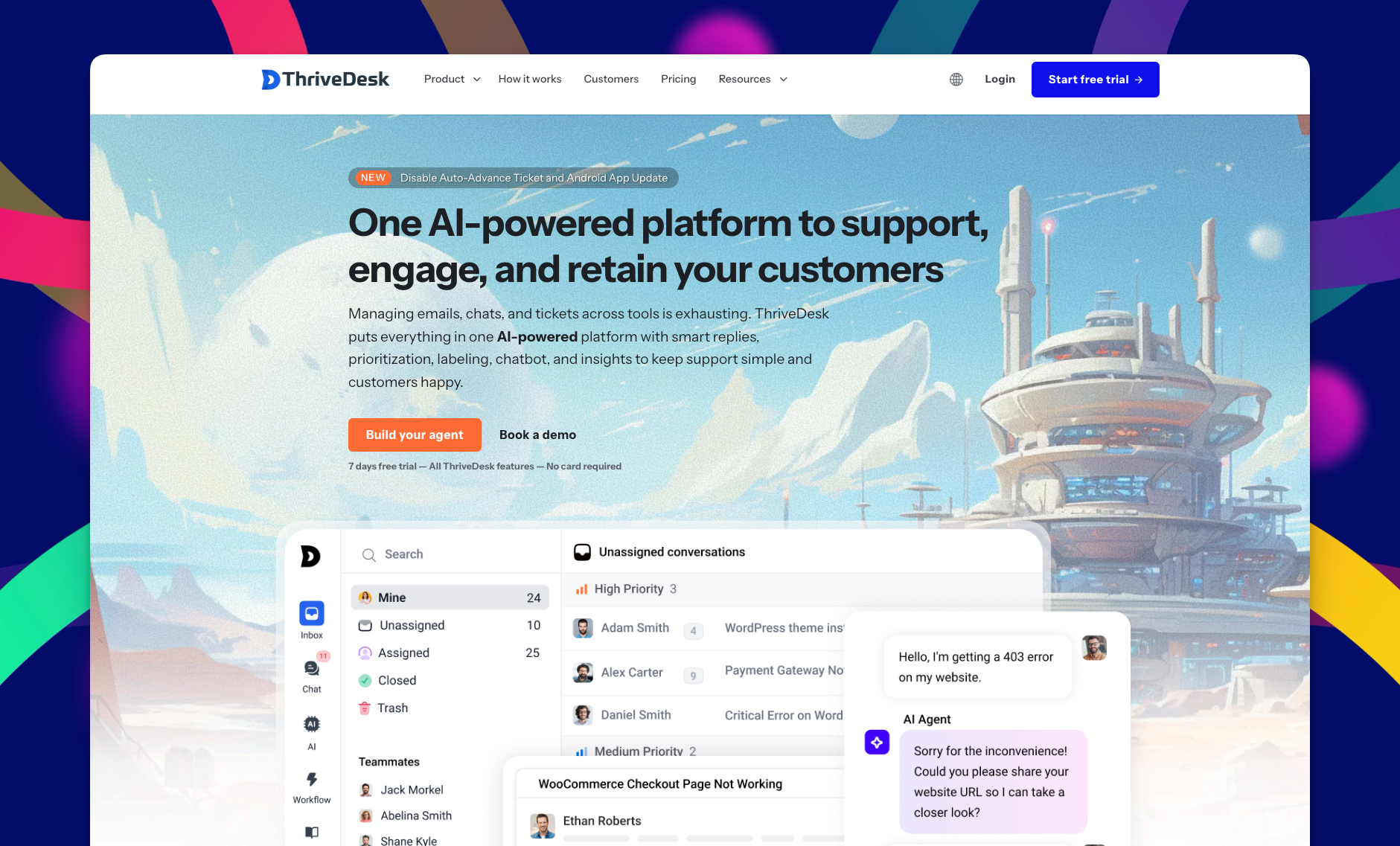
For example, you may also consider a helpdesk plugin like ThriveDesk, which allows you to manage customer inquiries, live chats, and support tickets directly from your WordPress dashboard, making communication smoother for both buyers and vendors.
Choose plugins that are stable, well-updated, and compatible with WooCommerce and Dokan. You may choose all these plugins together at once.
You may gradually add them to your website over time as your requirements change.
e. An eCommerce-Friendly Theme
A theme creates the overall layout of your website. A marketplace theme must be fast, mobile-friendly, and easy to navigate.
It should support vendor shop pages, product grids, filters, and carts. Many themes also come with demos that reduce setup time.
A clean layout helps buyers find products faster and improves conversion rates. Make sure the theme works smoothly with WooCommerce and Dokan to avoid design or checkout issues.
Installing the Dokan and Configuring the Setup Wizard
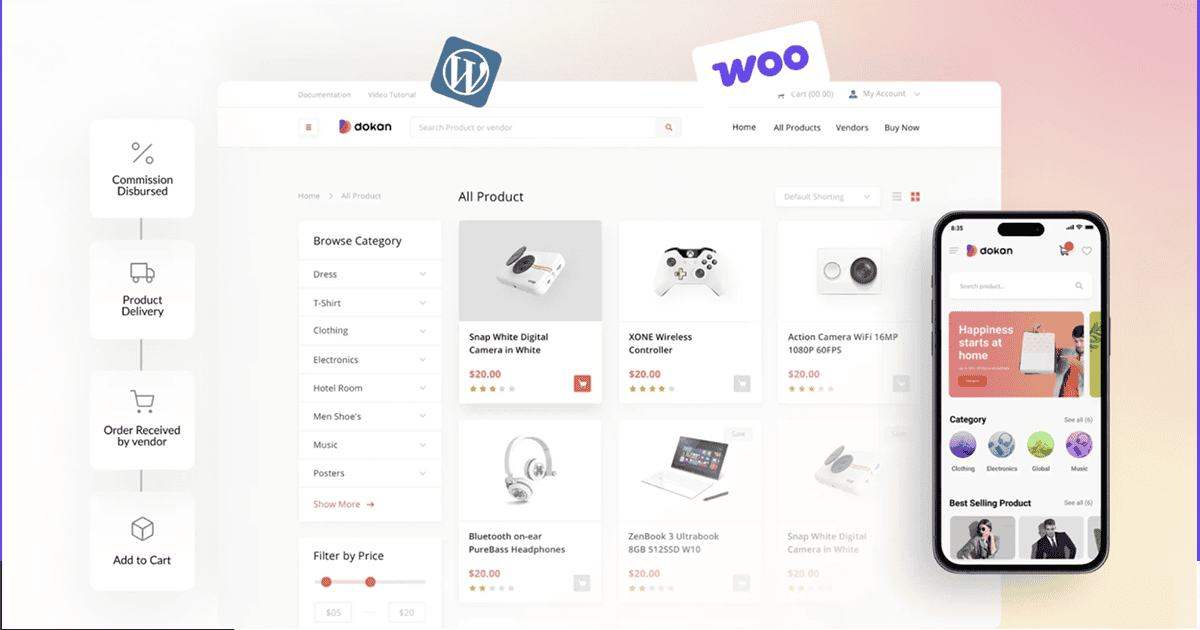
We already discussed above what the Dokan plugin is. Without it, you can’t convert your eCommerce store into a multivendor marketplace.
The free version of Dokan gives enough tools to test the workflow, onboard sellers, and understand how a multivendor system functions.
The setup wizard helps you configure essential options without any technical difficulty. Let’s explore how to install and configure the plugin.
Install the Dokan Plugin
Go to Plugins > Add New in your WordPress admin panel. Search for Dokan. Click the Install button. Then, activate it. After activation, Dokan begins a guided setup process.
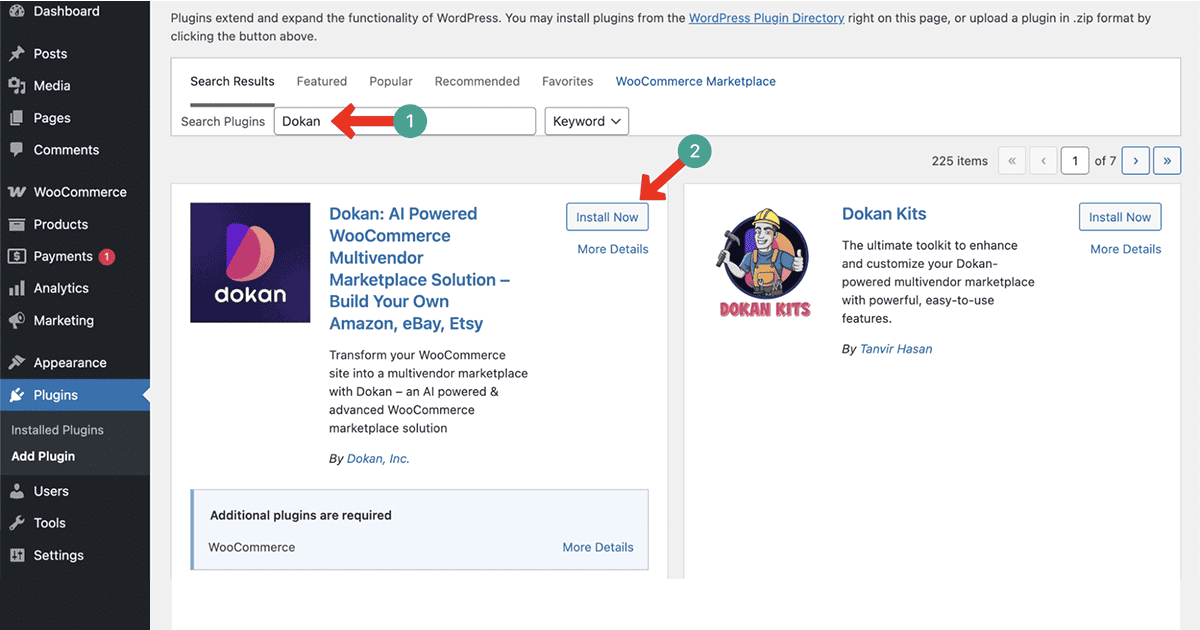
Configure the Dokan Setup Wizard
The setup wizard introduces the main marketplace settings. It asks a few simple questions to match how you plan to run your store. You can skip the wizard, but completing it makes the later steps smoother.
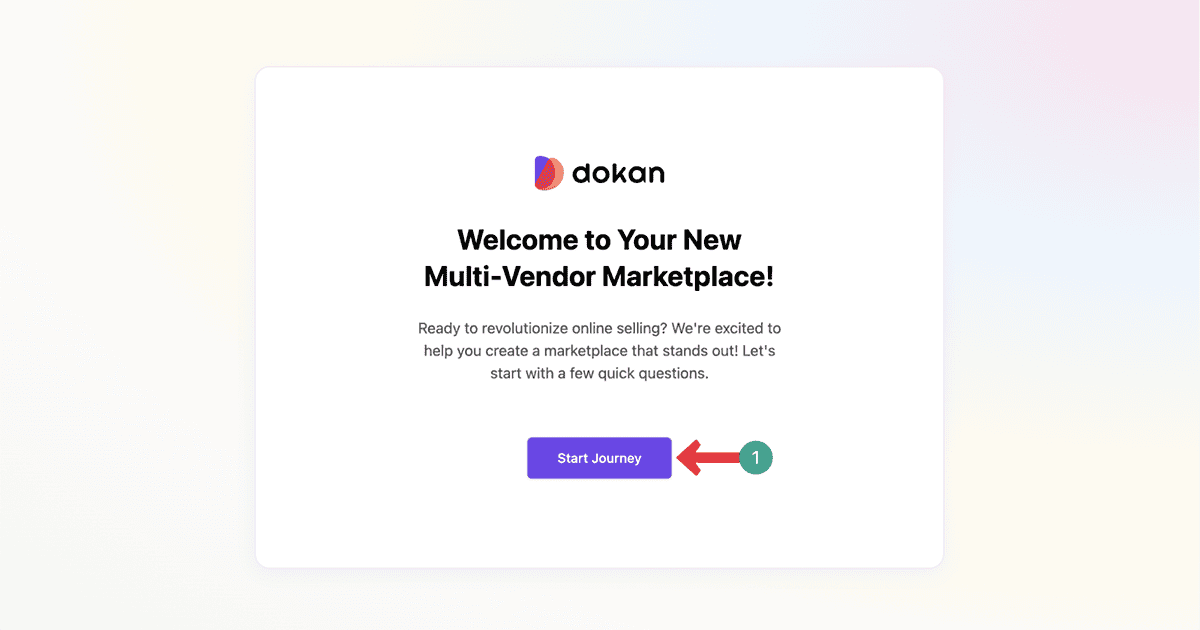
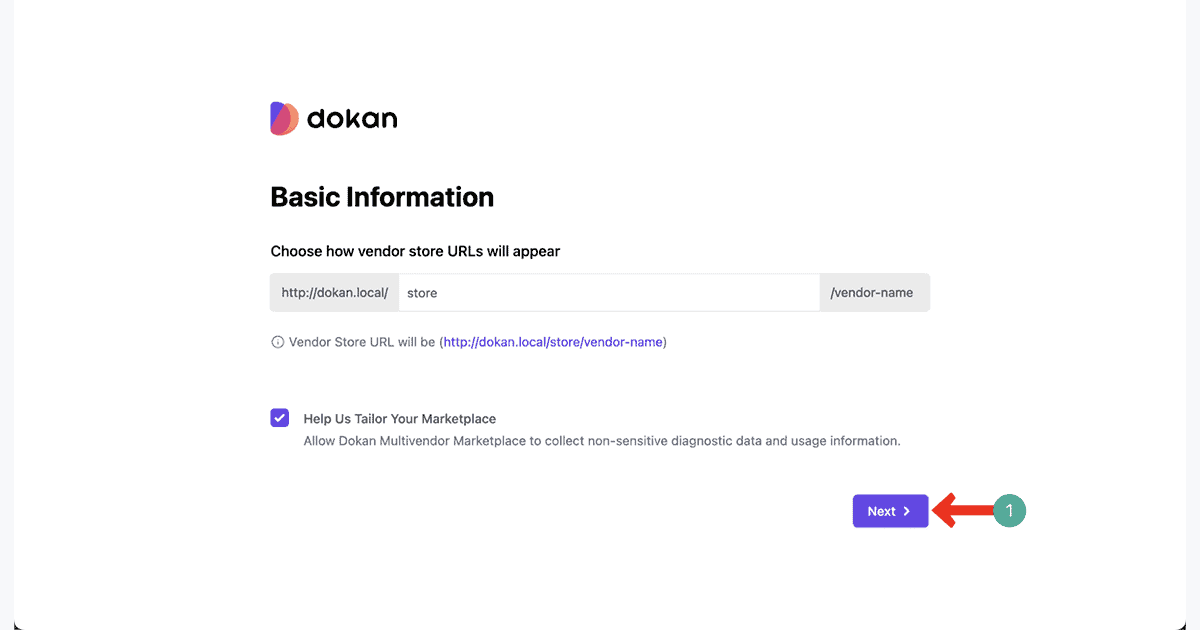
Store URL Setup
Dokan allows each vendor to have their own store link. You can choose a simple URL structure such as /store/vendor-name/. Short and clear URLs increase trust and improve search visibility.
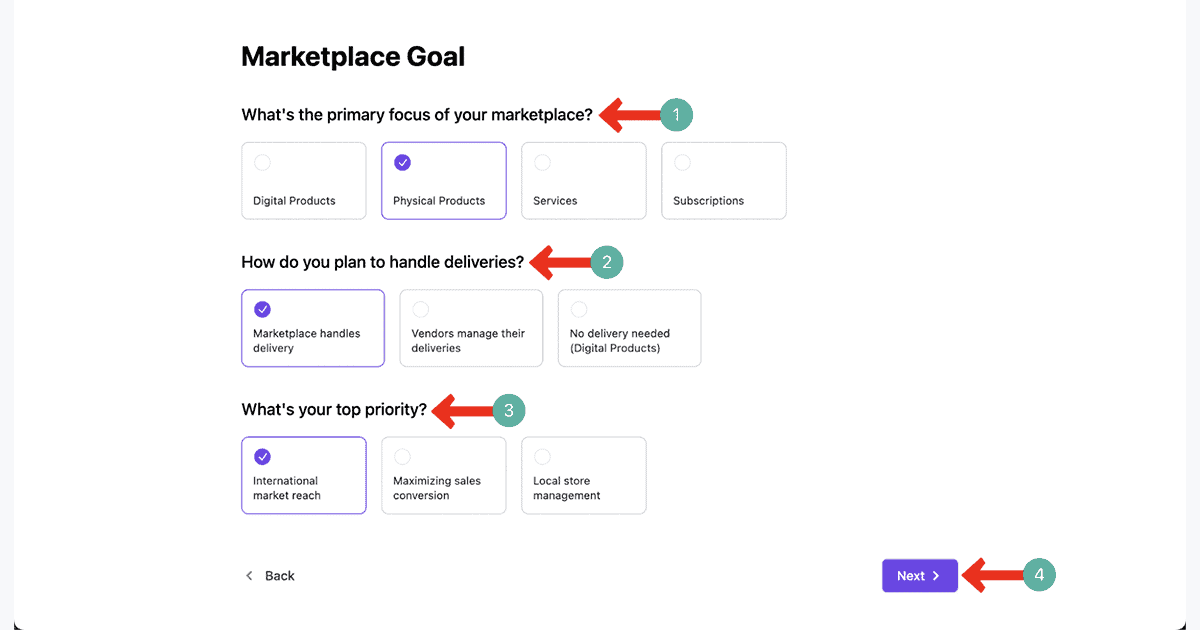
Configure Marketplace Goal
Select the primary focus of your marketplace, how you want the deliveries to be handled, and what your top priority is. Once done, click the next button to go to the next page.
Recommended Addons for the Marketplace
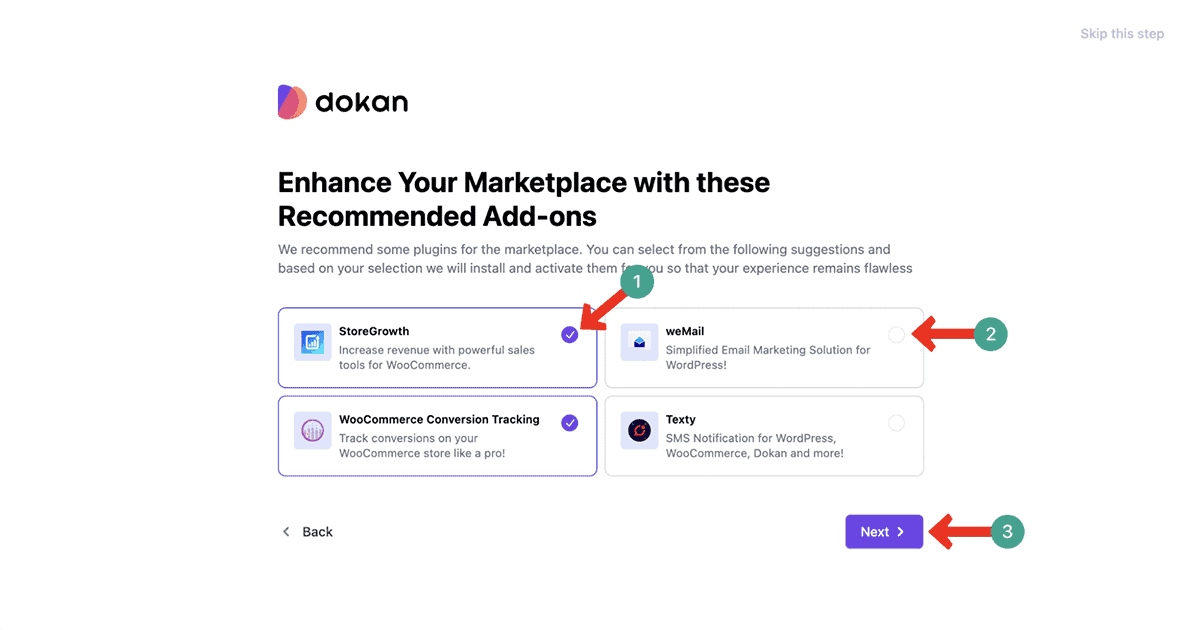
To enhance the caliber of your marketplace, you definitely need some additional plugins. At this stage, Dokan will suggest some addons. If you want to add any of them to your site, select them. Then, go to the next page.
For example, we have selected the StoreGrowth, WooCommerce Conversion Tracking, and weMail.
Each of these plugins comes up with many exceptional features that could really be helpful to grow your marketplace remarkably.
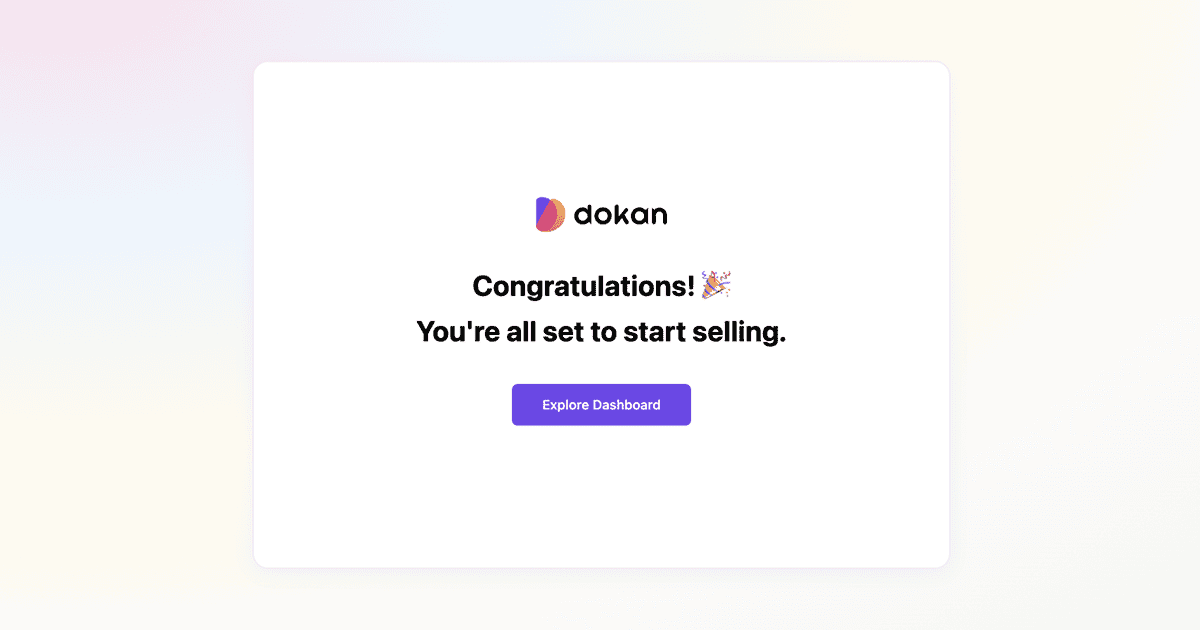
You’ll see that your wizard configuration has been completed.
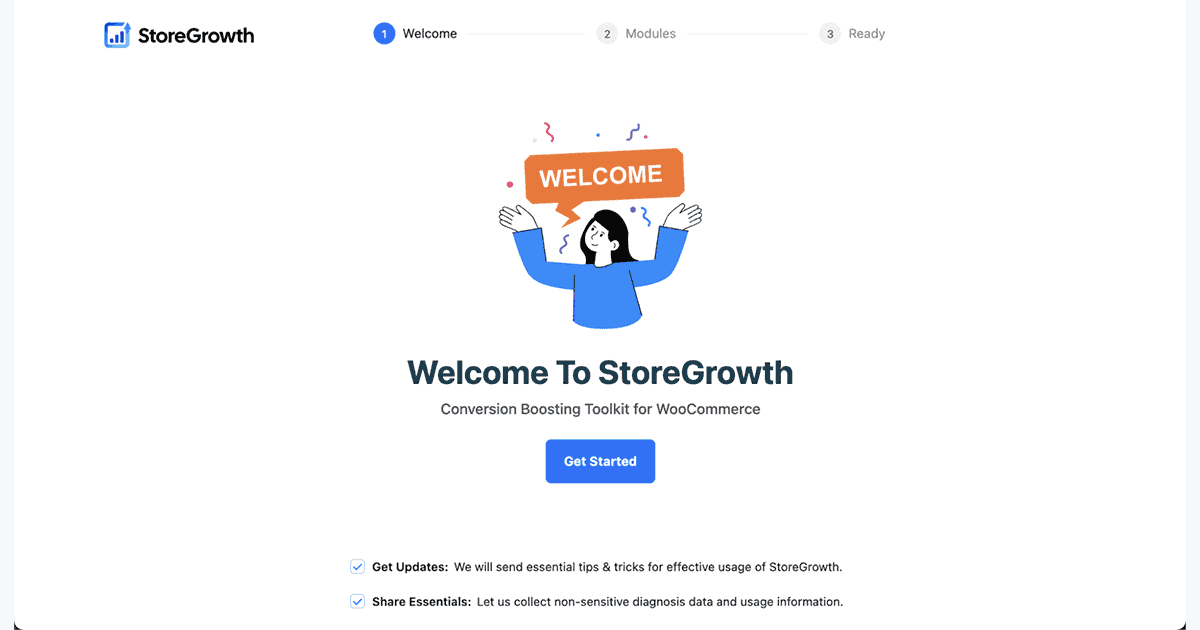
Next, you’ll get a new setup wizard for the tools you selected to add to your marketplace.
For example, you can see the setup wizard of the StoreGrowth plugin. Complete the wizard.
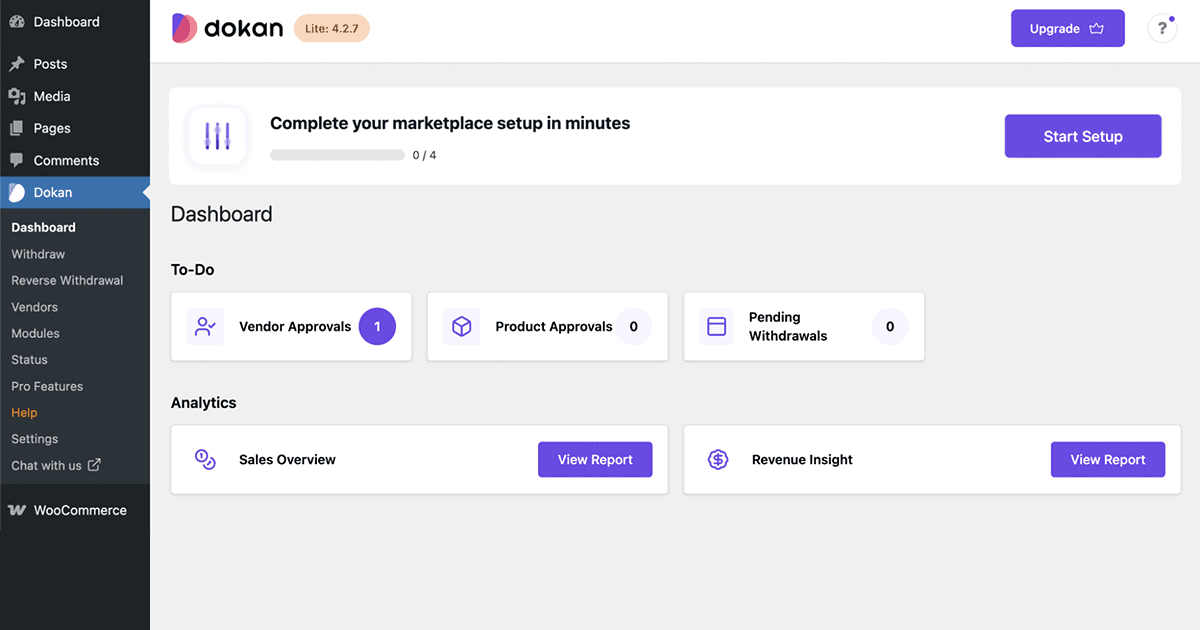
When everything is done, you’ll come to the Dokan’s backend dashboard, as you can see in the image below.
Configure the Marketplace Settings
So the setup wizard has been properly configured. Now, it’s time to configure various other settings required to run a multivendor marketplace. Keep reading!
Selling Options
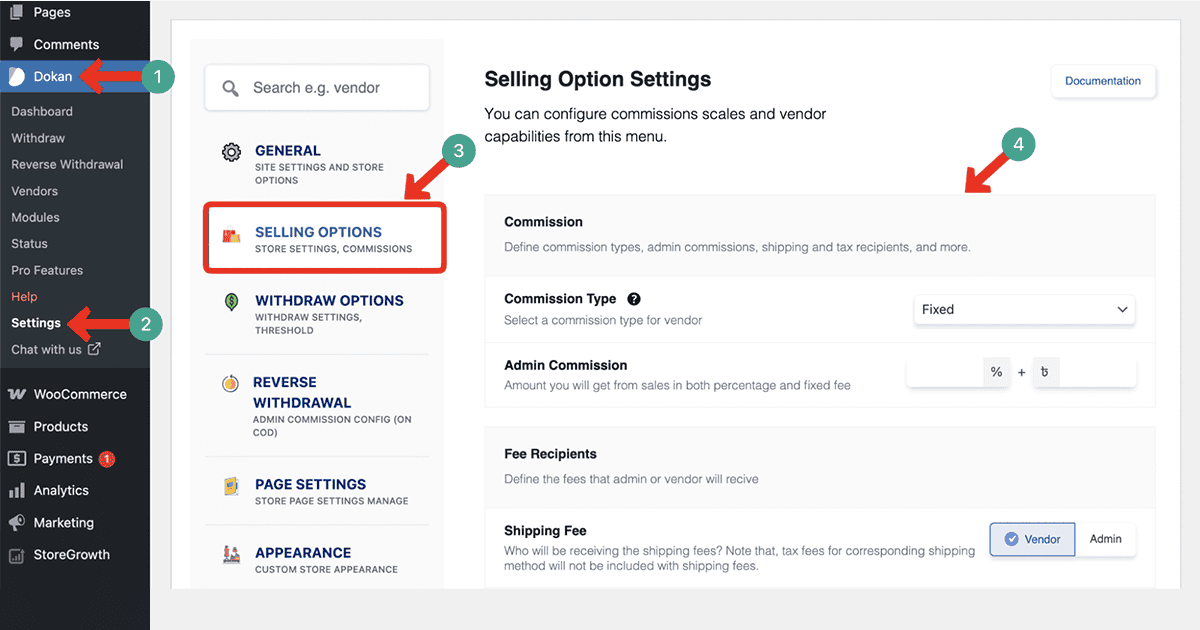
Navigate to Dokan > Settings > Selling Options. You can set a percentage, a fixed fee, or a combination of both. For example, a 10% commission means you earn 10% from every product sold by a vendor.
You can also set shipping fees, product tax fees, etc.
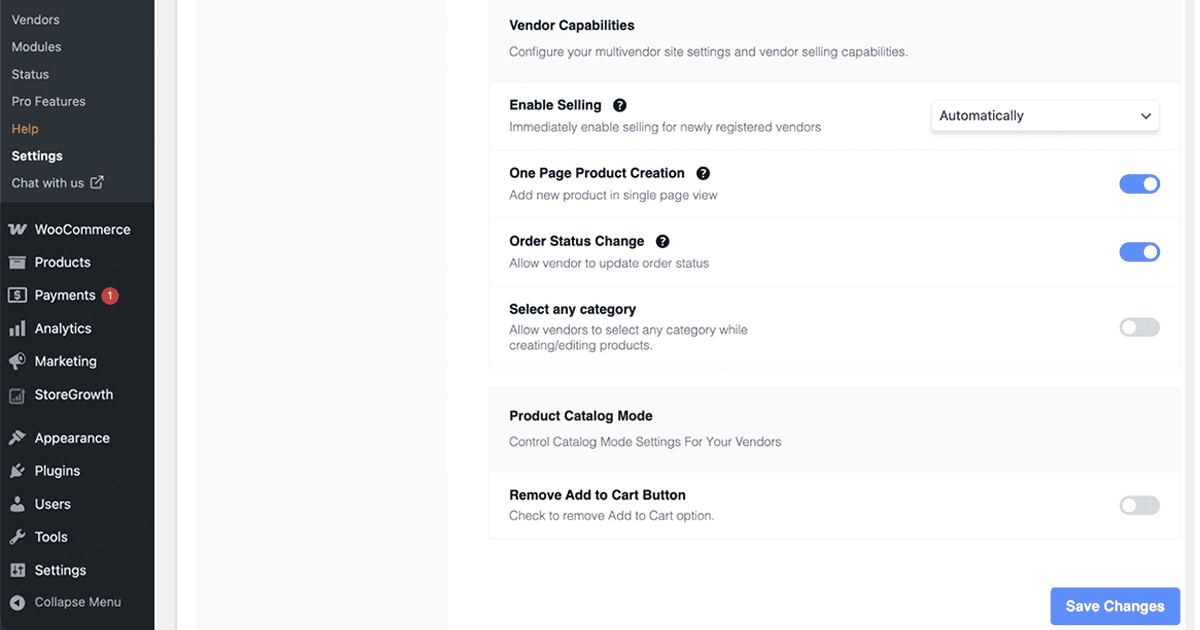
Here, you can decide who can sell on your marketplace. You can allow vendors to publish products directly or require admin approval before products go live.
Make your selections carefully, as this affects how vendors interact with your marketplace.
Once done, click Save Changes to apply these settings.
Withdraw Methods
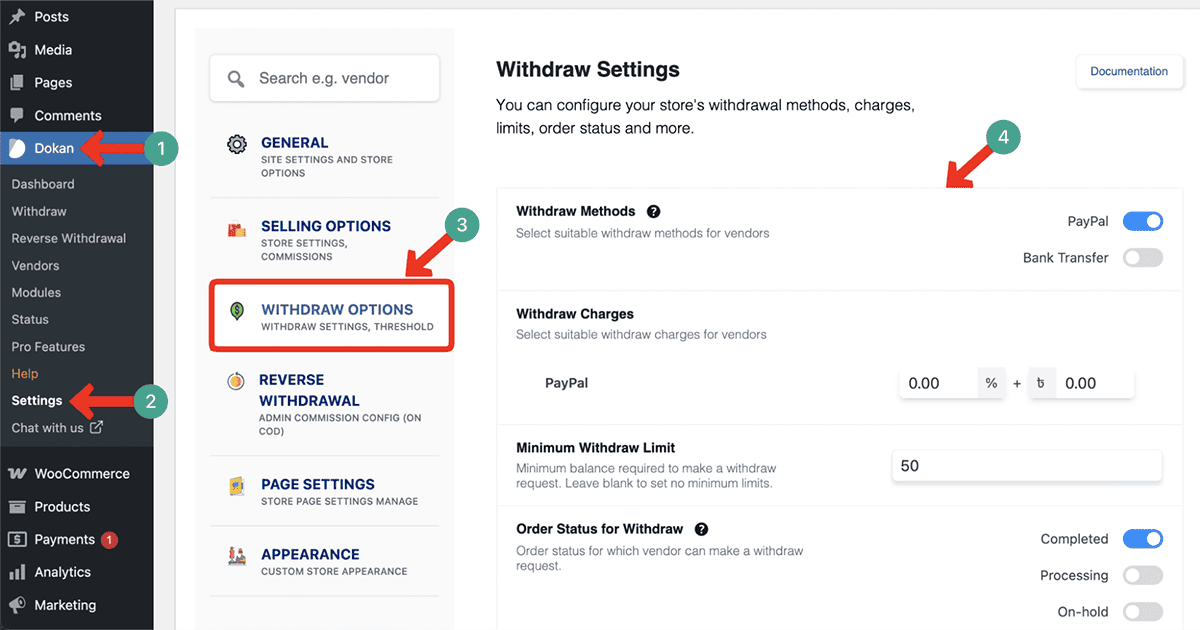
Next, visit Dokan > Settings > Withdraw. Vendors need a way to receive their earnings. You can enable options like Bank Transfer, PayPal, or other custom methods.
Dokan also allows you to set a minimum withdrawal limit and a schedule for payouts (for example, weekly or monthly).
Fill in the details and click Save Changes. Vendors will now see these options in their dashboard when requesting payouts.
Reverse Withdrawal Settings
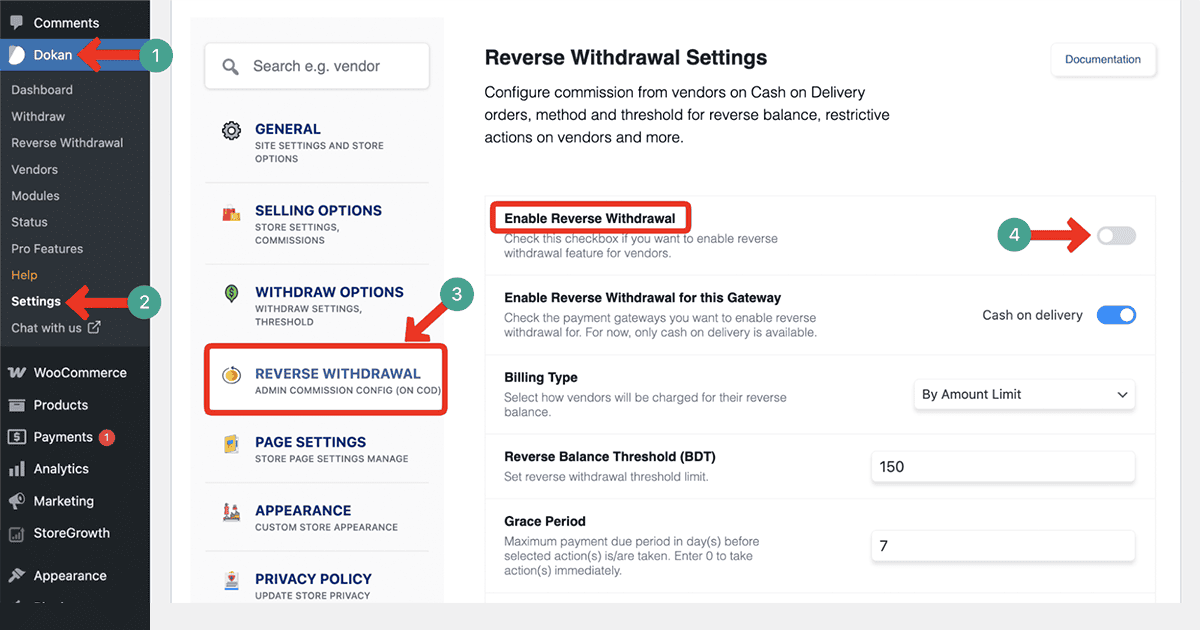
To start, go to Dokan > Settings > Withdraw > Reverse Withdrawal. Check Enable Reverse Withdrawal. From this section, you can manage how vendors pay back balances for Cash on Delivery orders.
Choose which payment gateways it applies to, set the billing type, define a minimum balance threshold, set a grace period for payment, decide actions if vendors don’t pay on time, and display notices to vendors during the grace period.
Site and Store Page Settings
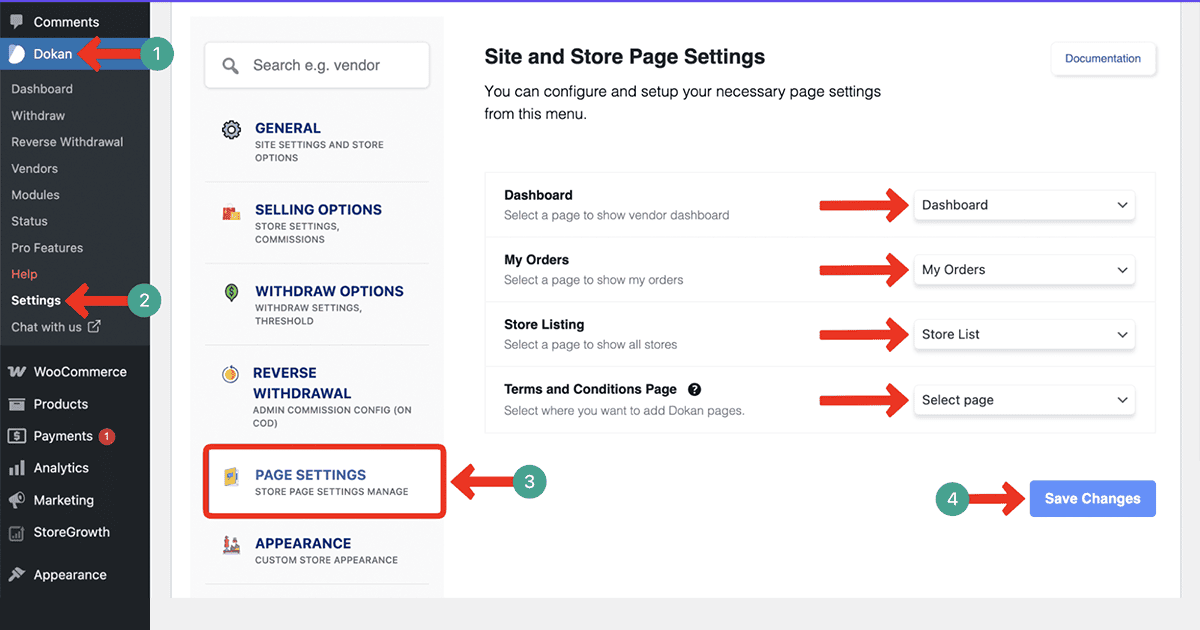
To configure your site and store pages in Dokan, go to Dashboard > Dokan > Settings > Pages. From the section, you can assign specific pages for all important vendor and marketplace functions.
For example, you can select a page to show the Vendor Dashboard, another page to display My Orders for vendors, and a page for Store Listings where all stores are shown.
You can also choose a Terms and Conditions page to ensure Dokan’s pages are properly linked to your site’s policies.
In the same way, you can explore and configure the other options available in the Dokan Settings. Hope you can do them alone.
Vendor Registration Workflow and Dashboard Experience
A multivendor marketplace is nothing unless there are vendors in it. But how will vendors join the marketplace?
Dokan allows you to create a vendor registration form by which interested sellers can apply to be vendors in your marketplace.
As an admin, you can check them later and approve the ones who are safe for your marketplace. Here’s how to do this:
Vendor Registration Page
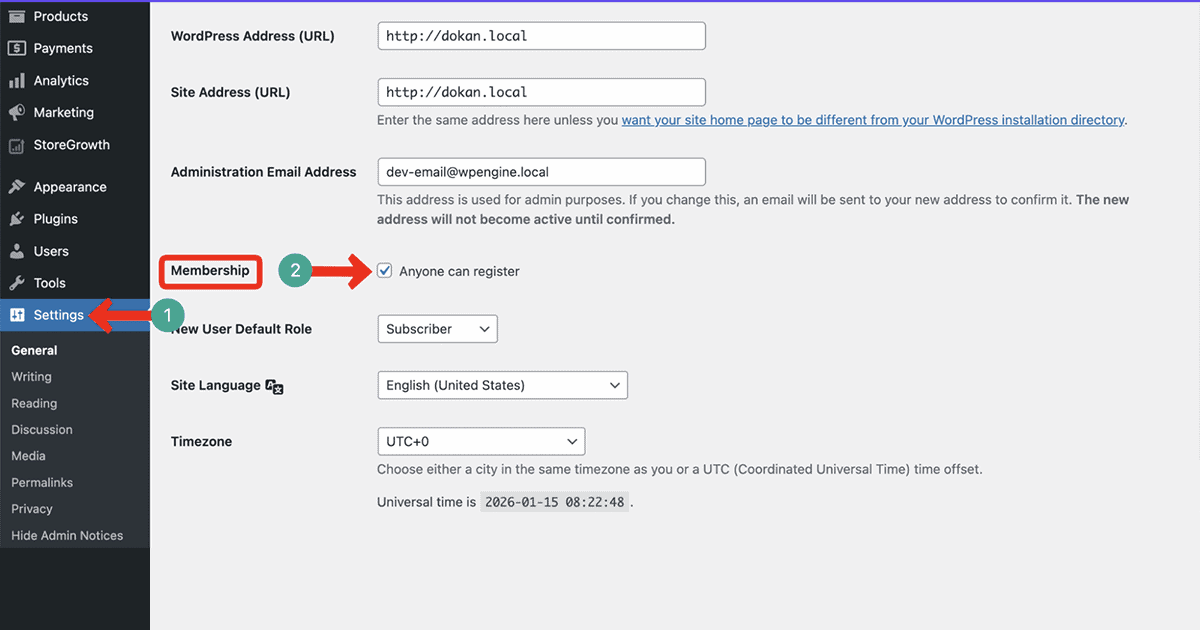
Navigate to WordPress Dashboard > Settings > General. Find the Membership option and tick mark the Anyone can register.
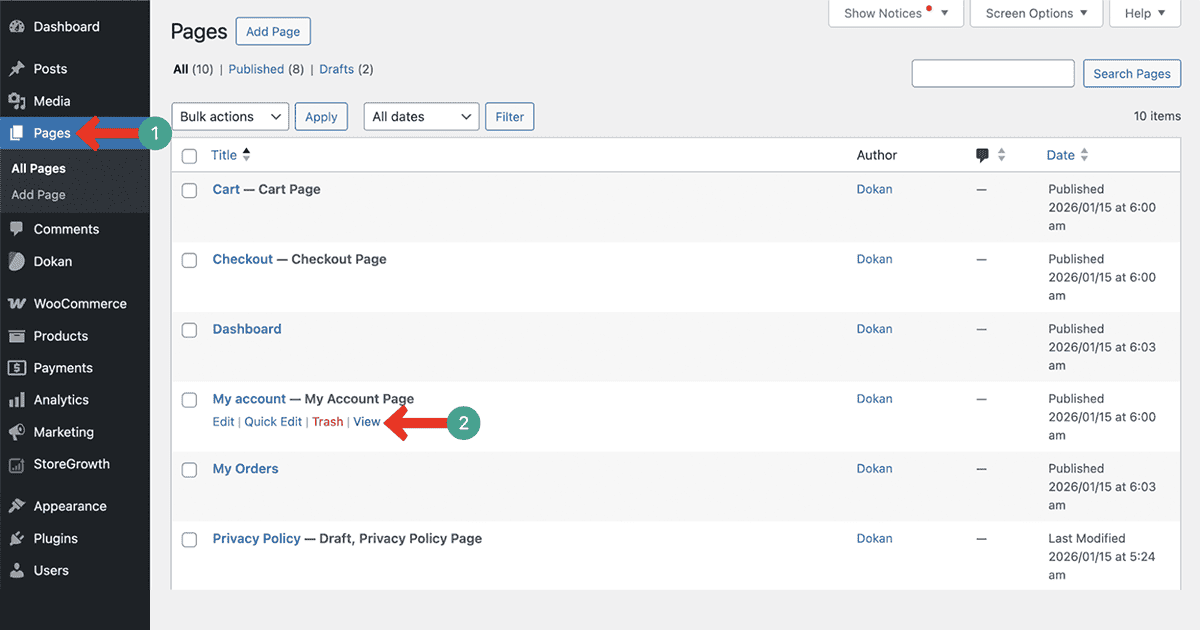
Then, go to Page > My Account page. Publish the page.
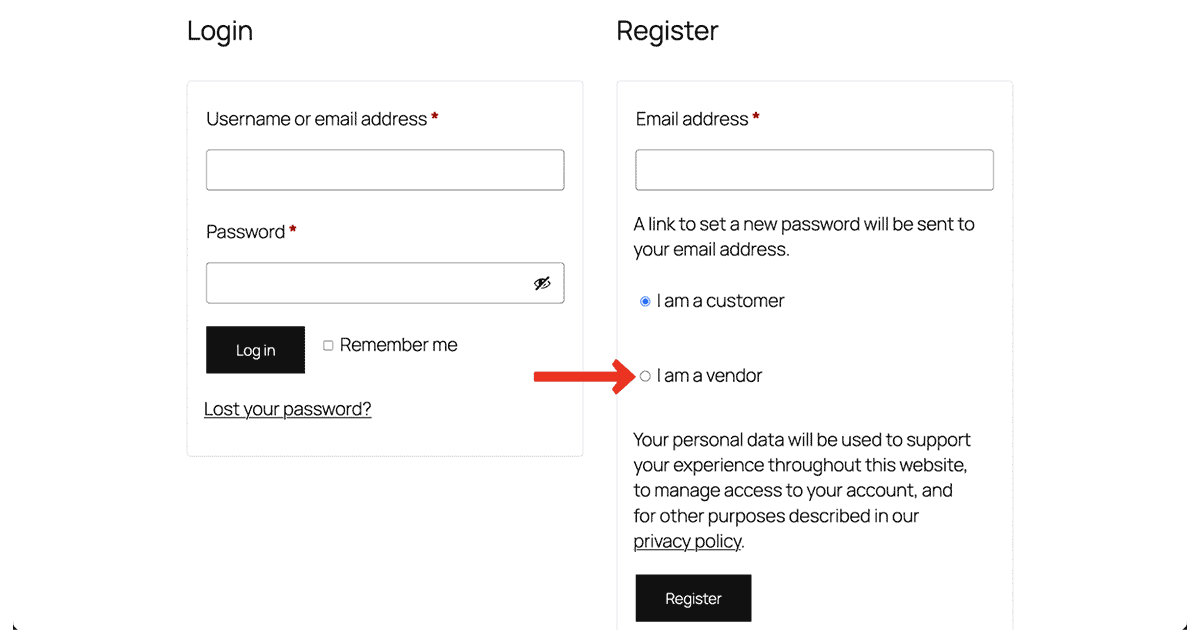
Now, if someone visits the same page from their frontend, they will get two options. They can apply as a customer or a vendor. Choose the vendor option.
You will see that many more options are appearing. By filling them out, anyone can apply to be listed as a vendor in the marketplace.
Approving the Vendor Request
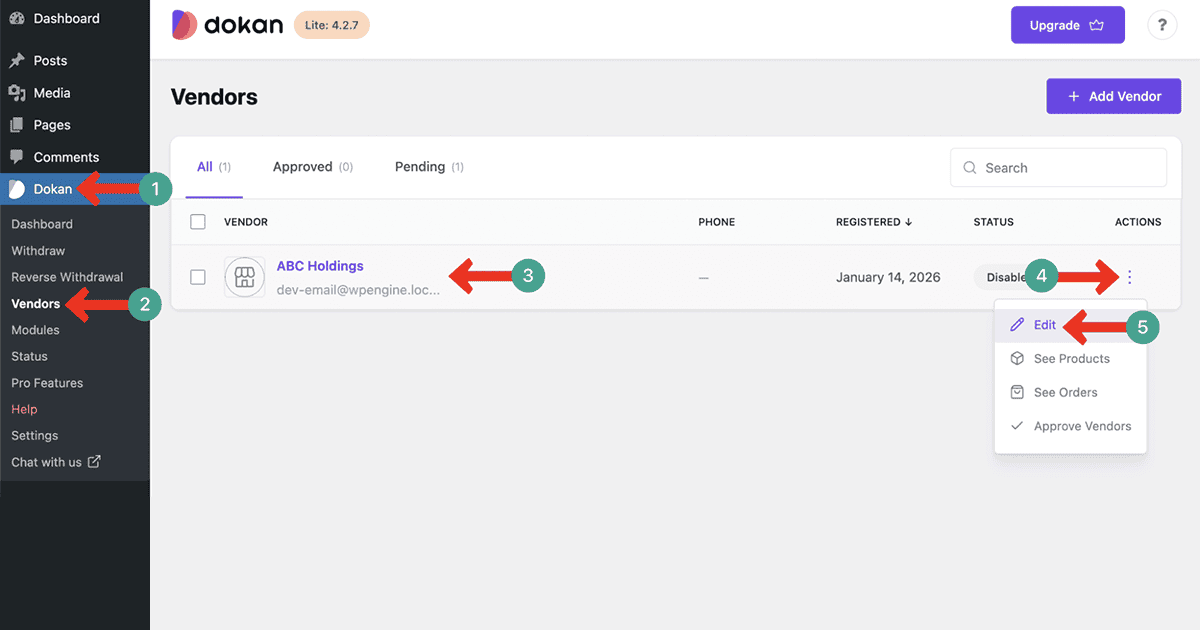
As an admin, you can check and approve the vendor request from the backend. To do this, go to Dokan > Vendors. You’ll see the vendor request their assistance as disabled. Click the Three-Dot icon. A list will appear. Hit the Edit option.
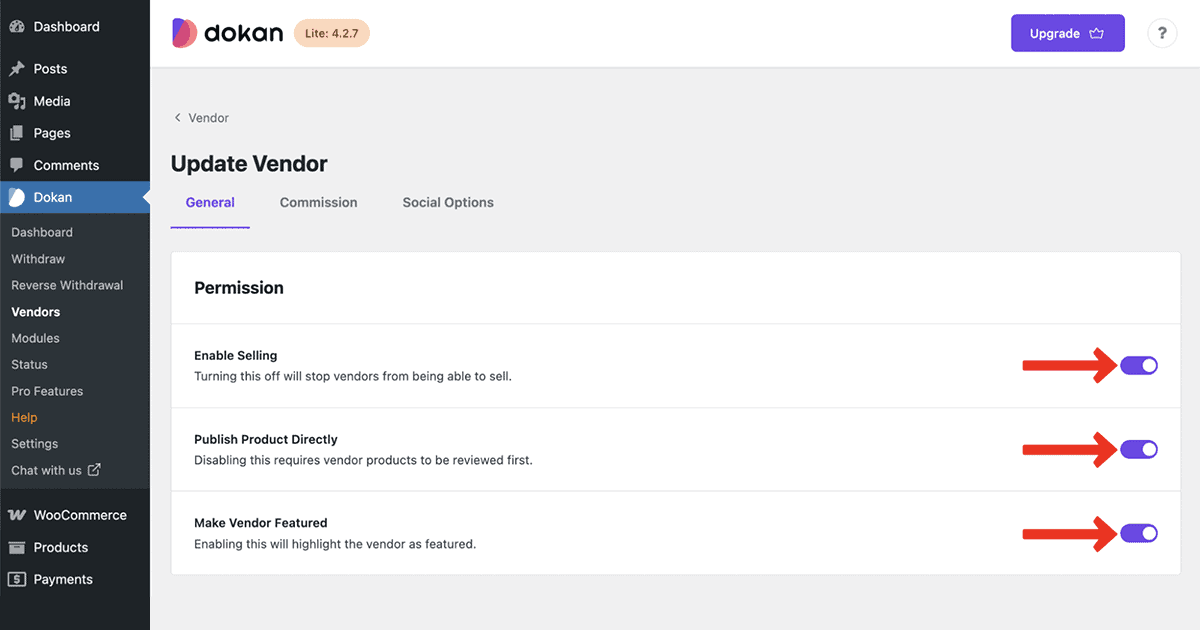
Toggle on all the necessary permissions you want to allow to the respective vendor. Save all the changes once done.
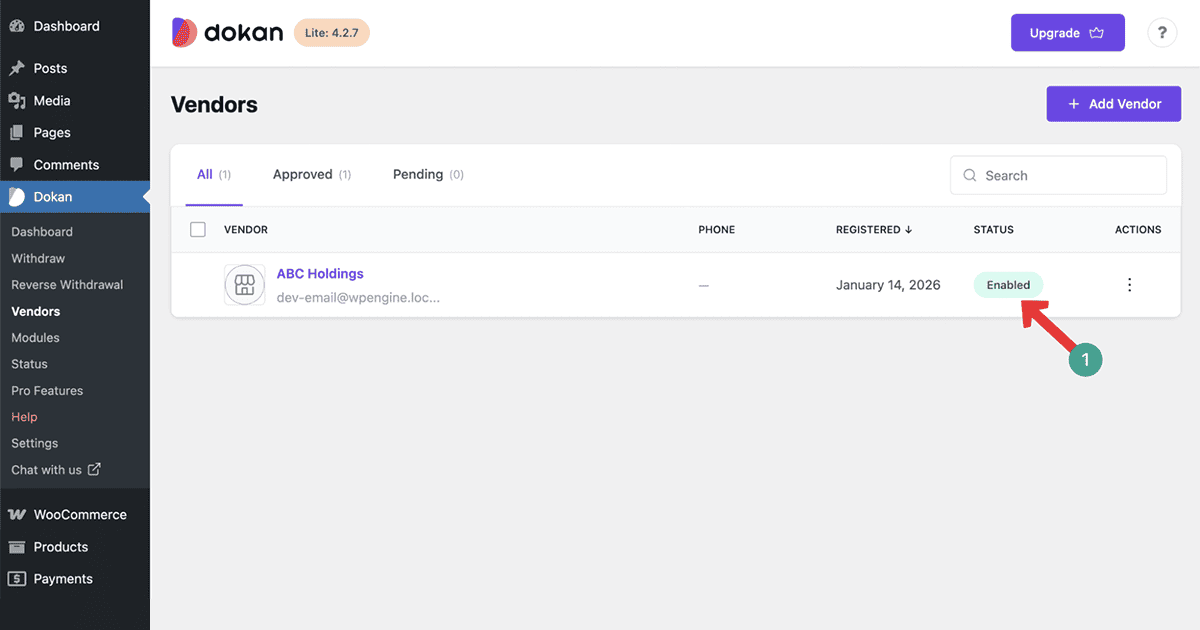
After that, you’ll see that the vendor has been enabled. He can now add new products to his store.
Vendor Dashboard Overview
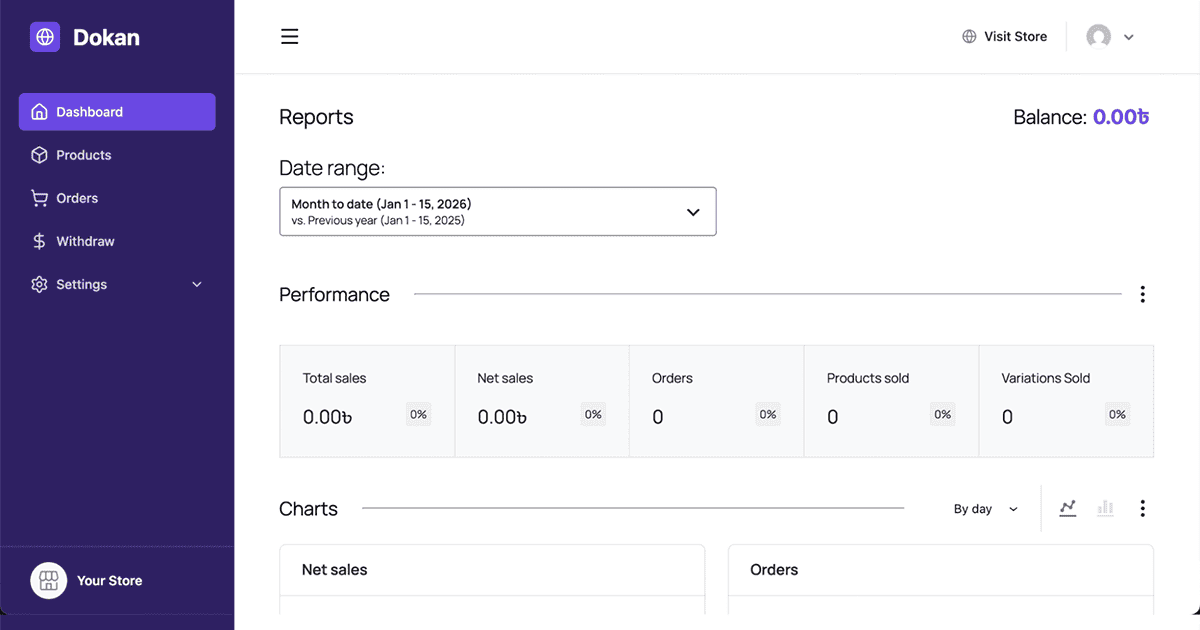
Once a vendor logs in, they can navigate to their dashboard page that was created by the Dokan setup. The dashboard shows sales summaries, order statistics, pending actions, and recent notices.
Vendors can access menus for Products, Orders, Withdrawals, Coupons, Reviews, Store Settings, and more.
This familiar layout makes the marketplace feel organized and professional, even for non-technical sellers.
Adding Products as a Vendor
When the vendor is added, he can add products to his store. Let’s see how vendors can do this. First come to the vendor dashboard. Then, navigate to Dashboard > Products > Add New Product.
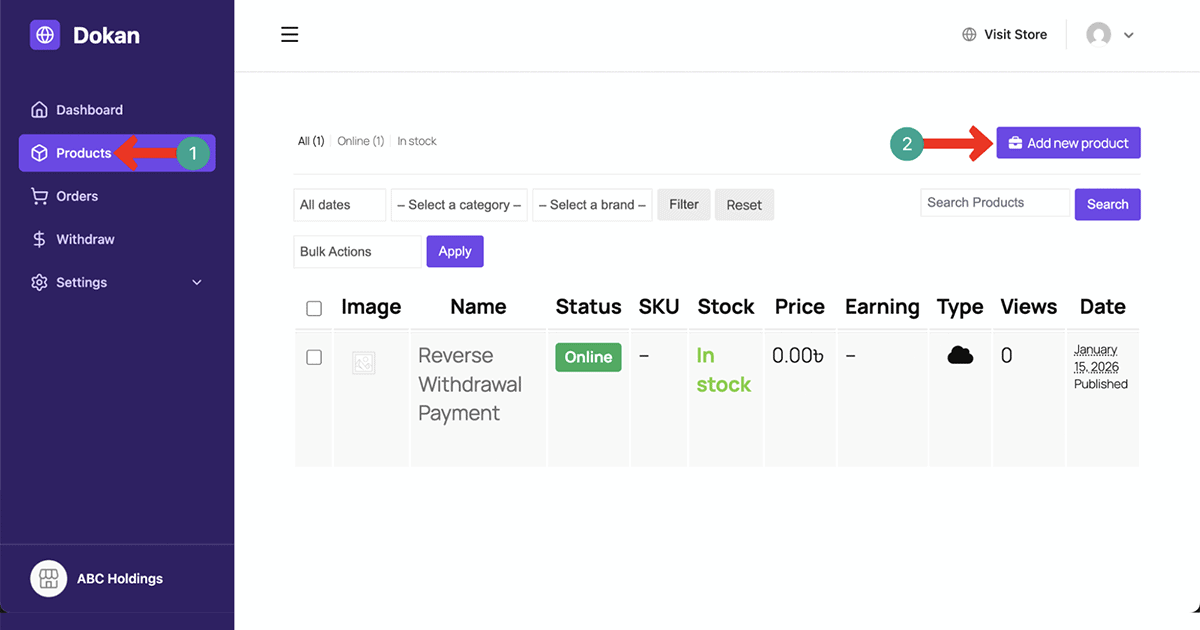
Dokan allows vendors to upload product images, write descriptions, and add prices directly from the frontend.
Vendors can also select categories, attributes, and tags for better organization. For digital goods, a file upload option is available.
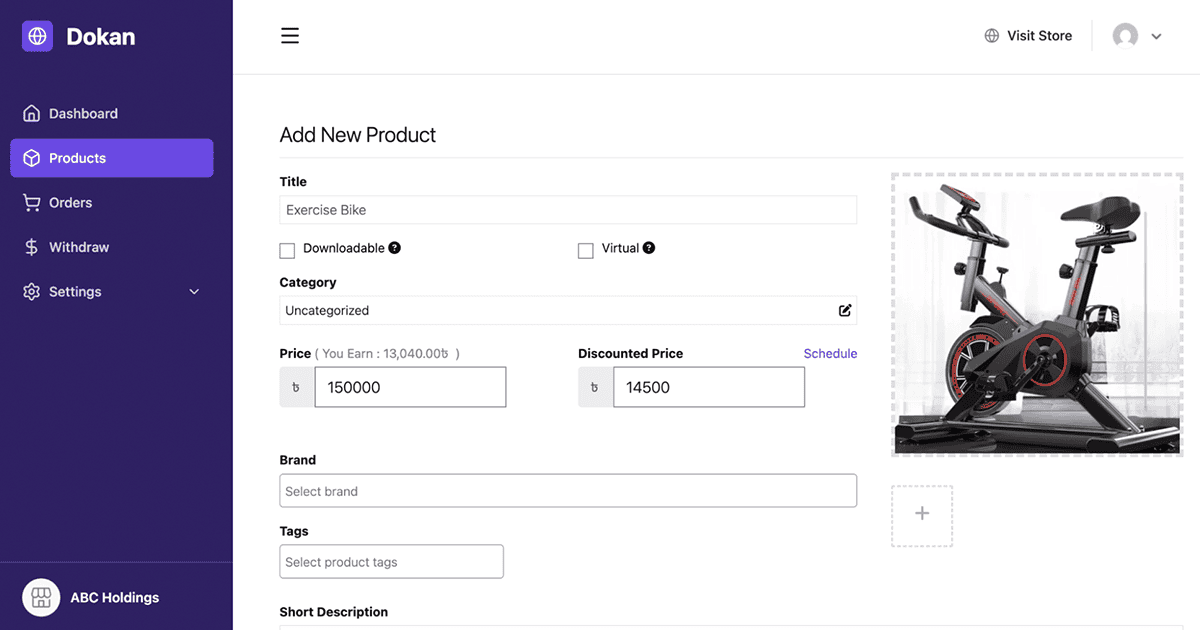
After submission, the product may go live instantly or enter approval mode based on the rules set by the admin in the Dokan settings. This backend-free workflow reduces barriers for new vendors.
Managing Orders, Withdraws, Reviews, and Coupons
From the same dashboard, you can manage some other settings, like Orders, Withdrawals, and Payments. Hope you can do these yourself.
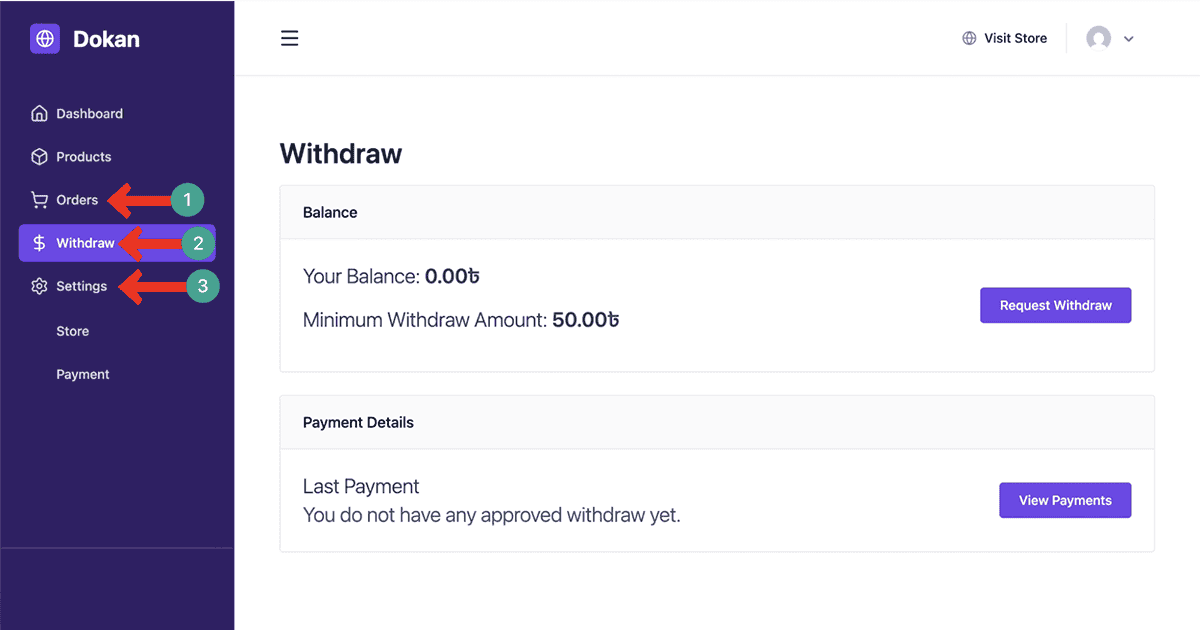
So, your marketplace is ready. This way you can set up your multivendor marketplace with Dokan, without writing a single line of coding.
Upgrade Your Marketplace with Dokan Pro
Once your marketplace foundation is ready with Dokan Free, the next step is to enhance it with advanced features that support real business needs.
The free version is great for testing ideas and learning the system. But if you are dreaming of creating marketplaces like Alibaba, eBay, Amazon, and AliExpress, you definitely need the premium version.
Real marketplaces demand extra tools for vendor onboarding, logistics, product visibility, customer communication, SEO, and reporting.
For example, subscription modules let you charge vendors recurring fees. With the Pro version, vendors feel empowered, which leads to more sales and a healthier marketplace.
Useful Dokan Pro Modules for Real Marketplaces
If you ever wonder how helpful the Dokan Pro plugin will be, it’s time to explore its modules. These modules give vendors more control, improve customer experience, and help you manage your marketplace efficiently.
Let’s go through the most useful ones.
Delivery Time
Delivery Time makes it easy for vendors to assign dates and time slots for product delivery. Customers can select the most suitable slot during checkout, which is helpful for perishable goods, scheduled services, or pre-orders.
This feature reduces delivery confusion, sets clear expectations, and helps vendors plan fulfilment without added stress. It also improves customer satisfaction for time-sensitive purchases.
Minimum-Maximum Order Quantity
It lets vendors control how many units a customer must buy at minimum, and how many they can buy at maximum.
This is useful for bulk sellers, wholesalers, and B2B marketplaces that dislike tiny orders. It also protects vendors from over-orders that exceed stock limits.
By defining quantity ranges, vendors can maintain stable revenue and protect their inventory management flow.
Live Chat
The Live Chat module of Dokan provides a direct communication channel between buyers and vendors. Customers can ask specific questions about products, shipping, or availability, and vendors can reply instantly.
This reduces uncertainty, builds trust, and increases conversion rates for complex or expensive items. It also decreases abandoned carts because customers no longer need to leave the product page to get answers.
Product Advertising
Product Advertisement creates an internal promotion system inside the marketplace. Vendors can pay to boost certain products so they appear with better visibility and attract more clicks.
This gives vendors a paid marketing opportunity without relying on external ads.
For admins, it opens a new revenue stream and helps maintain active vendor participation. Featured ads typically convert faster and sell quicker.
Product Q&A
It lets potential buyers to ask questions directly on the product page. Vendors can reply publicly so other buyers can learn from the same answer.
This improves clarity for complex, custom, or high-value products where buyers may hesitate before purchasing. It reduces back-and-forth conversations and removes friction, which leads to more confident buying decisions.
Request for Quotation
Request for Quotation is designed for B2B marketplaces where pricing often depends on quantity, materials, or custom specifications. Instead of purchasing immediately, customers can send a quotation request, and vendors reply with custom pricing.
This turns the marketplace into a negotiation-friendly platform suitable for wholesale, industrial goods, or custom manufacturing.
It supports flexible sales workflows beyond the standard shopping cart model.
Subscription
It offers recurring billing and wholesale pricing tiers for items. Vendors can sell subscription-based products like coffee, vitamins, or software, while wholesale pricing helps them target bulk buyers.
It also supports mixed marketplaces where both B2C and B2B orders are common.
These two additions unlock new revenue models and make the marketplace suitable for long-term vendor and customer relationships.
RankMath Integration (SEO)
It gives vendors SEO tools inside their product editing interface. They can define keywords, meta titles, and descriptions to help products rank better on search engines.
Vendors also get real-time SEO scoring, making optimization simpler.
This helps marketplaces gain organic traffic without depending only on paid marketing. The more optimized pages vendors create, the better visibility the marketplace gains.
Geolocation
It improves product discovery through dynamic search and location-based filtering. Customers get instant search results as they type, which reduces browsing time.
Geolocation shows nearby vendors for faster delivery or service-based purchases.
This is useful for hyperlocal food delivery, logistics, or marketplaces focused on local services. Better search and location filters increase product visibility and customer satisfaction.
Dokan WooCommerce Booking
This module connects the booking system with the multivendor environment. Vendors can sell rentals, appointments, classes, tickets, tours, or hotel bookings.
Customers can choose dates, durations, and participants directly from the product page.
This module transforms the marketplace beyond physical goods and supports service-based vendors, travel agencies, and rental businesses.
It adds flexibility for mixed business models and new revenue opportunities.
Dokan Simple Auctions
It enables vendors to sell products through bidding instead of direct purchasing. Vendors can set a starting price, bid increments, reserve price, and auction duration.
Buyers compete in real time, which is perfect for collectibles, antiques, rare items, or liquidation sales.
Auctions create urgency and excitement, helping vendors get competitive pricing. This module expands marketplace possibilities beyond traditional eCommerce transactions.
Report Abuse
This adds a complaint system to maintain marketplace quality. Customers can report misleading listings, inappropriate content, spam products, or suspicious activities directly from the product page.
Admins review reports and take action, such as removing products or warning vendors. This feature keeps the marketplace clean, trustworthy, and fair.
It also helps admins moderate large marketplaces where manual monitoring becomes difficult.
Table Rate Shipping
Table Rate Shipping gives vendors advanced control over shipping fees. They can define rates based on weight, quantity, price range, zones, or custom rules.
This is helpful for vendors selling heavy items, furniture, or products with unique logistics needs.
Table rate shipping ensures pricing accuracy and protects vendors from shipping losses. Customers also get more transparent and realistic shipping costs at checkout.
Conclusion and Best Practices
Creating a multivendor marketplace with Dokan gives you the power to build a professional and scalable online platform.
By carefully choosing the right niche, you can attract vendors who offer products your customers are looking for, while keeping competition manageable.
A well-planned commission structure ensures that both your marketplace and vendors benefit fairly from sales.
Smooth transactions are key to success, so selecting trusted payment gateways like Razorpay, Stripe Express, or MangoPay is important.
Guiding vendors through onboarding, product listing, and store management improves efficiency and reduces errors.
At the same time, features like email verification, two-step authentication, clear refund policies, and transparent reviews help build trust with customers.
Finally, monitoring performance, security, and marketplace reports is essential for long-term growth. Keeping plugins updated, tracking sales trends, and supporting vendors ensures a healthy, thriving marketplace.
Following these practices with Dokan can help you create a reliable, user-friendly, and profitable multivendor platform.