

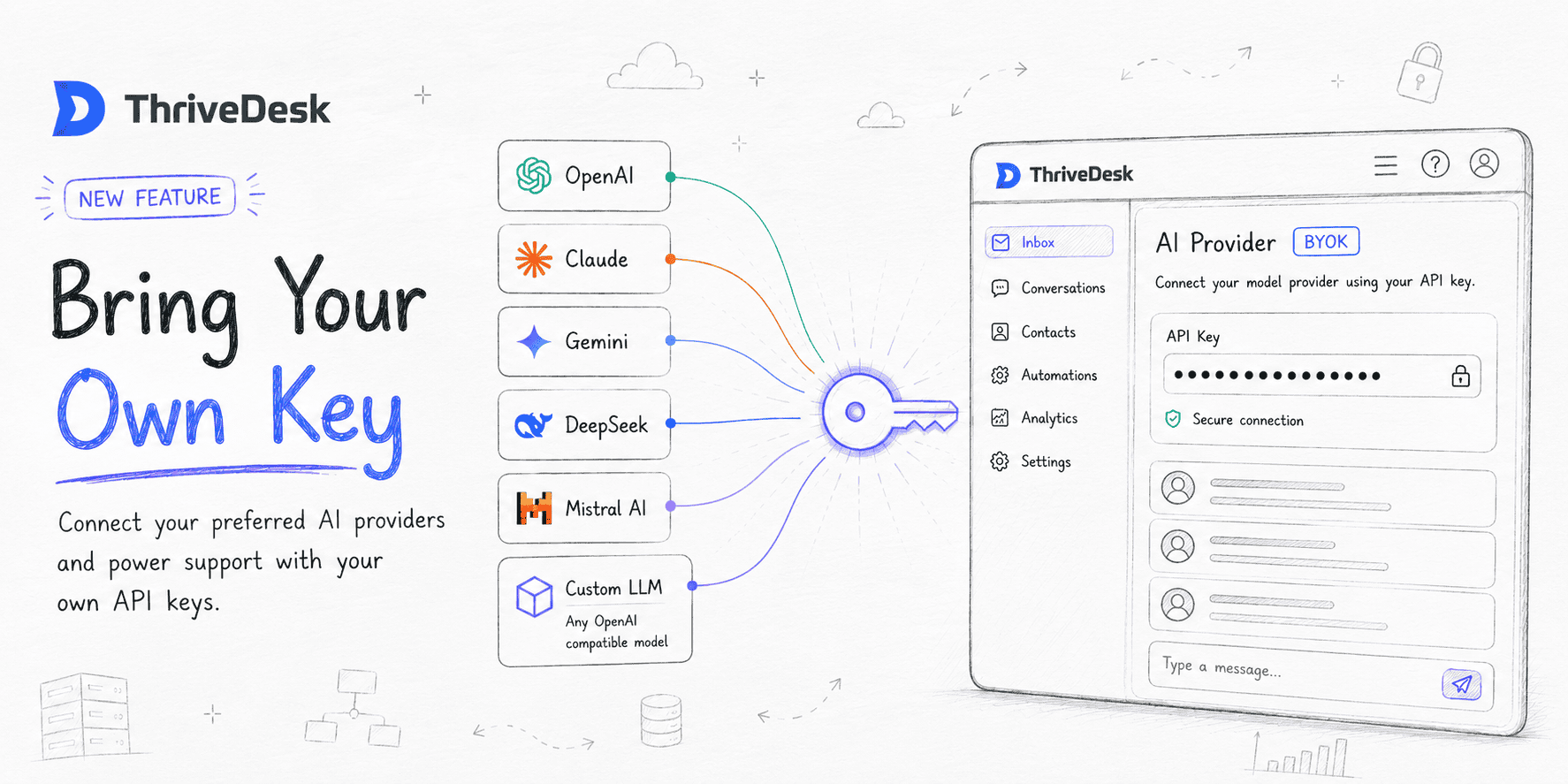
Par défaut, ThriveDesk utilise nos propres modèles gérés pour alimenter l'assistance IA, la synthèse et les réponses automatiques. Apportez votre propre clé (BYOK), Vous pouvez désormais connecter vos propres identifiants API de n'importe quel fournisseur majeur d'IA et exécuter les fonctionnalités d'IA de ThriveDesk sur le modèle qui convient le mieux à votre équipe.
Vous pouvez désormais connecter votre propre fournisseur d'IA et utiliser votre propre clé API directement dans ThriveDesk. Que votre équipe préfère OpenAI, Claude, Gemini ou un autre fournisseur compatible, vous avez maintenant la possibilité de choisir le modèle le mieux adapté à votre entreprise.
| Fournisseur | Modèles populaires |
|---|---|
| OpenAI | GPT-4o, GPT-4 Turbo, GPT-3.5 |
| Anthropique | Claude 3.5 Sonnet, Claude 3 Opus |
| Gémeaux | Gemini 2.0 Flash, 1.5 Pro |
| Azure OpenAI | GPT-4, GPT-3.5 Turbo |
| Grok (xAI) | Grok-3, Grok-2 |
| DeepSeek | DeepSeek-V3, DeepSeek-R1 |
Comment se connecter
Rendez-vous à Paramètres → Paramètres IA → Apportez votre propre clé, Choisissez un fournisseur, collez votre clé API, sélectionnez un modèle et enregistrez. ThriveDesk vérifie automatiquement vos identifiants. Activez ensuite le fournisseur : vos fonctionnalités d’IA seront instantanément activées.
Un seul fournisseur peut être actif à la fois. Changer de fournisseur se fait d'un simple clic.
Repli intelligent
Si votre clé expire, si vous n'avez plus de crédits ou si le fournisseur tombe en panne, ThriveDesk vous avertira par e-mail et basculera automatiquement sur ThriveDesk AI (Neo) afin que votre équipe reste ininterrompue.
Comment fonctionnent les crédits IA
Une question qui nous a été posée lors des tests bêta est la suivante :
“ Si j’utilise ma propre clé API, pourquoi ai-je encore besoin de crédits ThriveDesk AI ? ”
La réponse est simple : lorsque vous utilisez BYOK, vous intégrez le modèle d’IA, mais ThriveDesk fournit toujours la couche d’intelligence qui rend l’IA utile au sein du support client.
Chaque action d'IA effectuée via BYOK consomme uniquement 1 crédit ThriveDesk AI par tâche. Que vous génériez une réponse, résumiez une conversation, traduisiez un message ou utilisiez l'assistance de l'IA, chaque action coûte un crédit.
Notre objectif était de maintenir une tarification transparente et prévisible tout en permettant aux équipes de bénéficier de l'infrastructure d'IA de ThriveDesk.
Pas encore prêt à changer ? ThriveDesk AI (Neo) reste activé par défaut et ne nécessite aucune configuration. Vous pouvez revenir en arrière à tout moment en désactivant simplement votre fournisseur personnalisé.
Disponible sur le Formule standard et supérieures.