Introducing v5: The New ThriveDesk UI
We rebuilt the ThriveDesk app interface on our own design system. Set up the navigation and inbox the way you work, switch inboxes from the top bar, write in a new reply editor, and turn on dark mode.
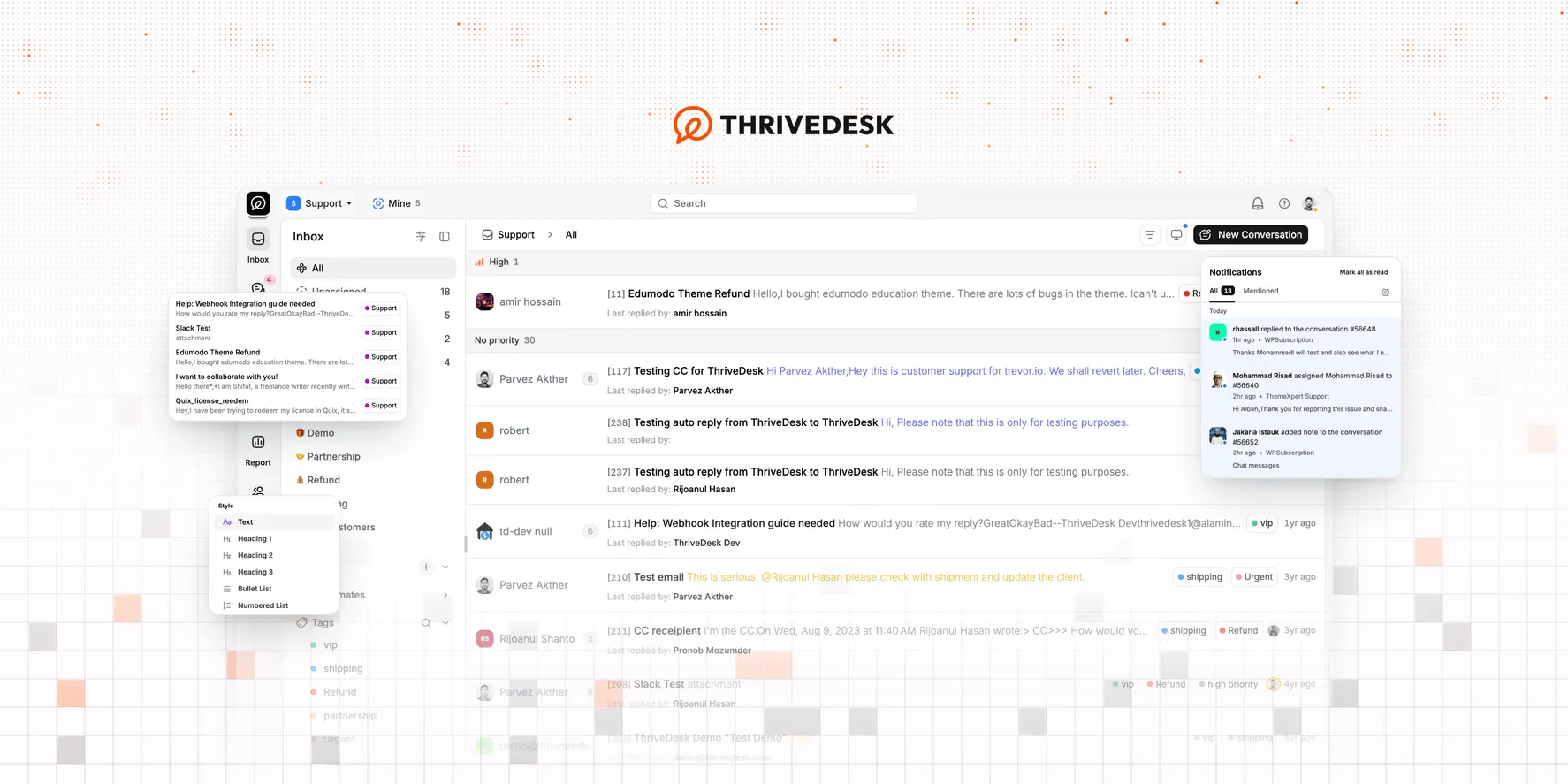
The new app interface is part of our brand refresh. Our goal is to make ThriveDesk the best customer service platform for ecommerce and SaaS teams, so we rebuilt the interface from the ground up. Before we started, we talked with customers about what slowed them down. The result is an app you can customize from the core. It is also faster and easier to learn.
v5 is live for all accounts on every plan. You don’t have to set anything up.
Why we rebuilt it
Since our first launch, our backend had strict rules for unit tests. Our frontend did not, and over time that left a lot of technical debt.
The frontend changed many times. Version 1 used Bootstrap. Next, we moved to Material Design and kept some Bootstrap. In v3, we added Tailwind CSS on top of both. That replaced many parts, but some large components stayed. Then we used Ant Design for some components, and v4 moved fully to PrimeNG. PrimeNG worked well until it closed its source and added a commercial license.
We had two options: keep a copy of the last open-source PrimeNG, or build our own design system. We built our own. Agentic coding made that possible in a short time.
How we built it
Before we wrote any code, we collected feedback from customers. Writing code is easy. A good interface needs a clear view of the problems your customers have.
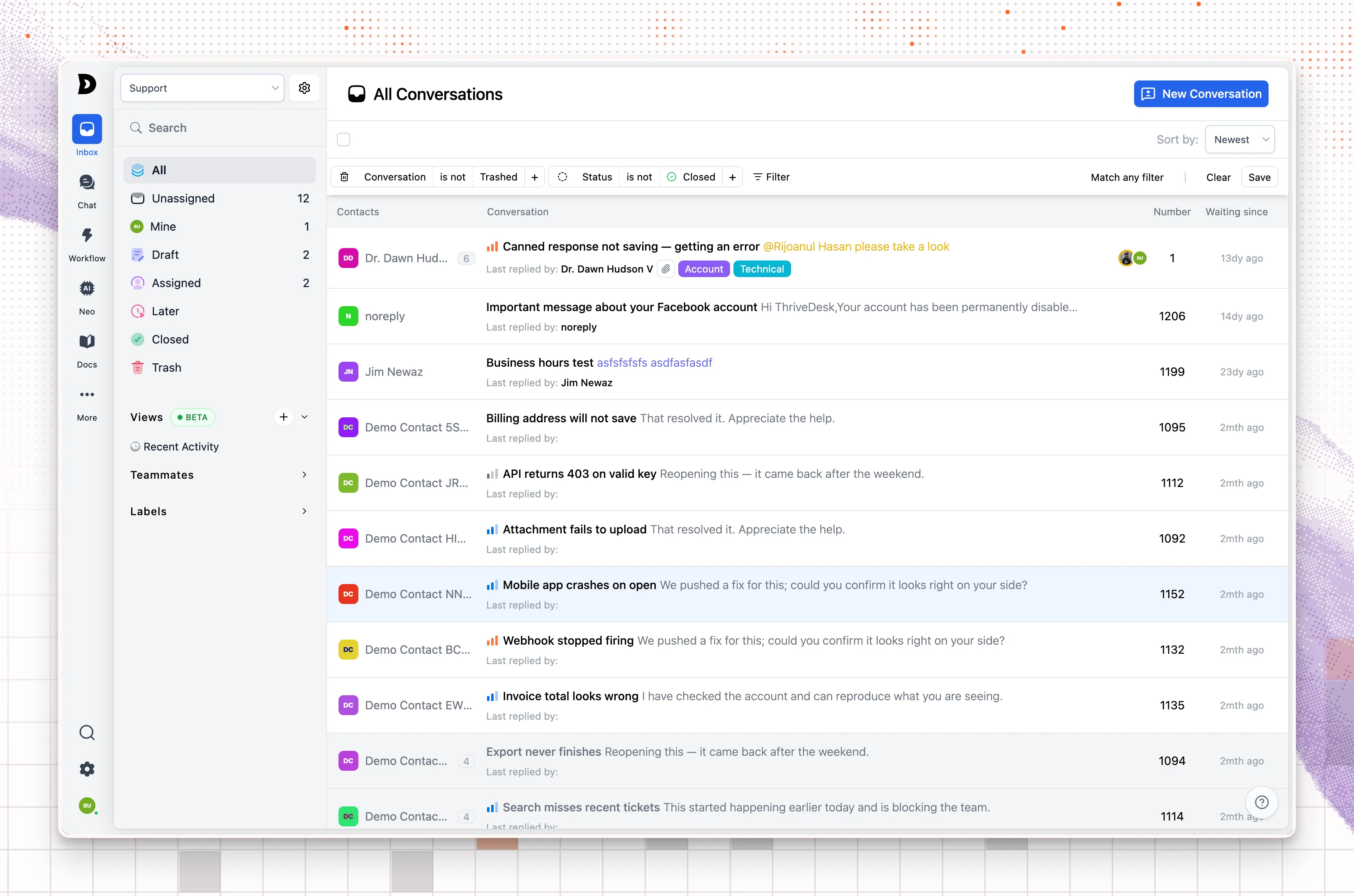
We made our own token-based design system, inspired by shadcn, and moved the components across one at a time. We started with the primitives, then did the hybrid and single-use components. Every component and change went through end-to-end and unit tests. With agentic coding, the full move took two weeks.
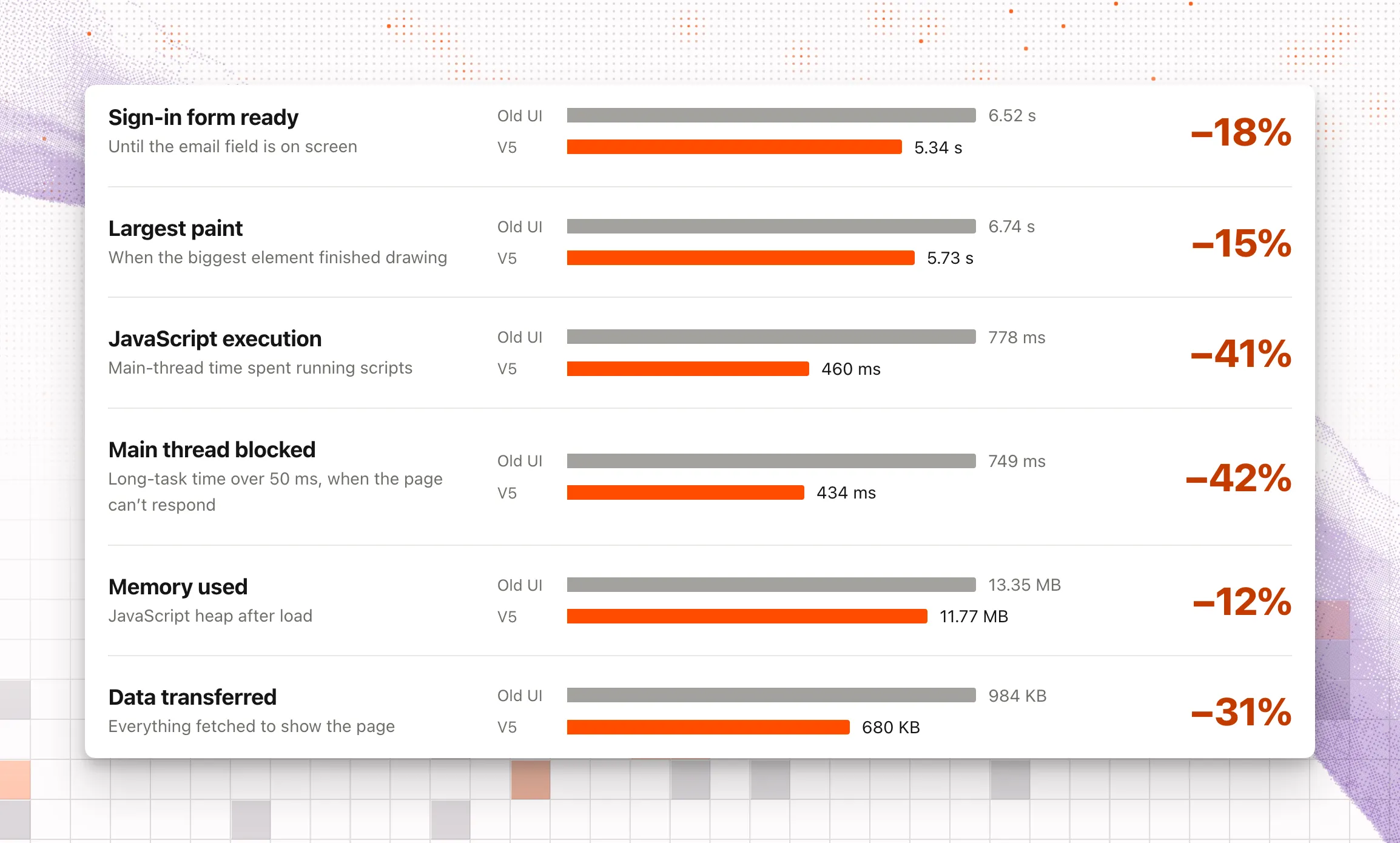
The old UI frameworks are gone. We now own all of the interface code. Here is the speed difference:
Customize the main navigation
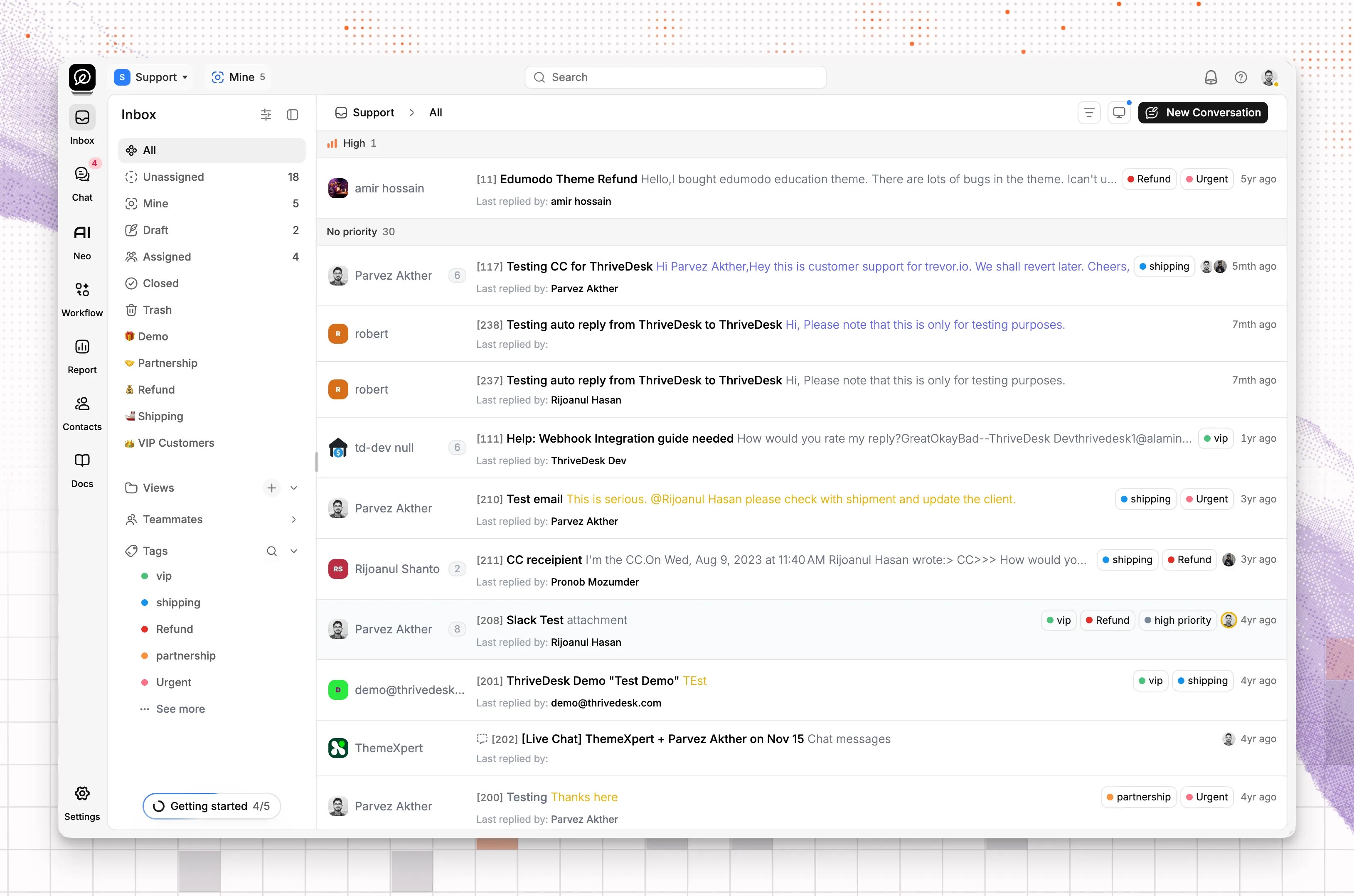
We designed v5 so that you can customize each part of it. No two support teams work the same way, and a screen full of tools you never open slows you down. In v5, you decide what the main navigation and the inbox sidebar show, and in what order. You also choose how the ticket list looks and how wide each sidebar is. Keep the tools you use every day in view, and move the rest out of the way.
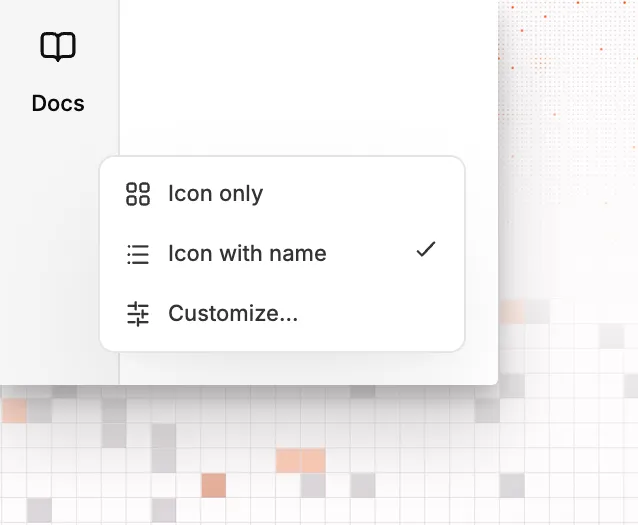
Right-click the main navigation and choose Icon only or Icon with name. Icon with name is the default. For more options, select Customize.
Turn each section on or off, and drag the sections into the order you want. If you don’t open Workflow or Report every day, turn them off. You can turn them on again at any time.
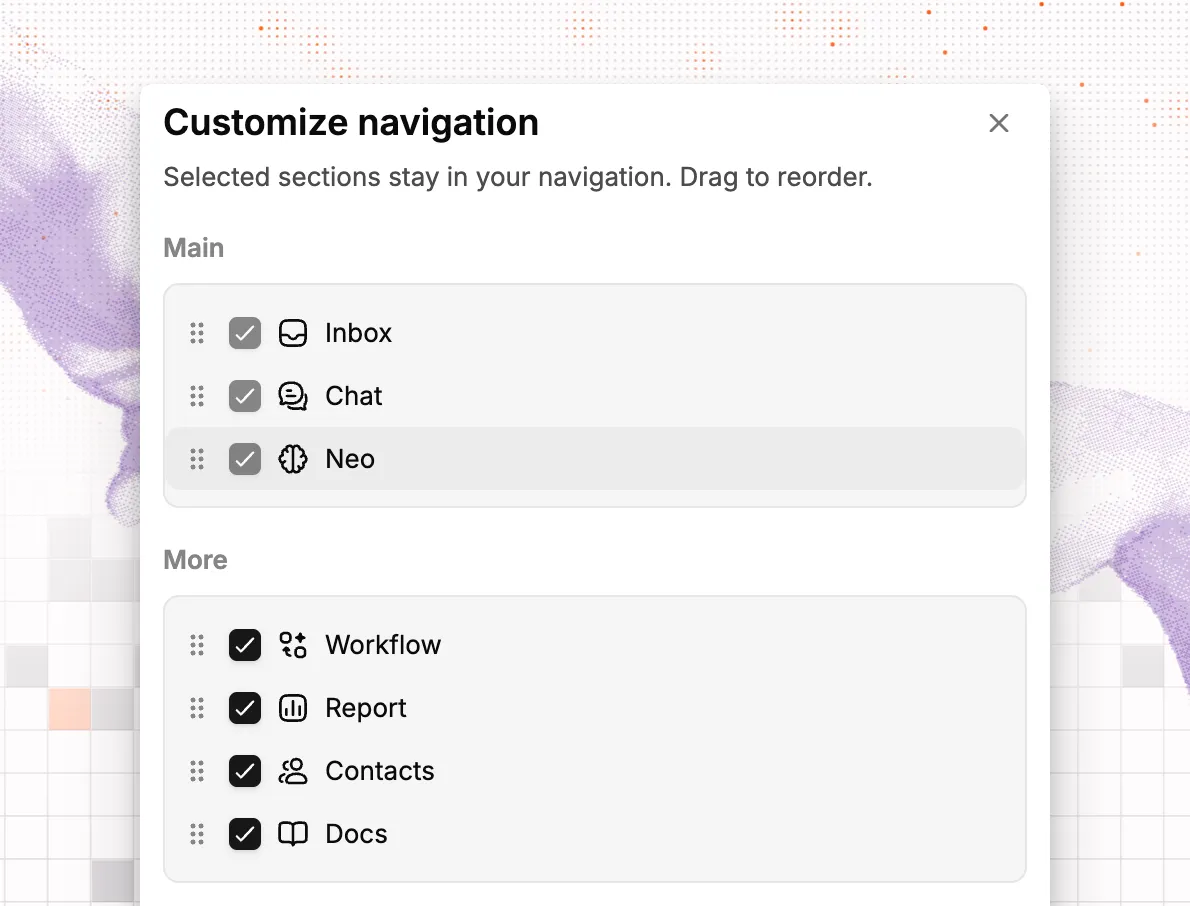
Customize the inbox sidebar
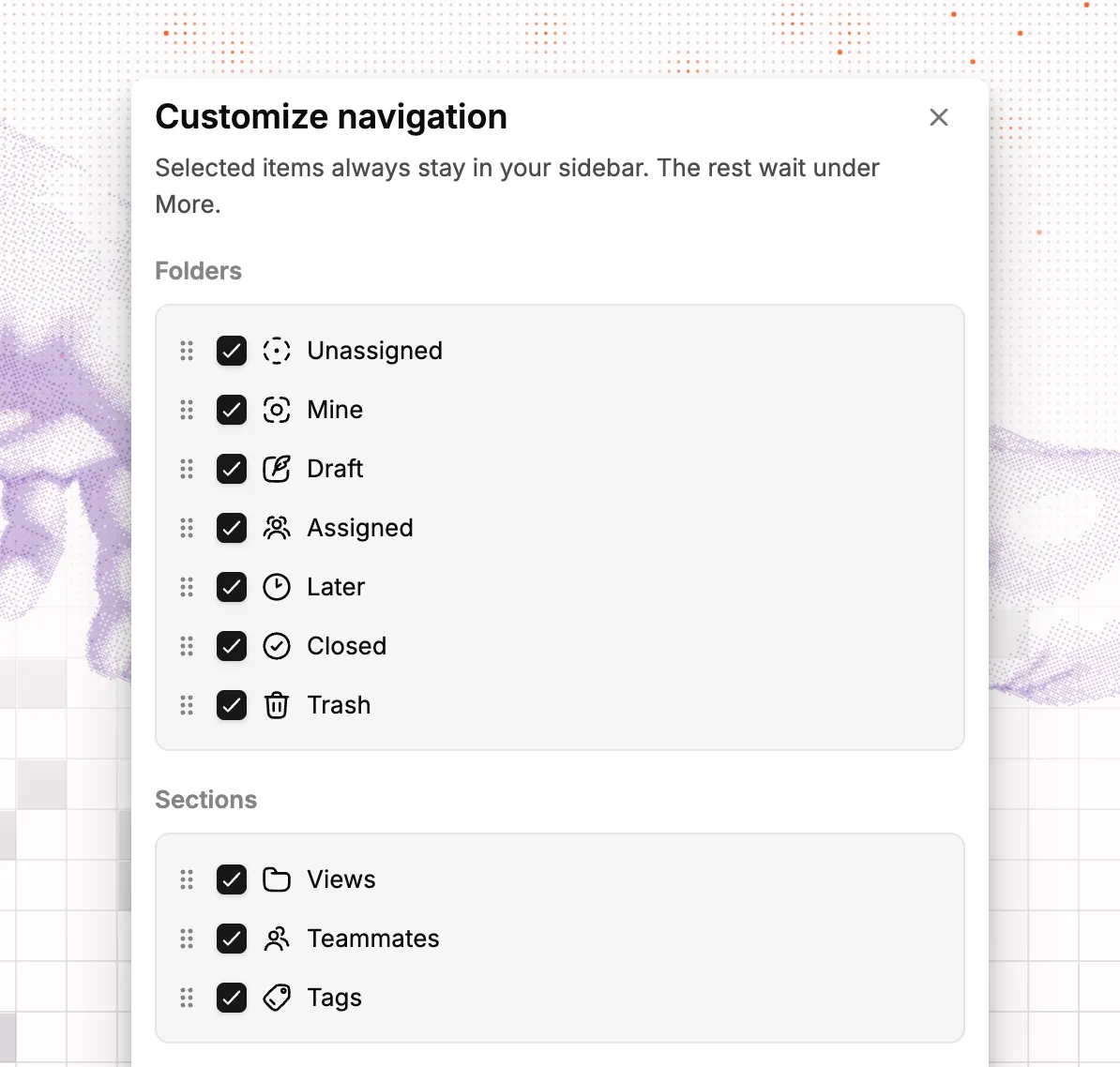
Many of you asked for control of the inbox sidebar. You now control all of it. If you don’t need a folder or a section, turn it off. Drag the rest into the order you want. The items you select stay in the sidebar, and the others move under More.
Choose how tickets show
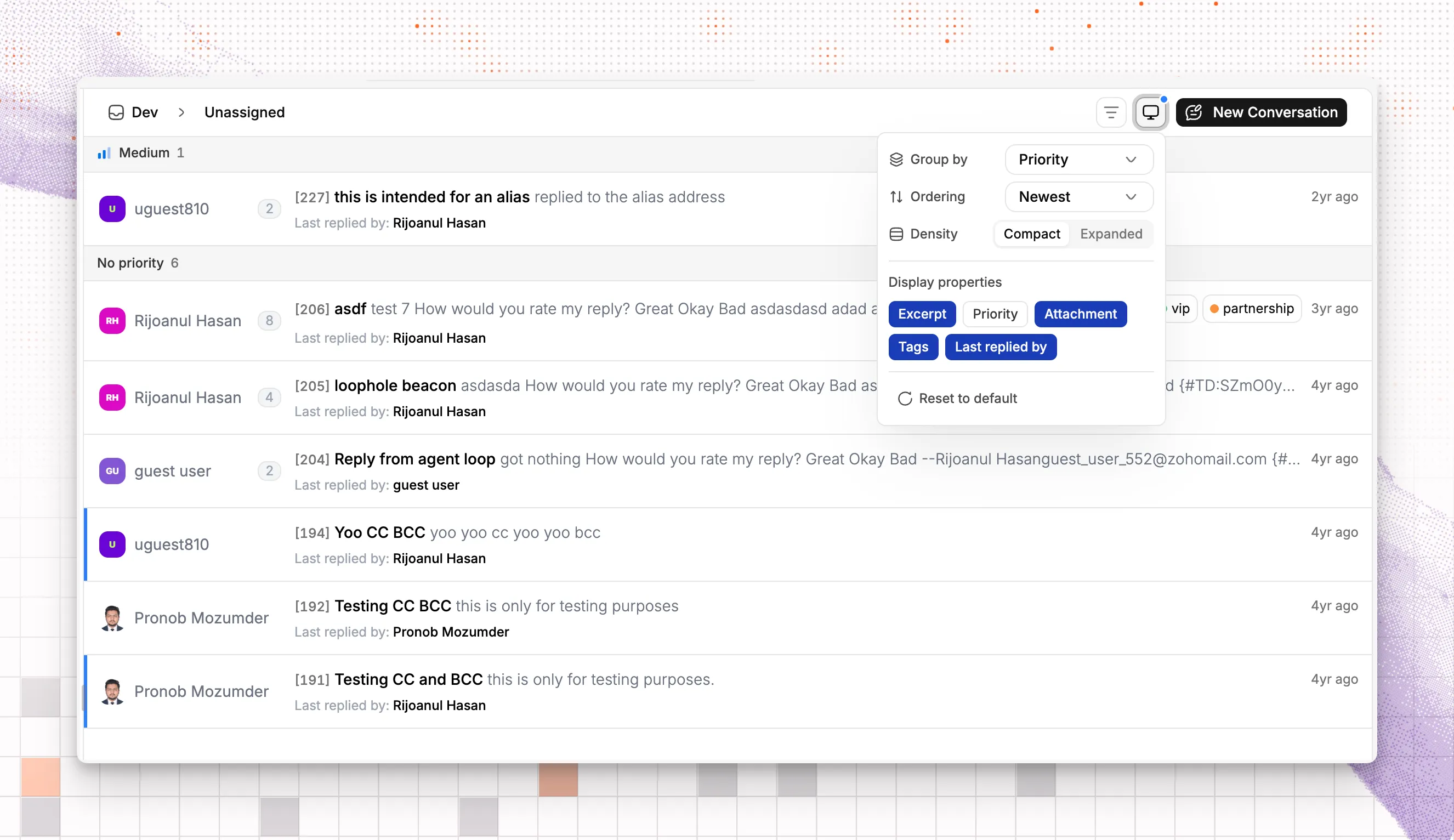
You can also set how the ticket list looks. Group tickets by priority, status, or tag. Choose the order, and choose which properties show on each ticket.
Set up the ticket navigation
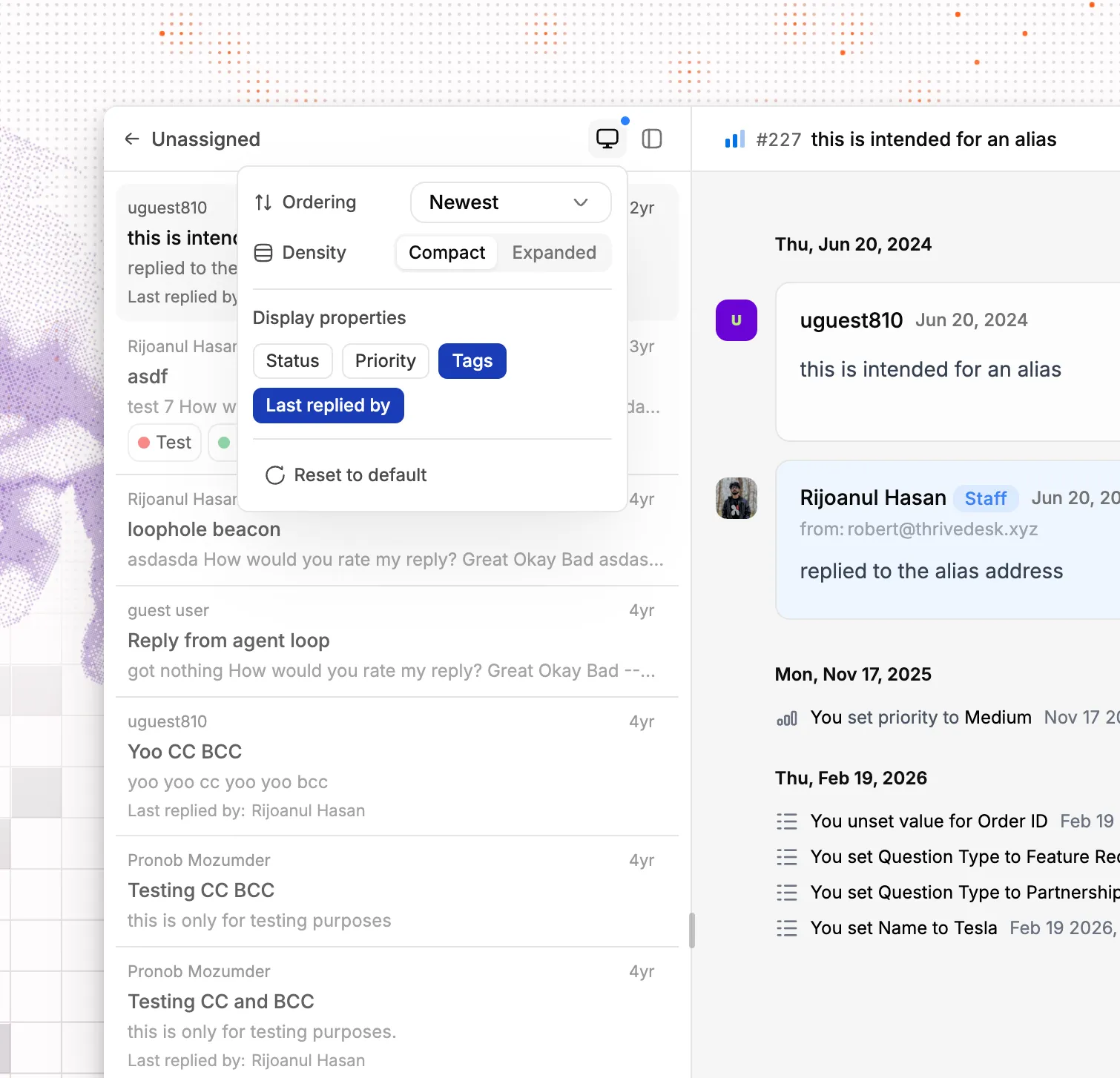
When you open a ticket, the ticket list next to it has its own order and display settings. Choose compact or expanded rows, and pick the properties you want to see, such as status, priority, tags, or the last reply. To move to the next ticket, select it in the list. To focus on one conversation, hide the list.
You can also drag the edge of each sidebar to set its width for your screen size. On a laptop, make the sidebars narrow so the conversation gets more room.
Switch inboxes from the top bar
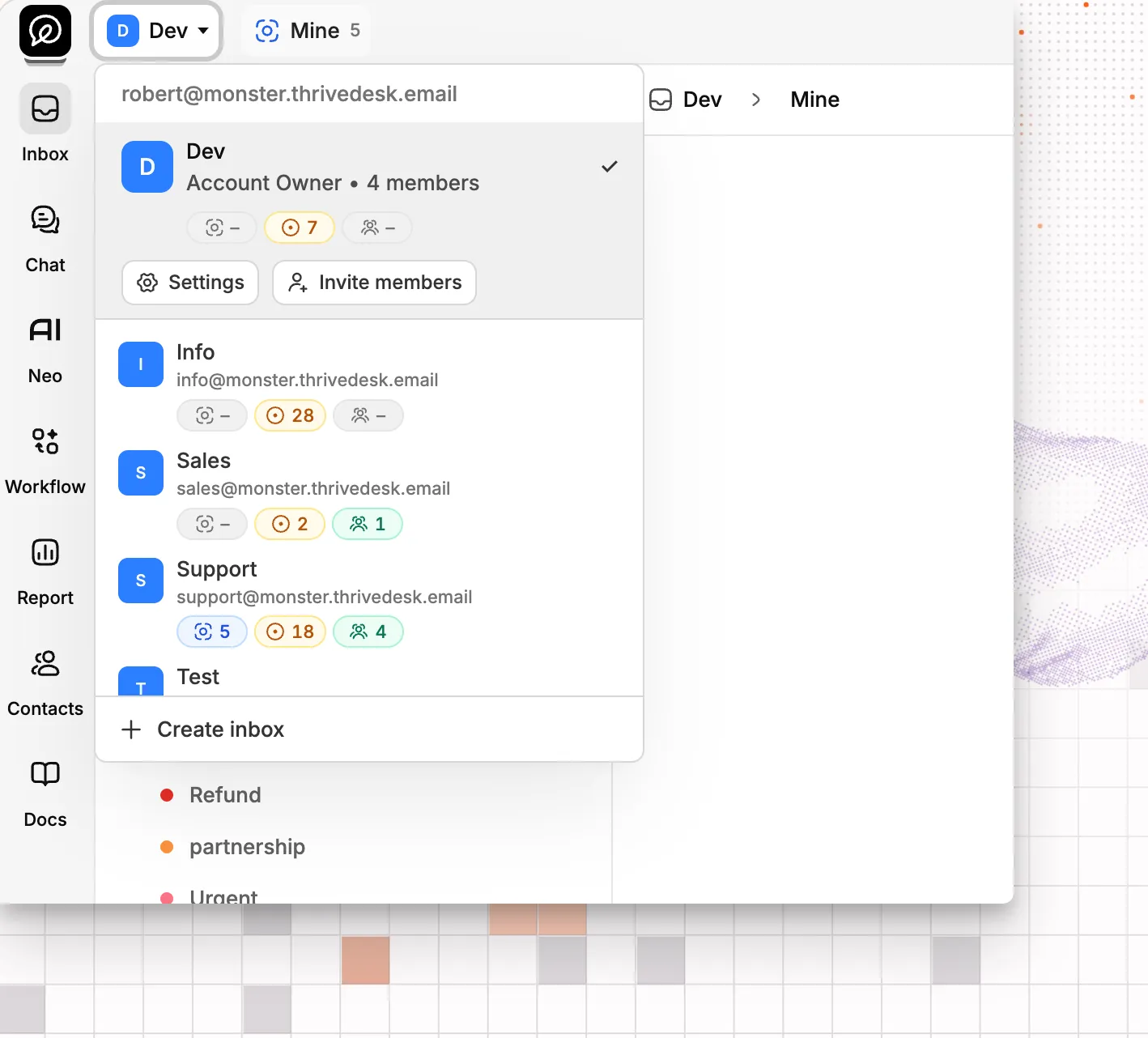
Everything in ThriveDesk belongs to an inbox. The inbox menu used to be in the sidebar, and if you have many inboxes, it was easy to forget which one you were in.
The inbox switcher is now at the top of the app. You always see which inbox you are in, and you can change inboxes faster. The switcher also shows ticket counts for each inbox, so you can see which inbox needs your attention.
Solve your tickets faster
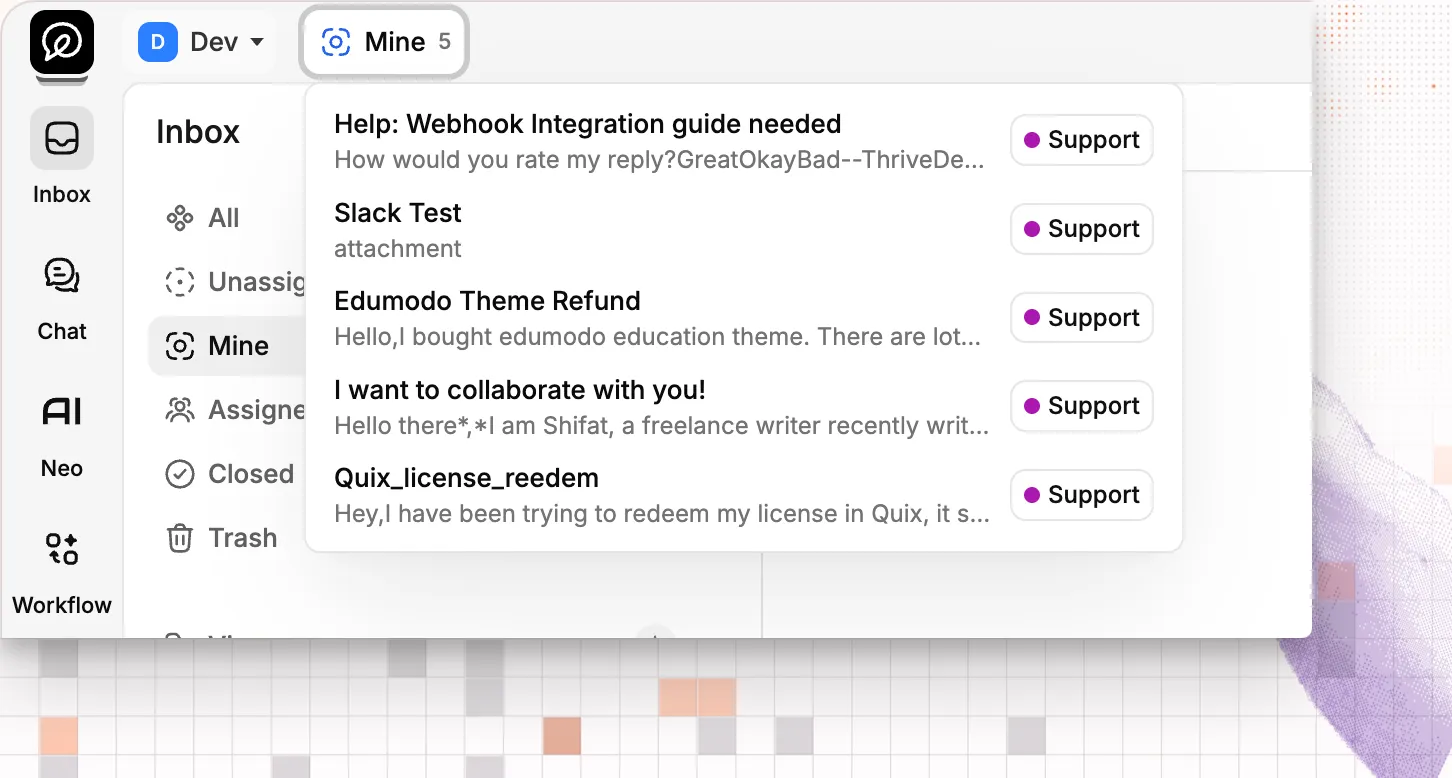
The Mine button next to the inbox switcher shows the tickets assigned to you from all inboxes. Select a ticket to open it. To keep the list short, it shows a maximum of 5 tickets.
New reply editor
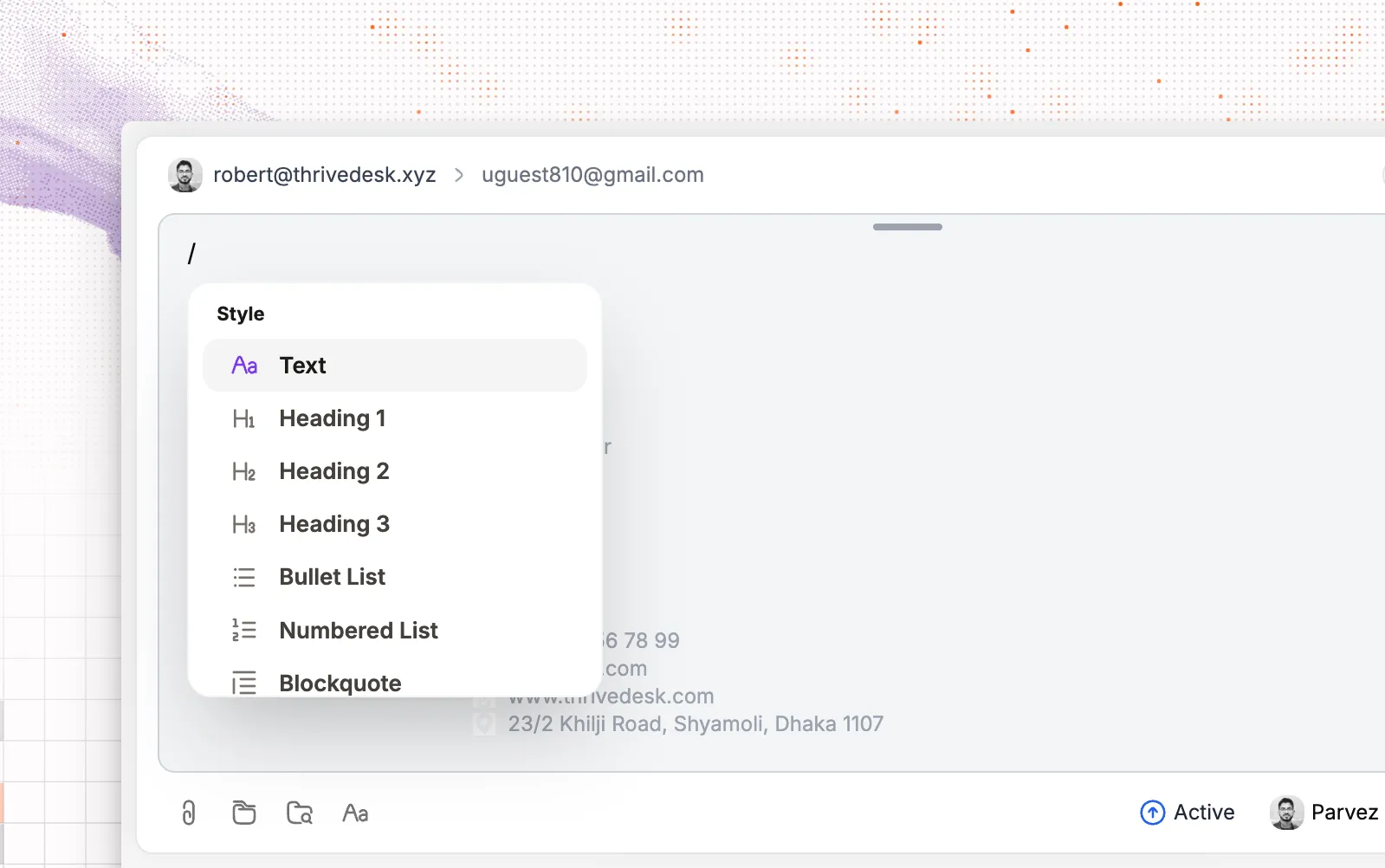
We rebuilt the reply editor from scratch. It now works with blocks, like Notion. Type / to open the block menu, then choose text, a heading, a bulleted or numbered list, or a quote. You don’t have to leave the keyboard to format a reply, so long answers with steps or sections are quick to write and easy for your customer to read.
To change the height of the editor, drag the bar at its top. A taller editor shows more of your reply. Make it short to keep the conversation in view while you type, or tall when you write a long answer.
In-app notifications are back
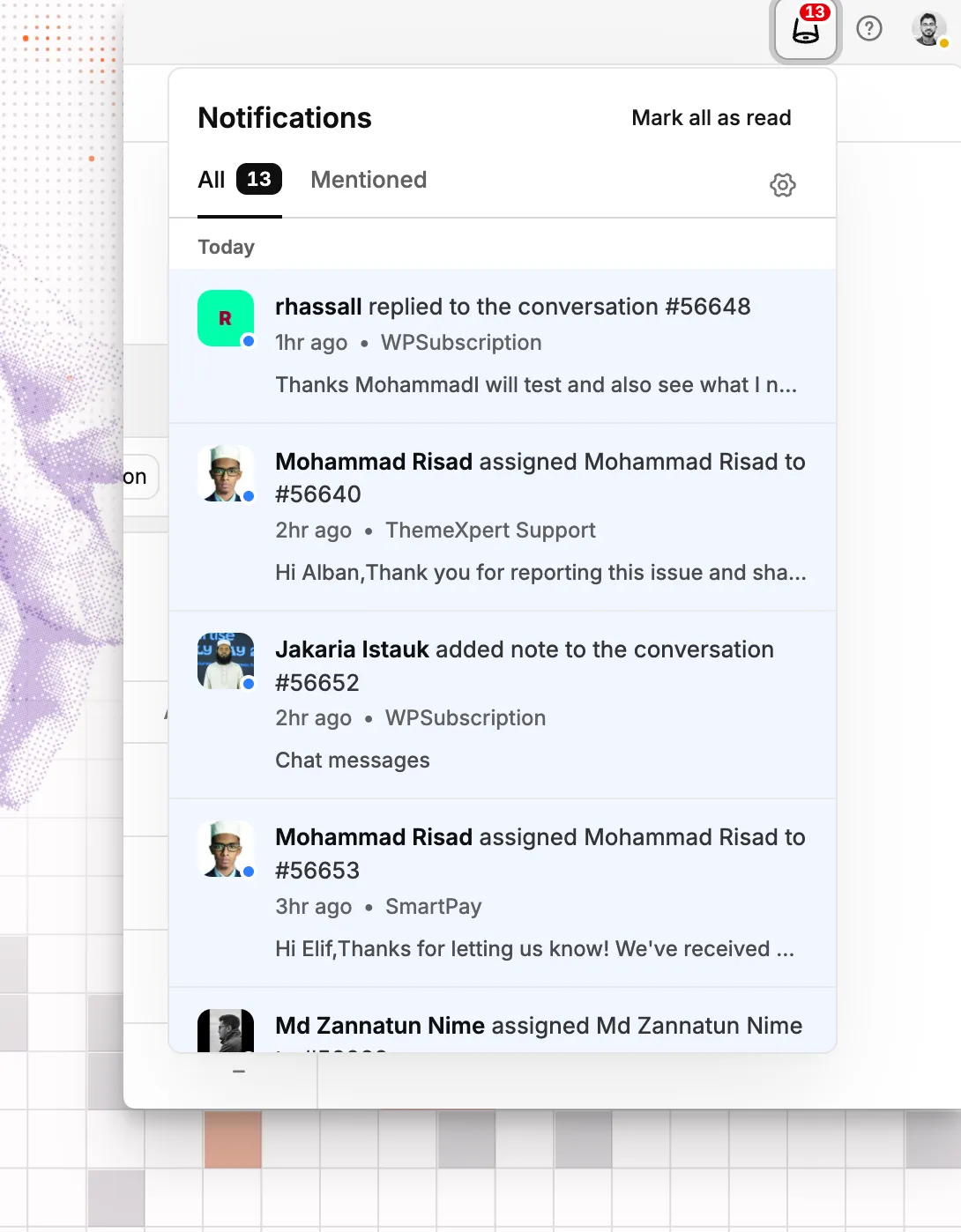
If a teammate mentions you or assigns a ticket to you and you miss the email, the app now tells you too. Select the notification icon at the top right to see them. Open the Mentioned tab to see only the conversations where someone needs you, or select Mark all as read to clear the list.
Automation templates
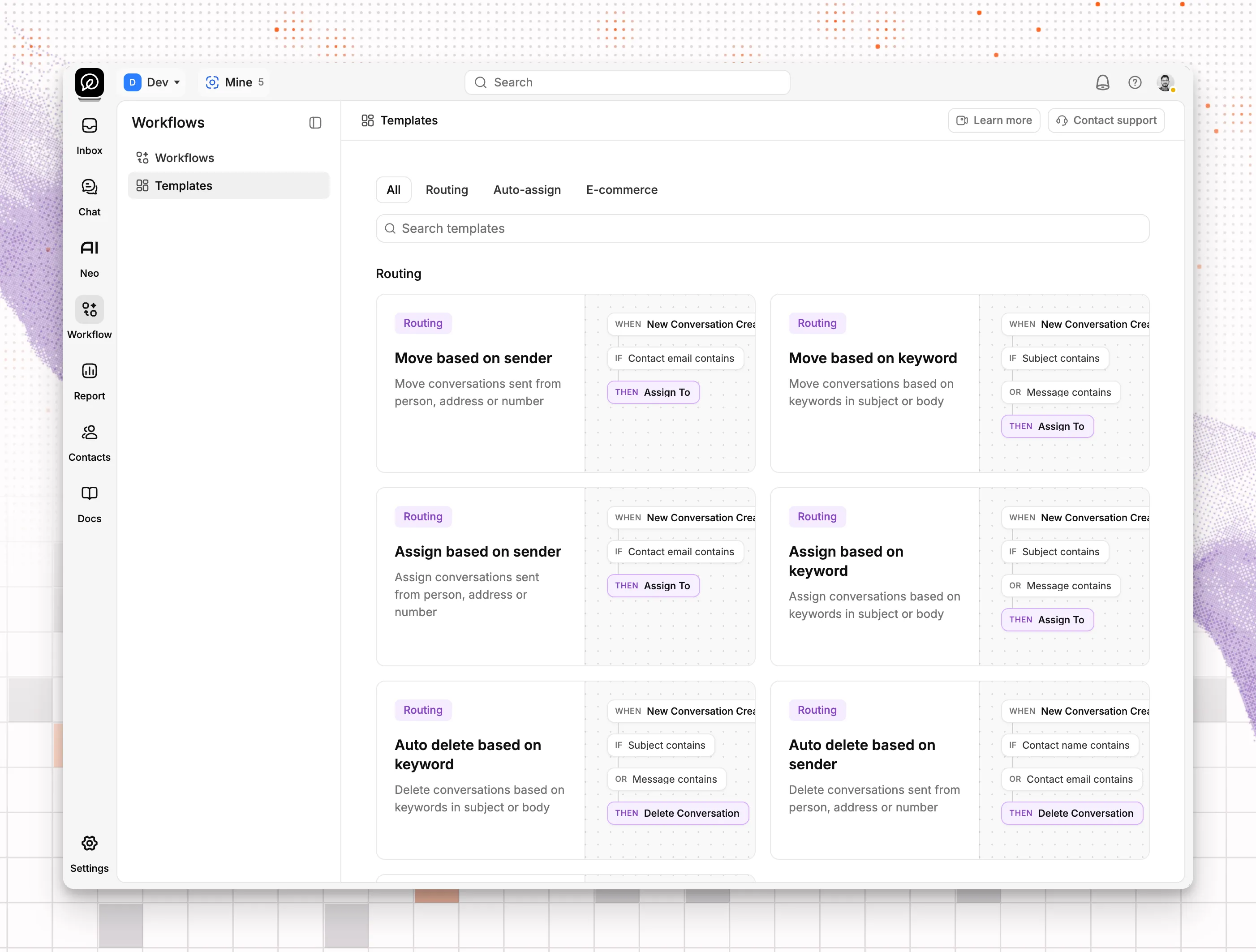
We also redesigned how you make automations. When you create a new workflow, start from scratch or from a template. Each template shows a preview of how it works. If you need a template that is not there, tell us.
Organized settings
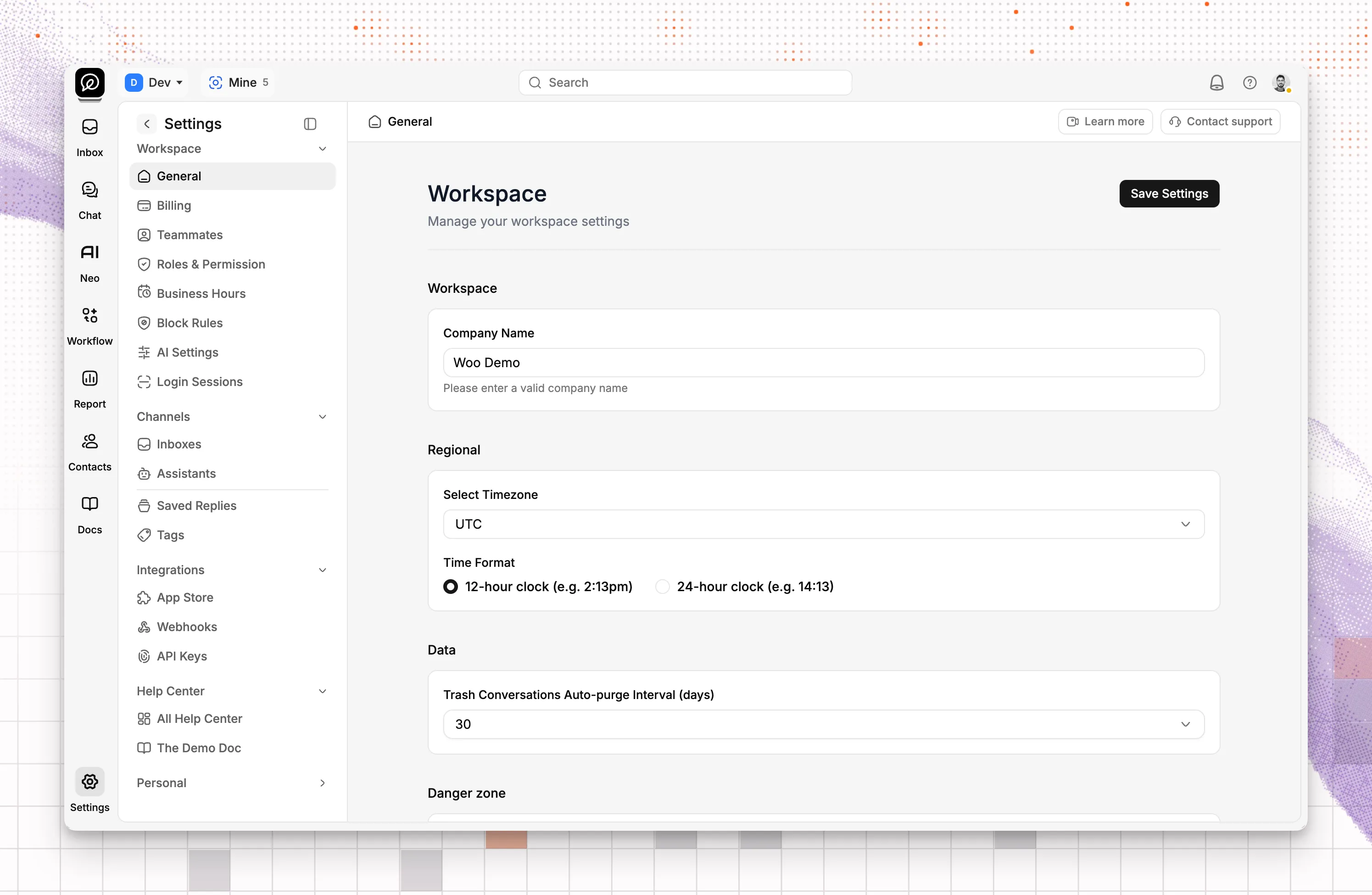
We went through every settings screen and put the settings into cards, groups, and tabs. They are easier to find and in a more logical order than before. Connecting an email address to an inbox is also simpler now.
Dark mode
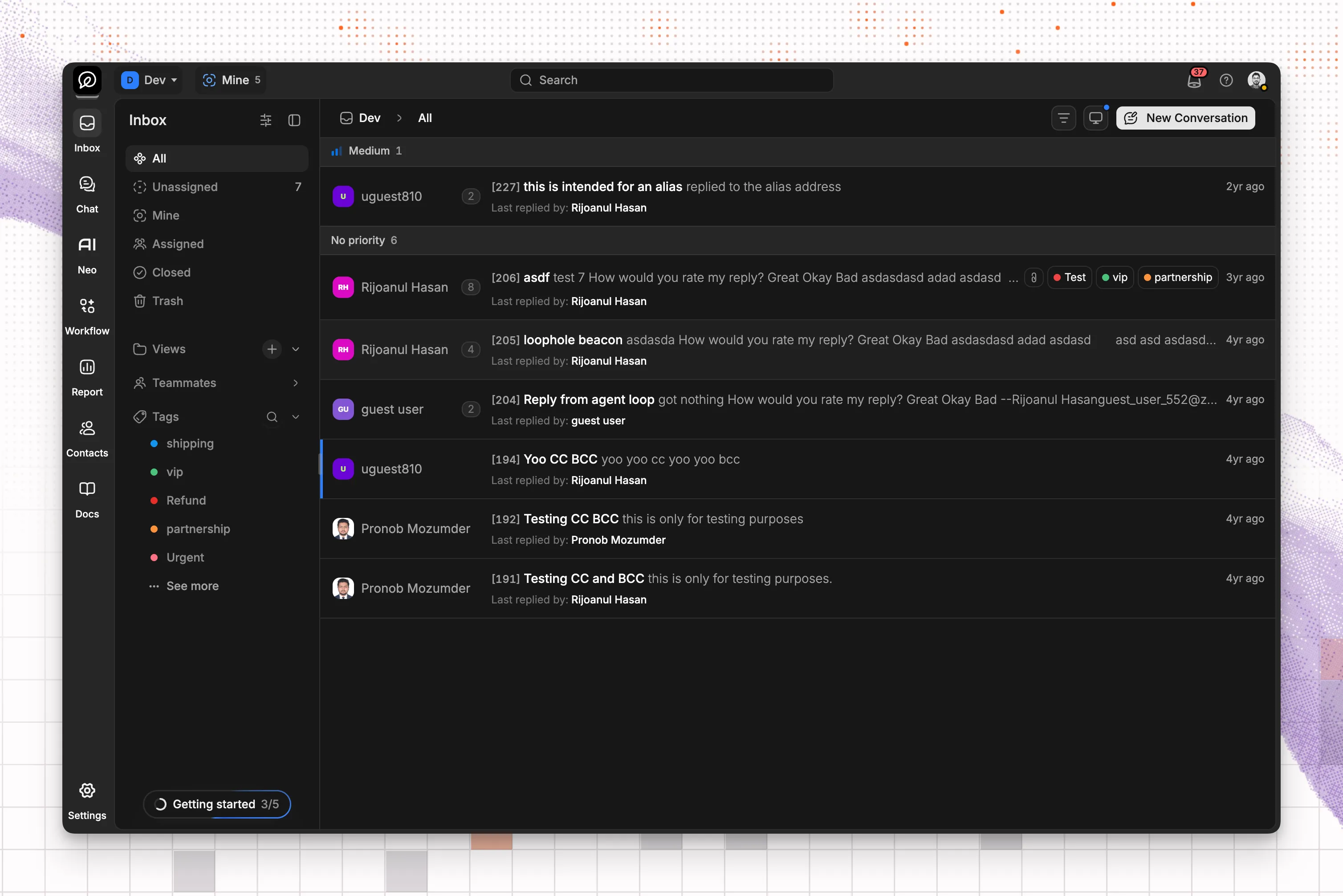
They say you aren’t a real startup until your app has dark mode. We wanted it too, but the old component frameworks stopped us. Now that we own all of the interface code, we can build what we want.
To change the theme, select your profile icon at the top right. Then choose System, Light, or Dark.
We made every pixel of this interface from scratch, but we kept the workflows you know. You can keep working the way you did before. This interface is also the base for our next step: a fully agentic customer service platform for ecommerce.
Open ThriveDesk