Save Your Inbox Filters as Custom Views
Save a set of conversation filters as a view. Keep it personal or share it with your team.
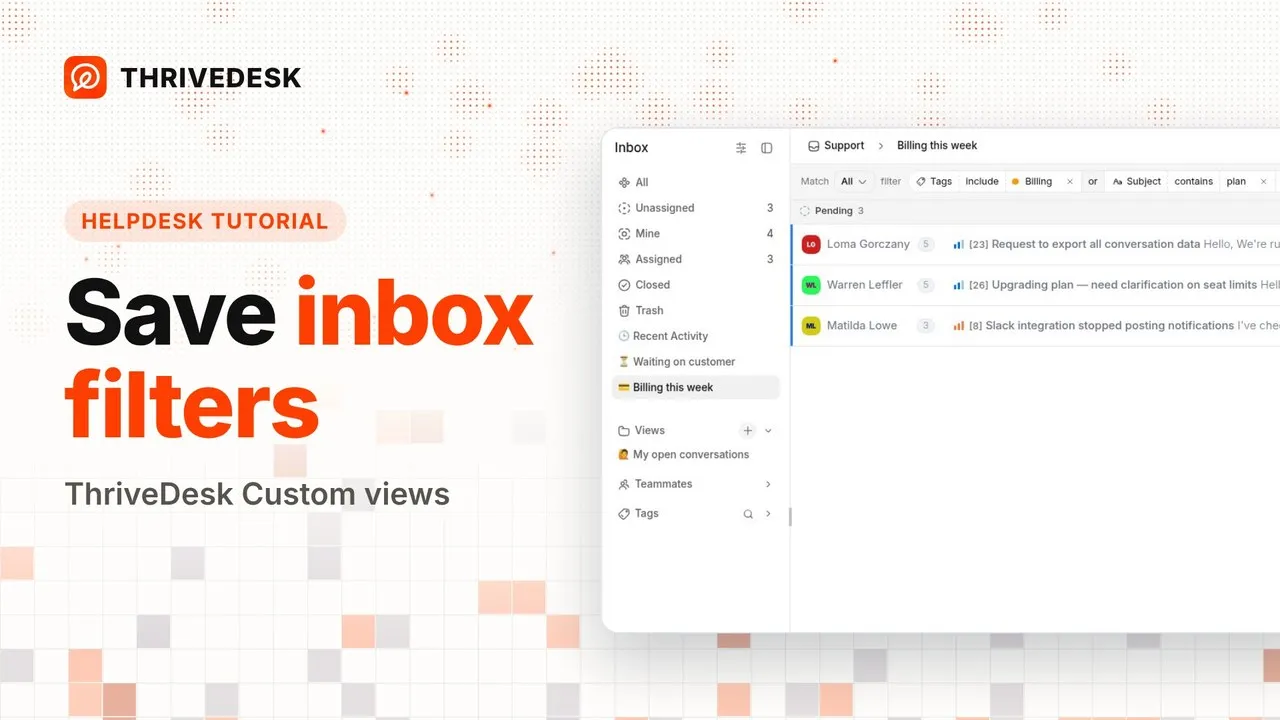
A custom view opens the same list again with one click, such as all pending conversations. Each view belongs to one inbox and shows in that inbox’s sidebar.
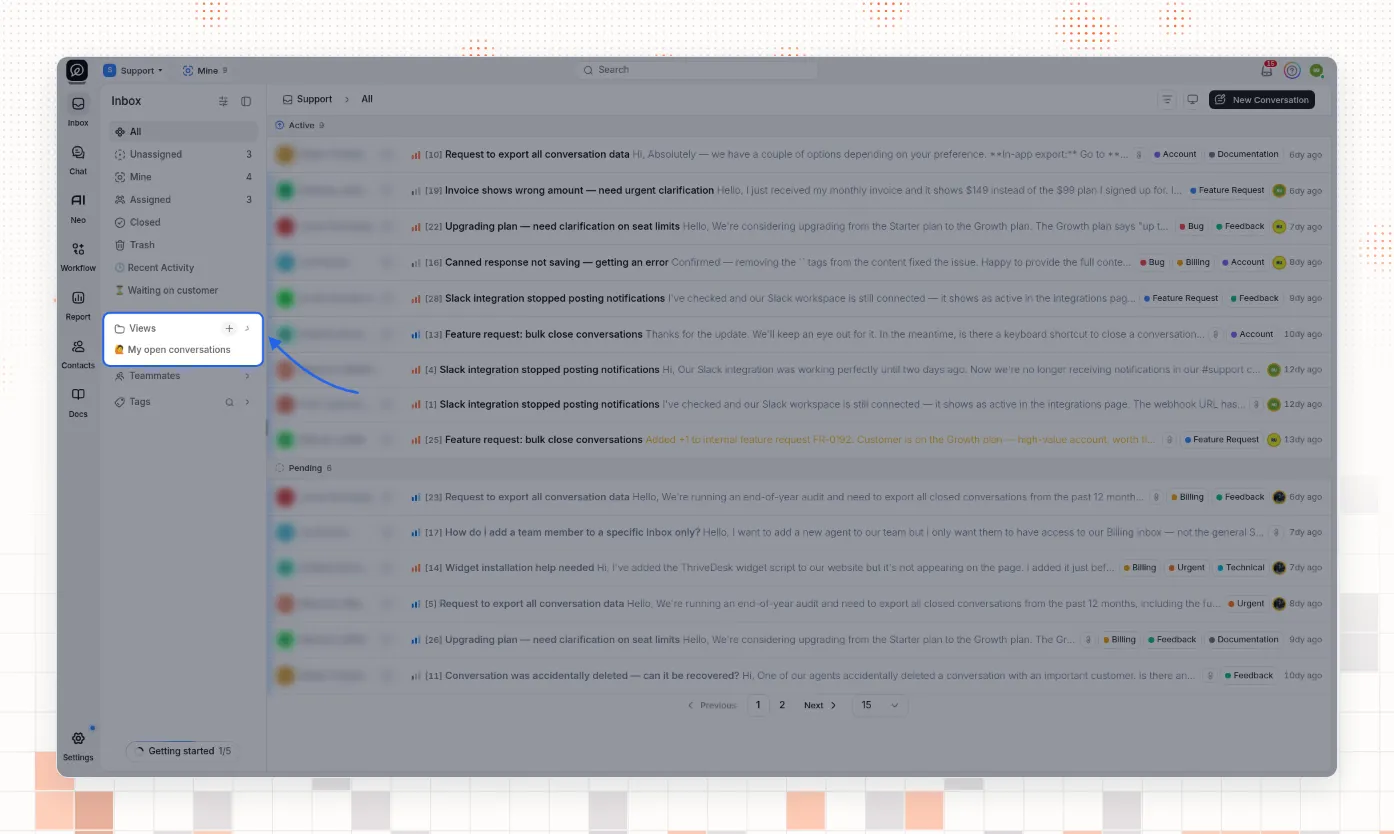
Select Inbox in the left rail. Pinned views are in the folder list, below the built-in folders. The other views are in the Views section.
Custom views are not tied to a plan. The + button and the edit, pin, and delete icons show only to teammates who have the Conversations Write capability. The Account Owner, Administrators, and Users have it by default.
Create a view
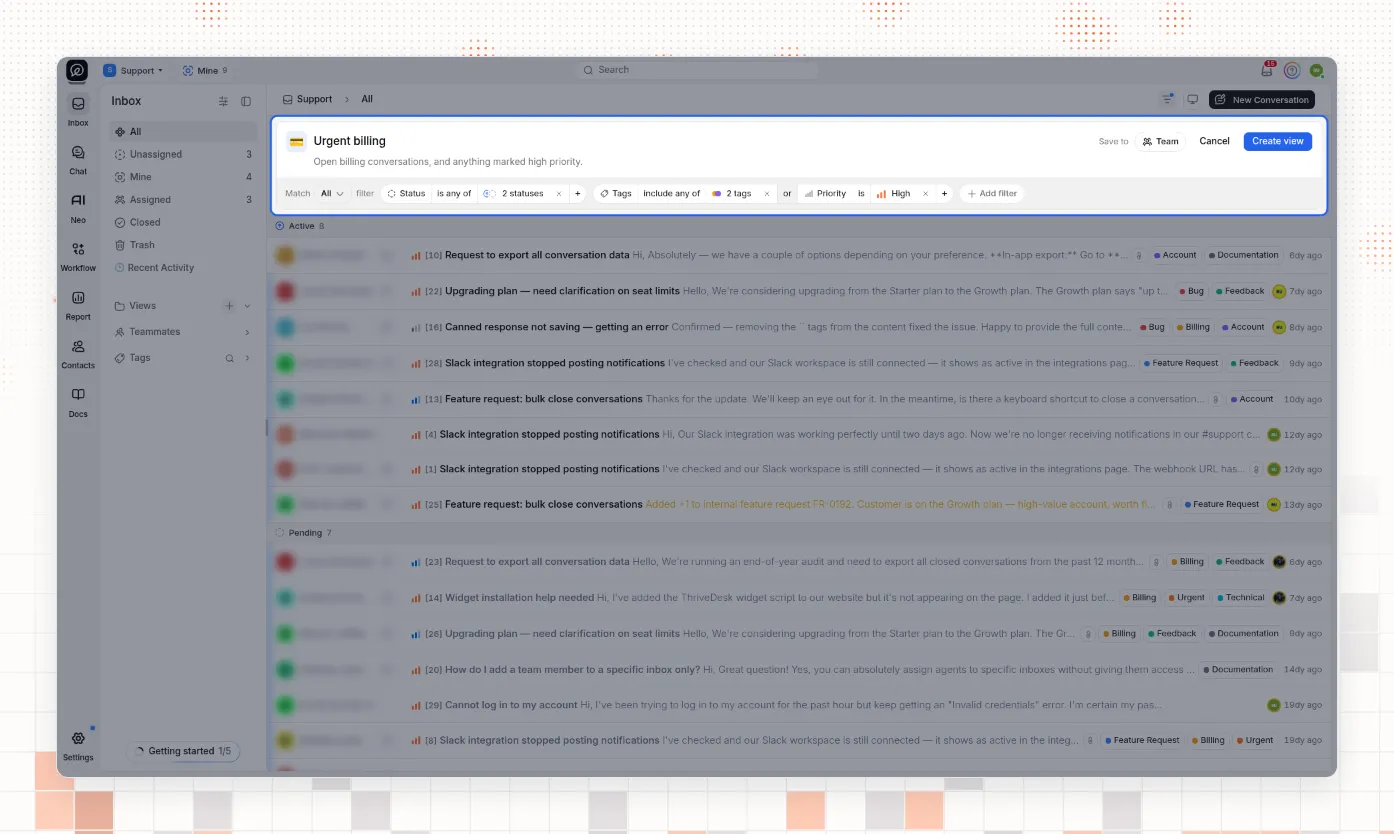
Select + next to Views. The form opens above the list. You can also add filters to the list first and select Save on the filter bar. The form then keeps those filters.
Type a name in View name. Add a description if you want one. Select the folder icon to choose an emoji. Add one or more filters with Add filter. Next to Save to, choose Team or Personal, then select Create view.
ThriveDesk shows View created successfully. and opens the new view. New views start pinned, so the view shows in the folder list. If the name is empty, Create view shows Name is required. If the view has no filter, it shows Add at least one filter. If a save fails, ThriveDesk shows the reason, such as The name has already been taken.
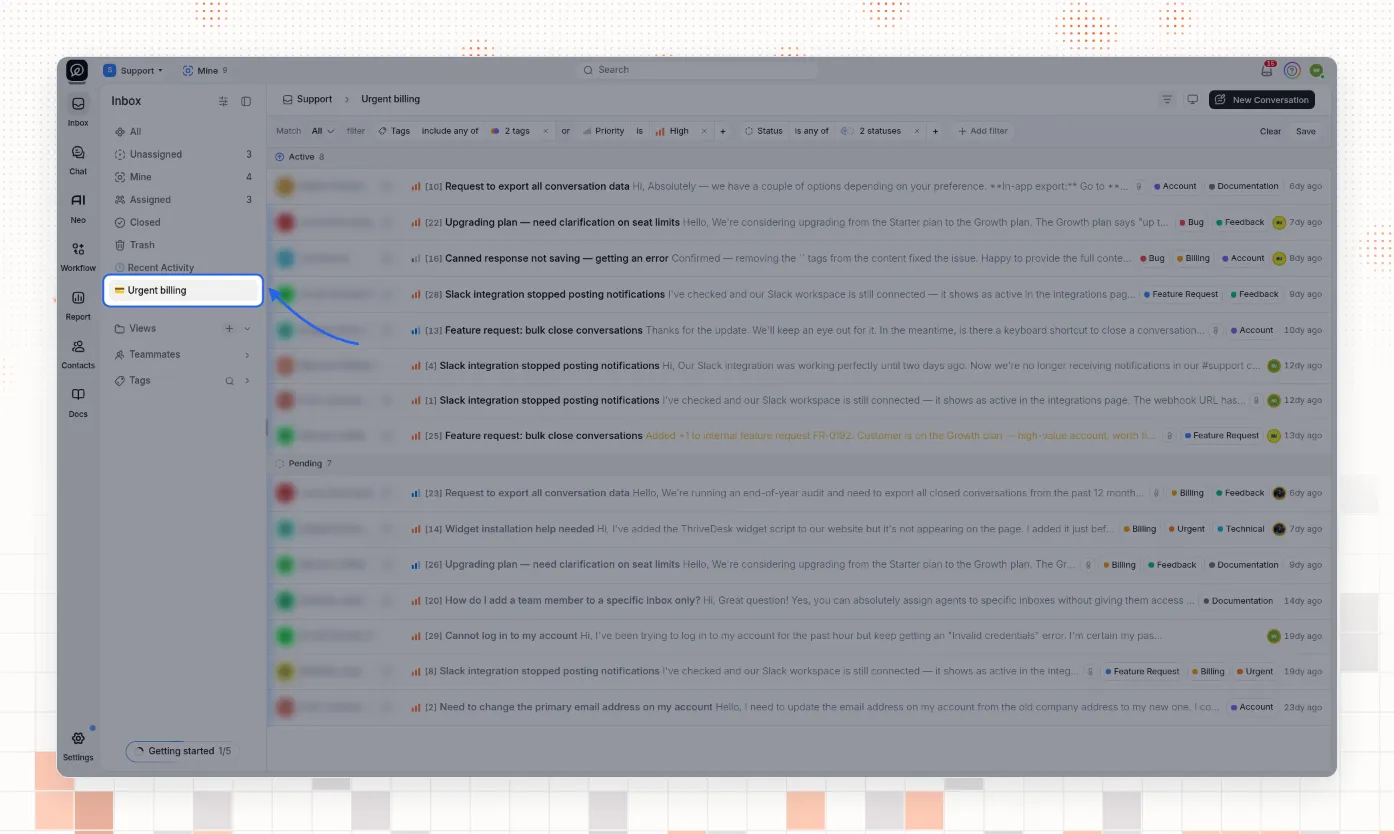
Keep a view personal or share it with your team
Save to has two options. Personal shows the view only to you. Team shows it to everyone who can open the inbox. Team is the default.
Only the person who created a view can edit, pin, unpin, or delete it. This is true for Team views too. A pin belongs to the view, not to each person. When you pin a Team view, every teammate sees it in the folder list. A teammate who wants a version of their own can open the view and select Save on the filter bar. This creates a new view.
Add and combine filters
Select Add filter on the filter bar or in the form. You can filter by Status, Assignee, Priority, Tags, Dates, Subject, Email, Name, Draft, Trash, Attachment, Snoozed, Scheduled, and Spam. To find one, type in Filter….
Each filter shows as a chip, such as Status is any of 2 statuses. Select the operator on a chip to change it. Select the value part to change the values. Select × to remove the filter. The help article lists the operators for each filter.
Date presets match the period they name. Point to Dates, then to Created date, and select Last 7 days. The chip reads Created date is Last 7 days, and the list shows the conversations inside that period. Use before for older conversations. You can also choose Today, Last 30 days, This month, and other presets, or select Custom date or timeframe for your own dates.
When the bar has two or more filters or groups, Match shows before the chips. All shows the conversations that match every filter. Any shows the conversations that match at least one filter.
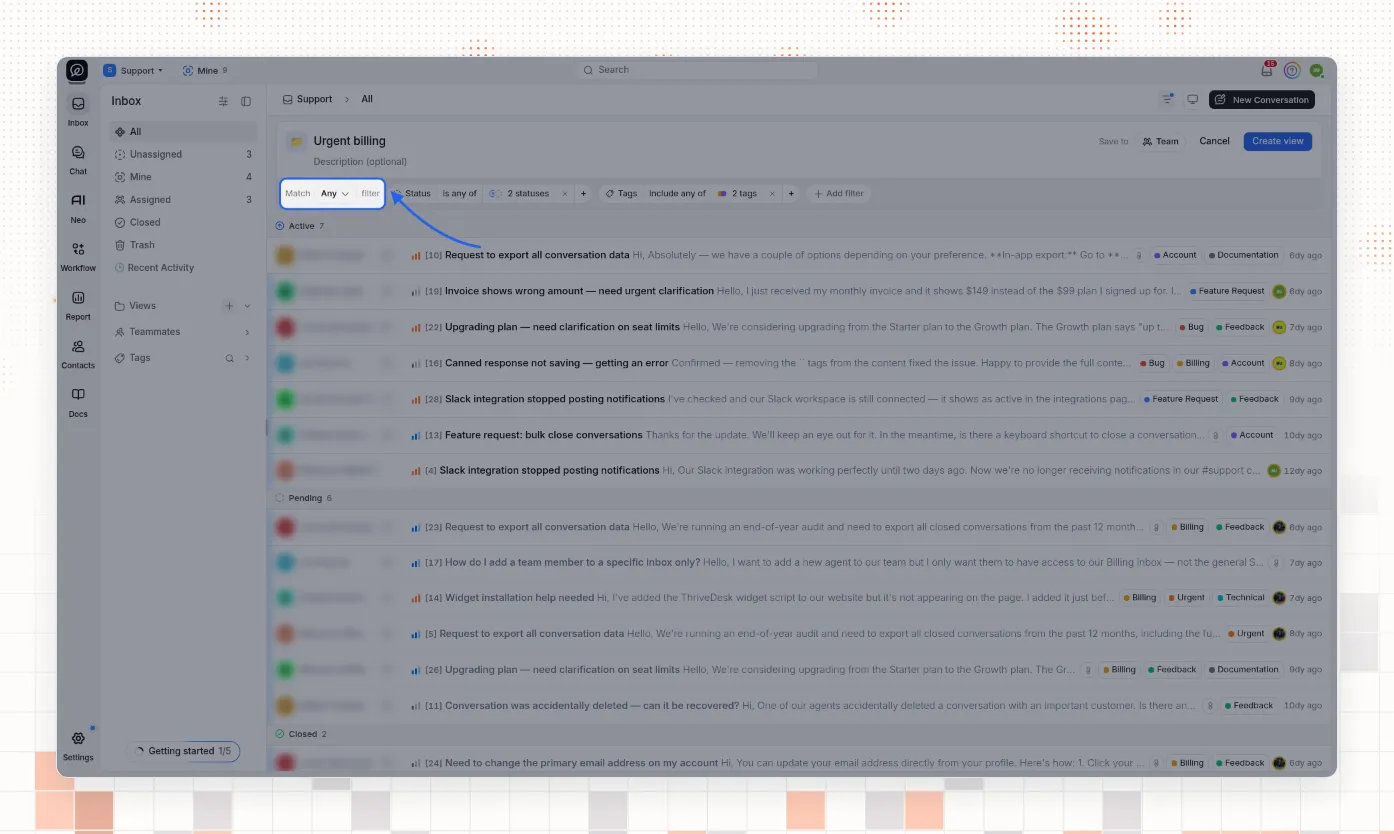
To group filters, select + at the end of a chip and choose another filter. The two filters join in one group. Select and between them and choose or if a conversation needs to match only one of them. Match counts a group as one filter.
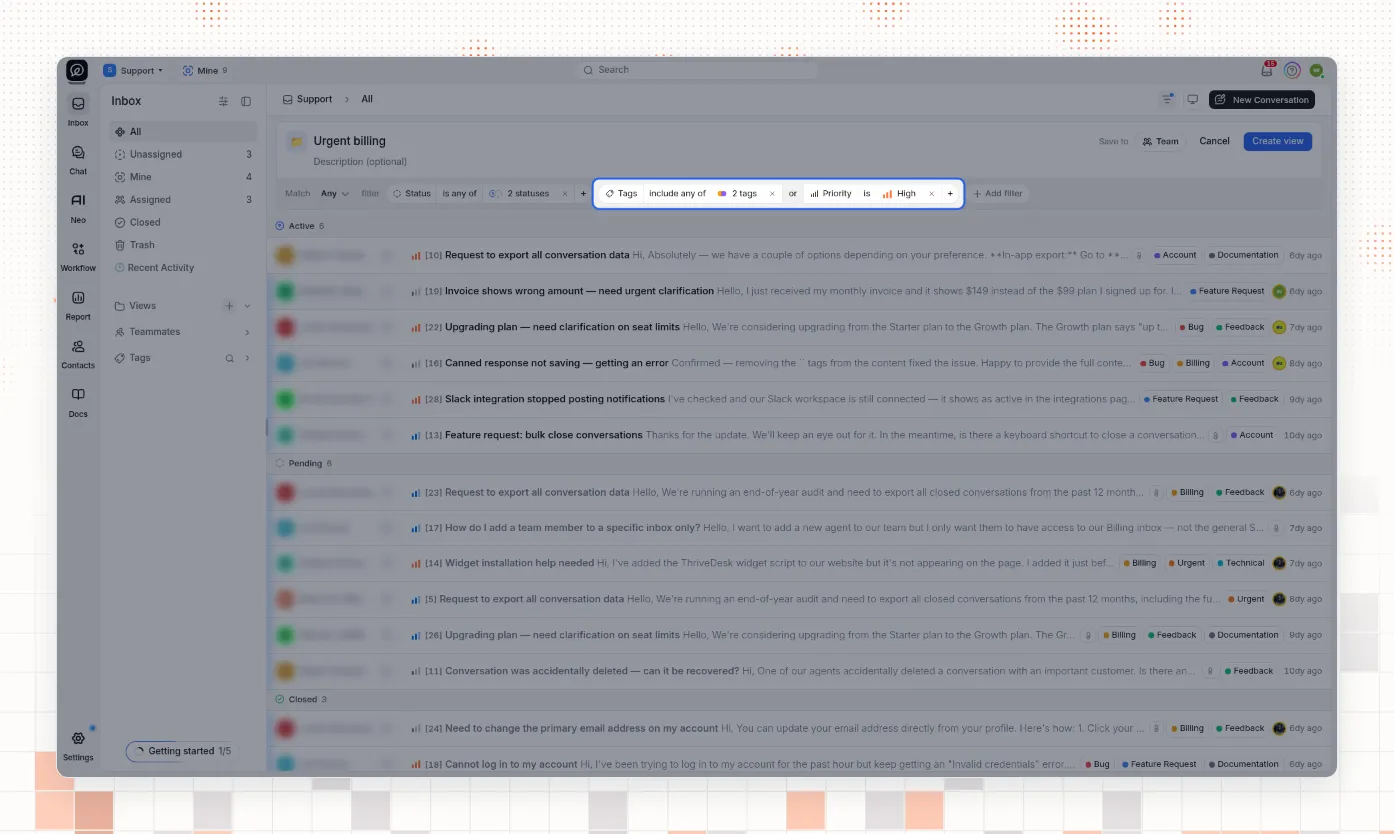
Edit, pin, or delete a view
Point to a view you created in the sidebar to see its icons. They are the pencil (Edit view), the pin (Unpin view or Pin view), and the trash can (Delete view).
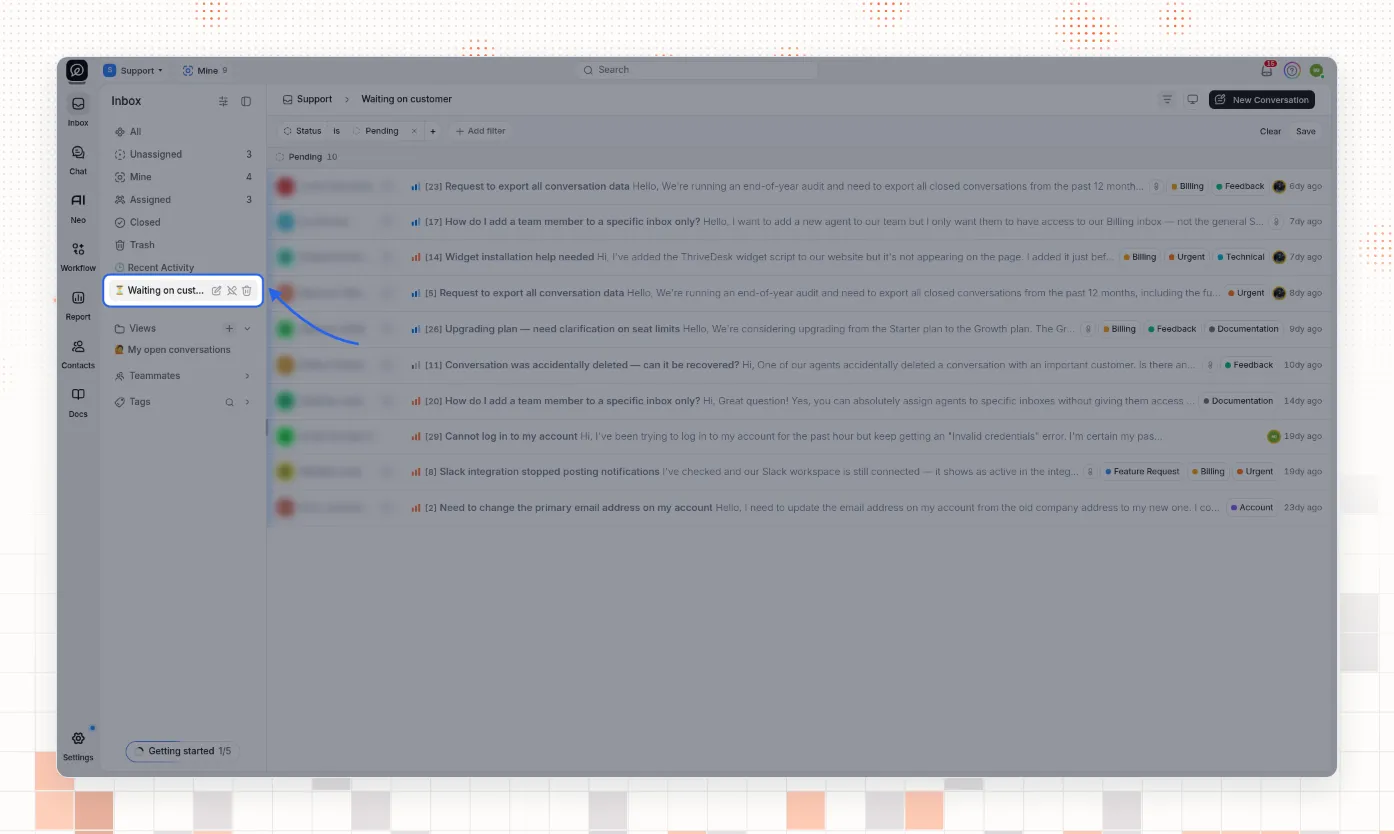
The pencil opens the form with the view’s saved values. Change the emoji, name, description, Save to, or the filters, then select Update view. ThriveDesk shows View updated successfully. To discard your changes, select Cancel. The filter bar goes back to the filters it showed before you opened the form, and the saved view does not change.
If you change the chips on an open view, the saved view does not change until you edit it.
Select the pin to pin or unpin a view. A pinned view shows in the folder list. An unpinned view moves to the Views section.
To delete a view, select the trash can, then select Delete in Delete this view? Deleting is permanent. ThriveDesk removes the view and its filters for everyone who sees it, and you cannot undo it. The conversations in the view do not change.
Change how the list looks
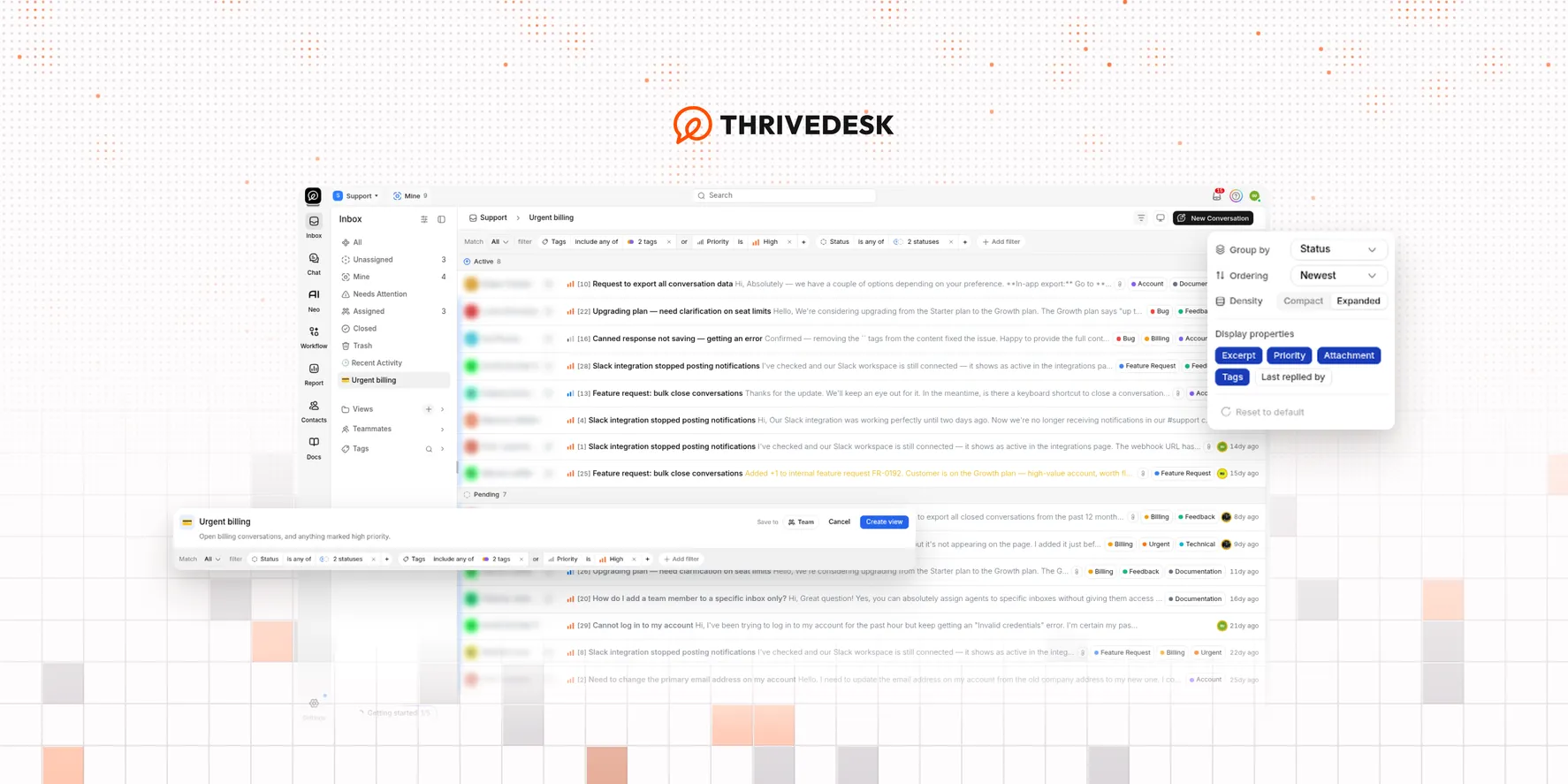
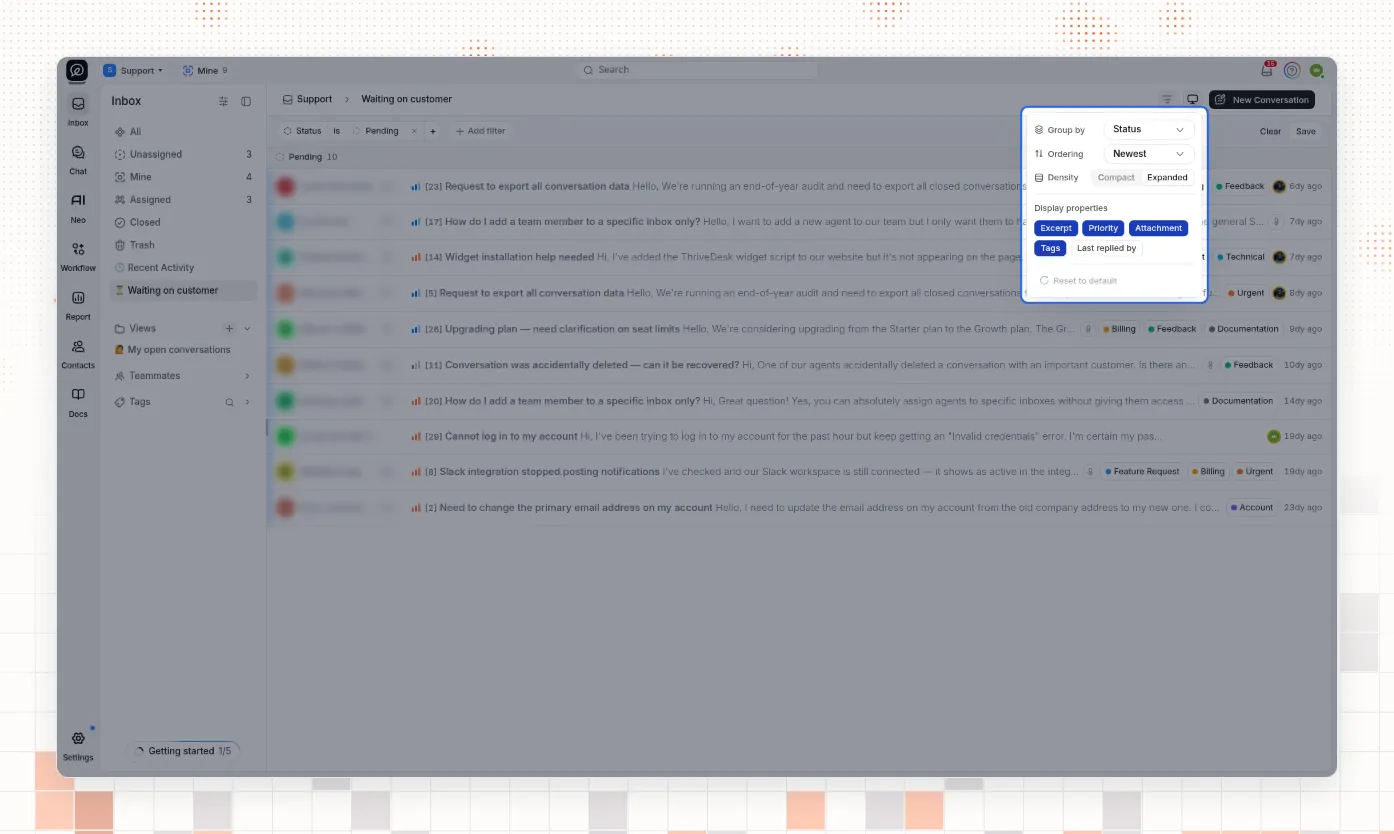
Select Display options, the icon at the top right of the list, to set Group by, Ordering, Density, and Display properties. Group by, Density, and Display properties apply to every list in this browser. A view does not save them. A view saves the Ordering that the list has when you select Create view or Update view. The view opens in that ordering. Reset to default puts every setting back.
Limits to know
- You can create five views in total, across all inboxes. After that, ThriveDesk shows Custom view limit reached. You cannot create more custom views.
- A view belongs to the inbox where you created it. To use the same filters in another inbox, create the view there.
- A view without a Status filter does not show closed conversations. Add Status with Closed to include them.
- The filter bar and the view form show only in a browser window that is at least 640 pixels wide. They do not show on a phone.