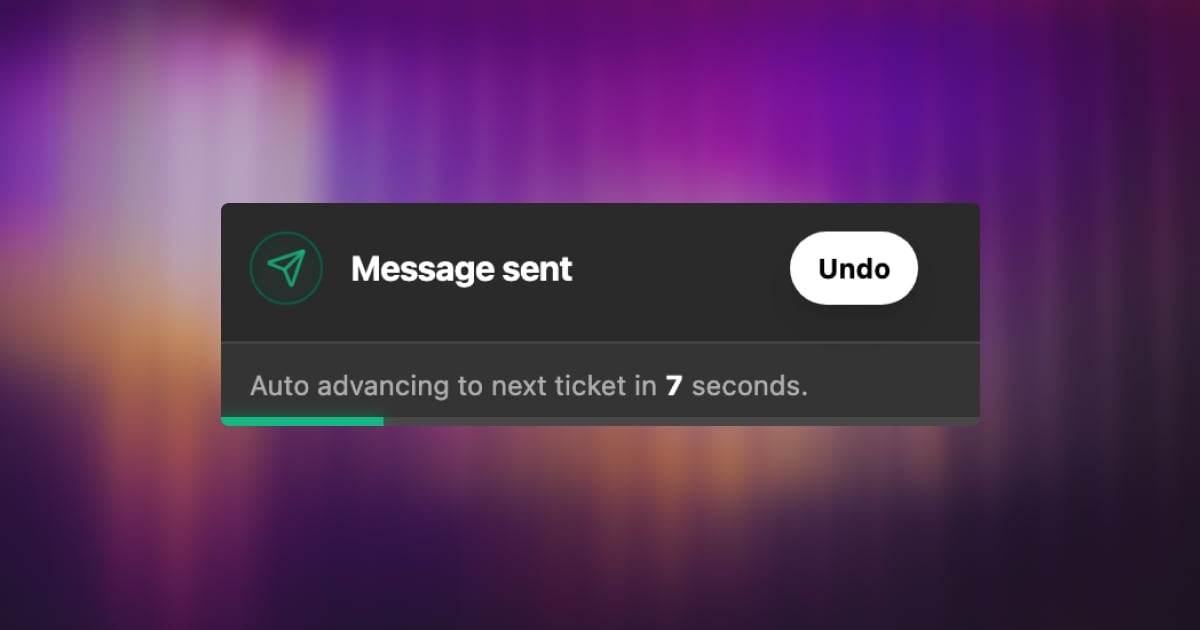
We’ve all been there — you hit Send and immediately spot a typo, realize you forgot an attachment, or just change your mind. Starting today, you have a short window to pull it back.
Undo Send delays your outgoing emails by a few seconds, giving you just enough time to cancel before the message leaves your inbox.
仕組み
Once enabled, every reply you send will be held briefly before going out. A countdown appears — and if you need to cancel, one click pulls it back instantly. No awkward follow-up emails, no “please ignore my last message.”
Configurable Cancellation Window
You choose how long the delay lasts. Head to Settings → Personal → Preferences → Undo Sending and pick what works for you:
5 seconds
10 seconds
15 seconds
20 seconds
30 seconds
A longer window means more breathing room. A shorter one keeps things snappy. Totally up to you.
Small feature, big relief. Sometimes the most valuable thing a tool can do is let you fix a mistake before it becomes one.
We’re kicking off 2026 with our first major release of the year: Custom Fields for Tickets. This powerful new feature lets you customize your ticketing system to fit your unique workflows with absolutely no code.
Whether you need to track a customer’s subscription tier, a product version, an internal status, or anything in between, you can now capture that information right inside each ticket.
The result? Context-rich, structured support that adapts to your team’s needs and boosts efficiency from day one.
Why Custom Fields? Empowering Context-Rich Support
Every support team has its own workflow and data needs. Custom Fields allow you to collect and organize additional data on tickets beyond the standard fields. Imagine being able to log the product version, customer tier, issue category, or any other key detail relevant to a conversation – all within the ticket view. With these fields, you can:
Extend the data you collect on each ticket, ensuring all relevant info is captured.
Maintain consistent, structured data using predefined options (no more messy free-form notes).
Improve reporting and automation by filtering and running reports on custom field values. Identify trends or trigger workflows based on field data with ease.
Never miss critical info – mark important fields as required, so agents must fill them before sending a reply. No key detail falls through the cracks.
In short, Custom Fields turn your tickets into a treasure trove of structured context. Your team gains a 360° view of each issue at a glance, and your managers gain clean data to analyze and optimize support operations.
New Field Types – No Code Needed
We’ve made Custom Fields flexible enough to capture various types of information without any coding or technical setup. You can choose from four field types when creating a custom field:
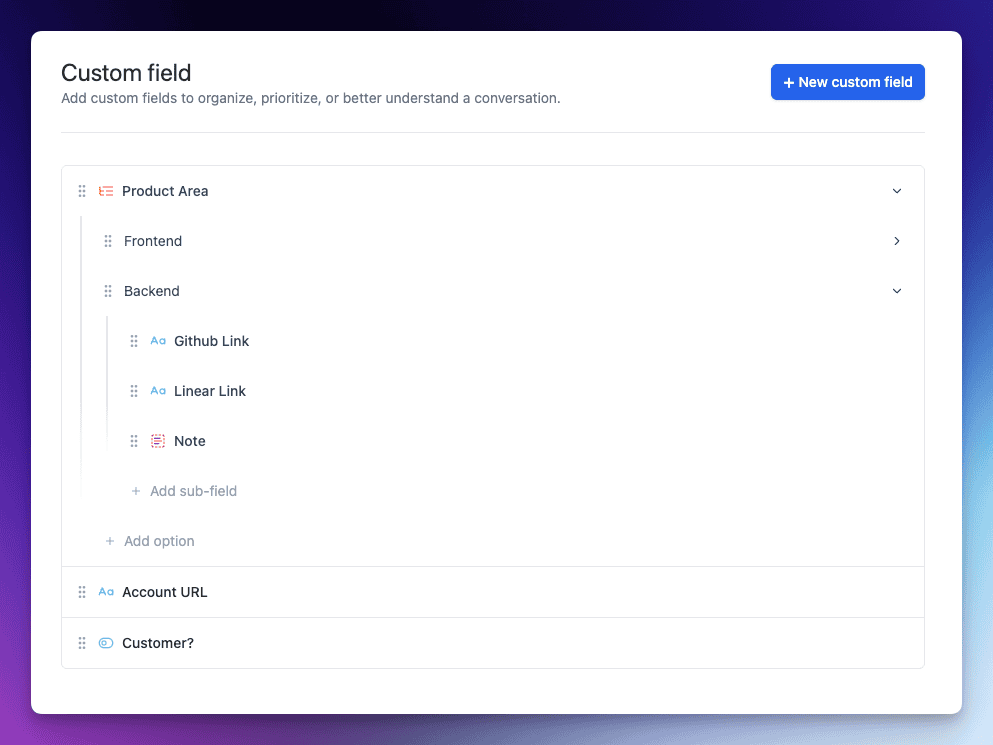
Dropdown: A predefined list of options to select from (perfect for things like issue category or product area). Define your own options – no coding, just point-and-click.
Single‑line Text: A one-line free text field for short inputs (e.g. an order ID or a short note).
Multi‑line Text: A larger text box for longer inputs (great for descriptions, internal notes or troubleshooting steps).
Toggle: A simple on/off switch for yes/no or true/false values (ideal for boolean data like “Paid Customer?” or “Urgent Issue”).
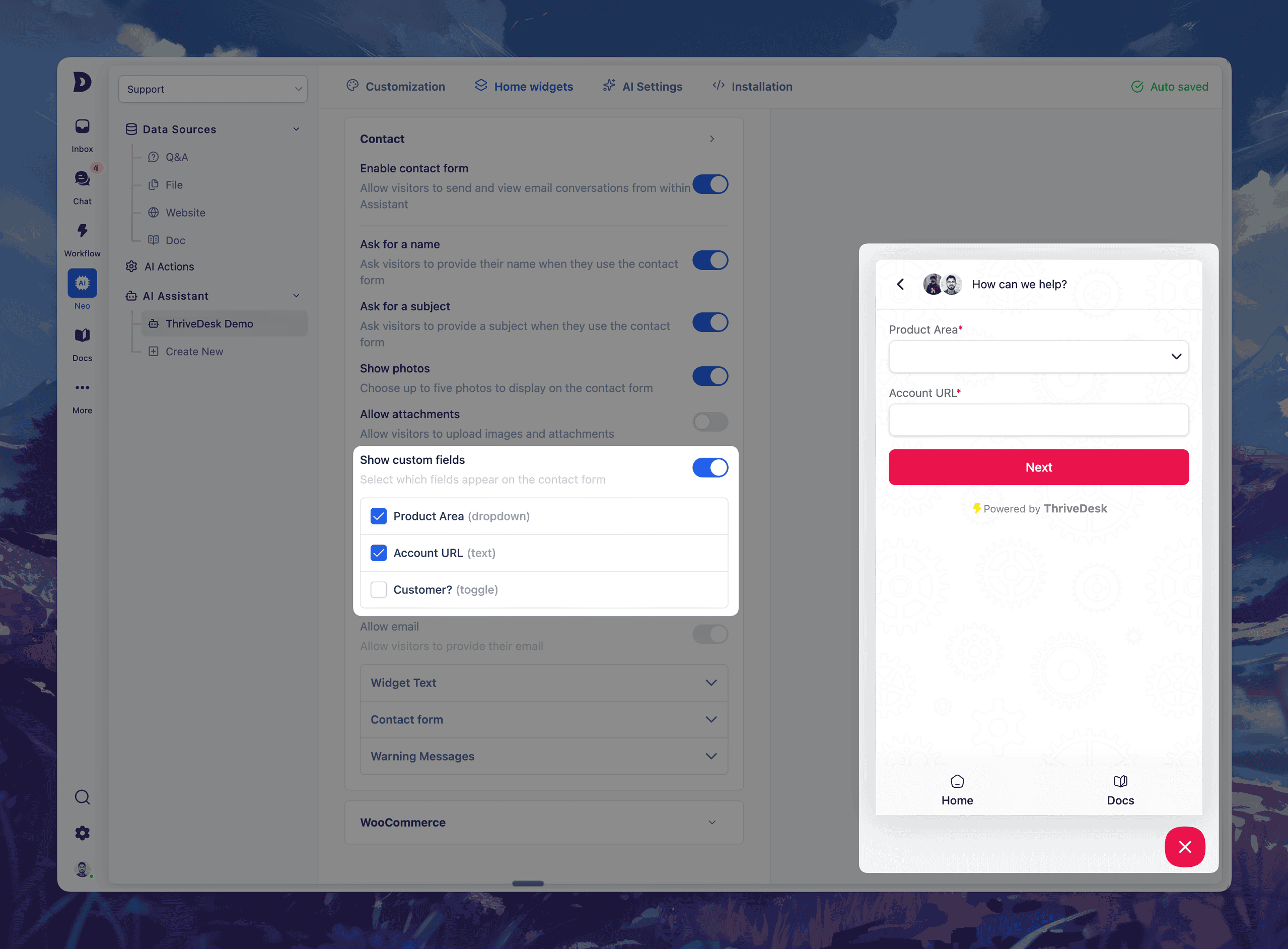
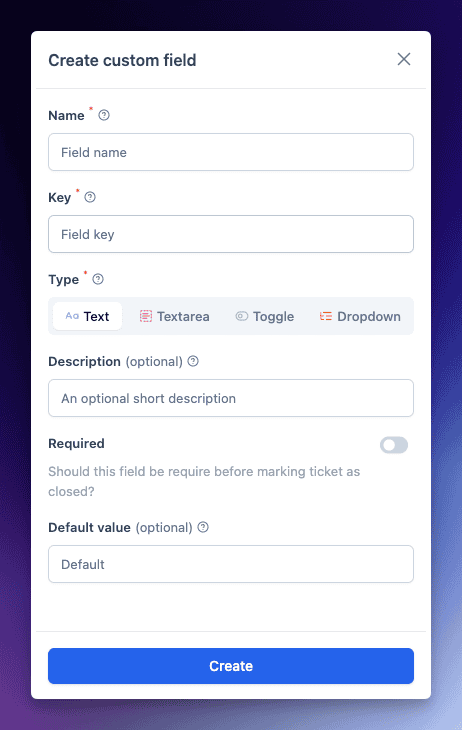
All it takes is a few clicks in the Inbox Settings to add a new field – no scripts, no forms to code. In fact, creating a custom field is as easy as naming it, choosing the field type, and (if it’s a Dropdown) adding your options.
Once created, custom fields live right where you need them: inside the ticket interface. You can even set default values or mark fields as required with a toggle.
If a field is marked required, agents will be gently reminded to fill it in before sending a reply, ensuring important data is always collected. It’s all about making structured data collection seamless and part of the natural workflow.
Seamless In-Ticket Experience
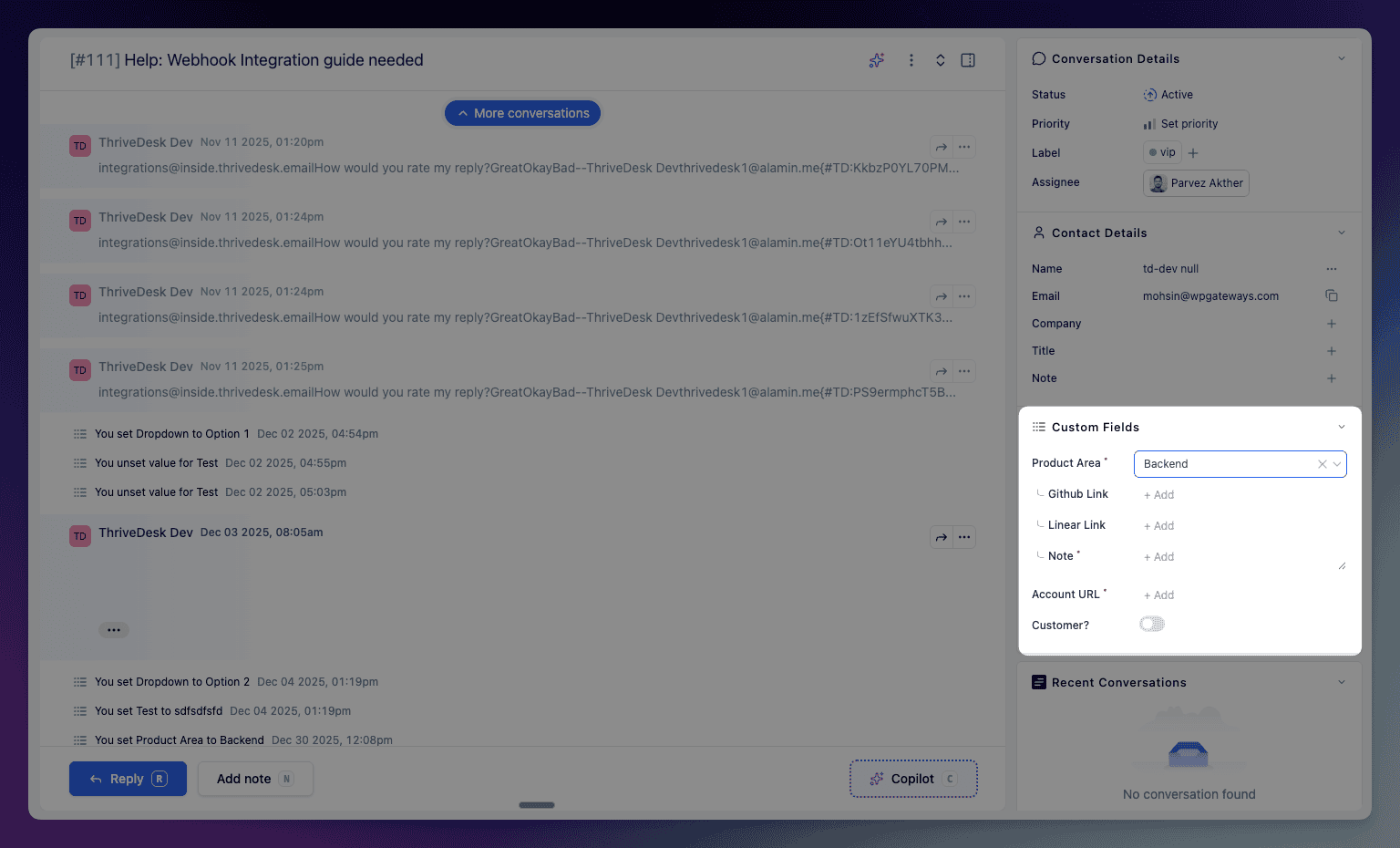
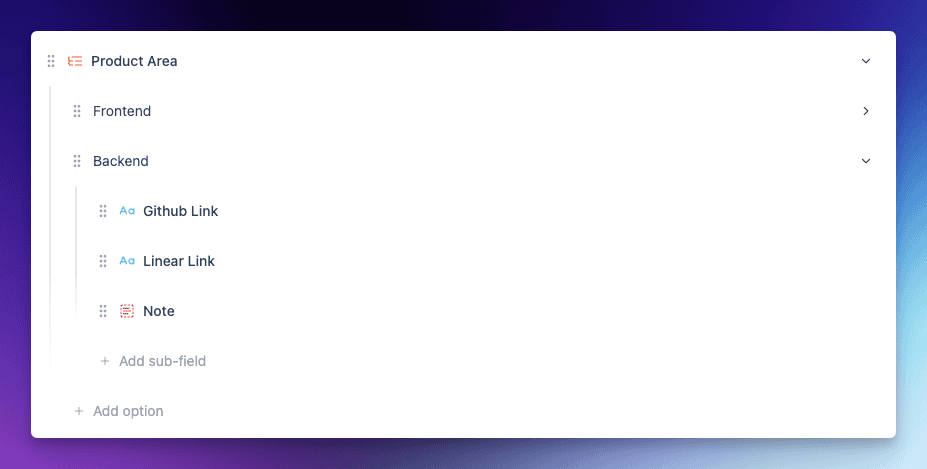
Custom Fields are seamlessly integrated into each ticket’s sidebar, giving agents immediate access to context. In this example, selecting a “Product Area” reveals relevant sub-fields like GitHub link, Linear link, and notes – keeping everything clean and relevant to the issue at hand.
The interface is clean and agent-friendly. Thanks to conditional logic, you can configure fields to show or hide based on another field’s value, so agents only see what’s relevant to the ticket they’re handling.
Learn More & Get Started
Ready to supercharge your support workflow with Custom Fields? We’ve got you covered. Jump into our ヘルプセンター for a step-by-step guide on setting up and using Custom Fields, complete with screenshots and tips. Check out the full documentation here: Custom Fields Documentation.
We can’t wait to see how you’ll tailor ThriveDesk to your needs with this new feature. Custom Fields for Tickets open up a world of possibilities – from more personalized support to smarter automation and reporting. As always, we built this feature hand-in-hand with feedback from teams like yours, and we’re excited to see the impact it will have on your day-to-day operations.
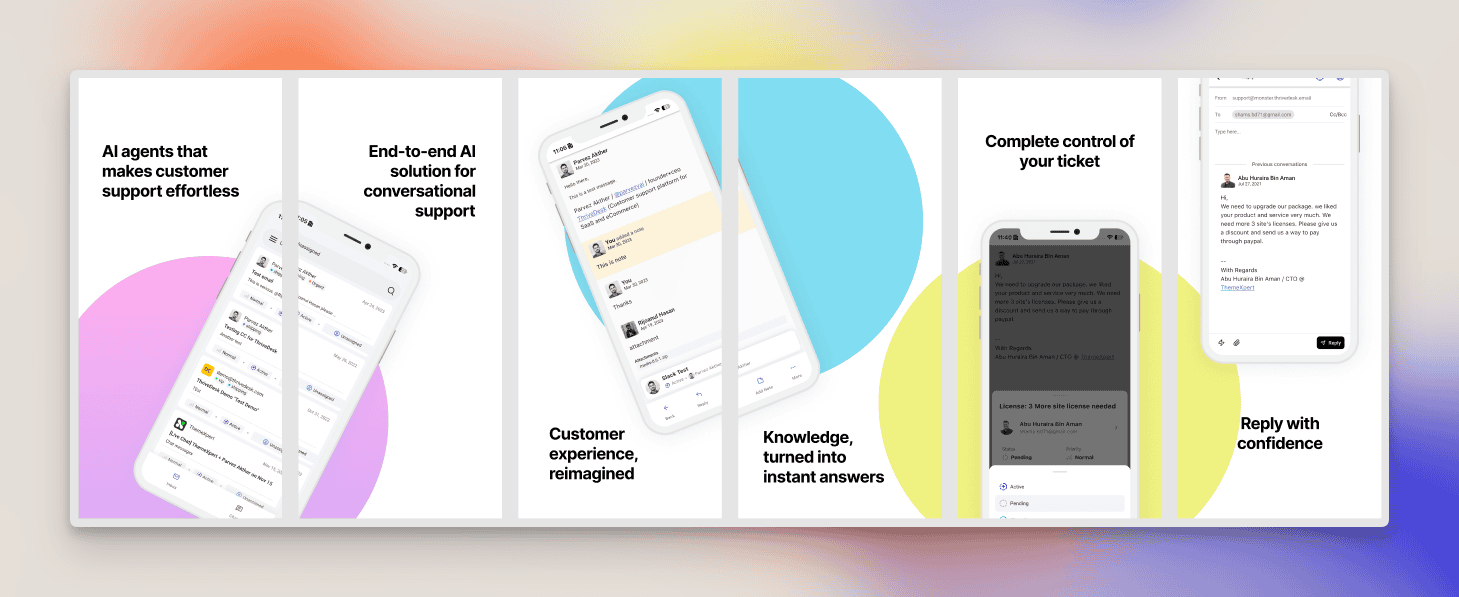
A completely redesigned mobile experience built for speed, clarity, and maximum productivity.
We rebuilt the ThriveDesk iOS app from the ground up with a brand-new interface, improved navigation, and smarter tools that help agents get more done with less effort.
This is our biggest and most refined iOS update yet.
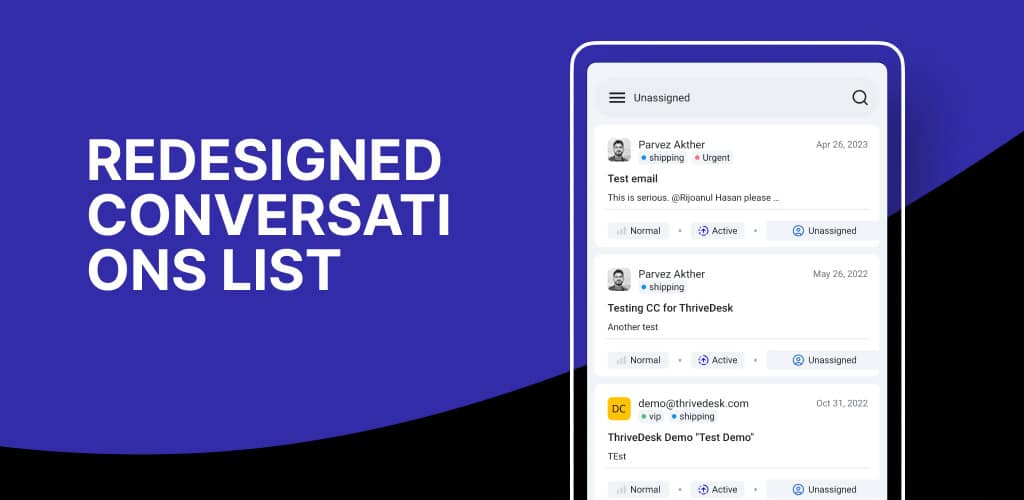
Redesigned Conversations List
The conversations list has been fully redesigned with improved spacing, sharper typography, and cleaner message previews.
You can now scan conversation states, participant details, and unread messages much faster.
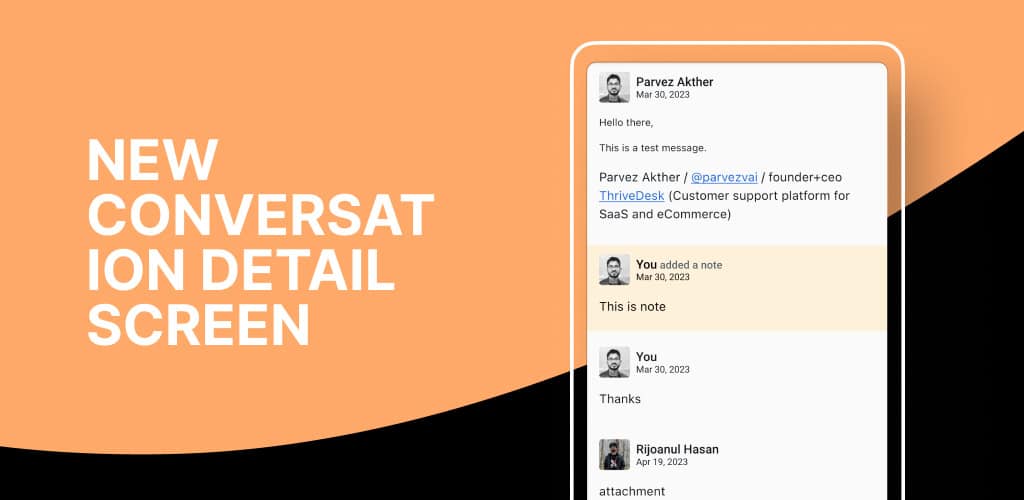
New Conversation Detail Screen
We rethought the conversation detail screen from zero to give agents a more intuitive and productive workflow.
Information is now grouped logically, action buttons are easier to access, and message histories are displayed more clearly.
Whether you’re replying, assigning, or reviewing context, everything feels smoother and more streamlined.
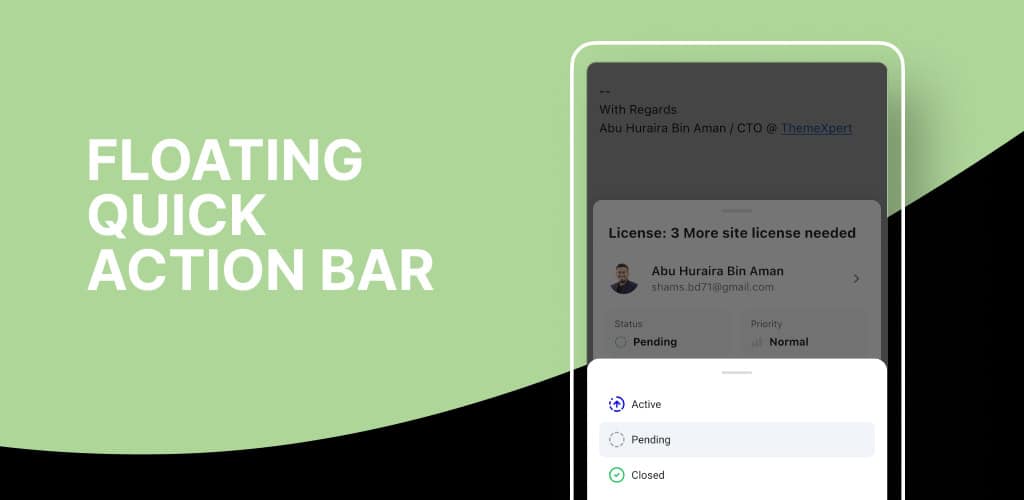
Floating Quick Action Bar
The new floating action bar follows you as you navigate inside a conversation.
Assigning teammates, updating statuses, adding tags, or replying can now be done in one tap.
This eliminates unnecessary scrolling and menu diving, helping you move through conversations much more efficiently.
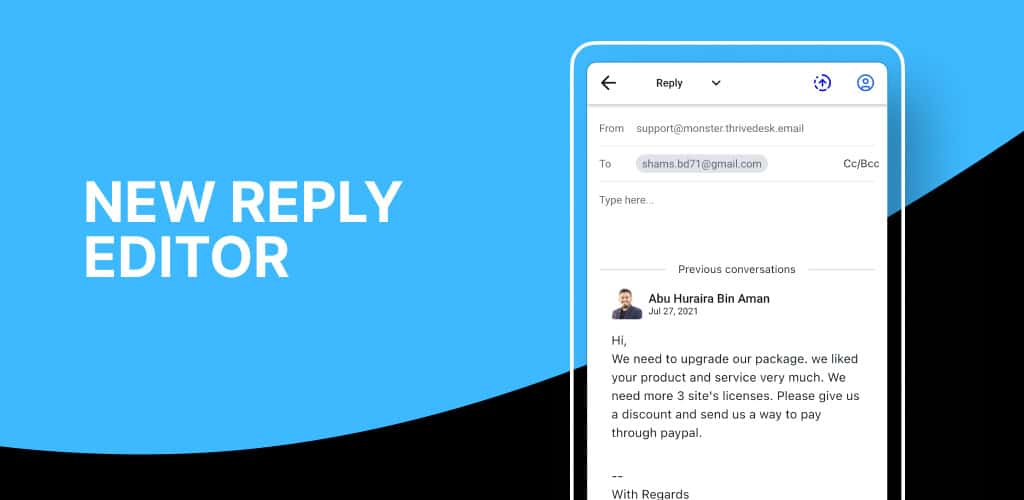
New Reply Editor
Replying is now faster and more informed with the redesigned editor. You can type while simultaneously viewing the full conversation history, preventing context loss and mistakes.
Formatting is sharper, input handling is smoother, and saved replies work seamlessly for quick responses.
Easier Navigation
The entire navigation system has been improved to feel more predictable and effortless. Switching between inboxes, opening conversations, moving back and forth, and accessing settings now feels much more natural.
Whats next?
We’re improving the live chat flow to make it feel more natural on mobile. In the next release, expect a better live chat experience along with full custom fields integration.
Keep threads clean, focused, and easier to manage.
We just shipped a powerful new tool that helps your team stay organized when conversations drift into multiple topics.
Support emails often expand into multiple questions, follow-ups, or unrelated issues. Instead of forcing everything into one long thread, you can now split messages into a brand-new conversation with a clear subject and focused context.
This gives agents better clarity, improves response accuracy, and keeps your inbox tidy.
仕組み
You can split any part of a conversation with just two clicks:
Open the message options menu.
選択 Split conversation to create a new conversation.
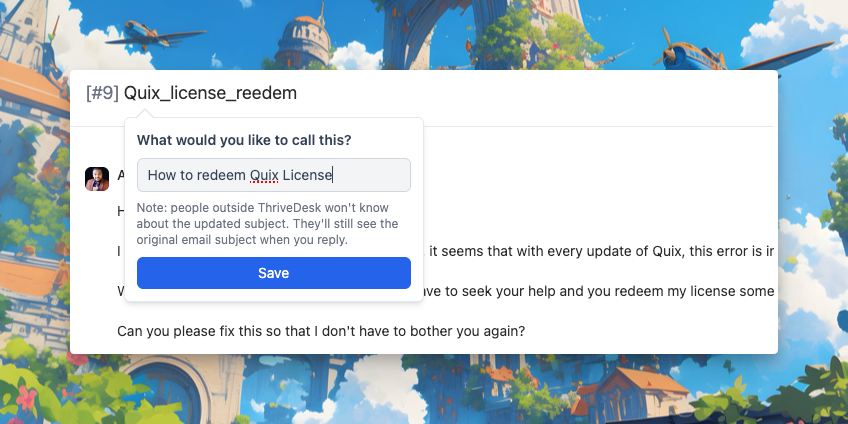
You can now update the email subject right inside the thread view — no need to leave the conversation or dig through settings.
This small but powerful improvement helps you keep subject lines clear and relevant, especially when a conversation evolves or changes direction.
Renaming a subject – does it alter the conversation for client?
Nah, the original subject name remains visible to the client. So, when you rename a thread, it’s essentially for your and your team’s own benefit – making it easier to keep track and stay sane.
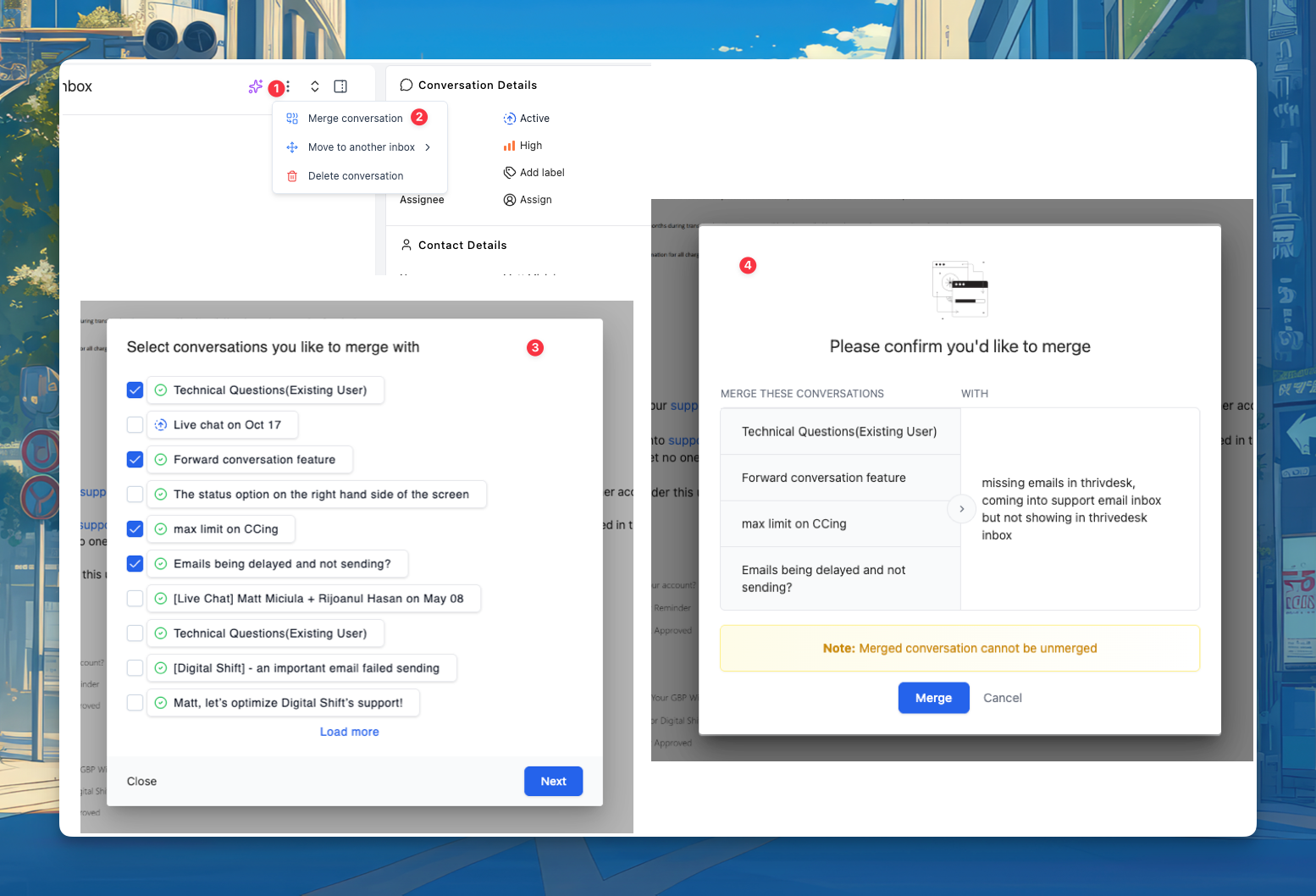
This release focuses on improving workflow efficiency and reliability across inboxes, LiveChat, and the WordPress Portal. The highlight? You can now merge multiple conversations in a single click.
Merge Multiple Conversations at Once
You can now merge several conversations together in one action. This feature helps support teams clean up duplicate tickets, reduce clutter, and keep communication organized.
Inbox Enhancements
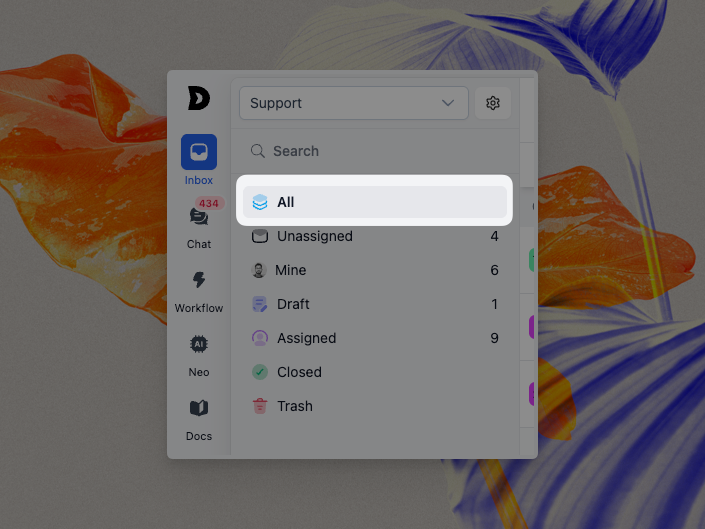
その All menu in the inbox sidebar now lets you view every ticket in one place, across all filters and categories. This makes it easier to stay on top of everything happening in your workspace.
Assistant API Update
We added a new Assistant('ready', callback) API, allowing developers to trigger specific actions once the Assistant is fully loaded. Read more in our developer guide.
改善点
Resolved freezing issues caused by missing agent identifiers.
Ensured the active organization updates correctly after accepting a workspace invitation or being redirected from an invite link.
Added “All Conversations” option for better filtering.
Improved LiveChat subheader translations.
Removed the reject button from the discard draft modal.
Bug Fixes
Fixed an issue where contact names were not properly appended in the identify method.
Resolved a problem where drafts and internal notes were visible on the client ticket view in the WordPress Portal.
Fixed a bug where closed conversation timestamps weren’t appearing correctly when creating new tickets.
Fixed conversation counts in lists and removed trashed or closed items.
Fixed crawling issues for websites with over 100 URLs.
Fixed z-index issue with WebSocket toaster notifications.
Live Chat has officially arrived on Android — and it’s a game changer. This isn’t just a new feature; it’s a complete rebuild of the Live Chat experience on mobile — faster, smoother, and more powerful than ever.
💬 Live Chat — Reimagined
The Live Chat module has been fully rebuilt for speed and stability. Now you can chat with customers in real time, manage threads, and handle replies effortlessly — all from your Android device.
⚡ Major Features & Improvements
You’ll also find a brand-new, customizable toolbar designed for quick access to key actions, making chat management faster and more enjoyable.
Attachment Support: Send and view file attachments directly from chat.
Instant Replies: Quickly respond with saved replies that automatically replace placeholders.
Rich Text Editor: Format your messages with bold, italics, links, and more for a polished look.
Chatbot Events: Experience smoother, smarter chatbot interactions with robust event handling.
Custom Toolbar UI: The new editor toolbar has been redesigned for a cleaner, more intuitive feel.
🧭 UI & Theming Enhancements
We refined the entire interface for a more polished experience. The navigation header uses clear icons, dark mode colors are perfectly balanced for readability, and the Saved Replies screen now looks and feels consistent across all devices.
Cleaned up navigation: Correct icons now appear in the chat header for better orientation.
Night Mode Fixes: Text and colors now adjust properly for dark mode, ensuring readability at all times.
Consistent Saved Replies UI: Standardized icons and spacing for a uniform look across devices.
🪄 Stability & Fixes
Performance and reliability have been improved across the app. Contact replies now appear instantly, images load properly, and chat lists show complete messages. Notifications are smarter, alignment issues are fixed, and data refreshes automatically when switching inboxes or organizations.
Real-time Contact Replies: See customer replies instantly within mobile threads.
Clear Message Context: Agent and client replies are visually distinguished, including agent attribution.
Pagination & Scrolling: Fixed issue where the last message wasn’t visible in the chat list.
Image Loading: Resolved the bug causing long images to load indefinitely.
Page Navigator: Fixed style inconsistencies when switching between views.
Actor Notifications: Mobile app now correctly ignores actor agent notifications.
Option Alignment: Adjusted general option alignments for a cleaner UI.
Data Refresh: Saved replies now refetch properly when switching organizations or inboxes.
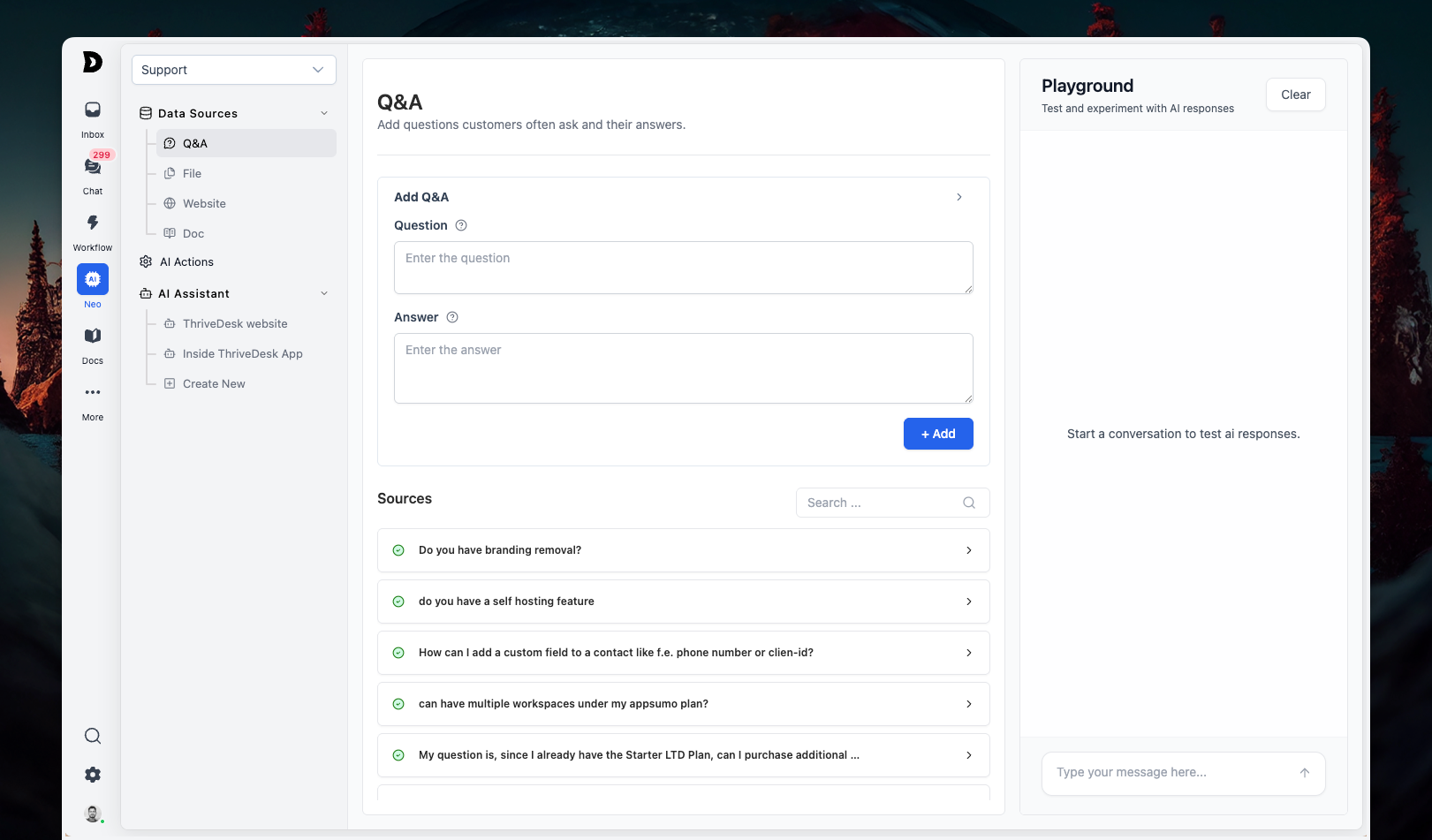
We’re excited to share one of our biggest AI updates yet. This release brings a unified AI interface, instant embedding, and the brand-new AI Playground, making it faster and easier than ever to train, test, and customize your chatbot.
No more juggling between multiple pages or waiting for updates—everything is faster, simpler, and more flexible.
Unified AI Interface
All AI settings are now organized in a single interface, making it easier to configure and manage your chatbot without switching between pages.
Instant Embedding
Training data is now embedded instantly. Upload a doc, tweak a knowledge source, or add a website page—your chatbot learns it on the spot, without delays.
AI Playground
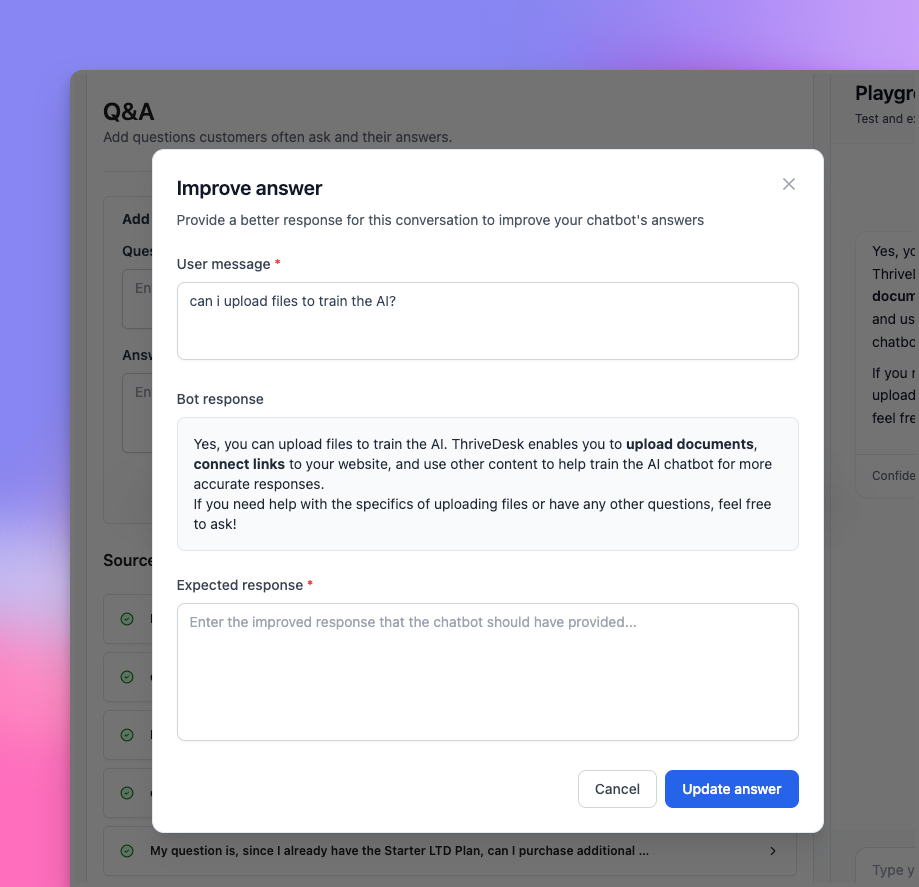
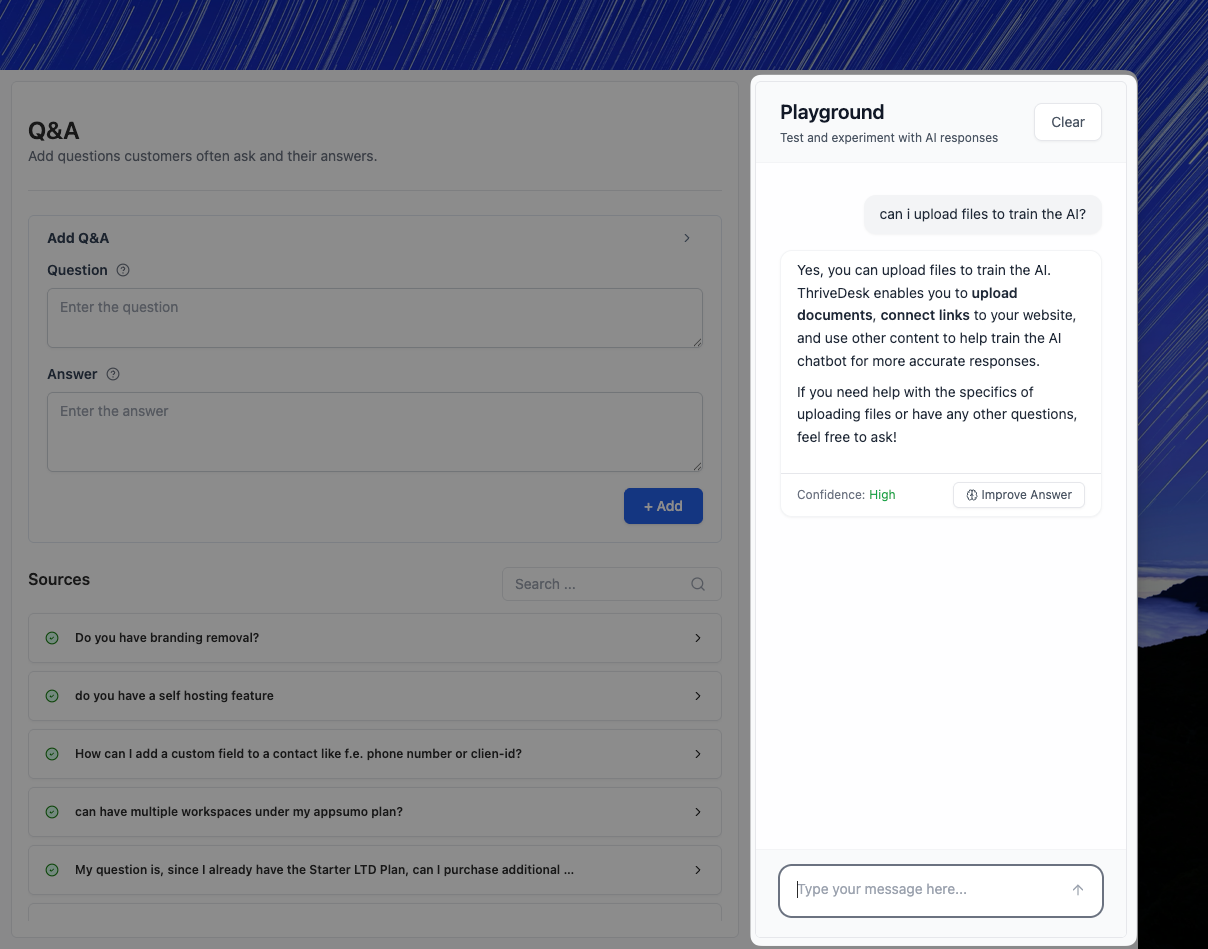
Test Neo’s replies instantly before deploying to your site. Don’t like the answer? Hit “Improve” and refine it right away. No waiting, no guesswork.
Chat With Your Files
Upload docs, PDFs, HTML, or spreadsheets and start chatting with them instantly. Neo can now read and respond directly based on your files.
AI Identity
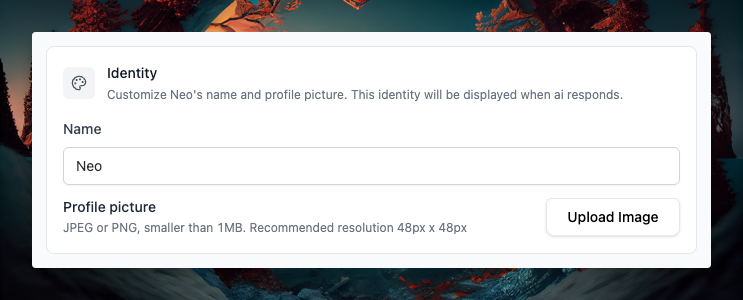
Give your chatbot an identity—change its name and icon to better align with your brand.
Smarter Knowledge Handling
Newly added docs are auto-indexed for faster availability.
You can now disable individual docs or website pages from training sources when needed.
Creating an AI chat assistant is now seamless—set it up from the same page without navigating elsewhere.
Bug Fixes
Fixed spacing issue in inbox signature.
Fixed issue where empty messages could be sent in live chat.
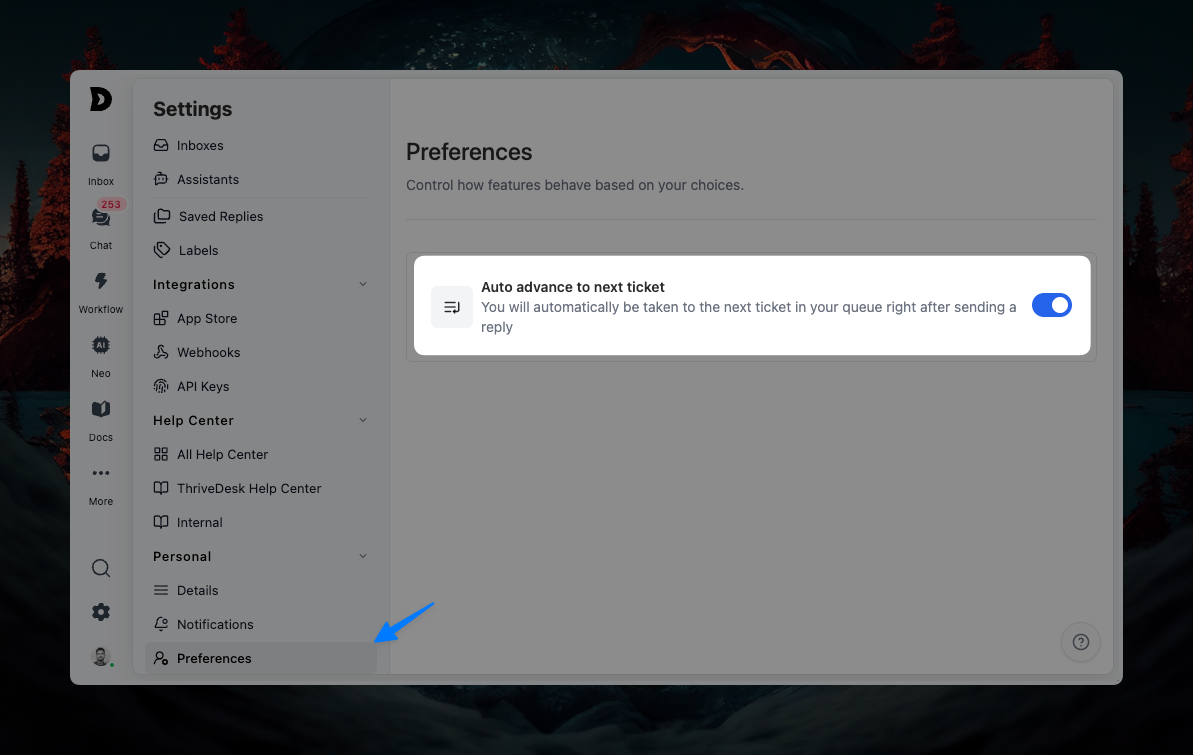
ThriveDesk user interface showing the preferences tab with auto-advance to next support ticket enabled for improved workflow efficiency.
This release makes the ability to disable auto-advance ticket, Android app faster, more reliable, and easier to navigate, with stronger real-time syncing and better filtering options.
Disable Auto-Advance to Next Ticket
By default, after you send a reply, ThriveDesk can automatically move you to the next ticket in your queue. This is designed to speed up high-volume support workflows where agents are moving quickly through many tickets.
For teams that prefer more control, you can now disable auto-advance. Header over to Settings > Personal > Preferences to disable the option.
Mobile App – Android
Dashboard now stays in sync even when data mismatches occur.
Real-time updates are powered by WebSockets for smoother performance.
Added filters for tags and teammates, making it easier to narrow down conversations.
Improved thread message rendering for a more consistent experience.
Resolved issues where threads or notifications sometimes appeared blank.
改善点
More refinements to message rendering for better readability.