


Not every ticket needs your attention right now. Snooze it, and it comes back exactly when it should.
Some conversations aren’t urgent today but will matter later. Chasing a customer response? Waiting on an internal update? Instead of leaving tickets cluttering your inbox — or worse, forgetting them entirely — you can now snooze them and have them reappear at the right time.
✨ Snooze From Anywhere
You don’t need to open a conversation to snooze it. ThriveDesk gives you three ways to trigger it:

- Conversation header — click the clock icon in the top-right corner of any open conversation
- Reply editor — snooze while composing a reply, right from the bottom toolbar
- Conversation list — right-click any conversation or use the options menu directly from your inbox
Natural Language Time Input
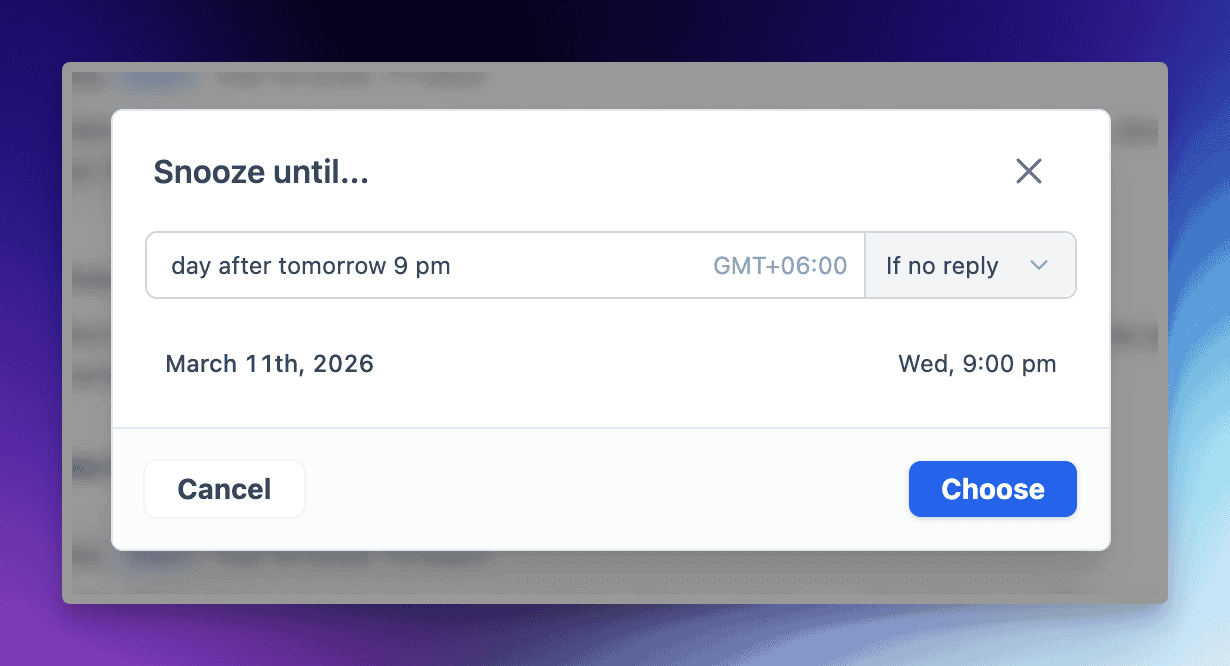
When you hit snooze, a Snooze until… modal appears. Type when you want it back in plain English:
tomorrow at 3pmnext wednesdayin 2 hoursfriday 10am
Or use a precise format like 03/05/2026 08:00 AM if you need exact control. Either way, ThriveDesk confirms the exact date and time before you confirm.
Two Snooze Conditions
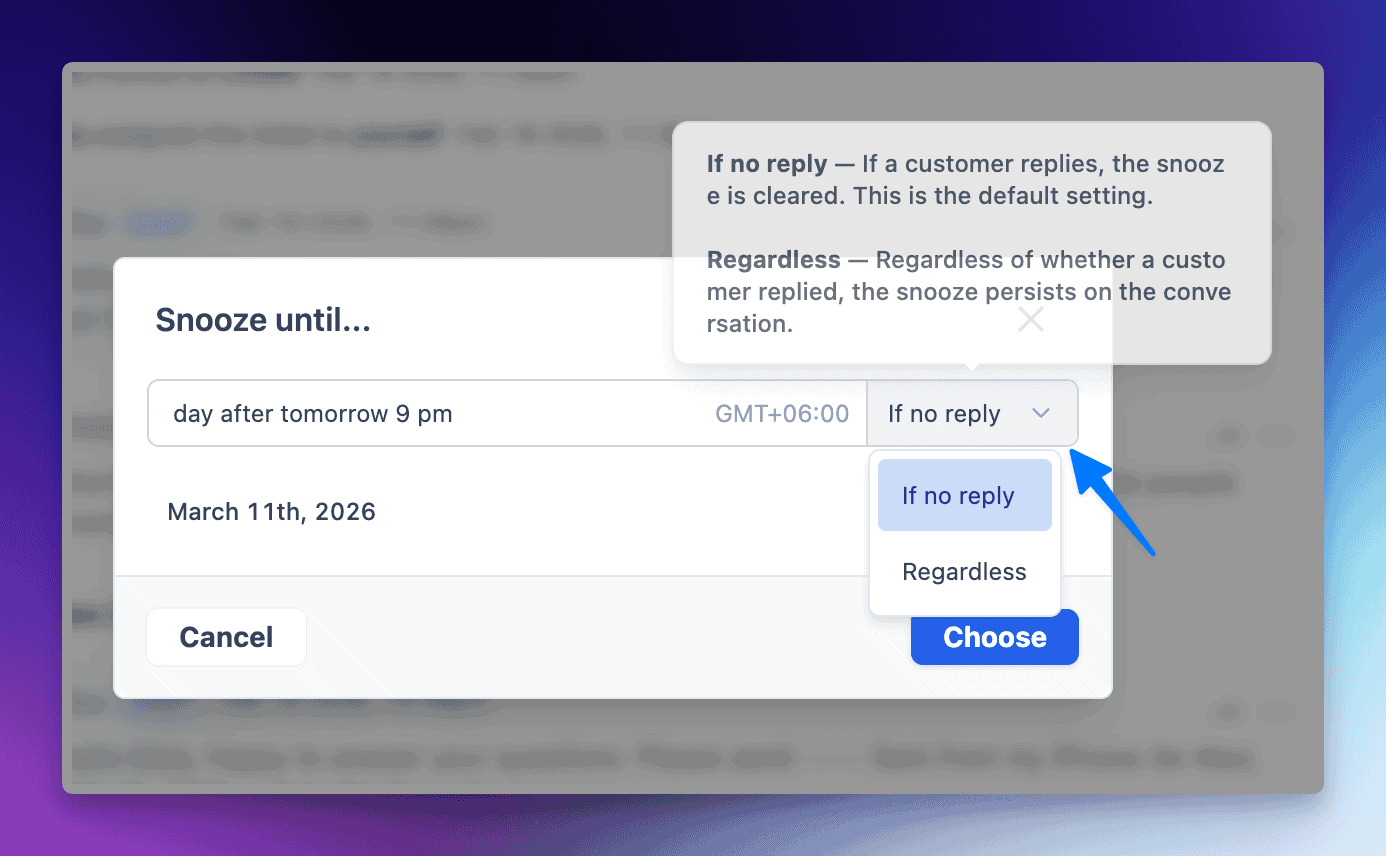
Choose how the snooze behaves if the customer replies early:
- If no reply — the snooze clears automatically if the customer responds before the scheduled time. Default behavior, and the smart choice for follow-ups.
- Regardless — the ticket stays snoozed until your chosen time, no matter what. Useful when you need to resurface it on your schedule.
Managing Snoozed Conversations
All snoozed conversations move to the Later folder in your sidebar — out of your active inbox, but never out of reach.
- あ yellow clock icon appears over the contact’s avatar in the conversation list so you always know what’s snoozed at a glance
- Hover over the clock icon in any conversation header to see the exact reappearance time
- Need to reschedule? Click the clock icon again, pick a new time, and hit Update Snooze
- Need it back immediately? Open the conversation, click the clock icon, and hit the red Unsnooze button
Timezone Setup
Snooze times respect your agent timezone — so a 9am snooze lands at your 9am, not the server’s. Set your timezone by clicking your avatar in the bottom-left corner, then selecting your timezone from the dropdown. You can also jump there directly from the Snooze modal via the update timezone link.